
JetBoost is a free system utility designed for Windows operating systems, offering a straightforward approach to enhancing your computer’s speed and responsiveness. By identifying and terminating unnecessary background processes and services, JetBoost frees up system resources, leading to noticeable improvements in performance. This comprehensive review delves into the functionality, user experience, features, and alternatives to JetBoost, ultimately determining its value as a PC optimization tool.
Understanding the Need for JetBoost
Over time, even the newest computers can experience a decline in performance. This slowdown isn’t always attributable to aging hardware. Instead, it’s frequently caused by the accumulation of resource-hogging processes running silently in the background. These include applications constantly checking for updates, numerous background services, and other software that consumes significant CPU and RAM without providing immediate benefit to the user.

JetBoost directly addresses this issue. Its core function is to identify and terminate these unnecessary background processes and services. By doing so, it releases the system resources they were occupying, making them available for the applications you’re actively using. This translates to quicker application launch times, smoother multitasking, and an overall more responsive system. The benefits are particularly noticeable when running resource-intensive applications, such as games or professional design software.
User-Friendly Interface and Functionality
JetBoost boasts an incredibly intuitive interface, making it accessible to users of all technical skill levels. The program’s design prioritizes simplicity, eschewing complex menus and options in favor of a clean and straightforward layout. The primary functionality is readily available through a single, prominently placed “Boost” button. A single click initiates the process of identifying and terminating unnecessary processes, instantly improving system performance.
Beyond the one-click boost, JetBoost offers a more granular level of control for users seeking a customized approach. The application provides a detailed view of all running services and processes, categorized for clarity. This categorization allows users to easily identify which services are essential for system operation and which are consuming resources unnecessarily. The program clearly displays the CPU and memory usage of each process, enabling informed decisions about which ones to terminate.
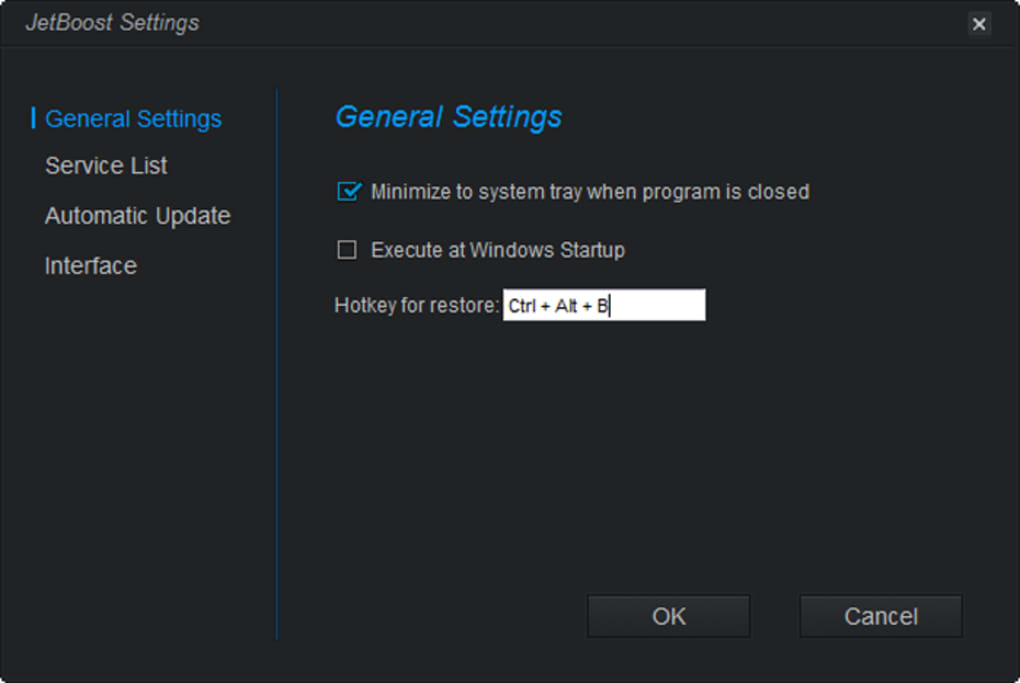
JetBoost also allows users to disable automatic Windows updates. This can be particularly beneficial for gamers or those engaged in intensive work tasks who don’t want to be interrupted by system updates at crucial moments. The ability to manage RAM and clipboard usage further enhances customization options, allowing users to fine-tune their system for optimal performance based on their individual needs. A crucial safety feature is the “Reverse” function, which instantly undoes any changes made, returning the system to its previous state. This eliminates the risk of accidentally terminating critical processes that could lead to system instability.
Boost Modes: Optimizing for Different Tasks
To cater to diverse user needs, JetBoost incorporates three distinct boost modes: Games, Work, and Custom.
-
Games Mode: This mode is optimized for gaming. Upon activation, it automatically shuts down non-essential processes and services that could negatively impact game performance. This results in faster game loading times, smoother gameplay, and improved responsiveness.
-
Work Mode: This mode is designed for productivity tasks. Similar to Games Mode, it identifies and terminates unnecessary processes and services, but its prioritization is geared towards maximizing the performance of productivity applications. The goal is to enable efficient multitasking and a smooth workflow, free from system lags and slowdowns.
-
Custom Mode: This mode offers the most control. Users can manually select which processes to terminate, viewing a detailed breakdown of resource usage to make informed decisions. This mode is ideal for users who want a more hands-on approach to optimizing their system. The four main categories – Services, Non-Windows Services, Processes, and Others – allow users to easily identify and manage processes based on their type and function.
After selecting a Boost mode or making manual adjustments in Custom Mode, JetBoost provides a visual representation of the performance improvement. A before-and-after graph clearly illustrates the percentage increase in system speed resulting from the resource optimization. This feature provides immediate feedback and reinforces the effectiveness of JetBoost.
Additional Features and Capabilities
Beyond its primary functionality, JetBoost incorporates several supplementary features designed to enhance the user experience and provide further control over system resources.
-
Clean RAM: This function proactively clears available physical memory, making more RAM available for applications. This is especially useful when running applications with high memory demands, such as graphic design software or demanding games.
-
Automatic Update Disabling: As previously mentioned, users can disable automatic Windows updates to avoid interruptions during critical tasks or gaming sessions.
- Priority List: The priority list allows users to customize which processes receive higher priority for resource allocation. This is a powerful tool for users who need to dedicate more system resources to specific applications.
System Compatibility and Language Support
JetBoost enjoys broad system compatibility, supporting both 32-bit and 64-bit versions of Windows. It’s compatible with a range of Windows versions, including Windows 7, Windows Vista, and Windows 10 (and likely later versions as well). Furthermore, the application is available in multiple languages, catering to a global user base.
Alternatives to JetBoost
While JetBoost provides a robust and user-friendly solution for boosting PC performance, several alternative applications offer similar functionality. These alternatives range from those focused specifically on gaming optimization to more comprehensive system utilities that incorporate additional features beyond performance enhancement.
Some notable alternatives include:
-
Wise Game Booster: This application is specifically designed to optimize PC performance for gaming. It focuses on optimizing system settings and closing unnecessary background processes to maximize game performance.
-
SpeederXP: SpeederXP is another application aimed at enhancing gaming performance by accelerating graphics card processing and optimizing game settings.
-
GBoost: This offers a more generalized approach to system optimization, similar to JetBoost, offering an easy-to-use interface for improving overall system speed.
-
Ashampoo WinOptimizer Free: This is a more comprehensive suite of system tools that includes performance optimization features alongside other utilities for security, privacy, and system maintenance.
The choice of which application to use depends on individual needs and preferences. Users seeking a solely gaming-focused solution might prefer Wise Game Booster or SpeederXP, while those seeking a broader range of features would likely opt for Ashampoo WinOptimizer Free.
Should You Download JetBoost?
JetBoost offers a compelling combination of simplicity, effectiveness, and user-friendliness. Its one-click solution makes it incredibly easy to boost system performance, while the customizability options cater to users seeking greater control. The inclusion of features such as Clean RAM and automatic update disabling further enhances its value. The “Reverse” function acts as a valuable safeguard against accidental misconfigurations.
However, it’s important to acknowledge JetBoost’s limitations. It lacks the breadth of features found in more comprehensive system optimization suites. If you require a more all-encompassing tool that includes features beyond simple performance boosting, an alternative like Ashampoo WinOptimizer Free might be a better choice.
Ultimately, the decision of whether or not to download JetBoost depends on your individual needs. If you are looking for a free, straightforward, and easy-to-use tool to quickly improve your PC’s performance, JetBoost is an excellent option. For those needing a broader range of optimization and system maintenance tools, exploring the alternatives mentioned above would be advisable. JetBoost’s simple interface and one-click solution make it an excellent choice for users who want a hassle-free way to improve their computer’s speed without delving into complex technical settings.
File Information
- License: “Free”
- Latest update: “July 12, 2023”
- Platform: “Windows”
- OS: “Windows 7”
- Language: “English”
- Downloads: “47.5K”
- Size: “3.51 MB”


