
In the vast landscape of digital mapping and navigation, the ability to seamlessly transfer geographical data between different platforms is paramount. Whether you’re an avid hiker plotting a challenging trail, a geocaching enthusiast searching for hidden treasures, a professional surveyor charting terrain, or simply someone planning a road trip, the need to bridge the gap between sophisticated mapping software like Google Earth and the practical utility of a handheld GPS device is undeniable. This is precisely where a dedicated KMZ/KML to GPX converter becomes an indispensable tool. It acts as the crucial translator, transforming detailed plans and geographical annotations from Google Earth into a universally recognized format that GPS devices can readily understand and utilize, thereby transforming desktop planning into real-world navigation.
Google Earth, with its rich imagery and extensive data layers, has become a go-to platform for visualizing and planning routes, identifying points of interest, and marking geographical features. However, the files it typically generates, primarily in KMZ (Keyhole Markup Language Zipped) or KML (Keyhole Markup Language) formats, are not natively supported by most standalone GPS receivers. These devices, designed for efficient field navigation, predominantly rely on the GPX (GPS Exchange Format) standard. The disparity creates a common hurdle for users who invest time in meticulously planning their journeys on Google Earth, only to find their efforts stalled when attempting to transfer these plans to their GPS unit for execution. A reliable KMZ/KML to GPX converter elegantly resolves this challenge, enabling adventurers and professionals alike to bring their digital maps to life on the ground.
Understanding KMZ, KML, and GPX Formats: The Language of Location Data
To fully appreciate the significance of a KMZ/KML to GPX converter, it’s essential to understand the distinct characteristics and purposes of each file format. These formats are essentially different “languages” used to describe geographical information, each optimized for specific applications.
KML (Keyhole Markup Language) and KMZ (Keyhole Markup Language Zipped)
KML is an XML-based file format used to express geographic annotation and visualization within internet-based earth browsers, such as Google Earth, Google Maps, and other geospatial software. Developed by Keyhole Inc. (later acquired by Google), KML allows users to define a wide array of geographical data, including:
- Placemarks: These are points on the Earth’s surface, typically represented by an icon, with an associated name and description. They are excellent for marking specific locations like campsites, viewpoints, or historical markers.
- Paths (Lines): KML can define lines or polylines, which are sequences of connected points. These are ideal for representing routes, trails, rivers, or boundaries.
- Polygons: Polygons are closed shapes that define areas on the Earth’s surface. They can be used to delineate regions, properties, parks, or bodies of water.
- Image Overlays: KML allows for the overlay of images onto the Earth’s surface, often used for custom maps, historical aerial photography, or geological charts.
- 3D Models: More advanced KML can even incorporate 3D models of buildings or terrain features, offering a rich, immersive experience.
KML’s strength lies in its descriptive power and its ability to integrate with internet services, allowing for dynamic content and rich visual presentations. However, its XML structure can be quite complex, and it often contains extensive metadata or styling information that is extraneous to the core navigation data required by a typical GPS device.
KMZ is simply a zipped version of a KML file, often including associated resources like images for placemark icons or overlays. The compression makes KMZ files smaller and easier to share, but at its core, it still contains KML data. While KML/KMZ excels in visual representation and data richness for mapping applications, its detailed structure isn’t directly compatible with the streamlined needs of most GPS devices.
GPX (GPS Exchange Format)
GPX, on the other hand, is an XML schema specifically designed for exchanging GPS data between GPS devices and software applications. It’s a lightweight, open, and universally accepted format primarily focused on core navigation elements:
- Waypoints: Similar to KML placemarks, waypoints are individual points defined by latitude, longitude, and often elevation. They can also include a name, description, and symbol. GPX waypoints are crucial for marking specific locations you intend to visit or reference.
- Tracks: A track is an ordered list of points that describes a path that has been traveled or is intended to be followed. Tracks are typically recorded automatically by a GPS device as you move, capturing every twist and turn. They are highly detailed and are excellent for following precise routes, especially off-road or in complex terrain.
- Routes: A route is an ordered list of waypoints that define a planned path. Unlike tracks, routes are typically less detailed and serve as a general guide, often relying on the GPS device’s internal routing capabilities to navigate between specified waypoints. Routes are more common for road navigation where the device calculates the best path between points.
GPX’s simplicity and standardized structure make it the de facto format for exchanging GPS data. Almost all modern GPS devices, from Garmin and Magellan to smartphone GPS apps, can import and export GPX files. Its focus on essential navigation data (waypoints, tracks, routes) makes it incredibly efficient for field use. The fundamental incompatibility arises because KML/KMZ files contain a broader, more complex set of data optimized for visualization, while GPX files strip down the information to only what’s necessary for direct navigation by a GPS unit.
The Indispensable Role of a KMZ/KML to GPX Converter
The primary purpose of a KMZ/KML to GPX converter is to serve as this vital bridge, translating geographical data from a rich, visual format (KML/KMZ) into a standardized, navigation-ready format (GPX). Without such a converter, the detailed routes, placemarks, and area definitions meticulously crafted in Google Earth would remain trapped on your computer screen, unusable on your portable GPS device.
Consider the following scenarios where this conversion is absolutely crucial:
-
Outdoor Adventures (Hiking, Cycling, Off-roading):
- Planning: An adventurer might use Google Earth to meticulously plan a multi-day hiking trail, identifying campsites, water sources, challenging ascents, and scenic viewpoints. They can draw paths (KML lines) for their intended route and mark specific locations (KML placemarks).
- Execution: To navigate this route in the wilderness, relying solely on a smartphone might be risky due to battery life or signal availability. A dedicated GPS device offers reliability. The converter allows the adventurer to transfer their entire planned itinerary, including waypoints for water and routes for the trail, directly to their GPS, ensuring they stay on course.
-
Geocaching:
- Geocachers often use online platforms that provide cache locations in KML or KMZ format. To load these directly into their geocaching-specific GPS units, conversion to GPX is necessary. This enables precise navigation to the cache coordinates.
-
Travel and Exploration:
- Trip Planning: Travelers can plan intricate city tours, marking all the historical sites, restaurants, and hotels on Google Earth.
- On-the-go Navigation: By converting these KML/KMZ files to GPX, they can load the entire itinerary onto their GPS device or a compatible smartphone app, making navigation seamless without constantly referring to paper maps or relying on data connections.
-
Professional Applications (Surveying, Field Research, Real Estate):
- Site Mapping: Surveyors or field researchers might outline specific areas of interest or collect data points in Google Earth.
- Data Transfer: To use this data with professional GPS equipment for field verification or data collection, conversion to GPX is often a prerequisite.
- Real Estate: Real estate professionals might delineate property boundaries or mark key features of a large land parcel in Google Earth to share with clients or field agents. Converting this to GPX allows agents to navigate directly to these features on site.
-
Emergency Services and Search & Rescue:
- In situations requiring rapid deployment, teams might use Google Earth to analyze terrain, plan search grids, or mark incident locations. Converting these plans to GPX allows immediate distribution and loading onto team members’ GPS devices for coordinated efforts.
The converter essentially democratizes geographical data, making information created in one powerful platform accessible and actionable on another, often more specialized, device. It eliminates the need for manual data entry, which is prone to errors, and significantly speeds up the workflow for anyone needing to navigate a pre-planned route or visit specific locations.
Key Features and Benefits of the KMZ/KML to GPX Converter
The KMZ/KML to GPX converter, like the one offered by PhanMemFree, is designed with user efficiency and precision in mind. Its core functionality revolves around providing a quick, accurate, and customizable conversion process.
Primary Advantages:
- Direct Conversion of Google Earth Data for GPS Use: This is the most significant benefit. The application excels at taking your carefully constructed placemarks, paths, and polygons from Google Earth (saved as KMZ or KML) and transforming them into the GPX waypoints, tracks, and routes that your GPS device understands. This eliminates manual transcription and ensures data integrity.
- Rapid Data Conversion: Time is often of the essence, especially when preparing for a trip or field work. A well-optimized converter performs the data conversion very quickly, often in a matter of seconds or minutes, depending on the file size. This efficiency is crucial for users with large datasets or tight deadlines.
- Selective Data Conversion: Not all data in a KML/KMZ file might be relevant for your GPS. The converter allows users to select exactly which data elements they wish to convert. For instance, you might only need the waypoints for specific points of interest and a single route, ignoring numerous polygons or image overlays. This selectivity streamlines the GPX file, making it cleaner and easier for your GPS to process. This feature is particularly useful for avoiding clutter on your GPS screen.
- Integrated Data Management and Editing: Beyond mere conversion, advanced converters often provide an interface where you can view, edit, modify, or even delete individual waypoints, routes, or tracks before saving them to GPX. This pre-export refinement ensures that the data you upload to your GPS is precisely what you need, with no errors or unwanted elements. You can correct names, add descriptions, or adjust coordinates if necessary.
- Seamless Export to GPS Devices (with Manufacturer Software): While the converter produces the GPX file, the final step of getting it onto your physical GPS unit typically involves the device manufacturer’s proprietary software (e.g., Garmin’s BaseCamp or MapSource, Magellan’s VantagePoint, or similar utilities). The converter facilitates this by producing a ready-to-upload GPX file, which then integrates smoothly with these third-party applications for direct transfer to your GPS unit. This is a common and accepted workflow in GPS data management.
Addressing Potential Challenges (Often Misunderstood Limitations):
It’s important to clarify certain aspects that might appear as “cons” but are often inherent to the nature of GPS data management or the distinct purposes of different file formats:
- Requirement for Third-Party Drivers/Software for GPS Export: This is not a limitation of the converter itself, but a standard operational procedure for GPS devices. Most GPS units interface with computers via their manufacturer’s software (like Garmin’s BaseCamp). The converter’s role is to generate the GPX file; the manufacturer’s software then handles the physical transfer and integration with the specific GPS hardware. A good converter ensures its output is fully compatible with these prevalent tools.
- Inability to Convert All Data from Google Earth Files: KML/KMZ can contain highly complex data, such as 3D models, intricate styling, custom icons, or embedded media, which have no direct equivalent in the simpler GPX format. A converter focuses on the core navigational elements: placemarks (waypoints), paths (tracks/routes), and basic polygon boundaries (sometimes converted as tracks). It intelligently disregards extraneous visual or metadata elements that would clutter or corrupt a GPX file, ensuring that the essential navigation data is preserved.
- Rare Cases of GPX File Format Non-Support: While GPX is the industry standard, extremely old or niche GPS units might have limited or no GPX support. However, for any modern, widely used GPS device, GPX support is a given. This is a very rare edge case, not a flaw of the converter.
- Occasional Creation of Corrupted GPX Files: In any software, bugs can occur. However, reputable converters are rigorously tested to minimize the risk of generating corrupted files. The occasional instance can often be traced to highly complex or malformed source KML/KMZ files. A robust converter will ideally have error handling or provide warnings in such situations, and regular updates from the developer address such issues. Always verifying the converted file in a GPX viewer before uploading is good practice.
Ultimately, the benefits of quick, selective, and accurate conversion far outweigh these minor considerations, positioning the KMZ/KML to GPX converter as an essential tool for effective geographical data management.
A Step-by-Step Guide to Using the Converter
Using a KMZ/KML to GPX converter, such as the Ge2Gpx utility mentioned, is designed to be straightforward and intuitive. Here’s a general step-by-step process that applies to most similar applications:
Step 1: Prepare Your Data in Google Earth (Save as KMZ or KML) Before you can convert anything, you need to have your geographical data saved in a Google Earth-compatible format.
- Create Your Data: Open Google Earth (Pro is often recommended for more features) and use its tools to draw paths (lines for routes/tracks), add placemarks (points of interest), or outline areas (polygons).
- Organize Your Data: Group related items into folders within the “My Places” or “Temporary Places” section for better organization.
- Save Your File: Right-click on the specific placemark, path, polygon, or folder you wish to convert. Select “Save Place As…” From the “Save as type” dropdown menu, choose either “Kml (.kml)” or “Kmz (.kmz)”. Give your file a meaningful name and save it to a location on your computer where you can easily find it. KMZ is often preferred as it’s compressed and includes any associated icons or images.
Step 2: Load Your KMZ/KML File into the Converter (e.g., Ge2Gpx) Once you have your KML/KMZ file ready, open your chosen converter application.
- Launch the Converter: Start the KMZ/KML to GPX converter software on your computer.
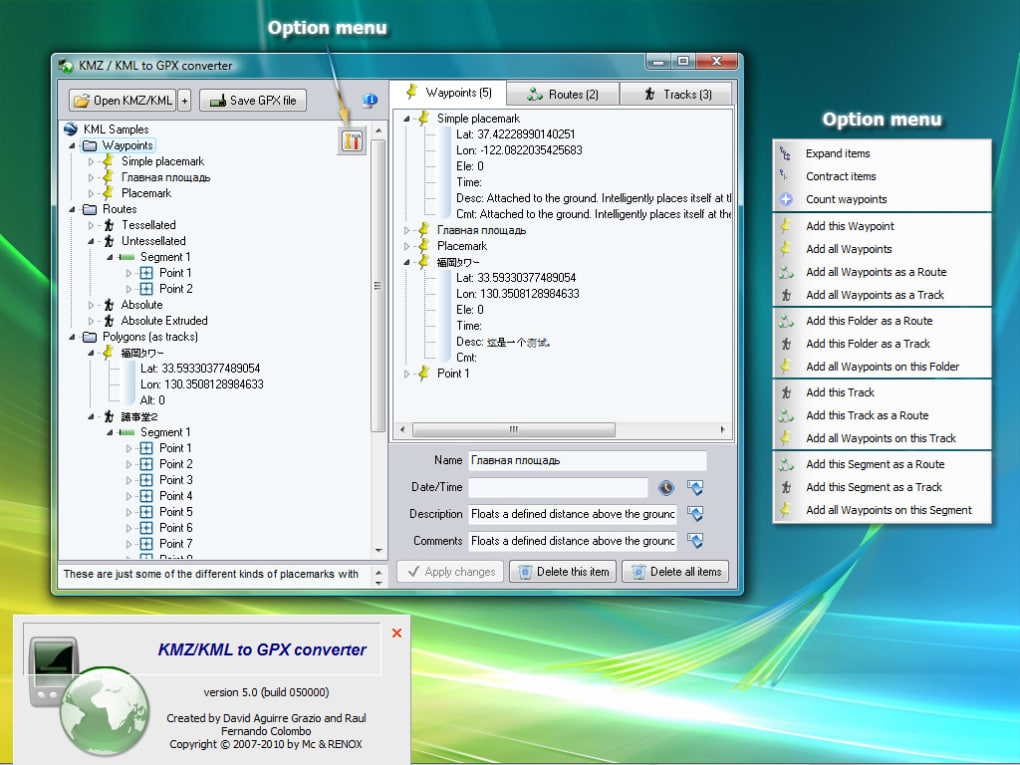
- Import the File: Look for an “Open,” “Load,” or “Import” button/menu option within the converter’s interface. Navigate to the location where you saved your KMZ or KML file in Step 1, select it, and open it. The converter will then parse the file and display its contents, typically listing waypoints, routes, and tracks it has identified.
Step 3: Select, Edit, Modify, or Delete Data, and Save as GPX This is where the power of selective conversion comes into play.
- Review and Select: The converter will usually present a list or a map view of all the geographical data (placemarks, paths) it found in your KML/KMZ file. You can typically select individual items or entire groups.
- Edit and Modify (Optional): Many converters offer basic editing functionalities. You might be able to:
- Change the name or description of a waypoint or route.
- Adjust coordinates for minor corrections.
- Remove unwanted points from a track or route.
- Delete elements you don’t want to convert to GPX. This is crucial for decluttering your GPX file and focusing only on relevant navigational data.
- Specify GPX Output: Once you are satisfied with your selection and any edits, locate a “Save,” “Export,” or “Convert” button. You will then be prompted to choose the output file format, which in this case will be “GPX (*.gpx)”.
- Save the GPX File: Choose a destination folder for your new GPX file and click “Save.” The converter will then process the selected data and generate the GPX file.
Step 4: Upload the GPX File to Your GPS Device Using Manufacturer Software The final step involves transferring the newly created GPX file from your computer to your GPS unit.
- Connect Your GPS: Connect your GPS device to your computer using a USB cable.
- Open Manufacturer Software: Launch the proprietary software provided by your GPS manufacturer (e.g., Garmin BaseCamp, Garmin MapSource, Magellan VantagePoint, or similar). These programs are designed to manage files on your specific GPS model.
- Import GPX: Within the manufacturer’s software, look for an “Import,” “Open,” or “File” menu option that allows you to load GPX files. Navigate to where you saved your GPX file in Step 3, select it, and import it into the software.
- Transfer to Device: Once the GPX data is visible in the manufacturer’s software, select the items you wish to transfer (waypoints, routes, tracks) and use the “Send to Device” or “Upload to GPS” function. The software will then transfer the data to your connected GPS unit.
- Verify on GPS: Disconnect your GPS device and power it on. Navigate through its menus to confirm that your newly uploaded waypoints, routes, and tracks are visible and ready for use.
By following these steps, you can efficiently convert your Google Earth plans into actionable navigation data for your GPS device, ensuring a smooth transition from digital planning to real-world exploration.
Exploring Alternatives and Related Tools
While a dedicated KMZ/KML to GPX converter fulfills a specific and crucial need, the broader ecosystem of GPS and geographical data management offers several alternative and complementary tools. Understanding these can help users choose the best solution for their particular requirements. PhanMemFree, for example, lists several related applications:
-
Gpx2Ge (GPX to KMZ/KML converter): As the name suggests, this tool performs the reverse operation. Instead of converting Google Earth data for GPS, it converts GPX data (from your GPS) into KMZ/KML format. This is invaluable for:
- Post-Trip Analysis: Viewing your recorded GPS tracks from a hike or bike ride in the rich visual environment of Google Earth.
- Sharing Experiences: Easily sharing your travel routes or discovered locations with friends or online communities via Google Earth.
- Archiving: Storing your GPX data in a more visually accessible format for long-term reference. This complementary tool completes the round-trip journey for geographical data, allowing seamless flow in both directions.
-
GPS Converter: This is a more general-purpose tool, often capable of converting waypoints, tracks, and routes from a wide array of file formats to various others. If you frequently deal with obscure or diverse GPS data formats beyond just KML/KMZ and GPX, a universal GPS converter might be a more versatile option. These tools can handle conversions between formats like NMEA, OziExplorer, CSV, and more, offering flexibility for specialized tasks.
-
gvSIG: This is a powerful, open-source Geographic Information System (GIS). Unlike simple converters, gvSIG is a comprehensive platform designed to analyze, manage, and process geographic information. It’s akin to a professional mapping workstation, capable of handling complex spatial data, performing advanced analyses, and creating intricate maps. While it can certainly import KML/KMZ and export GPX (among many other formats), using gvSIG solely for a simple KML to GPX conversion would be overkill. It’s better suited for users with advanced GIS needs, such as urban planners, environmental scientists, or cartographers.
-
GPSBabel: Often considered the Swiss Army knife of GPS data conversion, GPSBabel is a free, open-source program that allows users to convert, upload, and download waypoints, tracks, and routes from hundreds of GPS receivers and nearly as many GPS data formats. It’s a command-line tool, but many graphical user interfaces (GUIs) have been developed for it. GPSBabel is incredibly powerful and supports a vast range of devices and formats, making it a favorite among experienced users and developers. If the KMZ/KML to GPX converter is a specialized tool, GPSBabel is the multi-tool that can handle almost anything.
Why Choose a Dedicated KMZ/KML to GPX Converter?
While alternatives exist, a dedicated KMZ/KML to GPX converter like the one discussed on PhanMemFree often offers several advantages for its specific task:
- Simplicity and Ease of Use: Dedicated converters are typically designed with a focused interface, making the conversion process intuitive even for novice users. You don’t get bogged down by extraneous features or complex options.
- Efficiency: Because they specialize, these converters are often highly optimized for KML/KMZ to GPX conversion, ensuring speed and reliability for this particular task.
- Specific Features: They might offer specific features tailored for this conversion, such as intelligent filtering of KML data that is not relevant to GPX, or enhanced error handling for common KML/KMZ structures.
- Accessibility: For many users, installing a lightweight, purpose-built application is preferable to downloading a large GIS suite or wrestling with command-line tools.
In summary, while broader tools exist for all-encompassing data management or niche conversions, a specialized KMZ/KML to GPX converter provides an efficient, user-friendly, and reliable solution for the specific and frequently encountered need of transferring Google Earth plans to a GPS device.
Why Choose PhanMemFree for Your Conversion Needs?
When it comes to downloading and utilizing software, the platform you choose is as important as the tool itself. PhanMemFree positions itself as a reliable hub for a diverse range of applications, and its offering of the KMZ/KML to GPX converter reflects its commitment to providing functional and secure tools.
Reliability and Trust: PhanMemFree emphasizes the security status of its software. For users looking to download a KMZ/KML to GPX converter, seeing a “Security Status: Clean” indicator provides peace of mind. PhanMemFree states it scans all files hosted on its platform with over 50 leading antivirus services, minimizing the risk of malware or unwanted software. This rigorous process helps ensure that when you download the converter, you’re getting a safe and legitimate tool.
Focus on User Experience: The descriptions on PhanMemFree highlight key aspects of the converter that contribute to a positive user experience:
- Ease of Use: The converter is described as “very easy to use,” which is a crucial factor for a utility tool. Users don’t want to spend hours learning complex software for a straightforward task like file conversion.
- Specificity and Control: The ability to “select specifically which data to be converted and which not” empowers users, giving them control over the output and ensuring their GPX files are clean and relevant.
- Direct Solutions: PhanMemFree hosts solutions directly addressing common user problems, like the incompatibility between Google Earth and GPS devices, demonstrating an understanding of user needs in various categories, including “Travel & Navigation” and “Utilities & Tools.”
Comprehensive Software Catalog: PhanMemFree isn’t just about converters; it offers a vast array of software across numerous categories including “Games,” “AI,” “Browsers,” “Security & Privacy,” “Productivity,” “Internet & Network,” “Multimedia,” “Development & IT,” “Education & Reference,” “Lifestyle,” “Personalization,” and “Social & Communication.” This broad catalog suggests a platform dedicated to serving a wide range of software needs, ensuring that users can find other relevant tools and utilities alongside their converter.
Community Feedback and Information: The platform encourages user reviews, which is vital for building a trustworthy community and helping potential users make informed decisions. Furthermore, detailed “App specs” (License, Version, Latest update, Platform, OS, Language, Downloads, Size, Developer) provide transparent information about the software. This transparency helps users understand what they are downloading and whether it aligns with their system requirements.
Global Accessibility: PhanMemFree makes its offerings available in multiple languages, indicating a global reach and commitment to serving a diverse user base. This accessibility extends to tools like the KMZ/KML to GPX converter, making it available to users around the world.
Choosing PhanMemFree for downloading the KMZ/KML to GPX converter means opting for a platform that prioritizes security, user-friendliness, and a comprehensive selection of verified software. It simplifies the process of finding, downloading, and using essential tools that bridge gaps in digital functionality, allowing users to focus on their adventures and tasks rather than technical hurdles.
In conclusion, the KMZ/KML to GPX converter is an unsung hero in the world of digital navigation. It empowers users to seamlessly transition from the detailed planning environment of Google Earth to the practical, real-world guidance of their GPS devices. By understanding the nuances of KML, KMZ, and GPX formats, and leveraging a reliable converter, adventurers, professionals, and everyday travelers can ensure their geographical data is always where they need it, in the format it needs to be, ready for the journey ahead. The availability of such a tool on platforms like PhanMemFree, coupled with its emphasis on security and user-friendliness, makes the process of preparing for any expedition or project significantly easier and more reliable.
File Information
- License: “Trial version”
- Version: “6.3”
- Latest update: “October 27, 2018”
- Platform: “Windows”
- OS: “Windows 8”
- Language: “English”
- Downloads: “11.1K”
- Size: “2.99 MB”


