
LCDTest is a free, lightweight utility designed to help users identify and potentially resolve issues with their liquid crystal display (LCD) screens. Commonly used on flat panel monitors and laptop displays, this application offers a straightforward method for detecting problematic pixels, although it’s crucial to understand that LCDTest itself does not repair damaged pixels. The program’s functionality revolves around testing the individual transistors within each pixel, allowing users to pinpoint malfunctioning components. This guide will delve into the application’s features, usage, limitations, and alternatives.
Understanding LCD Technology and Pixel Problems
Before exploring LCDTest, it’s helpful to grasp the fundamental workings of LCD technology and the types of pixel problems it can detect. Each pixel on an LCD screen is composed of three sub-pixels: red, green, and blue (RGB). These sub-pixels are controlled by individual transistors; a malfunction in any of these transistors can lead to pixel issues.
There are several types of pixel problems that can occur:
-
Stuck Pixels: A stuck pixel remains persistently illuminated in a single color (red, green, blue, or white) or displays a combination of colors, regardless of the image displayed on the screen. This is typically due to a malfunctioning transistor.
-
Dead Pixels: A dead pixel remains permanently black and unresponsive, regardless of the input signal. This usually indicates a complete failure of the transistor.
-
Hot Pixels: These pixels are stuck in a bright color, often white.
The severity of these issues can vary. A single stuck or dead pixel might be barely noticeable, while multiple faulty pixels can significantly impact image quality.
Using LCDTest to Diagnose Pixel Problems
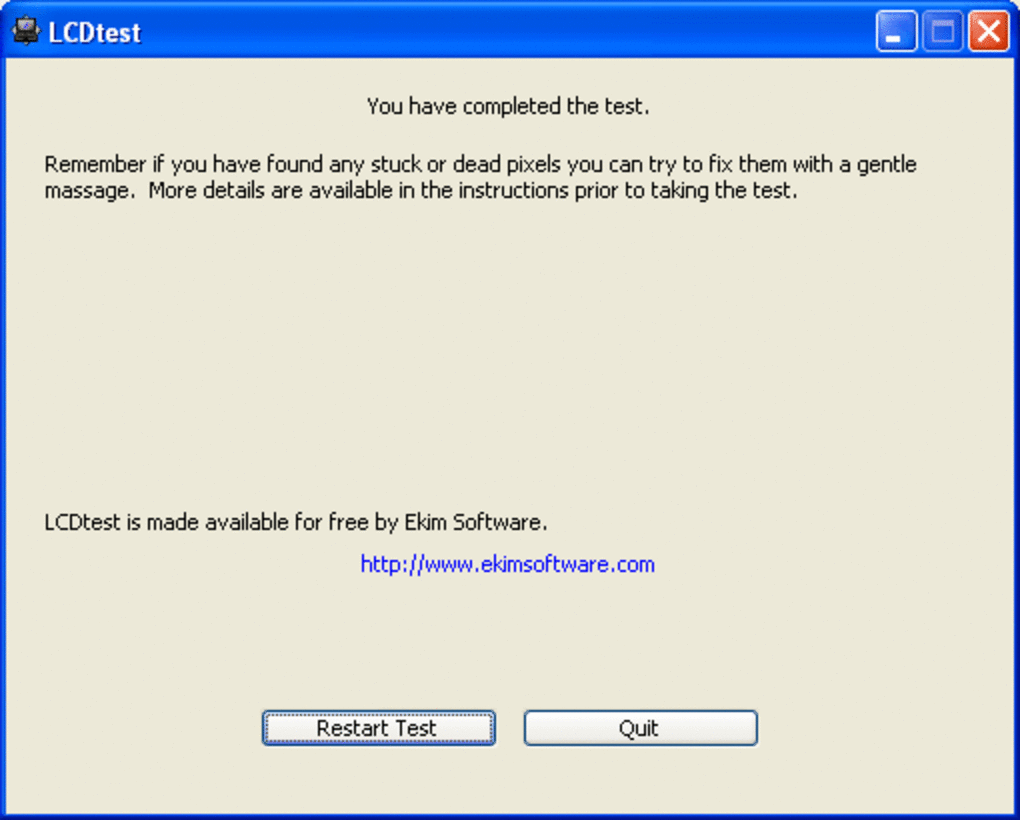
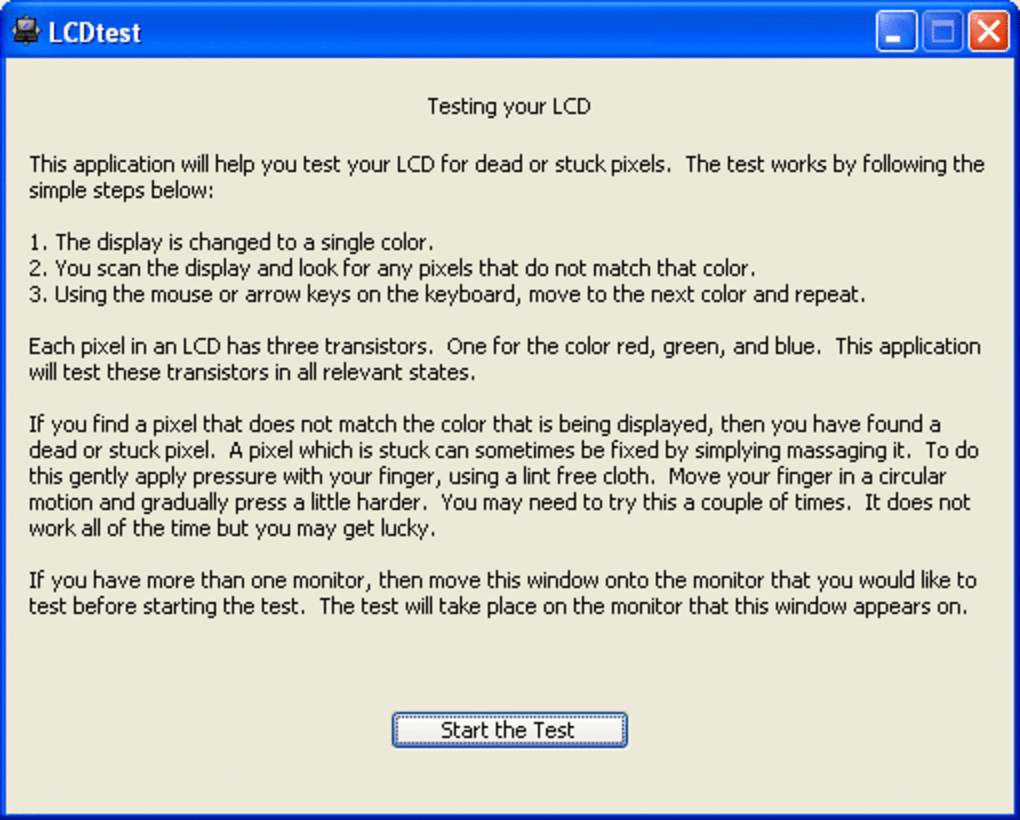
LCDTest is exceptionally user-friendly, requiring minimal technical expertise. The program cycles through different color combinations, systematically testing the response of each pixel on the screen. If a pixel fails to change color or remains stuck in a specific hue, it is highlighted as a potential problem area. The program’s straightforward interface makes it easy to identify these problematic pixels visually.
Steps to use LCDTest:
- Download and Installation: Download the LCDTest application from a reputable source. The installation process is typically straightforward, requiring minimal user interaction.
-
Launching the Application: Once installed, launch the LCDTest application. The program’s interface is minimal, featuring a large display area and potentially a few control buttons or options.
-
Running the Test: The application automatically starts cycling through a series of color combinations (typically red, green, blue, white, and black). Carefully observe the screen for any pixels that do not change color or remain consistently illuminated in a single color.
-
Identifying Problematic Pixels: LCDTest generally highlights problematic pixels during the color cycling. Note the location of any identified pixels.
-
Attempting Pixel Repair (Manual): The application may provide instructions on attempting manual pixel repair techniques. These methods typically involve gently applying pressure to the affected area of the screen. It’s crucial to exercise caution when attempting these techniques, as excessive force can cause further damage to the screen.
-
Documenting Results: After completing the test, document the number and location of any identified stuck or dead pixels. This information is valuable when contacting the manufacturer or seeking warranty support.
It’s important to note that the success of manual repair techniques varies significantly. While some users have reported success, others have found these methods ineffective. The effectiveness of manual repair often depends on the nature and cause of the pixel problem.
LCDTest Limitations and Alternatives
While LCDTest is a valuable tool for identifying pixel problems, it has limitations:
-
Diagnostic Only: LCDTest primarily serves as a diagnostic tool. It cannot repair damaged pixels. The application merely highlights potential issues, leaving the user to explore possible solutions.
-
Manual Repair Reliance: The success of any manual pixel repair attempts is highly variable and depends on several factors. There is no guarantee of success.
-
Limited Functionality: LCDTest’s function is solely focused on identifying pixel issues. It does not offer advanced diagnostic capabilities or other features related to LCD screen health.
- Outdated Software: The last update to the software was in 2006. While the basic functionality might still work on modern displays, compatibility with newer operating systems isn’t guaranteed, and newer pixel technologies might not be adequately addressed.
Several alternative applications provide similar or enhanced functionality for diagnosing LCD screen issues:
-
IsMyLcdOK: This program allows users to easily identify dead or stuck pixels on their LCD displays. Similar to LCDTest, it uses color cycling and straightforward results.
-
DisplayHDR Test: While not directly focused on identifying dead or stuck pixels, DisplayHDR Test verifies the HDR capabilities of a display, potentially indirectly indicating underlying display health issues.
-
Specialized Monitor Testing Software: Some monitor manufacturers provide their own diagnostic tools or utilities tailored to their specific LCD models. These might offer more advanced diagnostic capabilities than general-purpose tools like LCDTest.
Choosing an alternative often depends on specific needs and the operating system in use. Always download software from reputable sources to minimize the risk of malware or unwanted bundled programs.
Beyond Pixel Identification: Troubleshooting LCD Issues
Identifying dead or stuck pixels is just one aspect of broader LCD screen troubleshooting. Other factors might impact the quality and functionality of an LCD display:
-
Connectivity Issues: Improperly connected cables or faulty ports can cause display problems ranging from partial images to a complete absence of display.
-
Driver Problems: Outdated or corrupted display drivers can lead to various issues, including distorted images, color inaccuracies, and flickering.
-
Hardware Malfunctions: Problems with the LCD panel itself, the backlight, or the internal circuitry can result in a range of display issues.
-
Software Glitches: In some instances, software conflicts or glitches can lead to abnormal display behavior.
-
Overheating: Excessive heat can damage LCD panels or other components, leading to display problems.
When experiencing problems beyond stuck or dead pixels, it is advisable to try the following:
-
Check Connections: Ensure all cables are securely connected to both the monitor and the computer.
-
Update Drivers: Download and install the latest display drivers from the manufacturer’s website.
-
Restart Computer: A simple restart can sometimes resolve temporary software glitches affecting the display.
-
Check for Overheating: If the display is abnormally hot to the touch, consider improved ventilation.
-
Seek Professional Help: If the problem persists despite these steps, it is advisable to contact a professional for diagnosis and repair.
LCDTest provides a useful, initial step in assessing LCD screen health. However, remember that it’s a diagnostic tool, not a repair solution. Understanding its limitations and exploring alternative diagnostic methods, along with broader troubleshooting steps, will allow for a more comprehensive approach to dealing with issues on your LCD display.
File Information
- License: “Free”
- Version: “2.0”
- Latest update: “December 13, 2006”
- Platform: “Windows”
- OS: “Windows 98 SE”
- Language: “English”
- Downloads: “16K”
- Size: “1.02 MB”


