
Lightshot is a widely used, free screenshot utility available on various platforms, including Windows and Android. It offers a straightforward approach to capturing screenshots, making it accessible to both novice and experienced users. This review delves into its features, strengths, weaknesses, and overall usability, providing a comprehensive assessment of its effectiveness as a screenshot tool.
Ease of Use and Interface
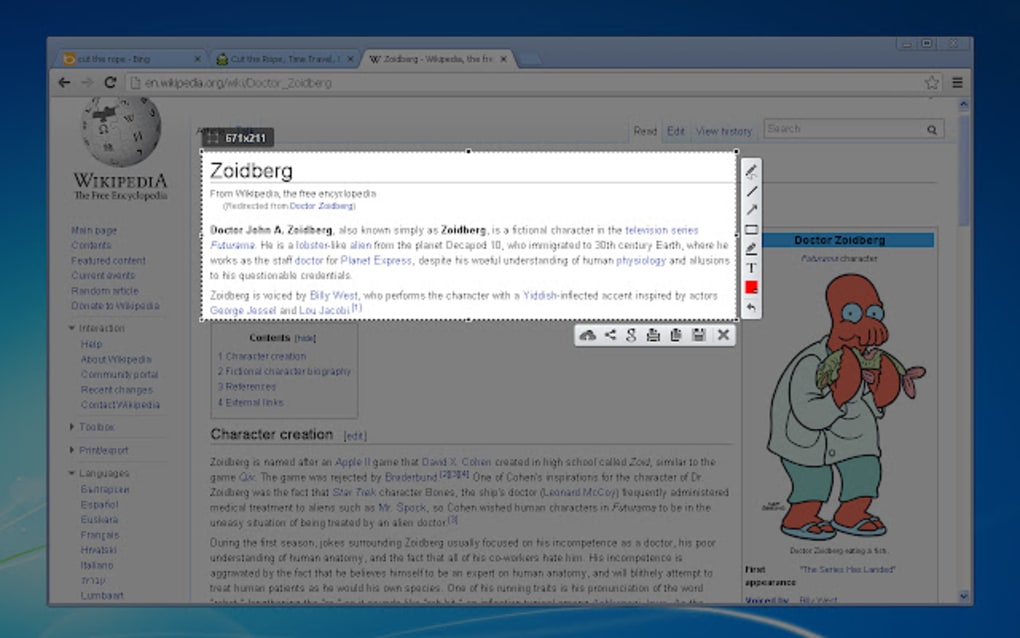
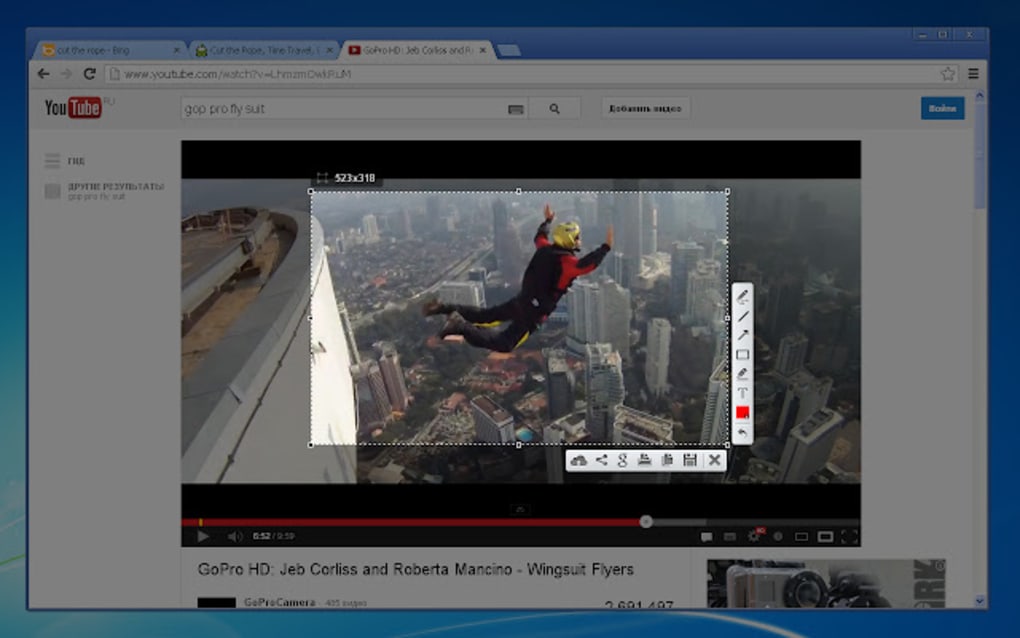
Lightshot boasts an intuitive and user-friendly interface, prioritizing simplicity and ease of access. The core functionality is exceptionally straightforward: users initiate a screenshot by pressing a designated hotkey (typically Print Screen), after which a crosshair appears, allowing them to select the desired area of the screen. This selection process is remarkably intuitive and precise, enabling users to capture screenshots of specific windows, elements, or even the entire screen with ease. Once the selection is made, the screenshot is immediately available for editing and sharing.
The editing tools are similarly uncomplicated. Lightshot offers basic annotation features such as adding lines, arrows, and highlighting, which are adequate for most common screenshot annotation needs. While not as extensive as dedicated image editing suites, the options provided are more than sufficient for quick edits and annotations before sharing. This streamlined approach avoids overwhelming the user with unnecessary complexity, focusing instead on providing the most essential features in an easily digestible format. The minimal clutter allows users to focus on the task at hand – capturing and annotating the screenshot – rather than navigating a complex interface.
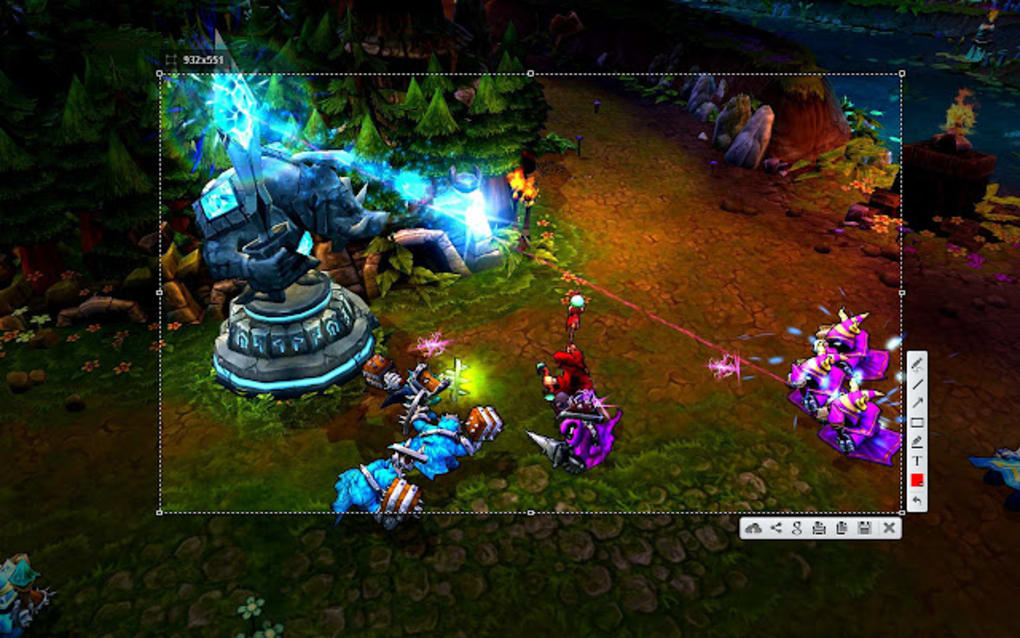
The app’s minimalist design extends beyond the editing tools to the overall user experience. There are no distracting advertisements or superfluous features, further enhancing the ease of use. This clean design contributes to a smooth and efficient workflow, making the entire process of capturing and editing screenshots a quick and efficient one. The simplicity of Lightshot’s interface makes it highly accessible, even for users with limited technical experience.
Functionality and Features
While Lightshot’s primary function is screenshot capture, its additional capabilities enhance its overall utility. The ability to quickly annotate screenshots with basic shapes and text is a valuable feature for many users. This allows for immediate clarification or highlighting of important details within the captured image, eliminating the need for separate annotation software. The direct integration of annotation tools within the screenshot application streamlines the workflow, saving time and effort.
The immediate access to sharing options after capturing and editing the screenshot is another significant advantage. Users can effortlessly share their annotated screenshots to various social media platforms or via email, making collaboration and communication far more efficient. This seamless integration with commonly used sharing platforms simplifies the distribution of screenshots, enhancing its practicality for professional and personal use alike.
Beyond the basic functionality, Lightshot also benefits from its cross-platform availability. The availability on both Windows and Android allows users to maintain consistency across different devices, enhancing user experience and workflow. This portability is a significant advantage for users who frequently switch between devices, ensuring a familiar and consistent experience regardless of the platform.
Limitations and Drawbacks
While Lightshot excels in its ease of use and core functionality, certain limitations should be considered. The most notable drawback is the lack of advanced editing capabilities. The annotation tools are basic, and there’s no provision for more sophisticated image manipulation such as color correction, resizing beyond simple scaling, or advanced cropping techniques. Users requiring advanced image editing will need to use a separate application for more extensive modifications. This limitation restricts the tool’s suitability for users with advanced image editing requirements.
Another limitation lies in the lack of customizable settings. While the simplicity is generally appreciated, the absence of more customizable settings may limit the ability to tailor the application to specific user preferences. For instance, there’s limited control over the default saving location or the ability to automatically save screenshots to specific folders. While not critical limitations for casual users, these could be considered drawbacks for power users who prefer highly customizable software.
Finally, the inability to remove the automatically embedded watermark from screenshots in certain cases is a noteworthy disadvantage. While this watermark is usually small and unobtrusive, it can be problematic in professional or formal contexts where a clean, watermark-free image is required. The presence of a persistent watermark, even a relatively small one, could compromise the professional presentation of screenshots, requiring additional steps to remove it using separate software.
Comparison with Alternative Screenshot Tools
Lightshot’s simplicity positions it differently from more feature-rich screenshot tools. Compared to applications like Snagit, which offer a vast array of advanced editing features, Lightshot falls short in terms of editing capabilities. However, Snagit’s extensive feature set also results in a more complex interface and higher learning curve. Lightshot, in contrast, prioritizes ease of use and rapid capture over advanced editing features, making it an ideal choice for users who prioritize speed and simplicity over extensive editing tools.
Other tools like Greenshot offer a middle ground, providing a balance between functionality and ease of use. Greenshot, similar to Lightshot, prioritizes simplicity but provides slightly more advanced editing features. The choice between Lightshot and Greenshot would depend on the user’s specific needs and preferences. If advanced editing tools are paramount, Greenshot may be preferable; if ease of use and rapid capture are prioritized, Lightshot is a better choice.
Ultimately, the best screenshot tool depends on the user’s individual needs and priorities. Lightshot excels as a simple, intuitive, and quick screenshot capture tool. However, it’s not the ideal choice for users requiring sophisticated editing capabilities or extensive customization options.
Conclusion
Lightshot is a reliable and easy-to-use screenshot tool suitable for a wide range of users. Its strengths lie in its intuitive interface, quick capture capabilities, and straightforward annotation tools. The cross-platform availability further enhances its usability and convenience. However, its limitations in terms of advanced editing capabilities and customization options should be considered. For users who prioritize ease of use and speed over advanced editing features, Lightshot is an excellent choice. However, users requiring extensive editing tools or customization may find more suitable alternatives in other screenshot applications available on the market. Its simplicity is a significant advantage, making it accessible to a broad audience, regardless of their technical expertise. The balance between ease of use and core functionality makes Lightshot a valuable tool for many users, solidifying its position as a popular and efficient screenshot solution.
File Information
- License: “Free”
- Version: “varies-with-device”
- Latest update: “July 11, 2023”
- Platform: “Windows”
- OS: “Windows 8”
- Language: “English”
- Downloads: “33.8K”


