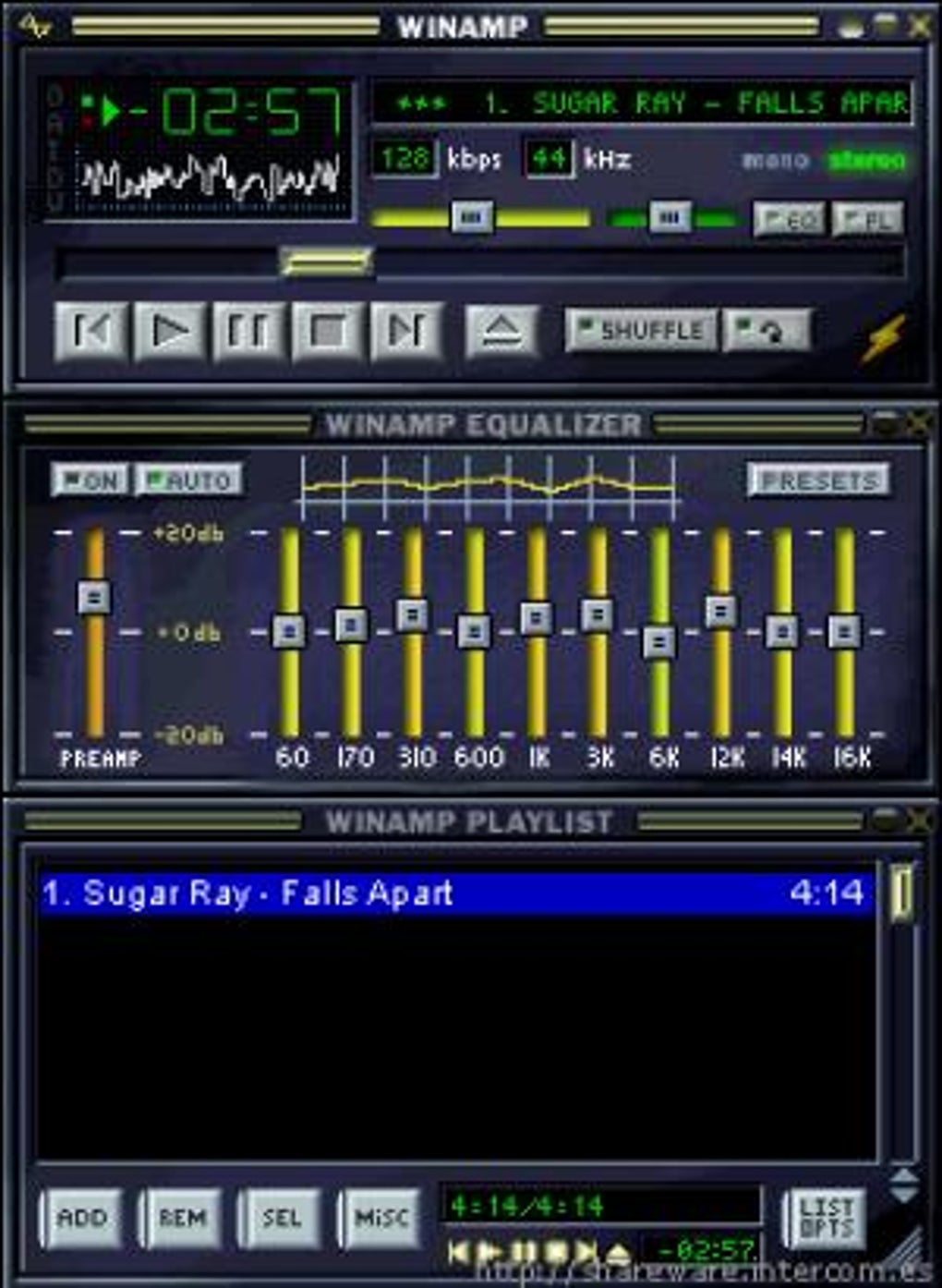
This guide explores the world of MP3 music management, focusing on how to efficiently load, organize, and enjoy your audio files on your computer and other devices. We’ll cover various methods, troubleshoot common issues, and explore alternative applications to enhance your music listening experience.
Understanding MP3 Files and Their Management
MP3 (MPEG Audio Layer III) is a widely used audio coding format known for its relatively small file size and good audio quality. This makes it ideal for storing and sharing digital music. Managing your MP3 collection, however, requires a structured approach to ensure easy access, organization, and prevent file loss or corruption.
The fundamental aspects of MP3 management include:
- Acquisition: Obtaining MP3 files, whether through downloads, ripping CDs, or transferring from other devices.
- Organization: Creating a system for storing your files, usually by artist, album, genre, or a combination of these. A well-organized library is crucial for quick retrieval. This often involves creating folders and subfolders on your computer.
- Playback: Utilizing media players to listen to your music. Many software applications and built-in operating system functionalities support MP3 playback.
- Conversion: Converting audio files into the MP3 format or converting MP3 files to other formats (e.g., WAV, FLAC). This might be necessary for compatibility with certain devices or for optimizing audio quality for different use cases.
- Transfer: Moving MP3 files between devices, such as transferring from your computer to an MP3 player or a mobile phone.
Loading MP3 Music onto Your Computer
The process of loading MP3 music onto your computer is generally straightforward. The most common method involves using a file explorer or file manager.
Method 1: Direct Download
Many websites offer MP3 downloads. Once you’ve located a trusted source and selected your desired music, click the download button. Your browser will typically prompt you to save the file to a location on your hard drive. It is recommended to create a dedicated folder for your music to keep your files organized.
Method 2: Transferring from External Devices
If your music is stored on an external device like an MP3 player, USB drive, or CD, you can connect it to your computer using the appropriate cable. Once connected, your computer should recognize the device. Use your file explorer to navigate to the music folder on the external device and copy or move the MP3 files to your computer’s designated music folder. Remember to always safely eject the external device before disconnecting it to prevent data loss.
Method 3: Ripping CDs
To convert your physical CD collection into digital MP3 files, you’ll need CD ripping software. Many media players include this function. Insert the CD into your computer’s optical drive, open your preferred ripping software, and follow the program’s instructions to rip the tracks. You can typically choose the output format (MP3), bitrate (quality), and destination folder.
Managing and Organizing Your MP3 Collection
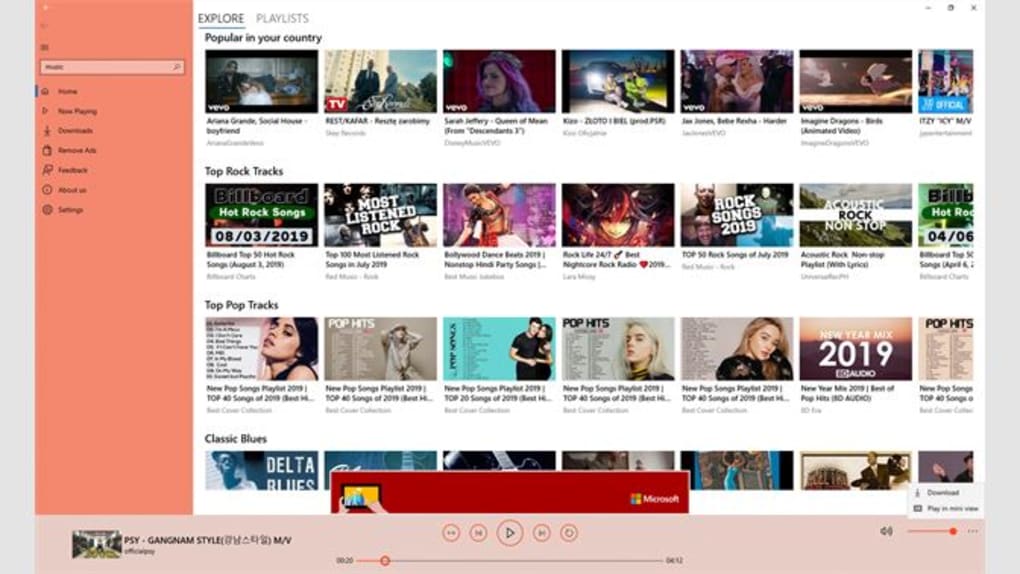
Once you’ve loaded your MP3s onto your computer, effective organization is key. Consider these strategies:
- Folder Structure: Create a hierarchical folder structure. For example, you could have a main “Music” folder with subfolders for each artist, and within each artist folder, subfolders for albums.
- File Naming Conventions: Use consistent file names. A common format is “Artist - Album - Track Number - Track Title.mp3”. This helps media players automatically organize your library.
- Metadata: MP3 files contain metadata (information about the song, such as artist, album, title, etc.). Ensure your files have accurate metadata for easy searching and organization. Many media players and tagging tools can edit metadata.
- Media Libraries: Software like iTunes (for macOS and Windows), Windows Media Player, and others have built-in music libraries that can automatically scan your folders and organize your MP3 files.
Troubleshooting Common Issues
- File Playback Issues: If you encounter problems playing MP3 files, try different media players. Ensure the codec required for MP3 playback is installed on your system.
- Missing Metadata: If your MP3 files lack metadata, use a tag editor to add it manually or use a program that automatically retrieves missing information online (some services may not accurately identify every track).
- File Corruption: If an MP3 file is corrupted, try downloading it again or replacing it from a backup copy.
Using Third-Party Applications for MP3 Management
Several third-party applications offer advanced features for managing your MP3 collection beyond the basic functionalities of operating system media players. These applications often provide:
- Advanced Tag Editing: Capabilities for editing extensive metadata, including album art.
- Playlist Creation and Management: Easy creation, editing, and organization of playlists for different moods, activities, or genres.
- Music Library Organization: Advanced features to automatically organize your music library based on metadata and customizable criteria.
- Conversion and Encoding: Tools for converting MP3 files to other formats and adjusting bitrates.
Examples of popular music management applications include:
- foobar2000 (Windows): A highly customizable and powerful media player with extensive plugin support.
- MusicBee (Windows): Another feature-rich media player with excellent library management tools.
- Clementine (Cross-platform): A free, open-source media player compatible with various operating systems.
Choosing the right application depends on your specific needs and preferences. Consider what features are most important to you, such as ease of use, customization options, or specific functionalities.
Loading MP3 Music onto Mobile Devices and MP3 Players
Transferring MP3 files to mobile devices and dedicated MP3 players is generally similar to transferring them to a computer. You can typically connect the device to your computer via USB, and then use the file explorer to copy or move the MP3 files to the device’s storage.
Some devices may require specific software or applications for transferring music. Always refer to the device’s manual for instructions and compatibility information. Synchronization software, such as iTunes, is often used to manage music libraries and easily transfer files to compatible Apple devices.
The methods and applications discussed in this guide provide a thorough overview of MP3 music management. By adopting organized practices and leveraging the available tools, you can efficiently handle your growing digital music collection and enjoy a seamless listening experience. Remember to always respect copyright laws and obtain your music legally.
File Information
- License: “Free”
- Version: “1.0”
- Latest update: “July 15, 2022”
- Platform: “Windows”
- OS: “Windows 11”
- Language: “English”
- Downloads: “536”