
In an increasingly digital world, the importance of safeguarding personal and confidential data cannot be overstated. From sensitive work documents to cherished personal photos, our computers and portable devices hold a wealth of information that, if accessed without authorization, could lead to significant privacy breaches or even financial loss. This is where robust security solutions like Estelar Lock A Folder come into play, offering a formidable shield against prying eyes and malicious threats. Estelar Lock A Folder is a powerful, yet remarkably easy-to-use Windows security program designed to lock folders, files, and other critical computer resources, rendering them inaccessible to unwanted users, whether local or remote.
Imagine a scenario where you share your computer with colleagues, family members, or friends. While these interactions are generally benign, there’s always a risk of accidental deletion, unintended viewing, or even deliberate tampering with your private data. Estelar Lock A Folder provides an elegant solution by completely hiding your designated folders and files until a valid password is provided. Its efficacy goes beyond simple concealment; the protection is so robust that common circumvention methods – such as renaming the locked folder, attempting access via DOS commands, booting into Safe Mode, or even reinstalling Windows to recover hidden data – prove entirely futile. This level of steadfast security ensures that once a file or folder is locked, it stays locked, accessible only to those with the correct credentials.
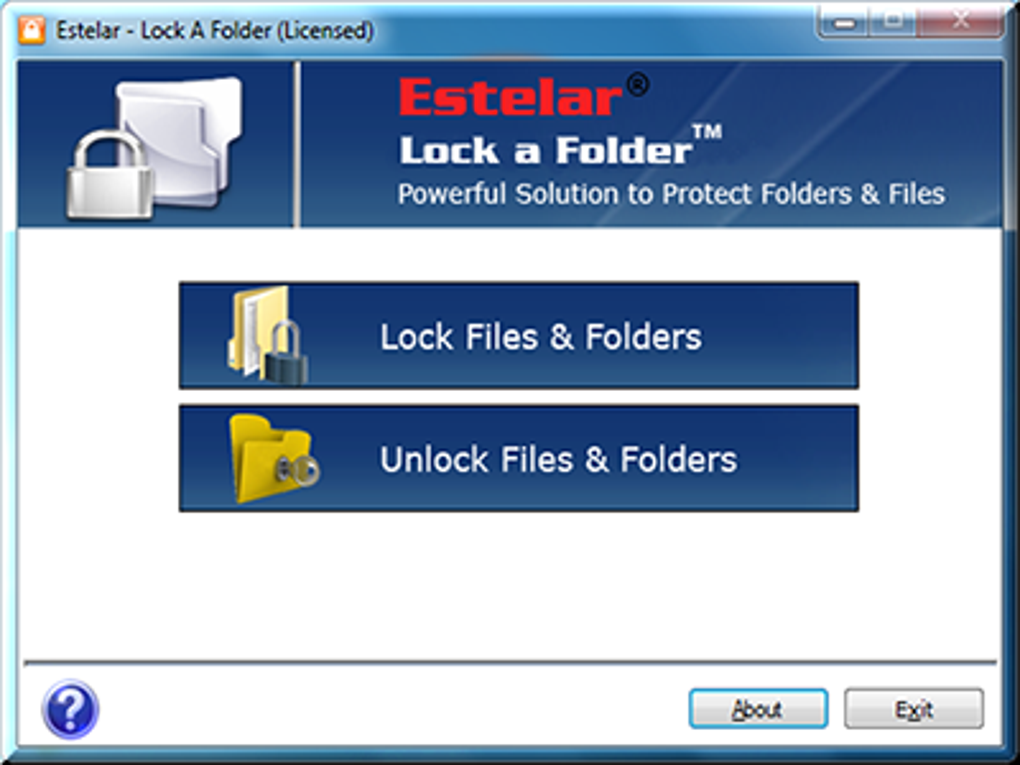
Estelar Lock A Folder: An Overview of Its Core Capabilities
At its heart, Estelar Lock A Folder is an access control utility built for Windows, focusing on providing granular security for your digital assets. The primary function revolves around password-protecting and hiding folders and files, making them impervious to unauthorized access. This functionality is crucial for individuals and businesses alike who need to maintain strict control over their data integrity and confidentiality.
The mechanism by which Estelar Lock A Folder operates is designed for maximum effectiveness and user convenience. When a user chooses to lock a specific folder or file, the software initiates a process that renders the selected item invisible and inaccessible within the operating system. This isn’t merely a cosmetic hiding trick; the program deeply integrates with the system to prevent any pathway to the locked data without the correct password. This comprehensive approach means that even advanced users attempting to bypass standard Windows security protocols will find their efforts thwarted.
One of the standout features is its ability to protect against various forms of intrusion. Beyond merely preventing human access, Estelar Lock A Folder also offers substantial protection against malicious software. Viruses, worms, and Trojans are constantly seeking vulnerabilities to exploit and data to corrupt or steal. By locking down sensitive directories, the software creates a barrier that these malicious programs struggle to penetrate, thereby adding an extra layer of defense to your overall cybersecurity posture. In an era where ransomware and data breaches are common occurrences, such preventative measures are invaluable.
Furthermore, the utility extends its protective capabilities beyond the confines of your computer’s internal hard drives. Unlike many conventional folder-locking programs that are restricted to local storage, Estelar Lock A Folder safeguards your files and folders on portable drives as well. This includes USB drives, floppy disks (though less common today), and CD/DVD ROMs. This feature is particularly beneficial for professionals who carry sensitive data on external storage devices or for anyone who wishes to secure their backup media. The ability to encrypt and compress folders on these portable drives before making them inaccessible adds another layer of security and efficiency, ensuring that your data remains private even if the physical drive is lost or stolen, and also optimizing storage space.
The process of using Lock A Folder is designed to be straightforward. Users typically set a master password upon installation, which then grants them the ability to lock and unlock specific items. The user interface is intuitive, often featuring context menu integration (like right-clicking a folder to see “Protect this folder” or “Unprotect this file” options), which streamlines the protection process. This ease of use means that even those with limited technical expertise can effectively secure their valuable data.
Who Benefits Most? Ideal Users and Critical Use Cases
The target audience for Estelar Lock A Folder is broad, encompassing anyone who values their digital privacy and security. However, specific groups find this tool particularly indispensable due to their unique usage patterns and data sensitivities.
Individuals Sharing Computers: This is perhaps the most immediate and obvious use case. In many households, a single computer might be shared among family members, each with their own files, documents, and private information. Similarly, in small office environments or educational settings, shared workstations are common. Without proper access controls, personal diaries, financial records, confidential project files, or even private photos could be inadvertently or intentionally viewed by others. Estelar Lock A Folder allows users to create their private digital spaces, ensuring that their documents, media, and applications remain accessible only to them.
Professionals Handling Confidential Data: Lawyers, doctors, accountants, human resources personnel, and many other professionals routinely handle highly sensitive client or patient information. The ethical and legal implications of a data breach in these fields are severe. Using Lock A Folder on their work machines, and especially on portable storage used for backups or transportation of data, provides a crucial layer of defense against unauthorized access. This helps them comply with data protection regulations and maintain client trust.
Creative Professionals: Artists, photographers, writers, and designers often store their original works, concepts, and unreleased projects on their computers. These assets represent intellectual property that could be stolen or leaked if not properly secured. Lock A Folder protects these valuable creations, ensuring that only the rightful owner can access and modify them, thereby safeguarding their livelihood and creative output.
Students and Educators: Students might want to protect personal research, assignments, or private journals from roommates or classmates. Educators might store confidential student records, exam materials, or personal academic research. In environments where computers are often shared or left unattended, Lock A Folder offers peace of mind.
Anyone Concerned About Privacy: In an age of increasing digital surveillance and cybercrime, anyone with a personal computer can benefit from enhanced privacy measures. Whether it’s protecting financial statements, personal correspondence, or private browsing history, Lock A Folder empowers users to take control of their digital footprint and ensure their private life remains private.
The ability to lock down sensitive information is not just about preventing malicious access; it’s also about maintaining order and preventing accidental data loss or corruption. By making folders inaccessible, the risk of accidental deletion or modification by an unknowing user is drastically reduced, preserving the integrity of important files.
User Perspectives and Technical Specifications
The effectiveness and user-friendliness of a software application are often best reflected in the feedback from its users and its underlying technical specifications. Estelar Lock A Folder has garnered positive reviews, highlighting its reliability and intuitive design.
User Testimonials: Users consistently praise Estelar Lock A Folder for its robust file and folder security. One anonymous user, reviewing on August 25, 2014, succinctly described it as “Awesome Software to Protect Folders and individual Files too with Password Protection.” Another user, on June 20, 2012, lauded its “Windows Folder Security with Password Feature,” emphasizing that it’s a “must have software for the computer geeks for data protection.” These testimonials underscore the core value proposition of the software: providing reliable password protection for both folders and individual files on various storage mediums.
Key Pros Highlighted by Users:
- Fabulous User Interface: A well-designed, intuitive interface significantly enhances the user experience, making complex security tasks simple to execute.
- Great Encryption Levels: While the article primarily mentions “locking,” the phrase “great encryption levels” from a user review suggests that the underlying mechanism might involve encryption, further solidifying the security.
- Good Context Menus for User Convenience: The integration into the right-click context menu (“protect this folder” on unlocked items and “unprotect this file” on locked items) is a prime example of user-centric design, allowing for quick and seamless protection management.
- Free Trial: The availability of 20 free trials allows potential users to thoroughly assess the software’s strength and value before committing to a purchase, fostering confidence.
- Compatibility: The software’s compatibility with all Windows platforms, both 32-bit and 64-bit, ensures a wide reach and accessibility for a diverse user base.
- Awesome Utility: This overarching sentiment captures the overall positive impact and usefulness of the software.
Cons: Notably, users have often stated “None” when asked about cons, which is a strong indicator of satisfaction and that the software effectively meets its intended purpose without significant drawbacks.
Technical Specifications (Version 3.10.33.3):
- License: Trial version (offering an initial evaluation period).
- Version: 3.10.33.3 (specific to the latest trial mentioned, earlier versions like 3.10.31.5 also existed).
- Latest Update: April 10, 2024 (indicating active development and maintenance).
- Platform: Windows.
- OS Compatibility: Windows 2000 and later (including 32-bit and 64-bit versions, as per user reviews).
- Language: English.
- Downloads: Over 117.6K lifetime downloads, with 13 in the last month (as of the provided data), reflecting consistent interest.
- Size: 664.91 KB (a remarkably lightweight application, ensuring minimal system resource consumption and quick downloads).
- Developer: Estelar Software (a dedicated developer ensuring quality and support).
These specifications highlight a compact, actively maintained, and widely compatible software solution that prioritizes security and user experience. Its small footprint means it doesn’t burden the system, making it an ideal choice for a wide range of Windows users.
Exploring Alternatives and Related Solutions
While Estelar Lock A Folder presents a compelling case for robust data security, the market offers various alternatives, each with its own strengths and features. Understanding these options can help users choose the best tool for their specific needs. PhanMemFree.org, a leading platform for software downloads, categorizes these tools under “Access Control” within “Security & Privacy,” reflecting their primary function.
Direct Alternatives: Many programs aim to achieve similar goals of folder and file protection. Some notable alternatives mentioned on PhanMemFree.org include:
- LocK-A-FoLdeR (Version 3.4, Free, Open-source): This open-source solution offers a free way to hide and lock folders. Its open-source nature might appeal to users who prefer community-driven development and transparency. However, it might lack some of the advanced features or dedicated commercial support of a trial version product like Estelar Lock A Folder.
- Folder Lock (Version 3.6, Trial version): A well-known name in the security space, Folder Lock offers similar functionality to Estelar Lock A Folder, often including features like file encryption, shredding, and backup. Its trial version allows users to test its capabilities.
- Free Folder Lock (Version 4.1, Free): As its name suggests, this is a free software option to protect files from unauthorized users. Free solutions are attractive for budget-conscious users, though they may sometimes come with limitations in features or support compared to premium or trialware options.
- Folder Password Lock Pro (Version 4.5, Trial version): This software emphasizes enhanced folder protection and privacy. Pro versions often indicate a more comprehensive feature set, potentially including advanced encryption algorithms, stealth modes, or activity logging.
- Advanced Folder Encryption (Version 2.7, Trial version): Positioned as an “all-in-one folder lock software,” it aims to lock, password protect, hide, and encrypt folders on Windows systems. This implies a more holistic approach to data security, combining multiple methods of protection.
- Free Folder Password Lock (Versions 4.3 & 3.9, Free): Multiple free options exist that focus on password-protecting confidential folders, making basic security accessible to everyone.
Related Security Topics and Tools: The broader landscape of access control and data security includes various tools that complement or overlap with folder locking:
- Password Management: Tools like password managers secure all your credentials, reducing the risk of unauthorized access to accounts, which is a related but distinct aspect of overall security.
- Encryption Software: Beyond folder locking, dedicated encryption software can encrypt entire drives or partitions, offering a higher level of security for all data stored within them. Examples like BitSec Secure Folderlock (mentioned as an alternative) or even more advanced solutions like VeraCrypt (not mentioned, but a general example) provide robust cryptographic protection.
- Anti-Virus and Anti-Spyware: These are foundational security tools that protect against malware, viruses, and other threats that could potentially bypass or compromise folder locks if the system itself is infected.
- VPNs (Virtual Private Networks): While not directly related to local folder security, VPNs secure online communications, protecting data in transit, which is another crucial aspect of digital privacy.
- Firewalls: Firewalls control network traffic, preventing unauthorized access to your computer from the internet, complementing local file protection.
- Backup & Cloud Storage: Securely backing up data, ideally to an encrypted cloud service or an external encrypted drive, is a critical step in a comprehensive data protection strategy, ensuring recovery in case of system failure or data loss.
Choosing between these options often comes down to the specific security requirements, budget, technical comfort level, and the operating system being used. Estelar Lock A Folder, with its focus on ease of use, strong local and portable drive protection, and malware resistance, stands out as a solid choice for those seeking a straightforward yet powerful solution for confidential data. Users should always consider their overall security strategy, combining a folder locker with other essential security practices like strong passwords, regular backups, and up-to-date antivirus software.
Installation, Usage, and Best Practices
The process of getting started with Estelar Lock A Folder is designed for simplicity, ensuring that users can quickly implement its security features. Typically, the installation involves a standard wizard-driven process common to Windows applications.
Installation:
- Download: Obtain the trial version or full software from a reputable source, such as PhanMemFree.org. The file size is minimal (around 665 KB), ensuring a quick download.
- Run Installer: Execute the downloaded setup file.
- Follow Prompts: The installation wizard will guide you through the necessary steps, including agreeing to license terms and selecting an installation directory.
- Initial Setup: Upon first launch, the software will prompt you to create a master password. This is perhaps the most critical step, as this password will be your key to accessing all locked files and folders. It is imperative to choose a strong, unique password and store it securely, ideally using a password manager. Losing this password means losing access to your protected data.
Usage: Once installed and the master password is set, using Estelar Lock A Folder is intuitive:
- Launch Application: Open the Lock A Folder application from your Start Menu or desktop shortcut.
- Enter Master Password: You’ll be prompted to enter your master password to access the program’s interface.
- Select Items to Lock: Within the application, you can navigate to the files or folders you wish to protect. Most implementations allow drag-and-drop or a simple “Add” button to select items.
- Lock/Hide: With the items selected, click the “Lock” or “Hide” button. The software will then process these items, making them inaccessible.
- Unlock/Unprotect: To access a protected item, open the Lock A Folder application, enter your master password, select the item from the list of protected items, and click “Unlock” or “Unprotect.” This will restore the item to its original, accessible state.
- Context Menu Integration: As noted in user reviews, the convenience of right-clicking a folder in Windows Explorer and selecting “Protect this folder” or “Unprotect this file” offers an even faster way to manage security without opening the main application every time.
Security Best Practices for Maximum Protection: While Estelar Lock A Folder offers robust protection, combining it with general cybersecurity best practices significantly enhances overall data security:
- Strong, Unique Master Password: This cannot be stressed enough. Use a combination of uppercase and lowercase letters, numbers, and symbols. Avoid easily guessable information like birthdays or common words. Consider using a passphrase.
- Regular Password Updates: Periodically change your master password.
- Keep Software Updated: Ensure Estelar Lock A Folder and your operating system are always updated to the latest versions. Updates often contain critical security patches that protect against newly discovered vulnerabilities.
- Antivirus and Anti-Malware: Run a reputable antivirus and anti-malware solution constantly. These programs act as the first line of defense against threats that could try to bypass folder security.
- Firewall: Maintain an active firewall to control network traffic and prevent unauthorized access from external sources.
- User Account Control (UAC): Keep UAC enabled on Windows to prevent unauthorized changes to your system settings and programs.
- Regular Backups: Even with the best security, hardware failures or unforeseen events can occur. Regularly back up your important, unlocked data to an external drive or a secure cloud service. Consider encrypting your backups for an added layer of security.
- Physical Security: While software protects against digital intrusion, physical access to your computer can still pose a threat. Secure your physical devices, especially laptops and portable drives.
- Beware of Phishing: Be cautious of suspicious emails or websites that try to trick you into revealing your passwords or downloading malicious software.
- Educate Yourself: Stay informed about current cyber threats and security best practices. A proactive approach is key to maintaining a secure digital environment.
By diligently applying these practices in conjunction with Estelar Lock A Folder, users can create a formidable defense for their digital assets, ensuring that their private and confidential information remains truly private and secure.
Conclusion
In an era defined by ubiquitous digital interaction and increasing cyber threats, the necessity for reliable data security tools is paramount. Estelar Lock A Folder emerges as a highly effective and user-friendly solution, providing a critical layer of protection for sensitive files and folders on Windows systems. Its ability to render data truly inaccessible, even against sophisticated circumvention attempts like booting into Safe Mode or reinstalling the OS, sets it apart. The software’s extended capability to secure files on portable drives and offer protection against malicious programs further enhances its value proposition.
Praised by users for its intuitive interface, robust encryption (as implied by user reviews), and seamless integration with the Windows environment, Estelar Lock A Folder demonstrates a commitment to both security and user experience. Its lightweight nature and broad compatibility across Windows platforms make it an accessible option for a wide array of users—from individuals sharing a home computer to professionals handling highly confidential data.
While alternatives exist and offer varying feature sets, Estelar Lock A Folder maintains its standing as a powerful choice for those prioritizing ease of use alongside strong, multifaceted data protection. When combined with fundamental cybersecurity best practices, such as employing strong passwords, maintaining up-to-date antivirus software, and conducting regular backups, Estelar Lock A Folder empowers users to take full control of their digital privacy and safeguard their valuable information against both human intrusion and digital threats. As our lives become ever more intertwined with technology, investing in proven security solutions like Estelar Lock A Folder is not just a recommendation, but an essential step towards a secure and peaceful digital existence.
File Information
- License: “Trial version”
- Latest update: “April 10, 2024”
- Platform: “Windows”
- OS: “Windows 2000”
- Language: “English”
- Downloads: “117.6K”
- Size: “664.91 KB”


