
Logitech SetPoint is a free software application designed to optimize the functionality of Logitech mice and keyboards. This powerful utility allows users to customize various aspects of their input devices, significantly enhancing productivity and gaming performance. This guide will delve into the features, functionality, and benefits of Logitech SetPoint, addressing common questions and concerns.
Understanding Logitech SetPoint
Logitech SetPoint acts as a central hub for configuring and personalizing Logitech mice and keyboards. It goes beyond basic input device settings, providing granular control over various functionalities to cater to individual user needs and preferences. The software allows users to:
-
Customize Mouse Buttons: Assign multiple functions to each mouse button, including standard actions like copy, paste, and undo, as well as system-level commands such as launching applications or accessing system menus. This is particularly advantageous for users with multi-button mice, allowing for streamlined workflows and quicker access to frequently used commands. Gamers can leverage this functionality to assign specific actions within games, increasing their reaction time and overall performance.
-
Configure Keyboard F-keys and Hotkeys: SetPoint enables users to reprogram the function keys (F1-F12) and create custom hotkeys for various tasks. This can range from simple shortcuts for frequently used applications to complex macros for automating repetitive actions. This level of customization ensures a personalized workflow tailored to the user’s specific needs.
-
Manage Device-Specific Settings: Depending on the connected Logitech devices, SetPoint may offer device-specific settings. This could include adjustments for scroll speed, pointer precision, cursor trails, and more. These specialized settings ensure optimal control and comfort for individual users.
-
Monitor Battery Life: For wireless Logitech devices, SetPoint often provides a battery life indicator, alerting users when the batteries need to be replaced. This avoids unexpected interruptions due to depleted batteries.
-
Status Indicators: The application provides clear visual indicators for Caps Lock and Num Lock, ensuring users are aware of the active states of these keys.
Using Logitech SetPoint: A Step-by-Step Guide
The process of using Logitech SetPoint is intuitive and straightforward. Once installed, the software presents a clean, user-friendly interface. Here’s a breakdown of how to utilize its key features:
-
Installation and Launch: Download and install the Logitech SetPoint software from the official Logitech website. The installation process is generally quick and straightforward, though some users have reported slightly longer installation times depending on system configuration. Once installed, launch the application.
-
Device Selection: SetPoint automatically detects connected Logitech devices. Select the device you wish to configure from the list presented in the interface.
-
Button Assignment: Navigate to the button assignment section. Here, you can assign different actions to each mouse button. The available options range from standard commands (copy, paste, etc.) to launching specific applications or executing macros.
-
Keyboard Customization: Similar to mouse button customization, SetPoint allows users to reassign F-keys and create custom hotkeys. This section offers a comprehensive list of commands and actions to choose from.
-
Advanced Settings: Explore the advanced settings section for more granular control over your devices. Adjust features like scroll speed, pointer precision, cursor trails, and other device-specific settings to optimize your experience.
-
Game Mode Profiles: SetPoint allows users to create separate profiles for gaming. This enables the saving of customized mouse acceleration, speed, and button assignments, ensuring optimal performance in different game environments. This feature is especially useful for gamers who desire different settings for different games.
-
Saving and Applying Changes: Once you’ve made the desired customizations, save your settings. SetPoint automatically applies these changes, allowing you to immediately experience the effects of your adjustments.
Logitech SetPoint: Benefits and Drawbacks
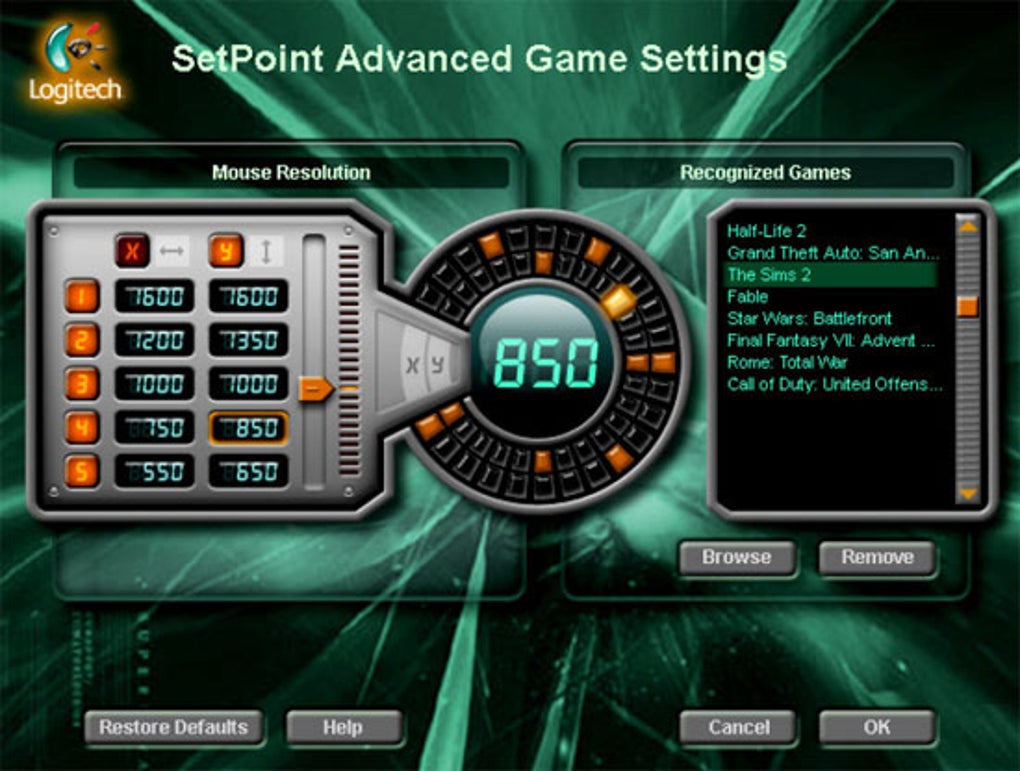
Logitech SetPoint offers several significant benefits, making it a valuable tool for many users. However, it also has some drawbacks to consider.
Benefits:
-
Enhanced Productivity: The ability to customize mouse buttons and keyboard shortcuts significantly enhances workflow efficiency, particularly for users with repetitive tasks.
-
Improved Gaming Performance: The option to create custom game profiles optimizes gameplay by allowing for tailored mouse and keyboard settings for specific games.
-
User-Friendly Interface: The clean and straightforward interface makes navigation and customization simple, even for users without extensive technical expertise.
-
Comprehensive Functionality: The software encompasses a wide range of customization options, catering to diverse user needs and preferences.
-
Battery Life Monitoring: The battery life indicator is a convenient feature for users of wireless Logitech devices.
Drawbacks:
-
Installation Time: Some users have reported slow installation times, though this varies depending on system configuration and internet speed.
-
Compatibility: While SetPoint works with many Logitech mice and keyboards, it does not support the Logitech G-series gaming mice. For those devices, Logitech Gaming Software (LGS) is required.
-
Resource Consumption: While generally minimal, the software might consume a small amount of system resources, although this is typically negligible for modern computers.
Logitech SetPoint Alternatives
While Logitech SetPoint is a powerful and widely used application, several alternative software solutions offer similar functionalities. These alternatives often provide broader compatibility with devices from other manufacturers. Choosing an alternative might be necessary if your device is not supported by SetPoint or if you require features not offered by the application.
Conclusion
Logitech SetPoint remains a valuable tool for users seeking enhanced control and customization of their Logitech mice and keyboards. Its intuitive interface, extensive functionality, and ability to improve both productivity and gaming experiences make it a popular choice. While some minor drawbacks exist, the benefits generally outweigh the limitations, especially for users who heavily rely on their input devices for daily tasks or gaming. Understanding its features and limitations allows users to make an informed decision about whether it’s the right software for their needs.
File Information
- License: “Free”
- Latest update: “May 23, 2023”
- Platform: “Windows”
- OS: “Windows 7”
- Language: “English”
- Downloads: “19.2K”
- Size: “86.91 MB”


