
The digital landscape has always been a canvas for personal expression and functional optimization. For users accustomed to the sleek, intuitive design of Apple’s macOS, particularly its iconic Dock, the transition to or use of a Windows operating system can sometimes feel like a step away from a familiar and efficient workflow. This is where third-party customization tools, such as “Mac Dock for Windows,” historically entered the scene. Designed to bridge the aesthetic and functional gap between these two dominant operating systems, Mac Dock aimed to bring the elegance and utility of the macOS Dock directly to your Windows desktop. This article delves into the nature of such desktop customization, exploring the specifics of Mac Dock, its historical context, user experiences, and the broader ecosystem of tools that allow Windows users to personalize their digital workspaces.
The Allure of the Dock: Bridging Operating System Aesthetics
The concept of a “dock” in graphical user interfaces (GUIs) predates Apple’s widespread popularization of it, but it was with macOS (originally Mac OS X) that the Dock became a globally recognized and beloved feature. More than just an application launcher, the macOS Dock is a dynamic, visually appealing hub for frequently used applications, open windows, and system shortcuts. Its distinctive animation, magnification effects, and clear visual feedback make it an efficient and aesthetically pleasing element of the user interface.
What is a Dock and Why is it Popular?
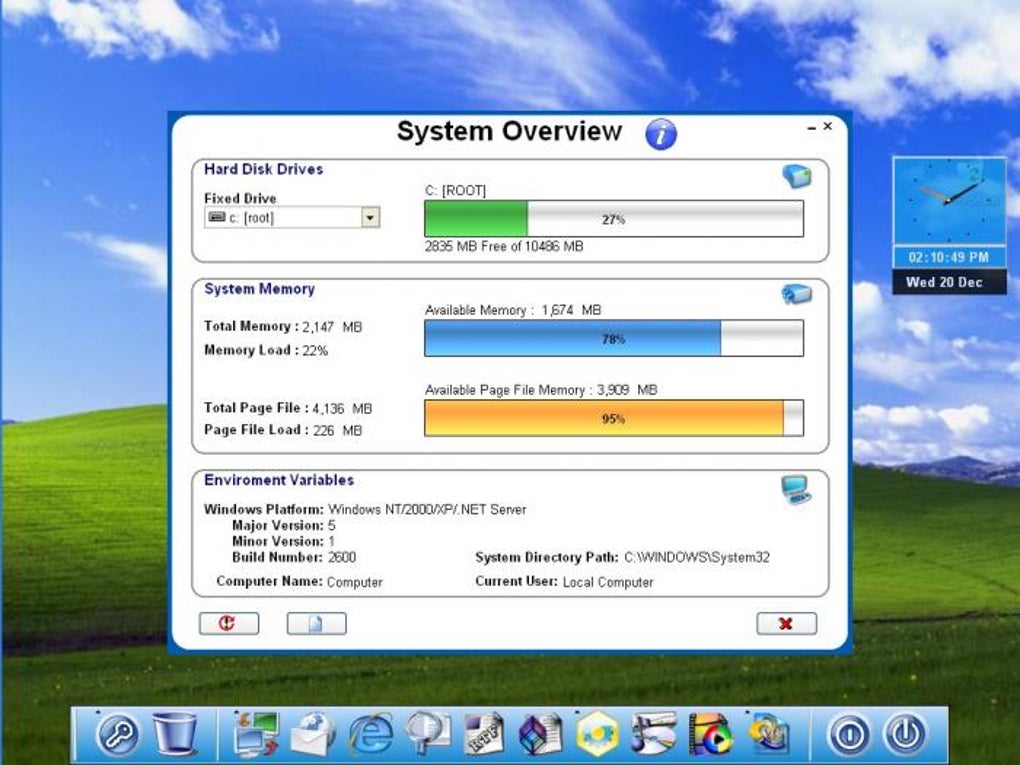
At its core, a dock is a user interface element that provides a centralized location for launching applications and switching between active tasks. Unlike a traditional taskbar, which often presents a more static list, docks are typically characterized by:
- Visual Prominence: Large, often animated icons that are easy to spot and interact with.
- Dynamic Behavior: Icons might bounce when an application launches, display numerical badges for notifications, or magnify when the cursor hovers over them, providing rich visual feedback.
- Aesthetic Appeal: Docks often feature transparency, reflections, and smooth animations, contributing significantly to the overall look and feel of the operating system.
- Efficiency: By consolidating frequently used applications and active windows into one easily accessible strip, docks can streamline workflow and reduce the clutter of desktop icons.
The popularity of the dock stems from this potent combination of form and function. For many, a well-designed dock isn’t just about looking good; it’s about making the computer feel more personal, more organized, and ultimately, more enjoyable to use. The visual consistency and streamlined access offered by the macOS Dock, in particular, cultivated a desire among Windows users to replicate that experience, leading to the development of numerous third-party dock applications. These applications promise to infuse a touch of macOS’s acclaimed design philosophy into the pragmatic, yet often less visually cohesive, Windows environment. The psychological appeal of a clean, organized, and responsive desktop cannot be overstated, and docks play a significant role in achieving this ideal for many users.
The Evolution of Desktop Customization
The desire to customize one’s computer interface is almost as old as personal computing itself. From changing simple desktop backgrounds and color schemes in early Windows versions to elaborate themes and skinning engines, users have always sought ways to make their digital environments truly their own. This drive is rooted in both aesthetic preference and functional necessity. A personalized desktop can reflect individuality, enhance usability by placing essential tools within easy reach, and even improve productivity by reducing visual distractions or facilitating quicker access to applications.
In the early days of Windows, customization was often limited to built-in options. However, as operating systems matured, so did the capabilities of third-party developers. Tools emerged that could completely overhaul the Windows shell, replacing elements like the taskbar, Start Menu, and even the file explorer with custom alternatives. Desktop customization evolved from simple visual tweaks to comprehensive transformations. Docks represented a significant part of this evolution, offering an alternative to the traditional Windows taskbar that was both visually striking and functionally distinct. They allowed users to retain the underlying power and compatibility of Windows while enjoying an interface paradigm inspired by another successful operating system. This era of extensive customization flourished, particularly in the Windows XP and Windows 7 eras, when users eagerly experimented with various programs to achieve their desired look and feel.
Mac Dock for Windows: A Deep Dive into a Classic Utility
Among the numerous attempts to bring the macOS experience to Windows, “Mac Dock for Windows” stands out as a historical example of a free, dedicated utility. While its presence in the current computing landscape might be overshadowed by more modern alternatives, it represents an important chapter in the history of desktop customization.
Software Overview and Specifications
Mac Dock for Windows is a desktop customization software that explicitly aimed to emulate the macOS Dock on the Windows operating system. According to records on PhanMemFree.org, this particular software is:
- License: Free
- Version: 3.0
- Latest Update: September 1, 2021 (though some older entries indicated 2011, the more recent one from the app specs is more likely for the version listed)
- Platform: Windows
- OS Compatibility: Specifically noted for Windows 2000 and previous versions in older descriptions, but a 2021 update suggests broader, albeit potentially legacy, compatibility. This ambiguity often arises with older freeware.
- Language: English
- Size: A remarkably light 645.32 KB, indicating a focused and potentially less resource-intensive application.
- Developer: suite-office-software
- Usage: In its prime, it was notably popular in countries such as Saudi Arabia, the United States, and Egypt, suggesting a broad appeal for macOS-style customization globally.
- Downloads: With a total of 29.7K downloads and 870 in the last month (referring to the most recent data available on PhanMemFree.org), it maintained a modest level of interest even years after its initial release.
This information paints a picture of a lightweight, free utility designed to offer a specific aesthetic and functional enhancement without demanding significant system resources. Its simplicity might have been both its strength and, as we will see, its weakness. The fact that it continued to see downloads and updates (even if minor) for an extended period highlights the persistent demand for this kind of cross-OS visual migration.
The Promise of Mac Dock: Bringing macOS to Your PC
The core promise of Mac Dock for Windows was straightforward: to deliver the iconic, user-friendly, and visually engaging macOS Dock experience to a Windows desktop. For many Windows users, the default taskbar, while functional, often felt less dynamic or aesthetically pleasing than its macOS counterpart. Mac Dock aimed to fill this void by providing:
- Visual Fidelity: Replicating the distinct look of the macOS Dock, including its characteristic glassy appearance, reflective icons, and perhaps even some of the signature animations.
- Enhanced Organization: Offering a dedicated space for quick access to applications, potentially reducing desktop clutter and providing a more organized visual workflow.
- Ease of Access: Enabling users to launch their favorite programs with a single click from a prominent, easily accessible bar.
- A Touch of Elegance: Elevating the overall desktop aesthetic, making the Windows environment feel more modern, stylish, and perhaps even “premium” for those who admired Apple’s design principles.
For users who either couldn’t afford a Mac, preferred the extensive software compatibility of Windows, or simply enjoyed tinkering with their operating system’s appearance, Mac Dock offered an accessible way to blend the best of both worlds. It was a testament to the belief that the user experience isn’t solely about raw power or features, but also about the visual and interactive pleasure derived from the interface itself. The appeal was not just about superficial changes but also about adopting a recognized paradigm for desktop efficiency.
User Experience: Praises and Criticisms
Despite the appealing promise, the reality of implementing such complex cross-platform emulation, especially in older freeware, often came with its own set of challenges. The user review captured on PhanMemFree.org offers a critical, albeit specific, insight into the user experience of Mac Dock for Windows:
“I couldn’t position this nor uninstall it. . Not happy with it at all. There seems to be no way to position the bar above the task bar on the desktop screen. No options to speak of. What few are there don’t seem to work. Now I can’t find a way to uninstall it. I’m beyond unhappy with this program. Pros: NONE Cons: Doesn’t uninstall. Can’t configure it. Can’t position it. No options.” – Anonymous, February 1, 2012
This feedback, while from an individual user, highlights significant issues that can plague free or early-stage customization software:
- Lack of Configurability: A primary criticism was the inability to position the dock, a fundamental feature for any desktop customization tool. Docks need to be placed where they don’t interfere with other elements (like the Windows taskbar) and where they are most convenient for the user. The absence of options, or non-functional options, is a critical flaw.
- Uninstallation Problems: The inability to easily uninstall software is a major red flag for users. This can lead to system clutter, potential conflicts, and a sense of frustration and helplessness.
- Overall Usability: The user’s profound unhappiness suggests that the software failed to deliver on its core promise of enhancing the user experience, instead introducing more problems than solutions.
It’s important to consider that this review dates back to 2012, and the software might have evolved since then (given the 2021 update record). However, it serves as a powerful reminder that while the idea of a “Mac Dock for Windows” is appealing, the execution is paramount. A truly successful customization tool needs to be stable, configurable, and easily manageable (including uninstallation) to gain user trust and satisfaction. This also underscores the challenge for small developers or freeware projects to maintain the same level of polish and support as commercial software or built-in OS features.
Exploring Alternatives and Modern Solutions for Windows Docks
While “Mac Dock for Windows” offered an early foray into macOS-style desktop customization, the ecosystem of Windows dock applications has evolved considerably. Today, users have access to a broader range of tools, some of which have matured over years to offer robust features and greater stability.
Popular Dock Applications: ObjectDock, Nexus, and Beyond
The desire for a Mac-like dock on Windows didn’t stop with Mac Dock. Several other programs gained significant traction, offering various levels of customization, polish, and features:
- ObjectDock: Developed by Stardock, a company known for its desktop customization suites, ObjectDock is one of the most well-established and feature-rich dock applications for Windows. It offers extensive customization options, including animated effects, multiple docks, tabbed docks, and integration with the Windows taskbar. Its premium version provides even more advanced functionalities, making it a popular choice for those seeking a highly polished experience.
- Nexus: Often praised for its smooth animations and modern design, Nexus by Winstep is another excellent choice. It offers both free and paid versions, with the free version providing substantial features like configurable icon effects, auto-hide, and multiple dock types. Nexus emphasizes performance and visual flair, aiming for a true macOS-like feel while maintaining stability on Windows. Its popularity stems from its balance of aesthetics and functionality.
- XWindows Dock: This free application specifically aimed to replicate the Mac OS X dock on Windows, similar to Mac Dock. While perhaps not as feature-rich or actively developed as ObjectDock or Nexus, it provided a straightforward option for users looking for a direct macOS aesthetic.
- My Dock and KS Mac Dock: These entries suggest a continuing trend of developers creating custom dock solutions for Windows, indicating the sustained demand for personalized desktop experiences, especially those drawing inspiration from macOS. These tools might offer unique features or cater to specific user preferences.
- TaskbarToDock: As its name suggests, TaskbarToDock aims to bridge the gap between the Windows Taskbar and a macOS-style dock, possibly by integrating features or allowing for a more seamless coexistence. This type of hybrid approach recognizes that some users might want the best of both worlds rather than a complete overhaul.
These alternatives showcase the diverse approaches to bringing dock functionality to Windows. They vary in terms of cost (free, freemium, paid), features (basic launcher to full-blown system monitors), and visual effects. The competition in this space has generally led to more refined and user-friendly products compared to earlier, simpler utilities. Modern dock applications are expected to offer not just aesthetics but also seamless integration with the Windows environment, stable performance, and comprehensive customization options that truly empower the user.
Beyond the Dock: Comprehensive Desktop Personalization for Windows
The desire to customize a Windows desktop extends far beyond just adding a dock. Modern users have a plethora of tools at their disposal to transform almost every aspect of their operating system’s appearance and functionality. PhanMemFree.org lists several popular personalization tools that exemplify this trend:
- Lively Wallpaper: This application allows users to set animated and interactive wallpapers, breathing life into their desktop backgrounds. It’s a significant upgrade from static images, offering dynamic visuals that can react to sound, mouse input, or time of day.
- Startup Sound Changer: A simple yet effective tool for those who want to personalize the auditory experience of their Windows machine, moving beyond the default startup sound.
- Grand Theft Auto 5 Theme: Themes provide a comprehensive visual overhaul, changing everything from desktop icons and cursors to window borders and sound schemes, often based on popular media like video games.
- E Auto Clicker: While not strictly a personalization tool in the visual sense, utility applications like auto-clickers are often sought by users who wish to optimize their workflow or automate repetitive tasks, contributing to a personalized functional experience.
- Fliqlo: A minimalist and customizable clock screensaver that offers a distinct, retro-futuristic aesthetic.
- BeWidgets: A modern widget creator for Windows, allowing users to add customizable information displays (weather, calendar, system stats) directly to their desktop, much like macOS widgets.
- Transparent Taskbar: A tool that allows users to adjust the transparency of their Windows taskbar, offering a cleaner, more integrated look with their desktop background.
These examples illustrate that desktop personalization is a holistic endeavor. It involves not just launchers like docks but also visual elements (wallpapers, themes, icons), auditory cues, and functional widgets. Together, these tools enable users to craft a truly unique and efficient digital environment that aligns with their personal tastes and productivity needs. The modern ecosystem of customization tools is often more integrated and user-friendly, reflecting the general advancements in software development and user interface design.
The Legacy of Customization: Where Do We Go From Here?
The enduring popularity of tools like Mac Dock, ObjectDock, and Nexus underscores a fundamental truth about human-computer interaction: users want control, personality, and efficiency from their digital tools. While operating systems like Windows and macOS have continually refined their built-in customization options, third-party developers continue to push the boundaries, offering niche solutions and innovative features that the default systems might not provide.
The legacy of “Mac Dock for Windows” and similar applications is that they democratized aesthetics. They proved that users on one platform desired the design philosophies of another and were willing to seek out tools to bridge that gap. In today’s computing world, where cross-platform development frameworks are common and design paradigms often influence each other, the lines between OS aesthetics are blurring. However, the hunger for unique personalization remains. Whether through sophisticated dock applications, dynamic wallpapers, or custom widgets, the journey of making a computer truly “one’s own” is a continuous and evolving process. The future will likely see even more intelligent, AI-powered customization options that adapt to user behavior and preferences, making our digital spaces not just personalized, but proactively tailored to our needs.
Installation, Usage, and Troubleshooting for Mac Dock (and Similar Tools)
For users venturing into desktop customization, particularly with older or third-party software like Mac Dock for Windows, understanding the general process of installation, usage, and troubleshooting is crucial. While specific steps might vary, a common pattern emerges.
Getting Started: Installation Process
The typical installation process for a dock application like Mac Dock involves a few standard steps:
- Download: Obtain the software installer from a reputable source, such as PhanMemFree.org. Always ensure the download is from a trusted site to avoid malware or unwanted bundled software.
- Run Installer: Double-click the downloaded executable file (e.g.,
Mac Dock Setup.exe). - Follow Prompts: The installer wizard will guide you through the setup. This usually involves:
- Accepting a License Agreement (End-User License Agreement or EULA).
- Choosing an installation directory (the default is often sufficient).
- Selecting optional components, if any (e.g., desktop shortcuts).
- Completion: Once the installation is finished, the application may launch automatically, or you might need to find it in your Start Menu or desktop shortcuts to run it for the first time.
For Mac Dock specifically, given its small size and older nature, the installation was likely very quick and straightforward, focusing primarily on deploying the necessary files to the system.
Customization Potential: Making It Your Own
A key aspect of any dock software is its ability to be customized. While the user review for Mac Dock suggested a severe lack of options, a well-designed dock application should ideally offer:
- Positioning: The ability to place the dock at any edge of the screen (top, bottom, left, right), and often with adjustable offsets.
- Size and Scaling: Control over the size of icons and the overall scale of the dock.
- Icon Management: Easy ways to add or remove application shortcuts by dragging and dropping them onto the dock.
- Visual Effects: Options for magnification, transparency, reflection, launch animations, and hover effects.
- Themes/Skins: Pre-designed visual styles to quickly change the dock’s appearance.
- Auto-Hide Behavior: Configuring the dock to automatically hide when not in use and reappear when the mouse cursor approaches its edge.
- Running Application Indicators: Visual cues (e.g., a small dot or glow beneath the icon) to indicate which applications are currently open.
Had Mac Dock offered these features in a robust and functional manner, it would have significantly enhanced its utility and user satisfaction. The discrepancy between what users expect from a dock and what older, simpler tools could deliver often led to frustration.
Addressing Common Issues: Uninstalling and Configuration Challenges
The critical user review regarding Mac Dock highlighted two primary issues: lack of configuration options and difficulty with uninstallation. These are common challenges with many older freeware or niche customization tools.
- Configuration Challenges: If an application lacks a clear settings panel or its settings don’t function correctly, users are left with a static, unchangeable interface. This makes the tool inflexible and quickly frustrating. For such tools, sometimes editing configuration files manually (if available and documented) might be an option, but this is often beyond the scope of a typical user.
- Uninstallation Difficulties: An inability to uninstall software is particularly problematic. Here’s a general approach to dealing with stubborn programs:
- Standard Uninstaller: Always try the official uninstaller first. This is usually found in “Control Panel” > “Programs and Features” (Windows 7/Vista/XP) or “Settings” > “Apps” > “Apps & features” (Windows 10/11).
- Program Folder: Sometimes, a small
uninstall.exemight reside directly in the program’s installation folder. - Third-Party Uninstallers: Tools like Revo Uninstaller can help deeply remove programs by scanning for leftover files and registry entries.
- Manual Deletion (Advanced): As a last resort, and with extreme caution, one might manually delete the program’s folder and then use
regeditto remove associated registry entries. This requires significant technical skill and carries risks, as incorrect modifications to the registry can harm the operating system.
The negative user feedback for Mac Dock underscores the importance of a well-behaved application: one that is not only easy to install and use but also easy to configure and, crucially, easy to remove without leaving traces or causing system instability. Modern operating systems and reputable software platforms prioritize these aspects to ensure a safe and satisfying user experience.
The Enduring Appeal of Cross-Platform Aesthetics
The journey of Mac Dock for Windows, from its conceptual appeal to the mixed user experiences, is a microcosm of the broader world of desktop customization. It exemplifies the enduring human desire to personalize digital environments and extract the best features from various technological paradigms. The macOS Dock, with its blend of visual elegance and functional efficiency, set a high bar, inspiring countless developers and users on other platforms to seek similar experiences.
While specific implementations like Mac Dock might have faced limitations due to their age or development resources, their very existence points to a fundamental truth: the user interface profoundly impacts how we perceive and interact with our computers. A clean, intuitive, and aesthetically pleasing desktop can foster productivity, reduce cognitive load, and simply make computing a more enjoyable experience.
Today, the spirit of “Mac Dock for Windows” lives on in more sophisticated and feature-rich applications. Developers continue to innovate, offering powerful tools that allow Windows users to craft desktops that are not only functional but also deeply personal and visually stunning. Whether it’s the sleek animations of Nexus, the robust features of ObjectDock, or the dynamic backgrounds offered by Lively Wallpaper, the pursuit of the ideal desktop experience remains a vibrant and evolving aspect of computing. The legacy is clear: the quest for cross-platform aesthetic harmony and personalized efficiency will continue to drive innovation in desktop customization for years to come.
File Information
- License: “Free”
- Version: “3.0”
- Latest update: “September 1, 2021”
- Platform: “Windows”
- OS: “Windows 2000”
- Language: “English”
- Downloads: “30.3K”
- Size: “645.32 KB”


