
MakeMKV is a powerful and user-friendly application designed to rip the contents of DVDs and Blu-ray discs into the versatile MKV (Matroska Video) format. This comprehensive guide will delve into the features, functionality, and benefits of MakeMKV, exploring its strengths and limitations. We will also compare it to alternative solutions and address frequently asked questions.
Understanding MakeMKV’s Functionality
MakeMKV acts as a video transcoder, efficiently converting the video and audio streams from DVDs and Blu-rays into MKV files. Unlike some conversion tools that re-encode the video, MakeMKV performs a copy process, preserving the original video and audio quality without any compression or loss of data. This means you retain the highest possible resolution, bitrate, and overall fidelity of the source material. The MKV container format is chosen for its ability to hold multiple audio tracks, subtitles, and chapters without compromising data integrity. This feature is particularly valuable for maintaining the original language options and subtitle support present on commercial DVDs and Blu-rays.
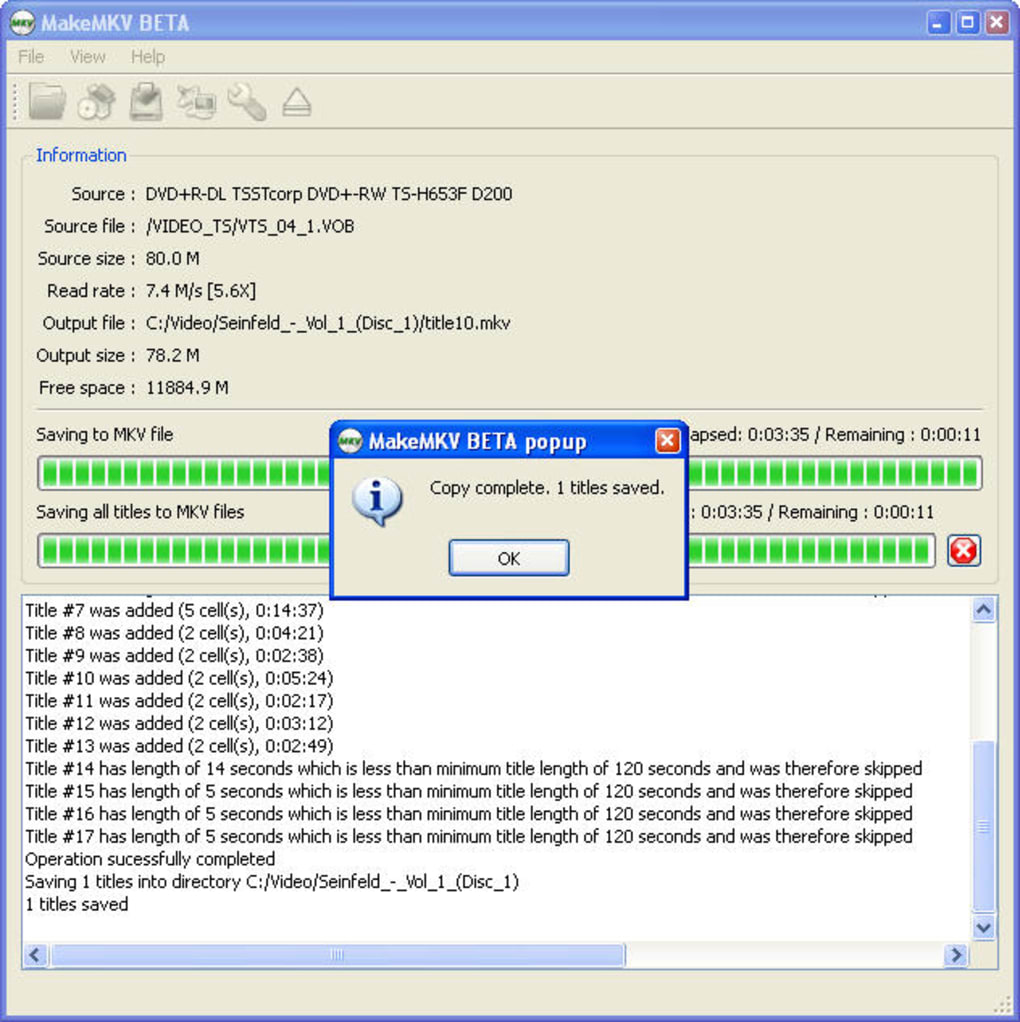
The process of using MakeMKV is remarkably straightforward. After inserting a DVD or Blu-ray disc into your optical drive, simply open MakeMKV and select “Open Disc.” The software will automatically detect the disc and read its contents, displaying a list of available titles, audio tracks, subtitles, and chapters on its interface. You can then selectively choose the specific video streams you wish to rip, allowing for granular control over the output file’s size and content. The ripping process itself is remarkably fast, often completing in a fraction of the time it takes to watch the movie itself. This efficiency contributes to MakeMKV’s popularity among users seeking quick and reliable disc-to-digital conversion.
MakeMKV’s Strengths and Advantages
MakeMKV boasts several features that set it apart from competing software:
-
Lossless Ripping: The program prioritizes preservation of the original video and audio quality, creating perfect copies of the source material. This is a crucial advantage for users who value high-fidelity digital archives of their movie collections.
-
Speed and Efficiency: MakeMKV’s ripping speed is often noticeably faster than many alternative solutions, making it a time-efficient option for converting large video files.
-
Support for Encrypted Discs: MakeMKV is capable of ripping both unprotected and protected (encrypted) DVDs and Blu-ray discs. This ability allows users to access the content of commercially released discs, which often feature copy protection measures. It’s important to note that the legal implications of ripping copyrighted material vary by jurisdiction, and users should adhere to applicable laws.
-
Simple and Intuitive Interface: The program’s user interface is designed for simplicity and ease of use. Even novice users can quickly learn to navigate the program and execute the conversion process without difficulty.
-
Free DVD Ripping: The developers of MakeMKV have committed to keeping DVD ripping functionality free of charge. This makes it an accessible and affordable option for those looking to digitize their DVD collections.
-
Preservation of Metadata: All metadata, including chapters, subtitles, and audio tracks are preserved during the conversion process, ensuring that the resulting MKV file retains the original characteristics of the source disc. This is particularly important for maintaining the user experience when watching the ripped movie.
-
Cross-Platform Availability: While this guide focuses on the Windows version, MakeMKV is also available for macOS, ensuring accessibility across different operating systems. This cross-platform compatibility is a welcome feature for users with diverse computing setups.
Limitations and Considerations
Despite its many advantages, MakeMKV does have some limitations that users should be aware of:
-
Blu-ray Support (Beta): While MakeMKV initially offered free Blu-ray ripping during its beta phase, this is no longer universally the case. The free version may have limitations regarding Blu-ray support, potentially requiring a purchase for full functionality.
-
Occasional Error Messages: Some users may encounter error messages during the disc reading process. While these messages may occasionally appear, they typically do not prevent the software from functioning correctly, suggesting that they are often minor glitches.
-
MKV Output Only: MakeMKV only produces MKV files as output. If you require a specific video format other than MKV, you will need to use additional software to convert the MKV file to your desired format. While MKV is widely compatible, this might represent a limitation for users with specific playback constraints.
MakeMKV vs. Alternative Software
Several alternative applications offer similar DVD and Blu-ray ripping capabilities. However, MakeMKV often distinguishes itself through its combination of speed, simplicity, and support for encrypted discs. Other programs might offer additional features, such as conversion to various formats or video editing tools, but often at the cost of increased complexity or slower processing times. The choice between MakeMKV and other software depends heavily on individual user priorities and needs. If the primary goal is fast and reliable lossless ripping, MakeMKV remains a compelling choice.
Troubleshooting and FAQs
-
Q: MakeMKV isn’t recognizing my disc. What should I do?
- A: Ensure the disc is clean and properly inserted into the optical drive. Try restarting your computer and MakeMKV. Check that your optical drive is functioning correctly with other discs.
-
Q: I’m getting an error message during the ripping process. What does this mean?
- A: Error messages can vary. Consult the MakeMKV documentation or support forums for specific troubleshooting advice related to the error code or message you are receiving. The error might be related to a faulty disc, a problem with your optical drive, or a temporary software glitch.
-
Q: Is it legal to rip my own DVDs and Blu-rays?
-
A: The legality of ripping copyrighted material depends on your jurisdiction and the specifics of copyright law. Ripping discs you own for personal use is generally viewed more favorably than distributing copies, however it’s crucial to research the legal aspects in your region before proceeding.
-
Q: Can I convert the MKV file to other formats?
- A: Yes. Many free and commercial video conversion programs can change MKV files to different formats, such as MP4, AVI, or MOV. HandBrake is a popular free and open-source option for this purpose.
-
Q: What are the system requirements for MakeMKV?
- A: The system requirements vary depending on the version of MakeMKV and the operating system. Consult the MakeMKV website for the most up-to-date information. Generally, a relatively modern computer with a functioning optical drive should suffice.
Conclusion
MakeMKV provides a powerful, efficient, and user-friendly solution for ripping DVDs and Blu-rays to MKV. Its focus on lossless copying and straightforward interface makes it a highly appealing choice for users seeking to digitize their movie collections. While some limitations exist, particularly concerning Blu-ray support in the free version, MakeMKV remains a strong contender in the video ripping software market. The decision of whether to use MakeMKV will ultimately depend on individual needs and preferences, but its strengths in speed, ease of use, and lossless copying make it a compelling option for many users. Remember always to respect copyright laws and only rip media you legally own.
File Information
- License: “Trial version”
- Latest update: “October 2, 2024”
- Platform: “Windows”
- OS: “Windows XP”
- Language: “English”
- Downloads: “67.9K”
- Size: “15.43 MB”


