
MCPatcher is a utility designed for Windows users that simplifies the process of managing and switching between multiple versions of Minecraft. This allows players to seamlessly transition between different game versions, accommodating various mods, map packs, and texture enhancements that may only be compatible with specific Minecraft releases. While its installation might present a minor hurdle for some users, MCPatcher’s functionality and ease of use, once installed, make it a valuable tool for any dedicated Minecraft player looking to expand their gameplay experience.
Understanding MCPatcher’s Core Functionality
At its heart, MCPatcher acts as a Minecraft version manager. It provides a straightforward method for installing and switching between different versions of the game without needing to manually download and replace entire game files. This streamlined process minimizes the risk of errors and data loss associated with manual installations. The software maintains an internal archive of various Minecraft versions, allowing for easy upgrades or downgrades to your preferred release. This is crucial because many modifications, texture packs, and custom maps are tailored to specific Minecraft versions and won’t function correctly (or at all) with incompatible versions. By utilizing MCPatcher, players can access and explore this diverse range of community-created content with minimal effort.
The ability to effortlessly switch between Minecraft versions is a significant advantage. For instance, if a player is experiencing compatibility issues with a particular mod on their current Minecraft version, they can easily switch to a previously installed, compatible version using MCPatcher to continue their gameplay uninterrupted. Furthermore, the program’s backup functionality adds an extra layer of protection, ensuring that you can always revert to a previous version should anything go wrong during the installation or switching process. This safeguards your game files and progress, minimizing the risk of data corruption or loss.
Installation and Usage: A Step-by-Step Guide
While MCPatcher streamlines the process of switching Minecraft versions once installed, the initial setup might pose a slight challenge for some users. Successful installation requires administrator privileges on the target Windows system. This is a common requirement for programs that modify system files or settings. The administrator access ensures that MCPatcher can seamlessly integrate with Minecraft’s core files and make the necessary changes to accommodate version switching.
The installation process generally involves downloading the MCPatcher executable from a trusted source and running the installer. It’s essential to download the program only from reputable websites to avoid any potential security risks. Once downloaded, running the installer is usually straightforward. The installer guides the user through the necessary steps, such as selecting the installation directory and confirming the administrator privileges.
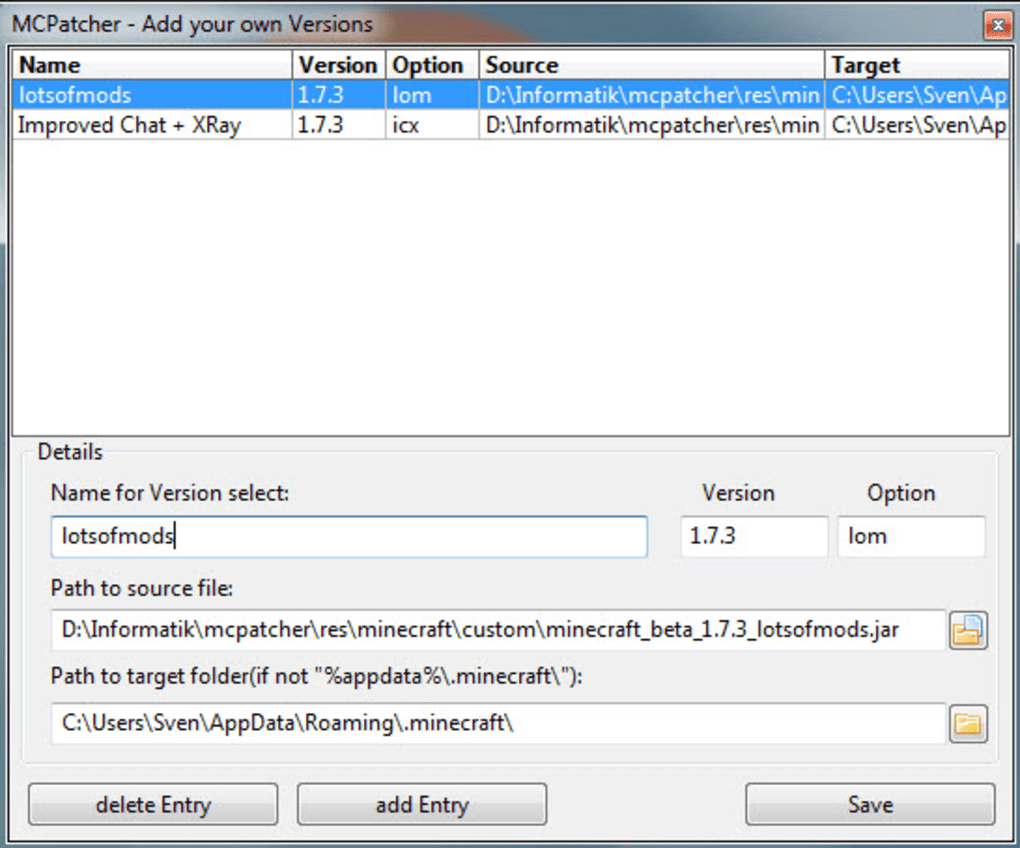
After successful installation, MCPatcher provides a simple and intuitive user interface. The program displays a list of available Minecraft versions (those stored in the program’s internal archive or manually added). Users can select their desired version from this list and initiate the switching process with a single click. The program handles the necessary file manipulations, ensuring a smooth transition between versions. Any ongoing Minecraft game sessions must be closed before starting the version switching process. This prevents conflicts and potential data loss. Once the switch is complete, the user can launch Minecraft and enjoy their chosen version without any further interaction with MCPatcher.
The Advantages of Using MCPatcher
The benefits of using MCPatcher extend beyond the convenience of switching Minecraft versions. The program’s automatic backup feature provides a critical safety net, protecting the user’s game data and progress. If a version switch encounters an unexpected problem or if the user wants to revert to a previous version, the backup allows for a quick and easy restoration. This safeguard removes the anxiety associated with potentially losing game progress or corrupting game files.
Beyond the core functionality, MCPatcher opens up opportunities for players who use mods or texture packs. Many modifications are specifically designed for certain Minecraft versions, and MCPatcher facilitates seamless transitions between these versions, maximizing compatibility. This ensures that players can use their favorite mods and enhancements without needing to compromise on the Minecraft version they’re using. This simplifies the management of mods significantly, saving the user time and frustration.
The program’s lightweight nature is another key advantage. MCPatcher has a small footprint and doesn’t consume excessive system resources, ensuring that it doesn’t impact the performance of the host system or interfere with other applications. This makes it a suitable choice for computers with limited resources or for users who prefer minimalistic software solutions. The user-friendly interface minimizes the learning curve, making it accessible to both experienced and new Minecraft players.
Addressing Potential Challenges and Limitations
While MCPatcher is generally a reliable and effective tool, some potential challenges should be considered. The most commonly reported issue is the requirement for administrator privileges during the installation. This might pose a minor problem for users who lack administrator access to their computer, such as those using shared or work computers. Obtaining the necessary privileges may involve contacting the system administrator or using a different computer for MCPatcher’s installation.
Another aspect to note is the potential for compatibility issues with certain mods or map packs. While MCPatcher greatly improves compatibility, some mods or packs might still have unforeseen conflicts with specific Minecraft versions, even after switching through MCPatcher. In such cases, checking for compatibility information from the mod or pack developers is advisable before switching versions.
Finally, MCPatcher’s reliance on an already installed, unmodified version of Minecraft means users cannot use the software to initially install Minecraft. It is purely a version management and switching tool, and the underlying Minecraft installation needs to be present and operational before using MCPatcher. For users who haven’t yet installed Minecraft, this requirement necessitates a separate Minecraft installation before they can leverage MCPatcher’s capabilities.
Despite these minor limitations, MCPatcher remains a powerful and convenient tool for managing multiple Minecraft versions. Its numerous advantages, including its ease of use, automatic backups, and broad compatibility, significantly outweigh the few potential drawbacks. For any Minecraft player looking to enhance their modding experience or easily experiment with different game versions, MCPatcher is a valuable and highly recommended asset. The efficient version switching and the enhanced safety net provided by its backup mechanism help create a more streamlined and enjoyable Minecraft gameplay experience.
File Information
- License: “Free”
- Latest update: “March 25, 2024”
- Platform: “Windows”
- OS: “Windows 8”
- Language: “English”
- Downloads: “234.3K”
- Size: “2.64 MB”


