
In the digital age, our computers serve as vast repositories of information, entertainment, and memories. Among the most common file types stored are videos, ranging from personal recordings and educational content to movies and documentaries. Navigating these collections, especially when they grow to considerable sizes, relies heavily on efficient file management. A critical component of this efficiency in Windows Explorer is the ability to preview files at a glance, typically through thumbnails. However, a long-standing frustration for many Windows users has been the inconsistency of video thumbnail support, where many video formats simply refuse to display a preview image, leaving users to decipher generic icons or rely solely on filenames. This is precisely the annoyance that Media Preview, a focused and remarkably effective utility, aims to cure, transforming the way users interact with their video libraries.
At its core, Media Preview is designed to bridge the gap between Windows Explorer’s native thumbnail generation capabilities and the myriad of video codecs and formats prevalent today. It addresses a specific, yet widely experienced, pain point: the absence of visual cues for video files that Windows Media Player (WMP) or the operating system’s default codecs do not natively support. Instead of a blank icon or a generic video symbol, Media Preview ensures that you see a still frame from the video, offering an immediate visual reference that dramatically improves browsing and organization. Developed by BabelSoft, this tool has garnered attention on platforms like PhanMemFree (formerly Softonic), where its simplicity and effectiveness are frequently highlighted.
The Ubiquitous Challenge of Video Thumbnails in Windows Explorer
For years, Windows users have grappled with the limitations of their operating system’s default file preview mechanisms. While image files, documents, and even some common video formats readily display informative thumbnails in Windows Explorer’s various view modes, a significant portion of video files often fall through the cracks. This issue isn’t merely an aesthetic inconvenience; it’s a fundamental hurdle to efficient file management and rapid content identification.
The problem stems primarily from the vast and ever-evolving landscape of video codecs and container formats. Windows, out-of-the-box, comes equipped with a set of default codecs designed to handle widely accepted formats like MP4 (H.264/AAC), WMV, and AVI (DivX/Xvid, MP3). However, the digital realm is far more diverse, with formats such as MKV, FLV, WebM, OGG, and various high-efficiency codecs (like H.265/HEVC or AV1) becoming increasingly common. When Windows Explorer encounters a video file encoded with a codec it doesn’t recognize or packaged in an unsupported container, it defaults to a generic icon. This generic icon offers no visual information about the video’s content, forcing users to either open each file individually to identify it or painstakingly rename files with verbose descriptions – neither of which is a practical solution for large collections.
Imagine sifting through hundreds of video clips from a holiday, a project, or a creative endeavor, all bearing identical generic icons. The process of finding a specific clip becomes a frustrating game of trial and error, consuming valuable time and diminishing productivity. Content creators, video editors, and even casual users with extensive media libraries are particularly affected by this lack of visual differentiation. The reliance on filenames alone is often insufficient, especially when multiple versions of a file exist, or when filenames are automatically generated and not descriptive enough. This is where Media Preview steps in, offering a precise and elegant solution to this persistent problem. By enabling thumbnail generation for these unsupported formats, it transforms a cluttered, text-based view into a visually rich and easily navigable gallery, allowing users to quickly locate and differentiate files without the need for additional playback software.
Media Preview’s Core Functionality: A Simple Yet Powerful Solution
Media Preview distinguishes itself through its straightforward approach and singular focus: to generate accurate and useful video thumbnails for virtually all video types within Windows Explorer. Unlike complex media management suites that offer a myriad of features, Media Preview keeps things elegantly simple, performing its intended task with efficiency and minimal fuss.
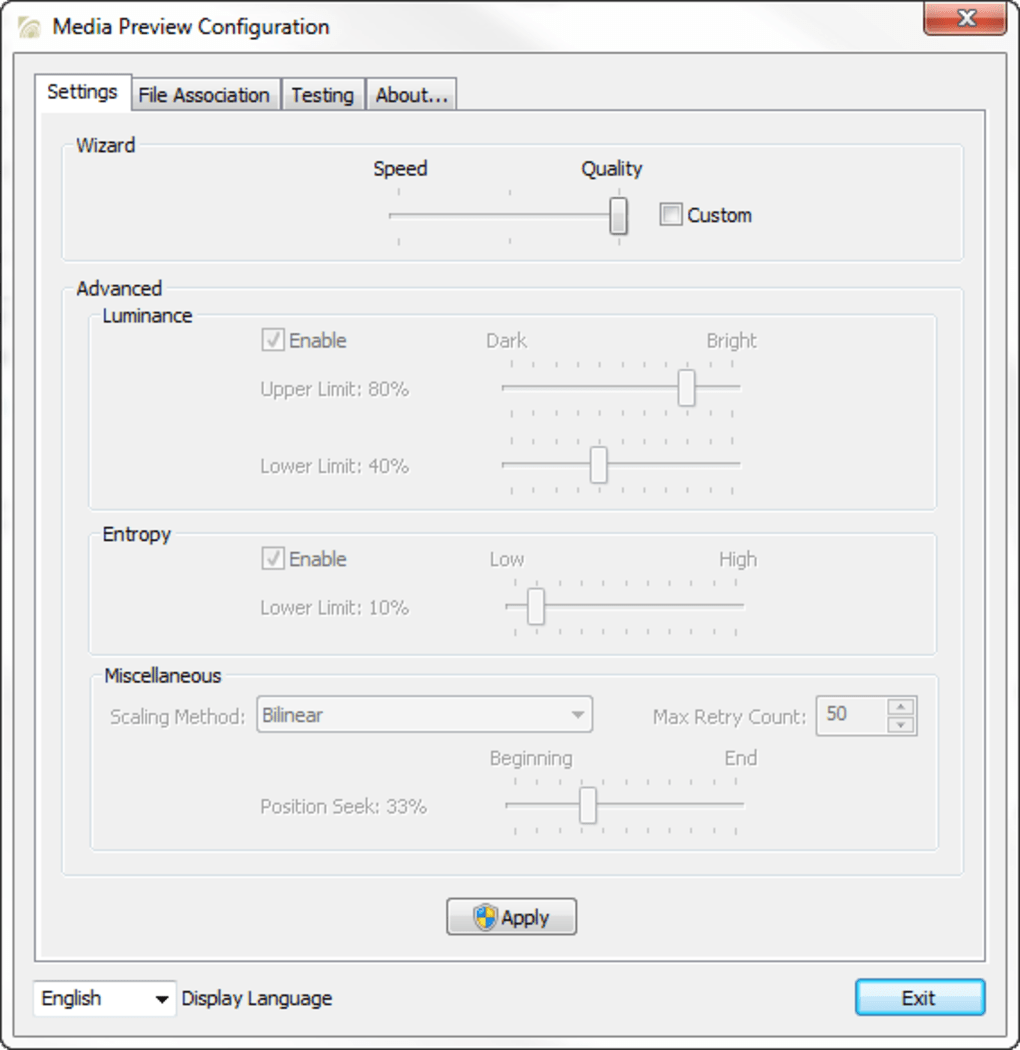
When a user first encounters Media Preview, the promise of comprehensive thumbnail support is its primary draw. The application doesn’t aim to be a media player or a conversion tool; it’s purely a utility to enhance the operating system’s native file browsing experience. Its method involves enabling Windows Explorer to extract a single, representative still frame from unsupported video files and use that as the thumbnail. This is a crucial distinction from “live previews” or “Quick Look” features found in some other operating systems or advanced media players, which offer real-time scrubbing or short video clips as thumbnails. Media Preview’s approach is more about consistency and broad compatibility, ensuring that every video file, regardless of its exotic format or codec, gets a visual identity.
The immediate benefit of this core functionality is a dramatic improvement in folder navigation. Instead of a sea of identical icons, users are greeted with clear, distinct images representing the content of each video. This visual feedback is invaluable for quick identification, batch processing, and general organization. For instance, if you have several takes of a video shoot, you can immediately spot the best angle or scene based on its thumbnail. For documentary filmmakers, it means quickly locating specific b-roll footage. For home users, it helps in distinguishing between different family videos or movie files. This simple visual cue reduces cognitive load, saves time, and significantly enhances the user’s overall interaction with their digital media library. It transforms a potentially cumbersome task into an intuitive and enjoyable experience, making file browsing less about reading text and more about visual recognition.
Effortless Setup and Intuitive Operation
One of Media Preview’s most commendable attributes is its user-friendly design, particularly its installation and configuration process. The developers at BabelSoft have clearly prioritized ease of use, making the utility accessible to users of all technical proficiencies. The application is distributed as a lightweight package, available for free download on platforms like PhanMemFree.org, ensuring a quick acquisition and minimal impact on system resources.
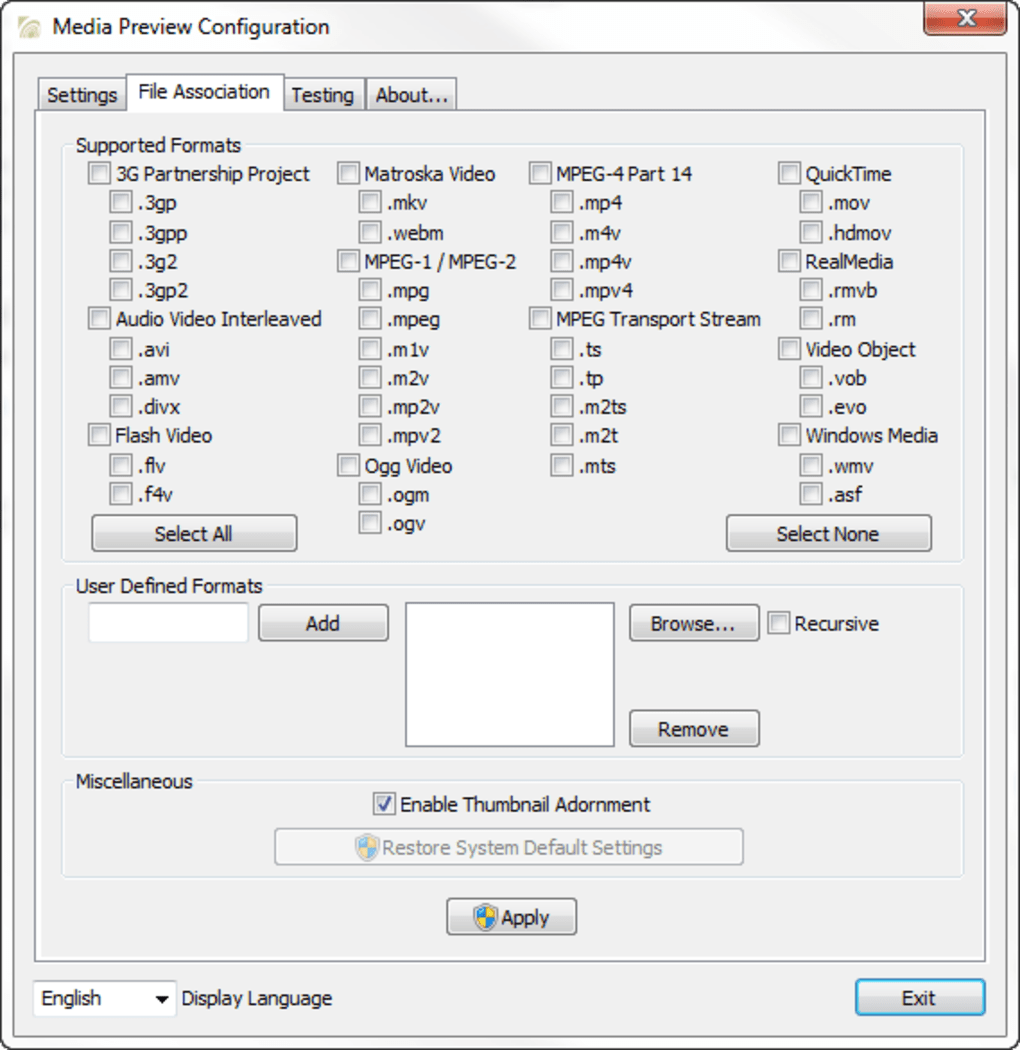
The installation of Media Preview is remarkably simple – often described as a “run once” utility. Upon its initial launch, users are not presented with a complex dashboard or an overwhelming array of settings. Instead, the application offers a clear, concise interface that guides them through the necessary steps. The primary interaction involves presenting the user with a list of video formats. This list typically encompasses a wide spectrum of common and less common video types that might typically lack thumbnail support in Windows Explorer. The user’s task is merely to select the formats for which they wish to enable thumbnail generation. This direct approach means that even novice computer users can configure Media Preview without trepidation, making an immediate impact on their file browsing experience. Once the desired formats are selected, Media Preview integrates itself into the system, essentially teaching Windows Explorer how to handle these previously unrecognized video files for thumbnail purposes.
Beyond this initial setup, Media Preview provides an additional, invaluable feature: a dedicated testing section. This intuitive area allows users to “drag and drop media files to test the results in Windows Explorer.” This live testing capability is particularly useful for verifying the efficacy of the configuration or for troubleshooting specific files that may still not display thumbnails after the initial setup. Users can simply drag a problematic video file into this section, and Media Preview will attempt to generate a thumbnail. The immediate feedback provided by this feature is highly empowering, giving users confidence that the utility is functioning as expected and allowing them to fine-tune their selections without having to manually navigate through folders to confirm changes. This blend of simple setup and an effective testing mechanism underscores Media Preview’s commitment to delivering a hassle-free and genuinely helpful user experience, cementing its reputation as a go-to solution for video thumbnail issues.
Beyond Basic Previews: Differentiating Files and Streamlining Workflow
While the primary function of Media Preview is to display a still frame for video files that previously lacked thumbnails, its impact extends far beyond mere visual enhancement. The ability to differentiate files at a glance is a cornerstone of efficient digital workflow, translating directly into time saved, reduced frustration, and improved productivity for anyone who regularly handles video content.
Consider scenarios where a user has multiple versions of a video project, perhaps different edits, exports for various platforms, or iterative drafts. Without distinctive thumbnails, these files often appear identical, forcing the user to rely on potentially ambiguous filenames or, worse, open each file to determine its content. Media Preview alleviates this pain by providing immediate visual cues. A quick scan of a folder can reveal which file is the final cut, which is a raw capture, or which specific scene a file contains. This visual indexing is profoundly more intuitive and faster than reading through a list of text-based entries.
For professionals such as videographers, graphic designers, or educators, who might be managing hundreds or thousands of media assets, the value of Media Preview becomes even more pronounced. In creative workflows, quick access and identification of assets are paramount. For example, a video editor might need to locate a specific B-roll shot or an alternate take from hours of footage. If all these clips are represented by generic icons, the search becomes a cumbersome, linear process. With Media Preview, the visual distinctiveness of each thumbnail allows for a non-linear, intuitive exploration of the content, akin to flipping through a physical photo album. This significantly streamlines the decision-making process, allowing creators to focus on the artistic or technical aspects of their work rather than struggling with basic file identification.
Furthermore, Media Preview indirectly aids in content organization and cleanup. By making content visually identifiable, users are more likely to notice duplicate files, identify unwanted content, or categorize files more accurately into subfolders. The clearer the visual representation of data, the easier it is to maintain a tidy and organized digital workspace. This preventative measure against “digital clutter” is an understated but significant benefit, contributing to a more efficient and less stressful computing environment. In essence, Media Preview transforms a collection of indistinguishable data points into a library of instantly recognizable assets, fundamentally changing the user’s interaction with their video files from a guessing game to an informed choice, thereby streamlining their entire digital workflow.
Addressing the Limitations: The Absence of Live Previews and What That Means
While Media Preview excels in its primary mission of delivering static video thumbnails, it’s important to address its stated limitation: the absence of a live video preview, similar to macOS X’s “Quick Look” feature. This point is often raised in discussions about the utility, and understanding its implications helps set appropriate expectations for users.
Mac OS X’s Quick Look is renowned for its ability to instantly preview the contents of a file – be it an image, document, or video – by simply pressing the spacebar. For video files, this often includes a small, interactive player that allows users to scrub through the video timeline without opening a dedicated application. This capability is undoubtedly powerful and offers a seamless experience for quick content verification. Media Preview, by contrast, provides only a single still frame as a thumbnail. It does not offer any interactive playback features or the ability to preview a short segment of the video directly within Windows Explorer.
This distinction is crucial when evaluating Media Preview. The utility is not designed to be a lightweight media player or a comprehensive media management suite. Its purpose is narrowly defined: to generate a static visual representation of a video file where one would otherwise be absent. This focused design choice likely contributes to its lightweight nature, efficiency, and broad compatibility. Implementing a “live preview” feature, especially for a wide array of potentially unsupported video formats and codecs, would entail significantly more complexity. It would require Media Preview to not only extract a frame but also to incorporate a robust, universal video playback engine capable of decoding and rendering various video streams in real-time, often necessitating significant system resources and potentially introducing compatibility conflicts.
Therefore, the absence of a live preview is not a flaw in Media Preview’s execution of its stated purpose, but rather a reflection of its design philosophy. It prioritizes stability, simplicity, and widespread static thumbnail generation over the more resource-intensive and complex task of integrated live video playback. For users whose primary need is quick visual identification and differentiation of files within Windows Explorer, Media Preview delivers precisely what is required. If a user requires interactive, real-time previews or advanced playback capabilities, they would still need to rely on dedicated media players or more comprehensive media management software. Media Preview effectively handles the “at-a-glance” identification, leaving the “deeper dive” to other tools. Understanding this clear boundary helps users appreciate Media Preview for its specific strength, rather than faulting it for not being a tool it was never intended to be.
Compatibility, Performance, and the Ecosystem of Utility Tools
Media Preview stands out not only for its specific functionality but also for its technical robustness and efficient design. Understanding its compatibility and performance characteristics, as well as its place within the broader ecosystem of Windows utility tools, provides a comprehensive view of its value proposition.
Compatibility: Media Preview is developed for the Windows operating system, with its latest versions designed to function seamlessly across modern Windows environments. While a hotfix was notably released to address a crash on 32-bit editions of Windows Vista+, indicating its historical reach, the application continues to be refined for contemporary versions. The specs listed on PhanMemFree (formerly Softonic) confirm its platform as “Windows,” with “Windows 8” being a baseline, implying strong support for Windows 10 and 11 as well. This broad compatibility ensures that a wide user base, regardless of their specific Windows version, can benefit from its features. Its ability to work with an extensive range of video formats is crucial; the tool doesn’t just fix thumbnails for one or two obscure types but aims for universal coverage, significantly enhancing the native Explorer experience for diverse media libraries.
Performance: One of Media Preview’s major strengths is its minimal impact on system performance. The utility is not a constantly running background application that consumes significant CPU or RAM. Instead, as noted in its description, it’s often described as a “one-time run” application. This implies that it configures the operating system’s internal mechanisms for thumbnail generation. Once configured, Windows Explorer itself then uses these new settings to generate thumbnails as needed. This design choice ensures a light footprint, avoiding any noticeable slowdowns or resource contention that more complex, always-on applications might introduce. The installation file size itself (around 15 MB) is small, further testament to its lean design. For users who value system stability and efficiency, Media Preview offers a non-intrusive solution that does its job effectively without being a resource hog.
Ecosystem of Utility Tools and Alternatives: In the crowded world of Windows utilities, Media Preview occupies a specific niche. While there are other tools that also address media thumbnail issues or offer broader media management capabilities, Media Preview’s strength lies in its focused simplicity. Alternatives like SageThumbs provide quick image conversion and thumbnail support for various image formats, often extending to some video types. ThumbView also focuses on previewing more image files in Windows XP Explorer, implying an older focus but a similar goal for images. More comprehensive tools like Icaros are also dedicated thumbnail providers for videos, often supporting a similar range of formats as Media Preview. Video Thumbnails Maker and Easy Thumbnails are designed for creating custom thumbnail sheets or quick image thumbnails respectively, offering a different kind of functionality.
What differentiates Media Preview is its user-centric ease of use and its particular emphasis on solving the missing video thumbnail problem with a straightforward, “set it and forget it” approach. It doesn’t overcomplicate things with unnecessary features. While a tool like Movie Monkey aims to organize movies automatically, Media Preview is purely about the visual preview in Explorer, complementing rather than replacing media organizers. Its place in the ecosystem is that of a specialized, efficient problem-solver for a common Windows annoyance, making it a valuable addition for users who need a reliable, low-overhead solution for visual file identification.
Conclusion: Is Media Preview the Right Tool for Your Media Management Needs?
In an era defined by vast digital libraries and the constant influx of new media formats, efficient file management is no longer a luxury but a necessity. The ability to quickly identify and differentiate files, particularly videos, can dramatically streamline workflows, reduce frustration, and save invaluable time. Media Preview emerges as a highly effective, focused solution to a prevalent annoyance in the Windows operating system: the lack of consistent thumbnail support for a broad spectrum of video files.
As explored, Media Preview’s core strength lies in its simplicity and singular purpose. It eliminates the visual void left by generic icons for unsupported video formats, replacing them with a clear, representative still frame. This transformation from a text-heavy, guesswork-laden browsing experience to a visually intuitive gallery is its most significant contribution. The utility’s effortless installation, “run-once” configuration, and practical drag-and-drop testing section underscore a design philosophy that prioritizes user experience and accessibility. Whether you are a casual user with a growing collection of family videos or a professional juggling numerous project files, the ability to instantly recognize content without opening each file is an undeniable advantage.
While Media Preview deliberately foregoes advanced features such as live video previews, a decision that maintains its lightweight performance and broad compatibility, this is not a deficit but rather a clear articulation of its intended scope. It is not designed to be a media player or an all-encompassing media management suite, but rather a robust enhancement to Windows Explorer itself. Its minimal system footprint ensures that it integrates seamlessly into your operating system without imposing performance overheads, a critical factor for many users.
In comparison to other utilities in the market, Media Preview stands out for its directness and reliability in solving a specific problem. It is a testament to the power of a tool that does one thing exceptionally well. For anyone who has ever stared at a folder full of identical video icons, struggling to recall the content of each file, Media Preview offers a simple, elegant, and highly effective remedy. It is a small but mighty utility that dramatically improves the daily interaction with digital video content on Windows, making it a highly recommended addition for enhancing your overall computing experience, easily discoverable and accessible on platforms like PhanMemFree.org.
File Information
- License: “Free”
- Latest update: “July 11, 2023”
- Platform: “Windows”
- OS: “Windows 8”
- Language: “English”
- Downloads: “53.4K”
- Size: “15.44 MB”


