
menuApp is a straightforward application launcher designed to provide quick access to your frequently used programs and files. Unlike traditional launchers that require extensive configuration, menuApp distinguishes itself through its simplicity and resource-light nature. Its functionality is cleverly tied to its location on your system, offering a unique approach to accessing your most-needed tools and documents.
How menuApp Works: A Location-Based Approach
The core functionality of menuApp revolves around its location on your hard drive. Instead of relying on a central database or registry entries, menuApp dynamically generates its menu based on the contents of the folder in which it resides. This unconventional design offers both advantages and limitations.
The primary advantage is its portability and simplicity. Because menuApp doesn’t create registry entries or additional system files, it’s incredibly lightweight and can be easily moved around. This makes it ideal for users who want a portable launcher that can be easily transported to different systems or used from a USB drive. The lack of extensive configuration also contributes to its ease of use, making it readily accessible to users with varying levels of technical expertise.
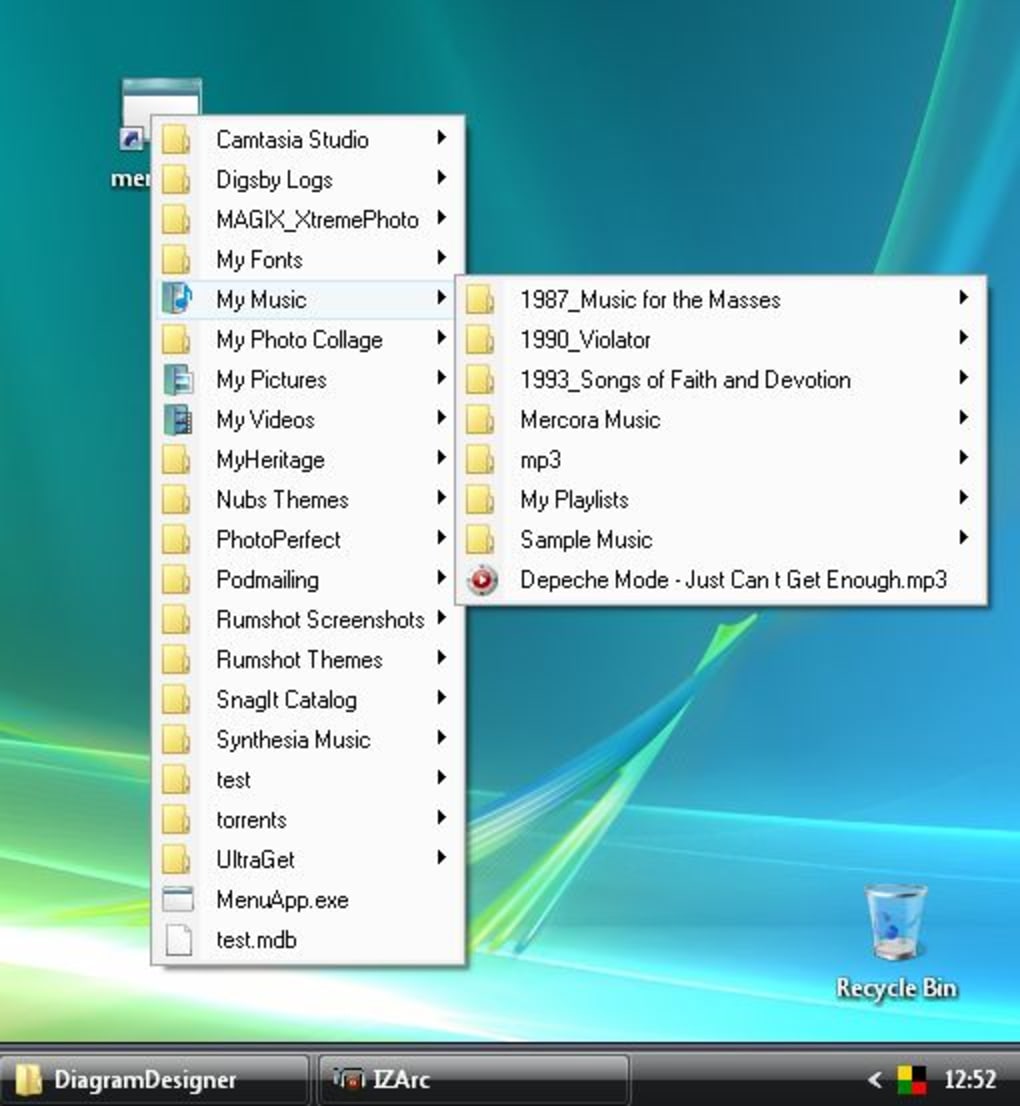
However, this design also presents limitations. The dynamic menu generation means that the user needs to actively manage the contents of the folder where menuApp is located. To access specific programs or files, you must first create shortcuts to those items within the same directory as the menuApp executable. This requires some manual organization, which some users might find less intuitive compared to launchers with built-in search or drag-and-drop functionality. The lack of a centralized configuration also restricts features such as customizable categories or sophisticated search filters.
Setting Up menuApp: A Step-by-Step Guide
To effectively use menuApp, follow these steps:
- Download and Installation: Download the menuApp executable file from a trusted source. No formal installation is required; you simply need to extract the file to the desired location.
-
Folder Selection: The success of menuApp hinges on choosing the right folder. The ideal location is a directory containing shortcuts to your most frequently used applications and files. This could be your “Documents” folder, a dedicated “Favorites” folder, or any other folder you frequently access.
-
Creating Shortcuts: Create shortcuts to your preferred applications and files and place them within the same folder as the menuApp executable. This is essential for menuApp to display these items in its menu. The more shortcuts you add, the more comprehensive your personalized launcher will be.
-
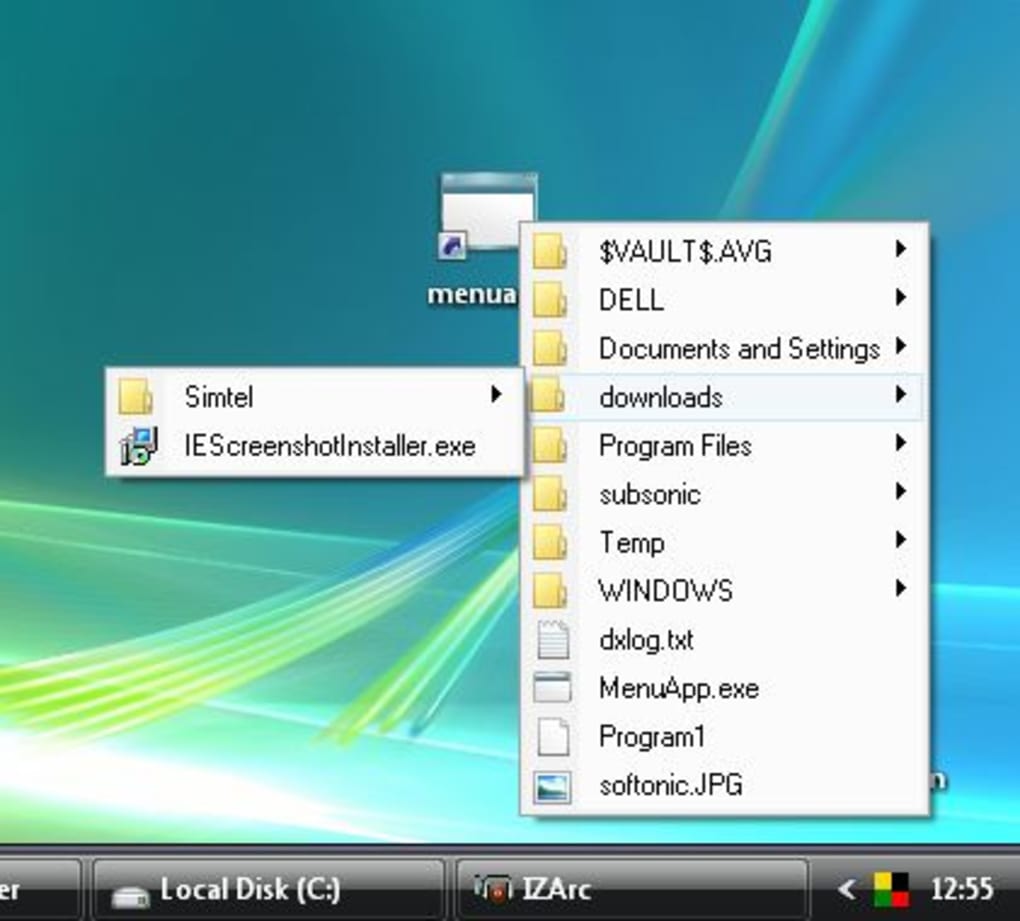
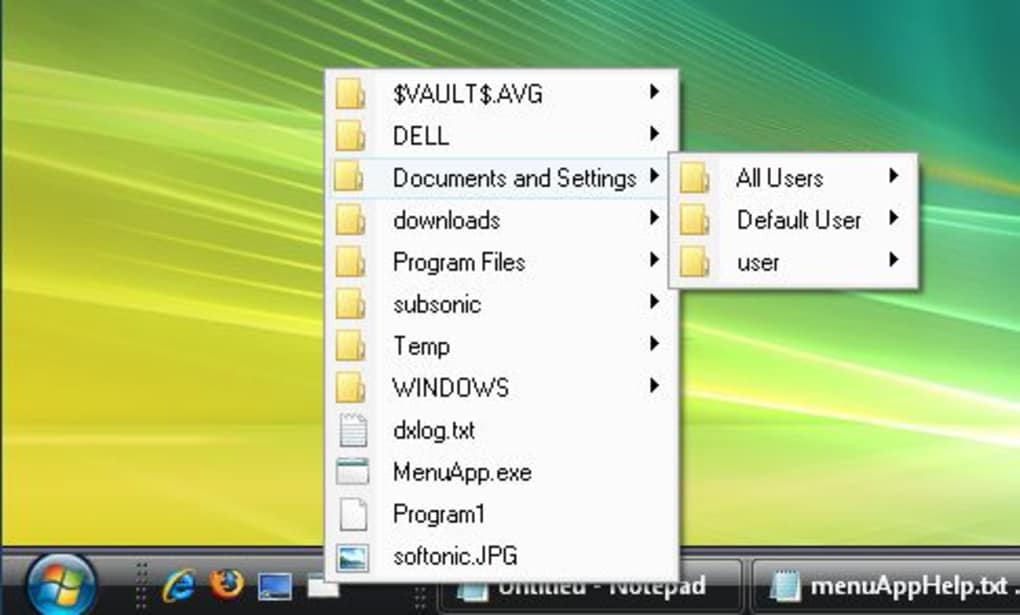
Launching menuApp: Double-clicking the menuApp executable will launch the application and display a floating menu containing the shortcuts you’ve placed in its directory. These items can then be accessed by simply clicking on their respective shortcuts within the menu.
-
Adding to Quick Launch or Desktop: For easier and quicker access, you can create a shortcut to the menuApp executable on your desktop or add it to the Quick Launch bar. This will enable one-click access to your personalized application and file launcher.
Features and Benefits of menuApp
While simple in design, menuApp boasts several advantages:
-
Lightweight and Resource-Efficient: It consumes minimal system resources, making it suitable for systems with limited memory or processing power. This contrasts with heavier launchers that may impact system performance, particularly on less powerful machines.
-
Portability: Its location-based functionality makes menuApp highly portable. You can copy the executable to a USB drive or other external storage and use it on different systems without requiring reinstallation or configuration.
-
Flexibility: The absence of a rigid configuration allows for great flexibility in customizing your launcher. You have total control over what programs and files appear in the menu, simply by adding or removing shortcuts from the directory.
-
Registry-Free Operation: menuApp operates independently of the Windows registry, avoiding potential conflicts or issues with other applications. This contributes to its stability and reduces the likelihood of unintended system modifications.
-
Easy Setup (for those comfortable with basic file management): Although it doesn’t offer a graphical user interface for configuration, the setup process is straightforward for those comfortable managing files and shortcuts.
Comparison with Alternative Launchers
menuApp occupies a unique niche in the world of application launchers. Many other launchers offer graphical user interfaces, drag-and-drop functionality, search capabilities, and sophisticated organization features. However, these features often come at the cost of increased system resource consumption and more complex setup processes. menuApp prioritizes simplicity and resource efficiency over advanced features, making it an attractive alternative for users who value speed and minimal system footprint.
Other launchers, such as those with customizable start menus or extensive application libraries, provide more extensive organization and customization options. However, these often require more significant system resources and a steeper learning curve for configuration.
Potential Drawbacks and Limitations
While menuApp offers a unique and lightweight approach to launching applications and files, several limitations should be considered:
-
Manual Configuration: The lack of a graphical user interface necessitates manual management of shortcuts within the chosen directory. This might be less convenient for users who prefer a more visually driven interface.
-
Limited Functionality: menuApp lacks advanced features such as search functionality, categorization, or customizable icon sizes. Its simple design intentionally omits these features to minimize resource consumption and maintain ease of use.
-
Potential for Clutter: If not carefully managed, the directory containing menuApp and its shortcuts could become cluttered. Good file management practices are crucial for keeping the launcher organized and efficient.
Conclusion: Is menuApp Right for You?
menuApp is not a one-size-fits-all solution. It’s best suited for users who prioritize speed, simplicity, and resource efficiency over sophisticated features. If you need a quick, portable, and lightweight way to launch your frequently used programs and files without the overhead of complex configuration, menuApp might be the ideal solution. However, if you require extensive customization, search capabilities, or a more visually intuitive interface, other, more feature-rich launchers might be a better fit. The choice ultimately depends on individual needs and preferences. Users who are comfortable with basic file management and prioritize a minimalist approach will likely find menuApp to be a valuable tool.
File Information
- License: “Free”
- Version: “1.04”
- Latest update: “March 13, 2008”
- Platform: “Windows”
- OS: “Windows 2000”
- Language: “English”
- Downloads: “7.1K”
- Size: “32.02 KB”


