
Mi Unlock is a free utility program developed by Xiaomi, specifically designed to unlock the bootloader of various Xiaomi smartphones and tablets. This process grants users access to core system files and advanced options, enabling extensive customization or the installation of custom firmware. While seemingly simple, understanding the implications and properly executing the process is crucial. This guide provides a detailed walkthrough of Mi Unlock, addressing its functionalities, potential risks, and best practices.
Understanding Bootloader Unlocking and its Implications
Android’s open-source nature allows for customization far beyond what standard operating systems offer. “Rooting” – gaining privileged control over the Android system – unlocks this potential, enabling users to access system-level files, modify system settings, install custom ROMs (alternative operating systems), and explore other advanced features. However, before you can root a Xiaomi device, you must first unlock its bootloader.
The bootloader is a small program that runs before the Android operating system starts. It’s responsible for loading the system kernel and other essential components. A locked bootloader restricts access to these critical system files, preventing modifications that could compromise the device’s stability or security. Unlocking the bootloader removes these restrictions, opening the door to advanced customization.
While unlocking the bootloader provides significant advantages for power users, it’s crucial to understand the potential drawbacks:
- Warranty Void: Unlocking the bootloader almost invariably voids the manufacturer’s warranty. If something goes wrong during the process, or as a result of modifications made after unlocking, you’ll likely be ineligible for warranty support.
- Security Risks: Modifying system files can potentially introduce security vulnerabilities if not done correctly. A compromised system could be susceptible to malware or exploits.
- Bricking Your Device: The process of unlocking and modifying your device carries a risk of “bricking,” rendering it unusable. This can occur due to errors during the unlocking process, improper installation of custom firmware, or incompatible modifications.
- Loss of Data: Although less common with Mi Unlock, there is always a small risk of data loss during the unlocking and rooting process. Backing up your data beforehand is highly recommended.
Using Mi Unlock: A Step-by-Step Guide
Mi Unlock simplifies the bootloader unlocking process, providing a user-friendly interface and guidance. However, careful attention to detail is essential to prevent issues. Here’s a comprehensive step-by-step guide:
-
Prerequisites:
- Download Mi Unlock: Download the official Mi Unlock tool from the Xiaomi website or a trusted source. Beware of unofficial versions, as they may contain malware or not function correctly.
- Enable Developer Options: On your Xiaomi device, go to “Settings,” then “About Phone,” and tap the “MIUI version” several times until “Developer options” are enabled.
- Enable USB Debugging: Within “Developer options,” enable “USB debugging.” This allows your computer to communicate with your device.
- OEM Unlocking: Also within “Developer options,” enable “OEM unlocking.” This is crucial for allowing the bootloader to be unlocked.
- Xiaomi Account: Ensure your Xiaomi account is logged into your device. Mi Unlock requires authentication through your Xiaomi account.
- Drivers: Make sure you have the necessary USB drivers installed on your computer. These drivers allow your computer to recognize your device.
-
Connecting Your Device:
- Power Off: Completely power off your Xiaomi device.
- Fastboot Mode: Boot your device into Fastboot mode. This usually involves pressing and holding specific button combinations while powering on (often the volume down and power buttons simultaneously). The exact combination may vary depending on your device model. Consult your device’s documentation for the specific instructions.
- Connect to PC: Once in Fastboot mode, connect your device to your computer using a USB cable.
-
Running Mi Unlock:
- Open Mi Unlock: Launch the Mi Unlock application on your computer.
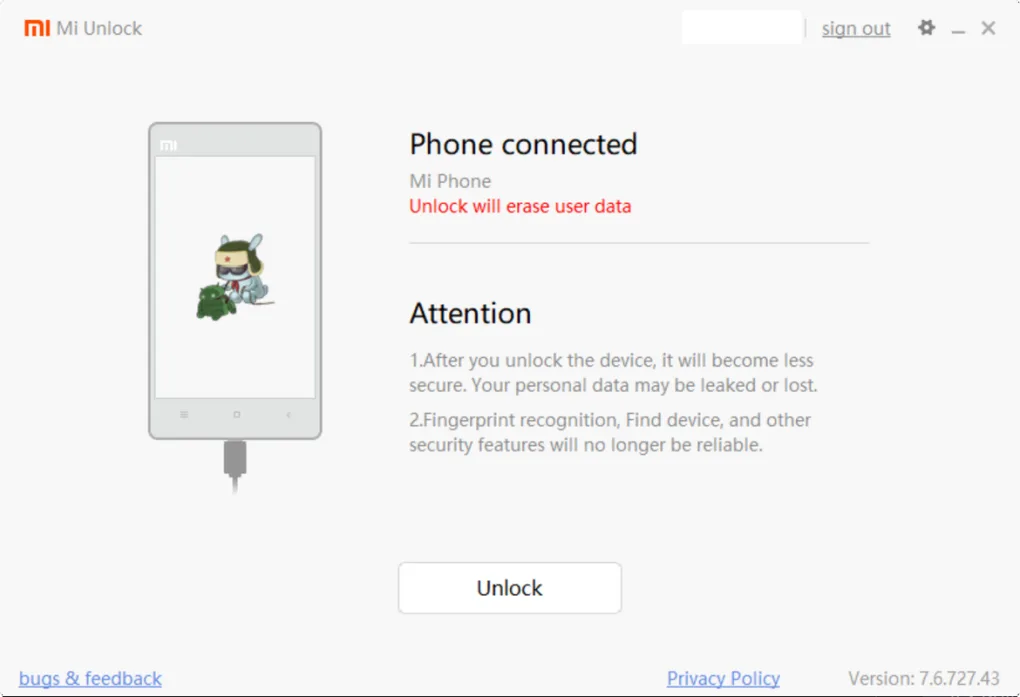
- Device Recognition: The software should automatically detect your device. If not, check your drivers and connection.
- Account Login: Mi Unlock will prompt you to log in with your Xiaomi account. Use the same account that is logged into your device.
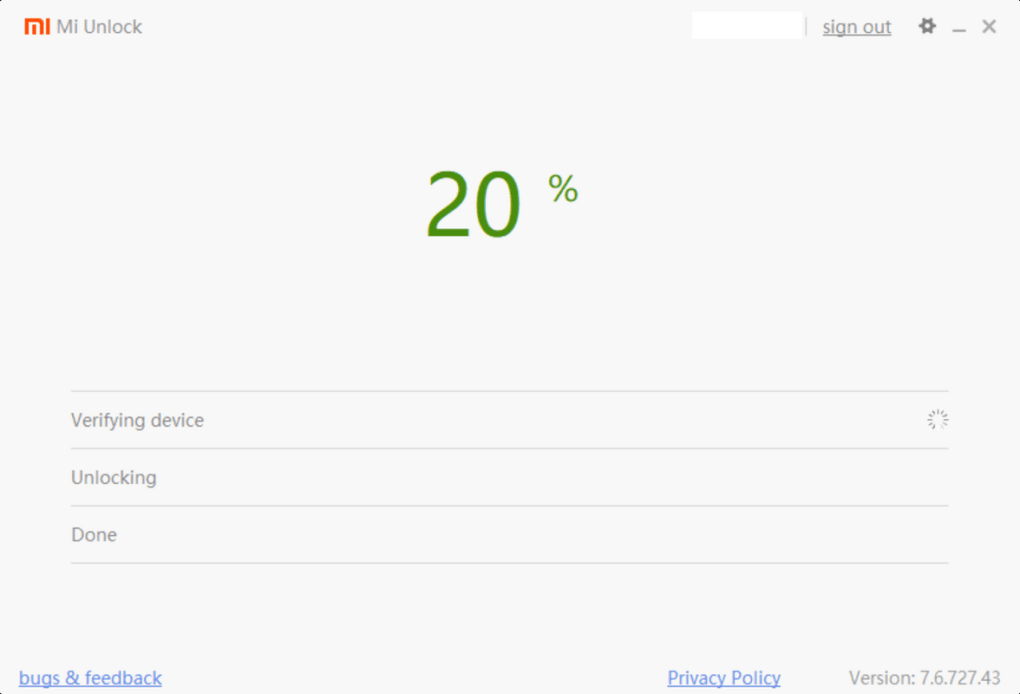
- Unlocking Process: Once your device is recognized and your account is verified, click the “Unlock” button. The process may take several minutes, and your device will likely reboot several times.
- Success/Failure: After completion, Mi Unlock will display a message indicating success or failure. If successful, your bootloader is unlocked. If unsuccessful, carefully review the error message and troubleshoot the issue before attempting again.
-
Post-Unlocking Steps:
- Reboot: Once the unlocking process is complete, reboot your device normally.
- Further Modifications (Optional): Once the bootloader is unlocked, you can proceed with rooting your device using tools such as Magisk or other rooting methods. These methods are beyond the scope of this guide, but ample resources are available online. Remember to proceed with caution and always back up your data before making any significant system modifications.
Troubleshooting Common Issues
While Mi Unlock strives for a seamless experience, issues can arise. Here are some common problems and their potential solutions:
- Device Not Recognized: Check your USB cable, drivers, and ensure USB debugging is enabled.
- Account Verification Failure: Ensure you’re using the correct Xiaomi account that’s logged into your device.
- Unlocking Failure: Check for error messages and consult online resources for troubleshooting specific errors. Sometimes, waiting a period and attempting again can resolve temporary issues.
- Bricked Device: If your device fails to boot after unlocking, it might be bricked. Seek assistance in online forums specializing in Xiaomi device repair.
Disclaimer and Safety Precautions
Unlocking your bootloader and rooting your device carries inherent risks. Always proceed with caution and at your own risk. Xiaomi and Phanmemfree are not responsible for any damage or issues resulting from using Mi Unlock or subsequent modifications. Before proceeding, thoroughly research the implications and ensure you understand the potential consequences. Backing up your data before starting is strongly recommended. Always download Mi Unlock from official sources to avoid malware. If you are uncomfortable performing these actions yourself, consider seeking help from an experienced Android technician. The legality of modifying your device’s software may vary by region, so ensure your actions comply with local laws.
File Information
- License: “Free”
- Version: “7.6.727.43”
- Latest update: “June 11, 2025”
- Platform: “Windows”
- OS: “Windows 8.1”
- Language: “English”
- Downloads: “3.7K”
- Size: “119.87 MB”


