
In the modern digital age, our computer desktops have become increasingly central to our daily lives, serving as the primary interface for work, entertainment, and communication. However, this centrality often leads to a common predicament: a cluttered and overwhelming workspace. Imagine a physical desk buried under stacks of papers, half-eaten snacks, and scattered pens – that’s the digital equivalent of many users’ computer screens, teeming with open applications, browser tabs, documents, and widgets. This digital sprawl can be a significant hindrance to productivity, focus, and overall user experience. Constantly minimizing, maximizing, and switching between windows not only wastes valuable time but also taxes cognitive resources, leading to frustration and reduced efficiency.
The quest for a more organized and expansive digital environment led to the development of innovative solutions, one of the earliest and most straightforward being “virtual desktops.” These tools aim to simulate the experience of having multiple physical monitors, even if you only possess one, by allowing users to create and switch between distinct digital workspaces. Among the pioneering applications in this domain was Microsoft Desktops, a simple yet effective utility released by the tech giant itself. While it may appear basic by today’s standards, Microsoft Desktops offered a foundational approach to desktop management, providing a clear path to reclaiming digital real estate and fostering a more organized computing experience. This article delves into the functionalities, benefits, limitations, and historical context of Microsoft Desktops, examining how this tool once empowered users to turn a single desktop into four manageable environments and its relevance in a landscape now rich with advanced virtualization options.
Unveiling Microsoft Desktops: The Concept of Virtualization
At its core, Microsoft Desktops is a testament to the power of simplicity in addressing a pervasive user challenge. Developed by Microsoft, this utility offered a no-frills approach to expanding one’s digital workspace by introducing the concept of virtual desktops directly to the user. The primary function is elegantly simple: it allows a single physical desktop screen to be logically divided into four distinct virtual screens. Instead of a chaotic jumble of windows fighting for space on one display, users could segment their activities across these four separate environments, creating a more organized and less visually overwhelming experience.
The genesis of virtual desktops as a concept stems from the recognition that human multitasking often involves distinct categories of tasks. A developer might juggle an IDE, a web browser for research, a communication client, and a document editor. A writer might need one space for drafting, another for research, and a third for managing communication. Without virtual desktops, these disparate applications would all contend for visibility on a single screen, leading to constant switching, obscuring, and re-opening of windows. Virtualization, in this context, provides a mental and visual separation, allowing users to dedicate specific virtual desktops to specific tasks or categories of applications. This compartmentalization not only reduces visual clutter but also aids in cognitive organization, helping users maintain focus on the task at hand without being distracted by unrelated open windows.
Microsoft Desktops emerged as a direct response to this need, offering a native, albeit basic, solution from the very company that developed the Windows operating system. Before the widespread integration of advanced virtual desktop features into later versions of Windows (like Windows 10 and 11), tools like Microsoft Desktops filled a crucial gap. It was particularly relevant for users with older operating systems, such as Windows Vista, or those running hardware configurations that didn’t support multiple physical monitors. Its existence underscored Microsoft’s acknowledgment of the growing demand for more flexible and efficient desktop management, laying some groundwork for future, more integrated solutions.
A Simple Solution to a Common Problem
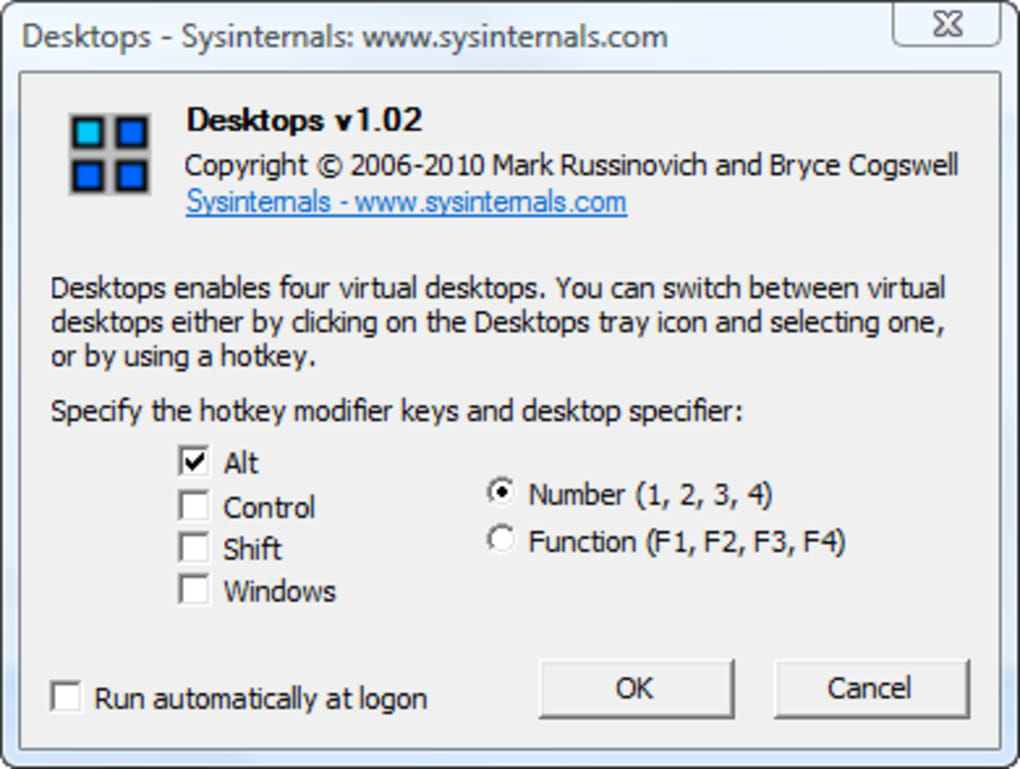
What sets Microsoft Desktops apart, particularly in its era, was its unwavering commitment to simplicity. The program wasn’t designed to be an all-encompassing desktop enhancement suite; rather, its purpose was laser-focused: to multiply desktop space by four, and nothing more. This minimalist philosophy meant a very lean application, both in terms of file size (a mere 204.63 KB) and system resource consumption. For users contending with older hardware or those who simply preferred uncluttered utilities, this was a significant advantage. The interface, as described, was exceedingly simple. Users weren’t bombarded with a myriad of options, advanced settings, or complex customization menus. Instead, they were presented with a few fundamental choices: select the hotkeys for navigation, and decide whether the program should launch with the system startup. That was essentially the extent of its configurable elements.
This straightforward approach was a deliberate design choice. In a software landscape often characterized by feature bloat and increasingly complex applications, Microsoft Desktops stood out by doing one thing well and without complication. It bypassed the learning curve associated with more robust virtualization tools, making it accessible to a wider audience, including those who might not consider themselves tech-savvy. For someone who simply wanted more room to breathe on their screen, without delving into intricate setups or managing advanced rules for window placement, Microsoft Desktops offered an immediate and effective remedy. It exemplified the idea that sometimes, the most elegant solution is the one that is the least complicated, focusing purely on solving a singular, widespread user pain point with directness and efficiency.
How Microsoft Desktops Transforms Your Workflow
The practical application of Microsoft Desktops lies in its ability to fundamentally alter how users interact with their digital workspace, shifting from a single, often congested screen to a segmented, organized environment. This transformation, while simple in concept, can have a profound impact on productivity and cognitive load.
Core Functionality: Dividing and Conquering
The essence of Microsoft Desktops is its capacity to logically divide your single monitor into four distinct screens. This isn’t just a visual trick; each of these virtual desktops functions as an independent workspace where applications and windows can reside without overlapping or interfering with those on other screens. The user’s workflow then transforms into a strategy of “dividing and conquering.”
Consider a common scenario for a professional:
- Desktop 1 (Communication Hub): This screen can be dedicated to essential communication tools – your email client (like Outlook), an instant messaging application (like Teams or Slack), and perhaps a calendar. When you need to check messages or respond, a quick hotkey press transports you directly to this focused environment.
- Desktop 2 (Primary Task): This might be where your core work happens. If you’re a writer, it’s your word processor; if you’re a programmer, it’s your integrated development environment (IDE); if you’re an analyst, it’s your spreadsheet software. All supporting documents or immediate reference materials can also live here.
- Desktop 3 (Research & Reference): For tasks requiring external information, this desktop can host multiple browser tabs, PDF readers, or other reference materials. You can conduct your research here without cluttering your primary work screen.
- Desktop 4 (Personal/Ancillary): This can be a more relaxed space for background music, a personal browser window for quick breaks, or less critical applications that you want open but out of sight.
This methodical allocation of applications dramatically reduces the visual chaos that often plagues a single desktop. Instead of having to minimize twenty windows to find the one you need, you simply switch to the relevant desktop. This deliberate separation helps maintain focus, as distractions can be literally “out of sight, out of mind” on another virtual screen. The mental context switching is minimized, allowing for deeper concentration on the task at hand within each dedicated workspace.
Navigating Your New Workspace: Hotkeys and Interface
The efficiency of any virtual desktop solution hinges on seamless navigation, and Microsoft Desktops prioritizes this with its straightforward hotkey system. Users are given the autonomy to define their preferred hotkey combinations for switching between the four virtual screens. Typically, this might involve combinations like Ctrl+Alt+1 for Desktop 1, Ctrl+Alt+2 for Desktop 2, and so forth. This tactile, keyboard-driven navigation is incredibly fast and efficient, allowing users to jump between their segmented workflows in an instant, often quicker than physically moving a mouse to a minimized window on a single screen.
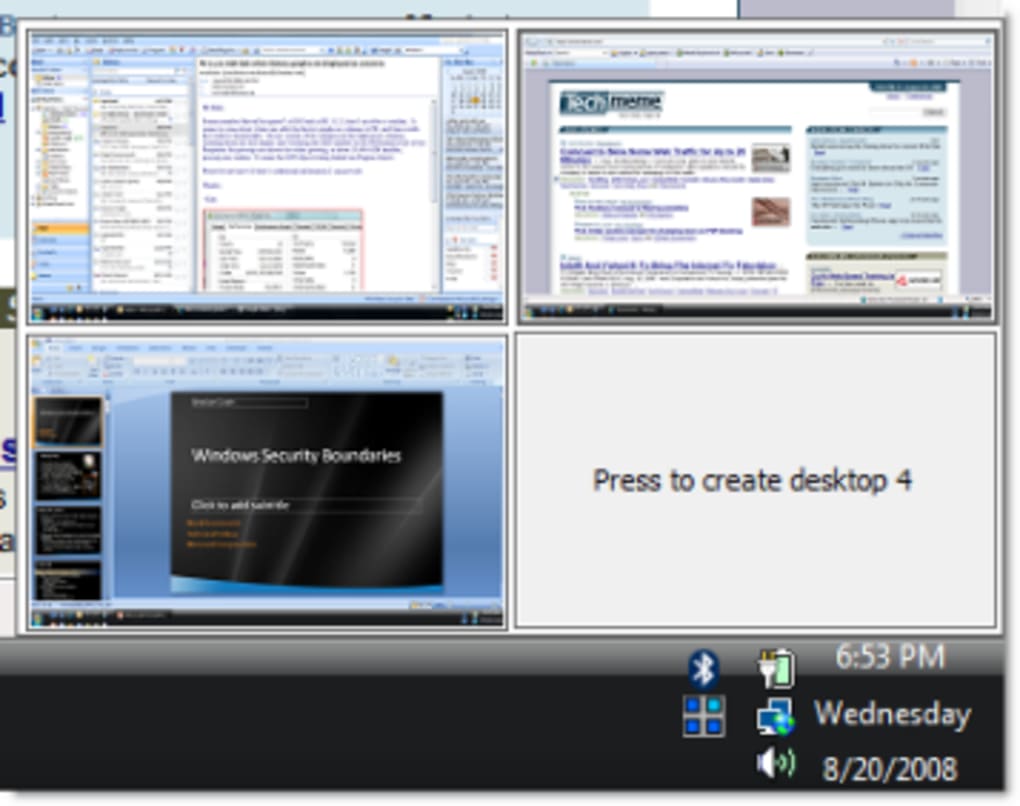
Beyond the hotkeys, Microsoft Desktops maintains a minimalist user interface, primarily manifesting as a program icon in the system’s taskbar. This unobtrusive presence means the application doesn’t add to the very clutter it seeks to alleviate. By right-clicking on this taskbar icon, users gain access to a small, intuitive menu. This menu typically offers options to open the program’s basic configuration interface (where hotkeys are set) or, more importantly, a visual representation of the four desktops. This visual overview allows users to see at a glance which applications are open on which virtual screen, and to directly jump to a specific desktop by clicking on its thumbnail. This dual approach – rapid hotkey navigation for quick shifts and a visual overview for orientation – strikes a balance between speed and clarity, ensuring that users can always maintain control over their expanded digital environment.
User Experience: Simplicity as a Virtue
The user experience with Microsoft Desktops is defined by its almost radical simplicity. In an era where software often competes on the sheer number of features, this application deliberately stripped back complexity, offering an almost spartan set of functionalities. This minimalist design is, in fact, its greatest virtue for a specific segment of users. The learning curve is virtually non-existent; anyone familiar with basic computer operations can grasp its functionality within minutes. There are no complex settings to tweak, no obscure menus to navigate, and no advanced configurations that require technical expertise.
This ease of use translates directly into efficiency. Users don’t waste time figuring out how the software works; they simply install it, set their hotkeys, and immediately begin benefiting from increased desktop space. This directness appeals particularly to users who are intimidated by overly feature-rich applications or those who simply desire a tool that does exactly what it promises without any added bloat. For these individuals, the lack of extensive customization options – often seen as a drawback in other contexts – becomes an advantage. It removes decision fatigue and potential points of confusion, ensuring that the focus remains entirely on managing the workspace rather than managing the workspace management tool itself. The phrase “it does what it says it will without complications” perfectly encapsulates the core user experience offered by Microsoft Desktops.
Setting Up for Success: Startup Options
A small but significant feature contributing to the seamless user experience of Microsoft Desktops is its startup option. The program allows users to decide whether it should automatically run when the operating system starts up. This seemingly minor detail is crucial for establishing virtual desktops as an integral part of the user’s daily computing routine.
By configuring Microsoft Desktops to launch with Windows, users ensure that their preferred multi-desktop environment is immediately available from the moment they log in. There’s no need to manually open the application each time, which could be easily forgotten or become an added step in an already busy routine. This automatic startup reinforces the idea that virtual desktops are not an occasional utility but a continuous, fundamental enhancement to the workspace. It embeds the segmented desktop approach into the very fabric of the user’s interaction with their computer, making the expanded space feel like a native, always-on feature rather than an activated add-on. This seamless integration ensures consistent productivity and organization, reinforcing the habit of utilizing distinct virtual environments for different tasks from the get-go.
The Advantages and Disadvantages of a Streamlined Approach
Like any software, Microsoft Desktops presented a specific set of strengths and weaknesses that dictated its suitability for different user profiles and computing needs. Its streamlined approach, while lauded for its simplicity, inherently came with trade-offs.
Pros: Why Choose Microsoft Desktops?
For many users, especially during its prime, Microsoft Desktops offered compelling advantages:
-
Enhanced Productivity and Organization: This is the most significant benefit. By dividing tasks across four distinct virtual desktops, users can dramatically reduce visual clutter on their main screen. This segregation helps maintain focus, as only relevant applications are visible at any given time. For instance, one desktop could be for email and communication, another for document editing, a third for web research, and a fourth for casual browsing or background media. The ability to quickly switch between these focused environments minimizes context switching costs and improves overall workflow efficiency. This organizational clarity can lead to less stress and a greater sense of control over one’s digital workspace.
-
Easy to Use: As highlighted previously, the program’s interface is remarkably simple. There are virtually no complex configurations or advanced settings to navigate. Users can install it, define their hotkeys, and immediately begin using the virtual desktops. This low barrier to entry made it accessible to a wide audience, including those who might not consider themselves technically proficient. The absence of bloat or unnecessary features contributes to a straightforward learning curve.
-
Variety of Hotkeys: While the core functionality is basic, Microsoft Desktops does offer flexibility in how users navigate between screens. The ability to customize hotkey combinations means users can tailor the switching mechanism to their personal preferences, ensuring that the process feels natural and intuitive. This customization, though limited in scope, enhances the speed and fluidity of moving between workspaces, a critical component of virtual desktop efficiency.
-
Lightweight and Resource-Friendly: With a minuscule file size of just 204.63 KB and minimal system resource consumption, Microsoft Desktops was an ideal solution for older computers or systems with limited RAM and processing power. It wouldn’t bog down the system, ensuring that the performance benefits of an organized desktop weren’t negated by the overhead of the tool itself. This was a crucial factor for many users who were not running top-of-the-line hardware.
-
Accessibility and System Integration (for its time): Being a Microsoft-developed tool, it generally offered good integration with Windows operating systems of its era (like Windows Vista). Its status as a first-party utility often implied a certain level of compatibility and stability, which could be reassuring for users wary of third-party software.
Cons: Where Does It Fall Short?
Despite its advantages, Microsoft Desktops also came with notable limitations, particularly when compared to more advanced or modern solutions:
-
Limited Customization and Advanced Features: This is the most frequently cited drawback. Users looking for personalized desktop backgrounds for each virtual screen, the ability to name desktops, animate transitions, or set rules for applications to automatically open on specific desktops would be disappointed. Microsoft Desktops provided a raw, functional split into four screens, but offered little beyond that. There were no options for custom themes, per-desktop wallpapers, or integration with external tools. This lack of features made it less appealing to power users or those who desired a highly tailored virtual desktop experience.
-
The “Memory Game” of Application Placement: The very simplicity that made it easy to use also created a potential challenge. Since there were no visual cues or names for each desktop (beyond “Desktop 1,” “Desktop 2,” etc.) and no intelligent application management, users had to manually remember where they left each application. If you have many applications open across four screens, it’s easy to forget which browser tab or document is on which desktop, potentially leading to moments of confusion and searching. This “memory game” can ironically introduce a new form of cognitive load.
-
Comparison to More Robust Solutions: Even in its time, and certainly in the present, other third-party virtual desktop managers (like Dexpot, which offered advanced features such as individual wallpapers, transparent windows, and application rules) provided a much richer and more configurable experience. For users who needed more than just a basic split, Microsoft Desktops quickly felt insufficient. Its focus on just four desktops also meant it lacked the flexibility of solutions that allowed for an arbitrary number of virtual screens.
Is Microsoft Desktops the Right Tool for You?
Considering its strengths and weaknesses, Microsoft Desktops was (and to some extent, still is for specific niche uses) best suited for a particular type of user:
- Minimalists: Individuals who prefer straightforward, no-frills applications that perform a single function efficiently.
- Users with Older Systems: Its lightweight nature made it ideal for computers running older Windows versions (e.g., Windows Vista) or those with limited hardware resources, where more demanding virtualization software would cause performance issues.
- Basic Organizers: Users who simply need a quick and easy way to separate their applications into a few distinct groups, without the need for complex automation or extensive personalization.
- Introductions to Virtual Desktops: It could serve as an excellent entry point for users new to the concept of virtual desktops, providing a clear demonstration of their utility before they potentially explore more feature-rich alternatives.
Conversely, power users, designers, developers, or anyone requiring deep customization, advanced window management rules, or a visually rich virtual desktop experience would likely find Microsoft Desktops too limiting. For these users, more comprehensive tools or the native virtual desktop features in modern Windows versions would be a far more appropriate choice. Ultimately, Microsoft Desktops excelled in its specific niche as a simple, free, and effective tool for basic desktop organization.
Technical Specifications, Availability, and the Broader Ecosystem
To fully understand Microsoft Desktops, it’s essential to look at its technical footprint, how it was distributed, and how it fits into the broader landscape of desktop management tools, both historically and in the present day.
System Requirements and Accessibility
Microsoft Desktops was developed primarily for the Windows operating system, with its version 2.012.01.02, last updated on May 24, 2023, specifically listing compatibility with Windows Vista. This detail is crucial as it positions the tool as a solution for an earlier generation of Windows users, preceding the more robust native virtual desktop features introduced in Windows 10 and 11. Its continued availability, even for an older OS, highlights its enduring, albeit niche, utility.
The program’s diminutive size is another defining characteristic: a mere 204.63 KB. This extremely small footprint means it consumes negligible storage space and is quick to download, even on slower internet connections. Its lightweight nature also translates to minimal impact on system resources (RAM, CPU), making it an excellent choice for machines with modest specifications or for users who prioritize system responsiveness above all else. The application is entirely in English, which simplifies its usage for a vast global audience, and was developed by Microsoft itself, lending it a certain credibility and expectation of compatibility within the Windows ecosystem. With over 15.3K downloads, even with its age, it shows a consistent, if small, demand.
Download and Installation
As a free utility, Microsoft Desktops was typically distributed through various software download portals. Websites like PhanMemFree.org would host the installer, making it readily accessible to anyone searching for a basic virtual desktop solution. The installation process itself would have been straightforward, often involving a simple executable file that guided the user through a few prompts before placing the program’s files on the system and creating a shortcut or integrating it into the system tray. The ease of acquisition and installation was another factor contributing to its appeal as a quick fix for desktop clutter.
Exploring Alternatives and Modern Virtual Desktop Solutions
While Microsoft Desktops offered a foundational approach, the field of virtual desktop management has evolved significantly. Comparing it to contemporary and even other historical alternatives provides critical context.
Dexpot: A Feature-Rich Contender
One of the most prominent third-party alternatives mentioned is Dexpot. Unlike the Spartan Microsoft Desktops, Dexpot positioned itself as a comprehensive Windows virtualization tool, often described as “Windows virtualization at its best.” It offered a wealth of features that Microsoft Desktops lacked, including:
- Individual Desktop Settings: Users could assign unique wallpapers, screen resolutions, and even sound profiles to each virtual desktop.
- Advanced Window Rules: Dexpot allowed users to define rules for how applications behaved across desktops, such as forcing certain applications to open on specific desktops or to always be visible.
- More Desktops: It typically supported more than just four virtual desktops, offering greater flexibility.
- Visual Enhancements: Dexpot often included eye-catching animations for switching desktops, desktop previews, and a more polished user interface.
For power users or those who sought deeper customization and automation in their virtual desktop experience, Dexpot clearly outshone Microsoft Desktops. Its existence highlighted the limitations of Microsoft’s simpler offering, demonstrating what was possible with more dedicated development.
ASTER: Multi-User PC Sharing
Another interesting alternative, ASTER, approaches desktop virtualization from a different angle. Instead of multiplying desktop space for a single user, ASTER allows multiple users to work independently on a single computer, each with their own monitor, keyboard, and mouse, as if they had their own PC. This is a significantly different use case from Microsoft Desktops, targeting shared computing environments (e.g., small businesses, classrooms) rather than individual desktop organization. While it uses virtualization technology, its purpose and implementation are distinct.
Native Windows Virtual Desktops
Perhaps the most significant development influencing the relevance of Microsoft Desktops (and many third-party tools like it) has been the integration of native virtual desktop functionality directly into the Windows operating system itself.
- Windows 10: With Windows 10, Microsoft introduced “Task View” (accessed via
Win + Tab), which includes a robust virtual desktop manager. Users can create an arbitrary number of virtual desktops, drag and drop applications between them, and easily switch using a graphical interface or hotkeys (Win + Ctrl + Left/Right Arrow). These native features are well-integrated, offer smooth transitions, and generally provide a much more modern and flexible experience than Microsoft Desktops. - Windows 11: Building on Windows 10, Windows 11 further refined the virtual desktop experience, making it even more intuitive with improved taskbar integration and customization options for desktop backgrounds and names.
The presence of these built-in features in modern Windows versions means that for the majority of users running Windows 10 or 11, a separate tool like Microsoft Desktops is largely redundant. The native solution is more powerful, better integrated, and continuously updated. However, for users still on older operating systems like Windows Vista (for which Microsoft Desktops explicitly targets), or those who simply prefer an extremely lightweight and basic solution without the added features of modern native implementations, Microsoft Desktops retains a niche appeal. Its historical significance also lies in paving the way and demonstrating the utility of virtual desktops to a broad user base before such features became standard.
Other Third-Party Tools
Beyond Dexpot and ASTER, countless other third-party utilities have emerged over the years, each offering its unique blend of features, customization options, and user interfaces. These range from simple tools mirroring Microsoft Desktops’ basic functionality to highly sophisticated managers that integrate with scripting, advanced hotkeys, and desktop environments. The diversity of these alternatives underscores the enduring appeal and necessity of effective desktop management for digital productivity.
In conclusion, Microsoft Desktops stands as a historical artifact and a functional utility that addressed a real need for desktop organization in its time. While its simplicity and lightweight nature remain appealing for specific scenarios (especially older OS versions), the advancements in native Windows features and more comprehensive third-party alternatives have largely overshadowed its initial innovation. Yet, its legacy as a pioneering official virtual desktop tool from Microsoft is undeniable.
Conclusion: Reclaiming Your Digital Real Estate
The journey through the functionalities and historical context of Microsoft Desktops reveals a classic example of how a simple, well-executed idea can address a pervasive user problem. In an era where digital clutter was becoming an ever-increasing challenge, Microsoft Desktops offered a straightforward, free, and efficient means to segment and organize one’s digital workspace. By metaphorically transforming a single physical desktop into four distinct virtual environments, it empowered users to compartmentalize their tasks, reduce visual chaos, and foster a more focused and productive workflow.
Its greatest strengths lay in its minimalist design and ease of use. For individuals struggling with overflowing screens on Windows Vista or similar operating systems, this lightweight utility provided an immediate remedy without demanding complex configurations or significant system resources. The ability to quickly navigate between dedicated communication, work, research, and personal desktops using customizable hotkeys represented a tangible improvement in efficiency and a reduction in cognitive load. It was, for many, an introduction to the profound benefits of virtual desktops – a concept that has since become a standard, integrated feature in modern operating systems.
However, the very simplicity that defined Microsoft Desktops also marked its limitations. The lack of advanced customization options, such as individual desktop wallpapers, naming conventions, or intelligent application management, meant it couldn’t satisfy the demands of power users or those seeking a highly personalized virtual environment. The “memory game” of remembering where applications were placed across four undifferentiated screens could, at times, counteract its organizational benefits.
In the broader context of desktop management, Microsoft Desktops served as an important stepping stone. While modern Windows versions (Windows 10 and 11) now offer robust, natively integrated virtual desktop features that surpass Microsoft Desktops in terms of functionality and seamlessness, the older utility still holds relevance for users on legacy operating systems or those who simply prefer the most basic, unadorned solution possible. Alternatives like Dexpot demonstrated the potential for more comprehensive third-party solutions, pushing the boundaries of what virtual desktops could offer.
Ultimately, Microsoft Desktops represents a foundational contribution to the ongoing quest for effective digital workspace management. It perfectly encapsulated the principle that sometimes, the most impactful software is not the one with the most features, but the one that solves a specific problem with elegant simplicity. For its target audience and within its historical context, Microsoft Desktops was an invaluable tool for reclaiming digital real estate, turning a crowded screen into a structured, manageable, and ultimately, more productive environment.
File Information
- License: “Free”
- Latest update: “May 24, 2023”
- Platform: “Windows”
- OS: “Windows Vista”
- Language: “English”
- Downloads: “15.3K”
- Size: “204.63 KB”


