
Miracast, a wireless screen mirroring technology, offers a convenient way to stream your Android device’s display to a compatible smart TV or projector. Developed by Cast4TV and available as a free application, Miracast provides a seamless way to share photos, videos, presentations, and more with a larger audience. While generally straightforward, the initial setup process may present some challenges for less tech-savvy users, requiring navigation through various TV settings and input options. This comprehensive guide explores the intricacies of Miracast, its benefits, potential drawbacks, and alternative solutions.
Understanding Miracast and its Functionality
Miracast operates on the principle of wireless screen mirroring, enabling users to project their Android device’s screen content onto a compatible display device without the need for cumbersome cables or complex network configurations. This technology relies on Wi-Fi Direct, establishing a peer-to-peer connection between the source (your Android device) and the destination (your smart TV or projector). This direct connection avoids the need for a router or intermediary network, simplifying the setup process and minimizing potential network interference.
However, compatibility remains a key factor. The success of Miracast hinges on both your Android device and your display device supporting the Miracast standard. Not all devices are created equal, and some older models might lack this functionality. Before attempting to establish a connection, ensure that both your Android device and your display device are Miracast-compatible. This information can typically be found in your device’s specifications or user manual.
The Miracast application itself acts as an intermediary, facilitating the connection between your Android device and the display device. It simplifies the process of searching for and connecting to available Miracast-enabled devices, offering a user-friendly interface. While primarily designed for screen mirroring, the application may also offer additional features depending on its version and development updates. These might include options for adjusting screen resolution or optimizing the mirroring process for different network conditions.
Setting up a Miracast Connection: A Step-by-Step Guide
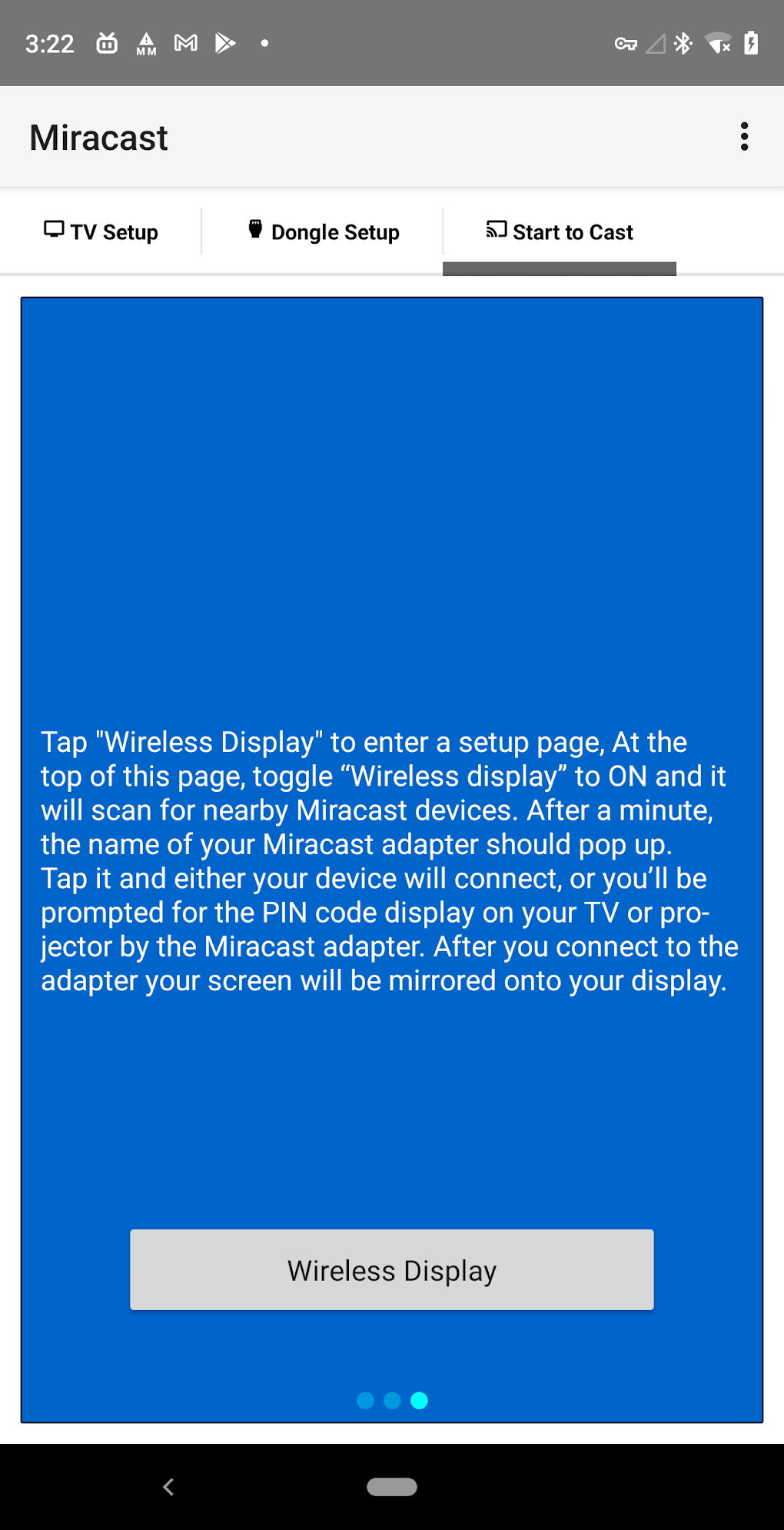
The setup process for Miracast typically involves several steps. While the exact steps may vary slightly depending on your Android device and your TV’s operating system, the general process remains consistent.
1. Enabling Wireless Display on Your Android Device: This is usually done through your device’s settings menu. The specific location of this setting may differ depending on the Android version and device manufacturer. However, the general path typically involves going to Settings > Display > Wireless Display or similar. Once located, toggle this feature “On.” This will initiate a scan for available Miracast-enabled devices within range.
2. Identifying Miracast-Enabled Devices: Your Android device will begin scanning for compatible devices. The list of detected devices will appear on your screen. Identify your smart TV or projector from the list. If it’s not immediately apparent, refer to your TV’s user manual for its exact Miracast name or identifier.
3. Establishing the Connection: Once you’ve identified your target device, tap on its name to initiate the connection process. This might prompt your TV to display a PIN code. Verify that the PIN displayed on your TV matches the one shown on your Android device. Enter the PIN on your Android device to confirm the connection.
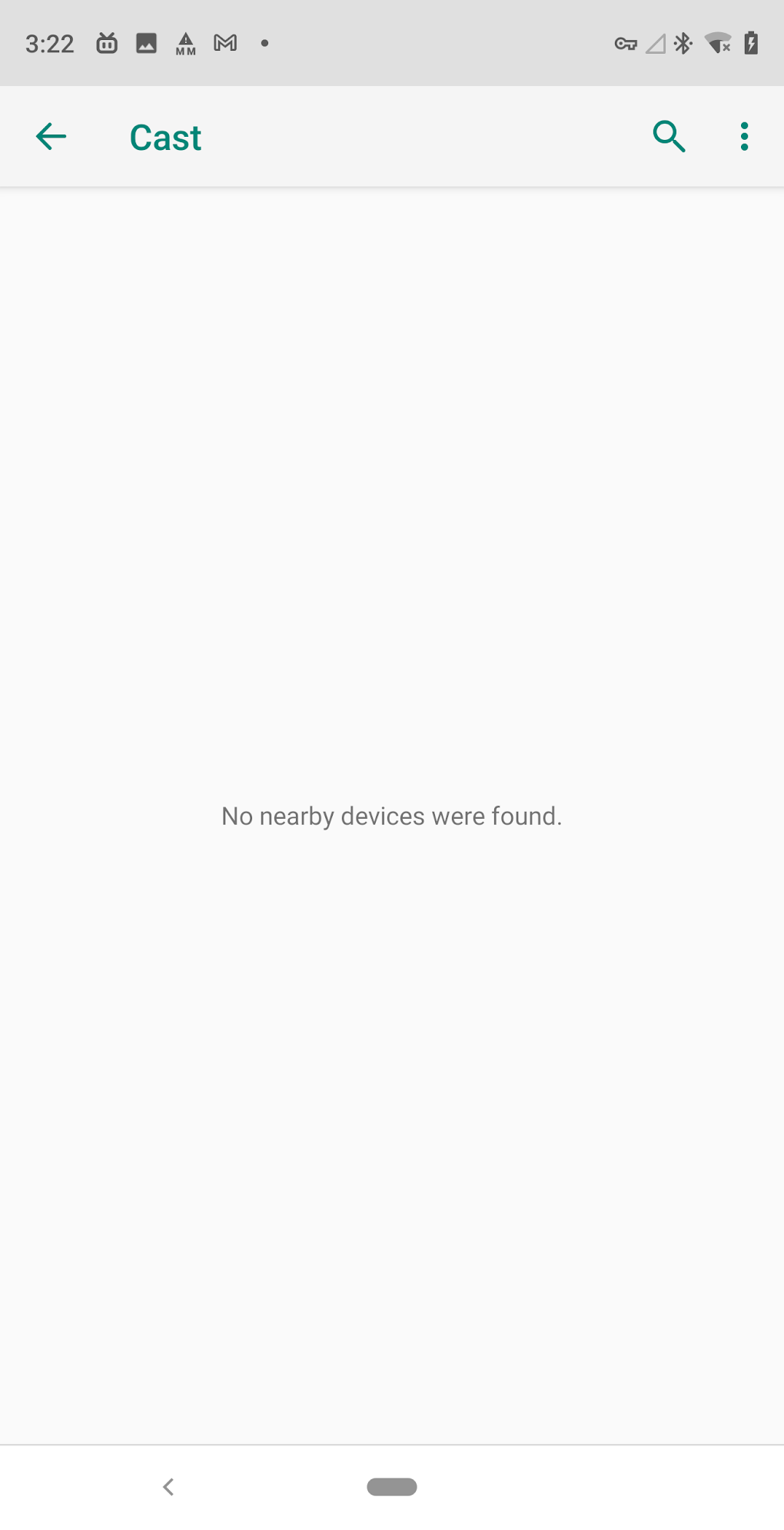
4. Mirroring Your Screen: Upon successful PIN verification, your Android device’s screen should be mirrored on your smart TV or projector. You should now be able to see everything on your phone or tablet’s screen displayed on the larger screen. Navigate through your apps, photos, or videos, and observe the mirrored content on your TV.
5. Troubleshooting Connection Issues: If you encounter connection issues, such as failure to detect devices or unsuccessful PIN verification, try the following troubleshooting steps:
- Verify Miracast Compatibility: Ensure that both your Android device and your display device support Miracast.
- Check Network Interference: Minimize potential interference from other Wi-Fi networks or devices by temporarily disabling other Wi-Fi connections.
- Restart Devices: Restart both your Android device and your display device. This can resolve minor software glitches.
- Update Software: Ensure that both your Android device and your TV have the latest software updates installed. Outdated software can cause compatibility issues.
- Check TV Input: Ensure that your TV is set to the correct input source to receive the Miracast signal. This might be labeled as “HDMI,” “Wireless Display,” “Screen Mirroring,” or a similar term.
Exploring the Advantages and Disadvantages of Miracast
Miracast offers several advantages, but it also comes with some limitations.
Advantages:
- Wireless Convenience: The primary advantage is its wireless nature, eliminating the need for cumbersome cables. This enhances portability and eliminates the clutter associated with wired connections.
- Broad Compatibility: While not universal, Miracast boasts relatively broad compatibility with a wide range of Android devices and smart TVs. However, it is crucial to check the compatibility specifications of your specific devices before attempting to establish a connection.
- Ease of Use: The process is relatively straightforward once both devices are Miracast-capable, even though initial setup may present challenges. The application usually provides a user-friendly interface for managing the connection.
- No Network Dependency: Miracast establishes a direct connection using Wi-Fi Direct, bypassing the need for a router or Wi-Fi network. This is particularly beneficial in situations where a Wi-Fi network is unavailable or unreliable.
Disadvantages:
- Initial Setup Complexity: While the actual mirroring process is simple, the initial setup can be challenging for some users. Locating the correct settings on both the Android device and the display device can be confusing. The need to navigate various menus and confirm PIN codes might present hurdles for those less familiar with technical configurations.
- Compatibility Issues: Not all Android devices and smart TVs are Miracast-compatible. Compatibility discrepancies can hinder the setup process and prevent successful mirroring. Always check for device compatibility before attempting to use Miracast.
- Performance Limitations: Miracast’s performance can be affected by network conditions, such as interference from other Wi-Fi devices. In areas with weak or unstable Wi-Fi signals, you may experience lag, dropped connections, or low-quality video.
- Limited Functionality: Compared to other screen mirroring solutions, Miracast may offer more limited functionality. Some advanced features, such as high-resolution mirroring or audio synchronization options, might not be available.
Alternative Screen Mirroring Solutions
If you encounter issues with Miracast or prefer alternative methods for screen mirroring, several other options exist:
-
Chromecast: Google Chromecast offers a popular and relatively user-friendly alternative. It involves plugging a Chromecast device into your TV’s HDMI port and connecting it to your Wi-Fi network. This allows for seamless streaming from Android devices and other platforms. Chromecast typically offers a more reliable and stable connection than Miracast.
-
AirPlay (for Apple devices): If you use Apple devices, AirPlay offers a comparable solution, enabling you to mirror your iPhone or iPad screen to Apple TV. AirPlay is renowned for its seamless integration within the Apple ecosystem.
-
Third-Party Apps: Several third-party applications offer screen mirroring functionality. These apps often provide additional features, such as enhanced control over mirroring settings or compatibility with a broader range of devices. However, exercise caution when using third-party apps, ensuring that they are from reputable developers to avoid malware or security risks.
Miracast provides a convenient wireless screen mirroring solution for compatible Android devices and smart TVs. While it offers ease of use and broad compatibility, its initial setup complexity and potential compatibility issues can be drawbacks. Consider exploring alternative solutions if you encounter problems or require more advanced features. Remember to always check your device’s compatibility and troubleshoot potential problems using the steps outlined above. With proper setup and troubleshooting, Miracast can provide a seamless and enjoyable screen mirroring experience.
File Information
- License: “Free”
- Latest update: “September 29, 2024”
- Platform: “Android”
- OS: “Android 13.0”
- Downloads: “33.8K”
- Size: “9.37 MB”
- Download Options: “APK, Google Play”
- Filename: “com-cast4tv-miracast-18-68868465-45d98ec70237405b7ecec7a7457a5f8b.apk”


