
Mouse Manager is a free utility developed by RealityRipple Software, designed to enhance the functionality of your computer mouse. Unlike proprietary software bundled with specific gaming mice from manufacturers like Logitech or Razer (such as Logitech Gaming Software and Razer Synapse), Mouse Manager offers a universal solution for remapping and assigning functions to extra mouse buttons, regardless of your mouse’s brand or model. This versatility makes it a valuable tool for users seeking greater control and customization of their input devices.
Understanding Mouse Manager’s Functionality
In the past, computer mice were relatively simple devices, equipped with just two buttons (left and right-click) and, sometimes, a clickable scroll wheel. Modern mice, however, frequently include additional buttons, typically labeled as buttons 4 and 5, significantly expanding their potential functionality. While many branded mice come with dedicated software to configure these extra buttons, users of generic mice often lack this customization capability. Mouse Manager bridges this gap, providing a universal solution for remapping these extra buttons for virtually any mouse connected to your PC.
The software’s core function is straightforward: it allows you to reassign the functions of your mouse’s additional buttons to replicate any keypress on your keyboard. This means you can program button 4 to perform the function of a specific letter key, an arrow key, or any other keyboard shortcut. The flexibility of Mouse Manager lies in its ability to transform your mouse into a highly personalized input device tailored to your specific needs and workflow.
Setting Up and Using Mouse Manager
The initial setup of Mouse Manager is remarkably intuitive. After installation, navigate to the Settings tab within the program. Here, you can enable Mouse Manager to launch automatically with your system startup, ensuring it’s always active and ready to use. This simple step saves you the effort of manually launching the program each time you start your computer.
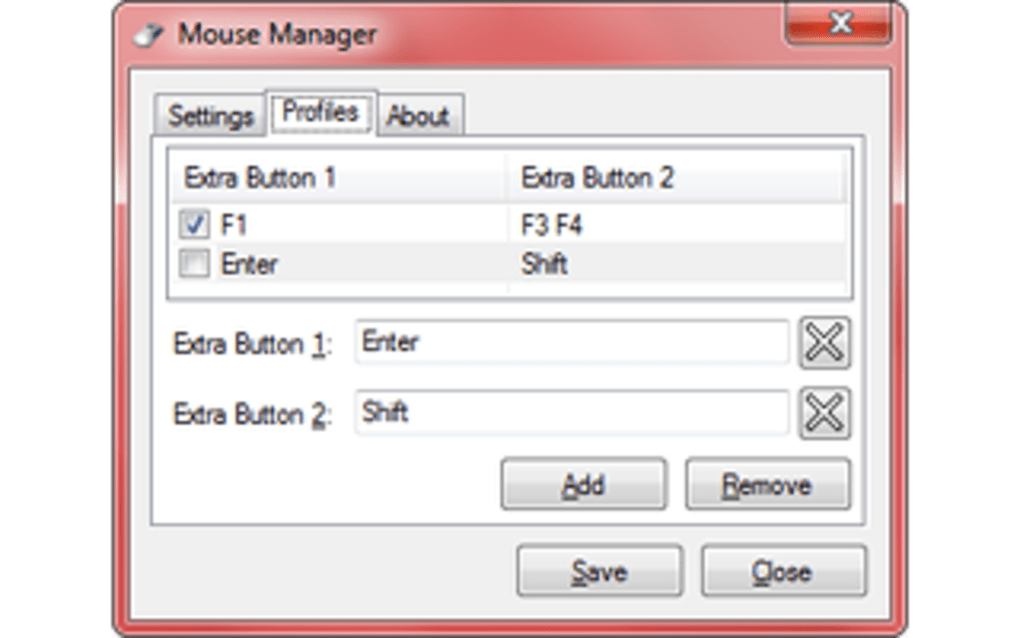
The primary customization takes place in the Profiles tab. This section allows you to create and manage multiple profiles, each with its own unique configuration for your mouse buttons. Creating multiple profiles enables you to switch between different button mappings with ease, catering to various applications or tasks. For example, you might create one profile for gaming that assigns specific actions to your extra buttons, and another for general productivity tasks, assigning those same buttons to different shortcuts or commands.
Switching between profiles is equally straightforward. A right-click on the Mouse Manager system tray icon brings up a menu displaying your available profiles, allowing for quick and seamless transitions between configurations.
Limitations and Advanced Alternatives
While Mouse Manager excels at remapping mouse buttons to keyboard functions, it’s crucial to understand its limitations. Unlike some more advanced mouse customization software, Mouse Manager cannot be used to directly launch applications or execute more complex commands beyond standard keypresses. It’s designed specifically for remapping existing keyboard functions to your mouse buttons, enhancing your workflow within existing applications rather than creating new ones.
For users requiring more extensive capabilities such as launching applications or performing more intricate actions, RealityRipple Software offers a more advanced solution: Advanced Mouse Manager. This software builds upon the foundation of Mouse Manager, adding features for executing macros, launching programs, and handling more complex input sequences. If your customization needs exceed the scope of simple key remapping, Advanced Mouse Manager represents a powerful upgrade.
Comparing Mouse Manager to Similar Software
Several other applications offer similar functionality to Mouse Manager, but each with its own strengths and weaknesses. Key competitors often include proprietary software bundled with specific mice, as mentioned earlier, as well as more general-purpose automation tools. Mouse Manager’s key advantage lies in its universal compatibility, its ease of use, and its lightweight design. While other software might offer a wider range of features, these features often come at the cost of increased complexity, resource consumption, or limited compatibility with certain mouse models.
Mouse Manager stands out for its simplicity and breadth of compatibility. Its streamlined interface makes it accessible to novice users, while its universal compatibility makes it a viable solution for a broader range of users regardless of their mouse brand.
Mouse Manager’s Strengths and Weaknesses
Strengths:
- Universal Compatibility: Mouse Manager supports virtually any mouse, eliminating the need for brand-specific software.
- Ease of Use: The user interface is intuitive and straightforward, making setup and configuration simple.
- Lightweight Design: The application has a minimal footprint, consuming minimal system resources.
- Multiple Profiles: The ability to create and switch between multiple profiles allows for customized button mappings for different tasks and applications.
- Freeware: The software is available for free, making it an accessible option for budget-conscious users.
- Fast and Efficient: The application operates quickly and efficiently, with minimal latency in button response.
Weaknesses:
- Limited Functionality: Mouse Manager is solely focused on remapping keyboard commands to mouse buttons; it does not support launching applications or executing macros directly.
- No Advanced Features: It lacks advanced features found in more complex mouse customization utilities.
- Limited Customization Options Beyond Keypresses: Users cannot assign custom actions beyond replicating standard keyboard commands.
Conclusion: Mouse Manager – A Practical and Versatile Tool
Mouse Manager presents a strong case for itself as a practical and versatile utility for enhancing mouse functionality. Its universal compatibility, ease of use, and lightweight design make it an appealing option for a wide range of users. While it lacks the advanced features of more complex software, its simplicity and effectiveness make it an excellent choice for those seeking a straightforward and reliable solution for remapping their extra mouse buttons. If your needs are primarily focused on improving efficiency within existing applications by assigning keyboard shortcuts to extra mouse buttons, Mouse Manager offers a superb solution without the complexity and resource demands of more feature-rich alternatives. For users requiring more advanced capabilities, however, exploring the more comprehensive Advanced Mouse Manager is recommended.
File Information
- License: “Free”
- Version: “2.0”
- Latest update: “January 4, 2022”
- Platform: “Windows”
- OS: “Windows 8.1”
- Language: “English”
- Downloads: “20.8K”
- Size: “814.54 KB”


