Mozilla Firefox is a free, open-source web browser available across multiple platforms, including Windows, macOS, Linux, Android, and iOS. Its popularity stems from a commitment to speed, security, and user customization, making it a compelling alternative to other dominant browsers. This in-depth analysis explores Firefox’s features, security protocols, recent updates, and its standing within the competitive landscape of web browsers.
Security and Privacy at the Core of Firefox
Mozilla, the non-profit organization behind Firefox, operates under the principles outlined in the Mozilla Manifesto. This manifesto emphasizes a commitment to open standards, user privacy, and a balance between profit and public good. This philosophy translates directly into Firefox’s design and functionality, making security and privacy paramount.
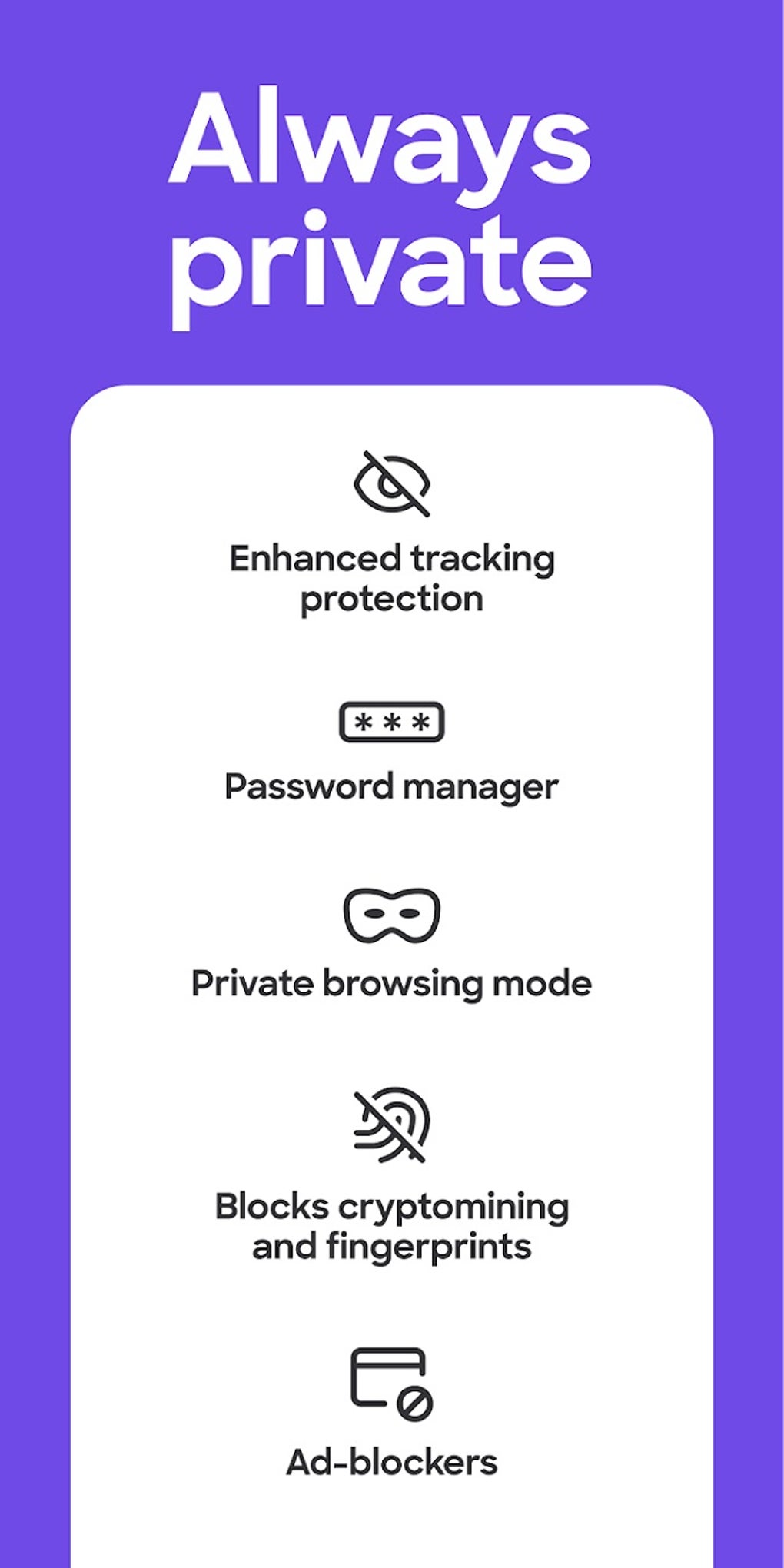
Unlike some browsers that prioritize data collection for targeted advertising, Firefox actively works to protect user privacy. Features such as Enhanced Tracking Protection block unwanted trackers and cookies, significantly reducing the amount of personal data shared with websites. The ability to enable DNS over HTTPS (DoH) adds another layer of security by encrypting DNS queries, preventing third parties from monitoring online activity. Firefox also offers granular control over cookies, allowing users to customize their preferences for different websites. The browser’s implementation of “Do Not Track” signals allows users to opt-out of data collection, although its effectiveness varies depending on website compliance.
Furthermore, Firefox’s commitment to security extends beyond built-in features. The open-source nature of the browser allows for independent audits and contributions from a global community of developers, continuously improving its security posture. Regular updates ensure vulnerabilities are quickly addressed, minimizing the risk of exploits. The browser also incorporates features to detect and warn users about potentially malicious websites, protecting them from phishing scams and malware.

Customizability and User Experience
Firefox offers a high degree of customizability, allowing users to tailor their browsing experience to their specific needs and preferences. The browser’s settings menu, accessible through the “Preferences” option (or equivalent on different platforms), provides access to a wide range of customization options.
The “General” section allows users to set their default browser, manage downloads, and configure network settings, including enabling DNS over HTTPS for enhanced privacy. The “Home” section allows for personalization of the new tab page, allowing users to select which elements appear – such as frequently visited websites, recommended content, or a simple search bar. The “Search” section permits the selection of a preferred search engine from a diverse list, including popular options like Google, Bing, and DuckDuckGo, with options to customize how search suggestions are displayed.
The “Privacy & Security” section is arguably the most crucial, offering multiple levels of privacy protection: standard, strict, and custom. Users can choose to block cookies, trackers, cryptominers, and fingerprinting attempts. This level of granularity allows users to balance privacy concerns with website functionality. In addition to these settings, Firefox also offers management of cookies, login information, and passwords. Users can easily manage their bookmarks and toolbar by right-clicking on icons and selecting “Remove from Toolbar.”
Integrated Features and Extensions
Mozilla has consistently integrated various programs and features directly into the Firefox browser, enhancing its overall functionality. One notable example is Pocket, a built-in read-it-later service that allows users to save web pages for offline access. This functionality is synchronized across devices linked to the user’s Firefox account, ensuring seamless access from various platforms.
Another integrated tool is Firefox Lockwise, a password manager designed for secure storage and management of online credentials. While Lockwise provides robust security, users can opt to integrate other password managers for additional features or customization.
Furthermore, Mozilla has extended its reach into virtual reality (VR) with Firefox Reality, a platform for 2D and 3D experiences. Firefox Reality offers users the opportunity to explore immersive VR content and even create their own VR experiences through Mixed Reality applications. For web developers, the dedicated Firefox Developer Edition offers access to beta versions of developer tools and other resources to facilitate web development.
Mozilla also offers a VPN extension that can be seamlessly integrated into the browser, providing an additional layer of privacy and security. For users seeking frequent updates, Firefox Nightly offers daily updates, integrating the latest features and security patches. Finally, Fire TV provides users with a way to access and enjoy movies, TV shows, and other streaming content.
Comparison with Other Browsers and Conclusion
Firefox stands out among its competitors, including browsers such as Google Chrome, Microsoft Edge, Safari, Opera, Brave, and others. While many browsers share similar user interfaces with clean and simple aesthetics, incorporating elements such as top sites and search bars on the home screen, Firefox distinguishes itself through its stronger emphasis on privacy and security. The granular control provided by Firefox’s “Privacy & Security” settings surpasses the options available in many competitor browsers. Furthermore, Firefox’s lightweight nature ensures faster loading times and less resource consumption compared to some of its heavier counterparts, particularly beneficial for users with less powerful hardware. Finally, the extensive add-on library provides endless customization opportunities, further differentiating Firefox from other browsers on the market.
The dedication to quality exhibited by Mozilla is a significant factor in Firefox’s continued success. Unlike some companies that prioritize profit over user privacy, Mozilla’s commitment to transparency and user well-being sets it apart. This dedication builds trust and loyalty within the user base, promoting a healthier and safer internet browsing experience for millions.
Recent Updates and Enhancements
Mozilla consistently releases updates to Firefox, introducing new features and security improvements. Recent releases, such as Firefox 113.0, have brought a number of significant enhancements:
-
Enhanced Picture-in-Picture Experience: Users can now rewind, check video duration, and switch to full-screen mode more easily within the Picture-in-Picture mode on major video platforms.
-
Improved Address Bar Search Functionality: Users can refine their search terms and view results without excessive scrolling. A revised result menu streamlines history removal and dismissal of sponsored suggestions.
-
Enhanced Privacy in Private Windows: Private browsing modes now offer improved protection by blocking third-party cookies and storage of content trackers.
-
Stronger Auto-Generated Passwords: Automatically generated passwords now incorporate special characters, increasing password strength and security.
-
Redesigned Accessibility Engine: The accessibility engine has been redesigned for improved speed, responsiveness, and stability when used with screen readers and other accessibility software.
-
Seamless Bookmark Imports with Favicons: Importing bookmarks from other browsers now includes favicon imports by default, improving bookmark organization.
-
Support for AV1 Image Format and AVIF Animations: Extended support for AV1 image format files with animations (AVIs) and AVIF images.
-
Enhanced Security with Windows GPU Sandbox: The Windows GPU sandbox, aimed at improving security, has received further refinements.
-
Drag-and-Drop Support for Microsoft Outlook Files: This long-requested feature allows users to drag and drop files from Microsoft Outlook into Firefox.
-
Access to Services Sub-Menu on macOS and Elastic Overscroll on Windows: Improved usability on macOS through direct access to the Services sub-menu, and improved scrolling experience on Windows.
These ongoing improvements reflect Mozilla’s commitment to providing a secure, efficient, and user-friendly browsing experience, consistently adapting to evolving user needs and technological advancements. The frequency of updates assures users of continuous improvement and protection against emerging cyber threats.
File Information
- License: “Free”
- Latest update: “August 13, 2025”
- Platform: “Android”
- OS: “Android 15.0”
- Language: “English”
- Downloads: “1.8M”
- Download Options: “Google Play”