
NetBeans IDE is a powerful, open-source Integrated Development Environment (IDE) that caters to a wide range of programming needs. Developed collaboratively by the Apache Software Foundation and Oracle Corporation, NetBeans provides a robust platform for building applications across multiple programming languages, making it a versatile choice for both beginners and experienced developers. This comprehensive guide delves into the features, functionalities, and usage of NetBeans IDE.
Understanding NetBeans IDE’s Functionality
NetBeans IDE serves as a central hub for the entire software development lifecycle. It streamlines the process of creating, editing, compiling, debugging, and deploying applications. Its core strength lies in its support for diverse programming languages, including but not limited to Java, C++, PHP, and HTML5/JavaScript. This multi-lingual capability makes it a highly attractive option for developers working on projects that leverage multiple technologies. The IDE’s modular design allows for customization and extension, further enhancing its flexibility and adaptability to specific development workflows.
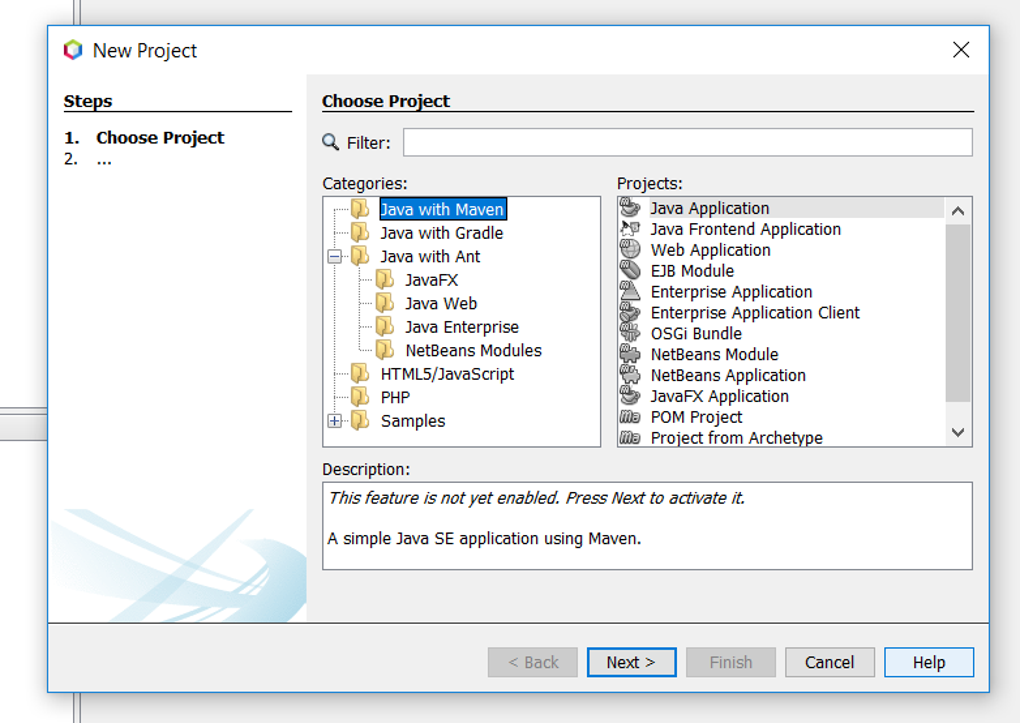
The heart of NetBeans is its project management system. Projects are organized into logical units, encompassing all related source code, libraries, and resources. This structured approach ensures code maintainability, particularly crucial for larger, more complex applications. Within a project, individual files (often representing classes or modules) are readily accessible and managed through the IDE’s intuitive interface.
Navigating the NetBeans IDE Interface
NetBeans boasts a clean and well-organized user interface, designed for efficiency and ease of use. The main window is typically divided into several key areas:
-
Project Window: Located in the upper left corner, this panel displays a hierarchical view of your projects and their constituent files. This enables swift navigation through the project structure, allowing developers to quickly locate and open specific files or folders. The expandable structure allows for easy management of large projects with numerous files and subdirectories.
-
Navigator: This area provides a structured outline of the currently selected file, showing its methods, classes, and other components. This outline view acts as a helpful navigational aid, particularly for large codebases. Developers can quickly jump to different sections of their code using the Navigator, streamlining the coding process and saving valuable time.
-
Editor: The central focus of the NetBeans IDE is its powerful text editor. This is where developers spend the majority of their time writing and modifying code. The editor is packed with features designed to improve developer productivity:
- Code Completion: This intelligent feature predicts and suggests code completions as you type, minimizing errors and accelerating the coding process. It understands the context of your code and provides relevant suggestions based on the programming language being used.
* **Syntax Highlighting:**  Code is highlighted according to its syntactic structure, making it easier to read and understand. This visual cue greatly improves code readability and aids in identifying potential errors.

* **Spell Checking:** NetBeans includes a spell checker for comments and other text within your code, ensuring clarity and professionalism. This reduces the likelihood of typos and improves the overall quality of the codebase.

* **Code Formatting:**  The IDE automatically formats code according to predefined rules, ensuring consistency and readability throughout the project.  This promotes team collaboration and makes code easier to maintain over time.
- Output Window: The Output window serves as a display area for compilation results, debugging information, and other runtime feedback. It is crucial for identifying errors, tracking program execution, and monitoring the overall health of the application during development.
The tabbed interface of NetBeans allows developers to work on multiple files or projects concurrently, further boosting productivity. This multi-tasking capability is a significant advantage for managing complex projects that require handling multiple components simultaneously.
Utilizing NetBeans IDE for Development
Getting started with NetBeans is straightforward. The process of creating a new project involves selecting the project type (Java, C++, PHP, etc.), defining a project name and location, and optionally creating a main class. The IDE guides users through these steps, providing clear instructions and intuitive options.
Creating new files within a project is equally simple. Using the context menu, developers can add new classes, methods, or other code elements as needed. NetBeans automatically manages the project structure, ensuring that files are saved in the correct location and integrated seamlessly into the project’s overall organization.
The IDE’s built-in debugger is a powerful tool for identifying and resolving errors. Developers can step through their code line by line, inspecting variable values and tracking program execution. This allows for precise identification of bugs and a more efficient debugging process.
NetBeans also supports various version control systems, enabling seamless integration with platforms like Git. This integration simplifies collaborative development, allowing multiple developers to work on the same project concurrently.
NetBeans’s Extensive Plugin Ecosystem
One of the key strengths of NetBeans is its rich plugin ecosystem. These plugins extend the IDE’s capabilities, adding support for new programming languages, frameworks, and tools. This extensibility allows developers to customize NetBeans to suit their specific needs and development workflows.
The availability of plugins for diverse technologies ensures that NetBeans remains relevant and applicable across a wide spectrum of development projects. From specialized libraries and frameworks to debugging enhancements and productivity tools, the plugin ecosystem vastly increases the IDE’s functionality.
NetBeans IDE: Advantages and Disadvantages
Advantages:
-
Open-source and Free: NetBeans is freely available under an open-source license, eliminating the cost barrier often associated with commercial IDEs.
-
Cross-platform Compatibility: NetBeans runs on multiple operating systems (Windows, macOS, Linux), making it accessible to a wider audience of developers.
-
Regular Updates: The platform receives frequent updates, ensuring that it remains current with the latest technologies and security patches.
-
Comprehensive Toolset: NetBeans provides a full suite of development tools, encompassing code editing, compilation, debugging, and deployment capabilities.
-
Support for Multiple Languages: The IDE supports a broad range of programming languages, catering to diverse development needs.
-
Modular Design: The modular architecture allows developers to customize the IDE by adding or removing plugins.
-
Strong Community Support: A large and active community provides extensive support and resources for NetBeans users.
Disadvantages:
-
Resource Intensive: NetBeans can be resource-intensive, requiring a reasonably powerful computer to run smoothly, especially when handling large projects.
-
Steeper Learning Curve: While user-friendly, mastering all the features and functionalities of NetBeans might require some time and effort, especially for beginners.
-
Plugin Dependency: While plugins enhance functionality, reliance on plugins can sometimes lead to instability or compatibility issues.
Conclusion
NetBeans IDE stands as a formidable and versatile choice for developers across various programming languages and project sizes. Its open-source nature, cross-platform compatibility, and rich feature set make it a compelling alternative to commercial IDEs. While resource consumption and a potentially steeper learning curve are considerations, the advantages of NetBeans—particularly its comprehensive functionality and extensive community support—make it a highly valuable tool for any developer’s arsenal. The readily available plugins and regular updates ensure NetBeans remains a relevant and adaptable IDE for the ever-evolving landscape of software development.
File Information
- License: “Free”
- Latest update: “June 12, 2025”
- Platform: “Windows”
- OS: “Windows 11”
- Language: “English”
- Downloads: “291.1K”


