NetSpeedMonitor is a free Windows utility designed to provide users with a straightforward method for monitoring their internet speed and network traffic. While not as feature-rich as some commercial alternatives, its ease of use and compact design make it a compelling choice for those seeking a simple yet effective solution for tracking their network’s performance. This review delves into NetSpeedMonitor’s functionality, interface, installation process, and compares it to similar applications available on the market.
Installation and Initial Setup
The installation process for NetSpeedMonitor is generally straightforward for modern Windows systems (Windows 10 and later). However, users of older operating systems, such as Windows 7, may encounter some minor delays or compatibility issues. Older PCs might require more time for the installation to complete. One common issue reported by users involves compatibility conflicts with antivirus software. In such cases, running the installation package in compatibility mode (often selecting a previous Windows version in the installer’s properties) can resolve the problem, although this might slightly increase the installation time. After a successful installation, a system restart is usually required to activate the program fully.
Interface and Functionality
Once installed, NetSpeedMonitor resides discreetly in the system tray (taskbar). Clicking its icon reveals a pop-up window displaying real-time download and upload speeds, along with a summary of daily, weekly, and monthly data transfer totals. However, a minor drawback is the omission of explicit units (MB/s, KB/s) in this concise display. While the numbers themselves are readily understandable in context, the lack of clear unit indicators could lead to initial confusion for some users. To obtain detailed information with proper units, users need to right-click the icon and select “Data Traffic,” which opens a more comprehensive window.
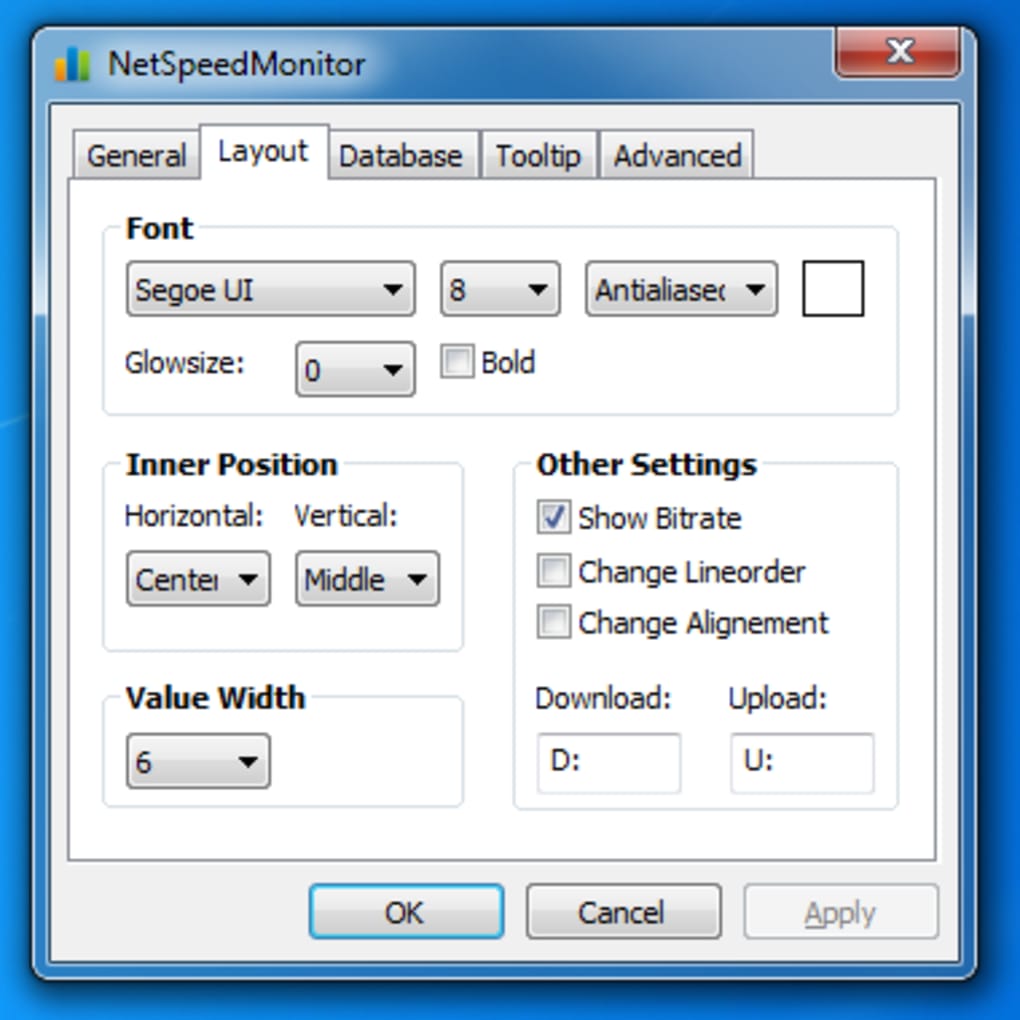
This detailed window provides a breakdown of network traffic statistics, categorized by various parameters. The primary sections include:
- Connections: This section provides a technical view of active and completed network connections, listing applications, process IDs, and connection endpoints (TCP and UDP). This is particularly useful for identifying applications consuming significant bandwidth or for troubleshooting network connectivity issues.
-
Data Traffic: This section presents detailed statistics on upload and download speeds, allowing users to view data usage by day, month, or session. This granular data is valuable for analyzing network usage patterns and identifying potential bottlenecks.
-
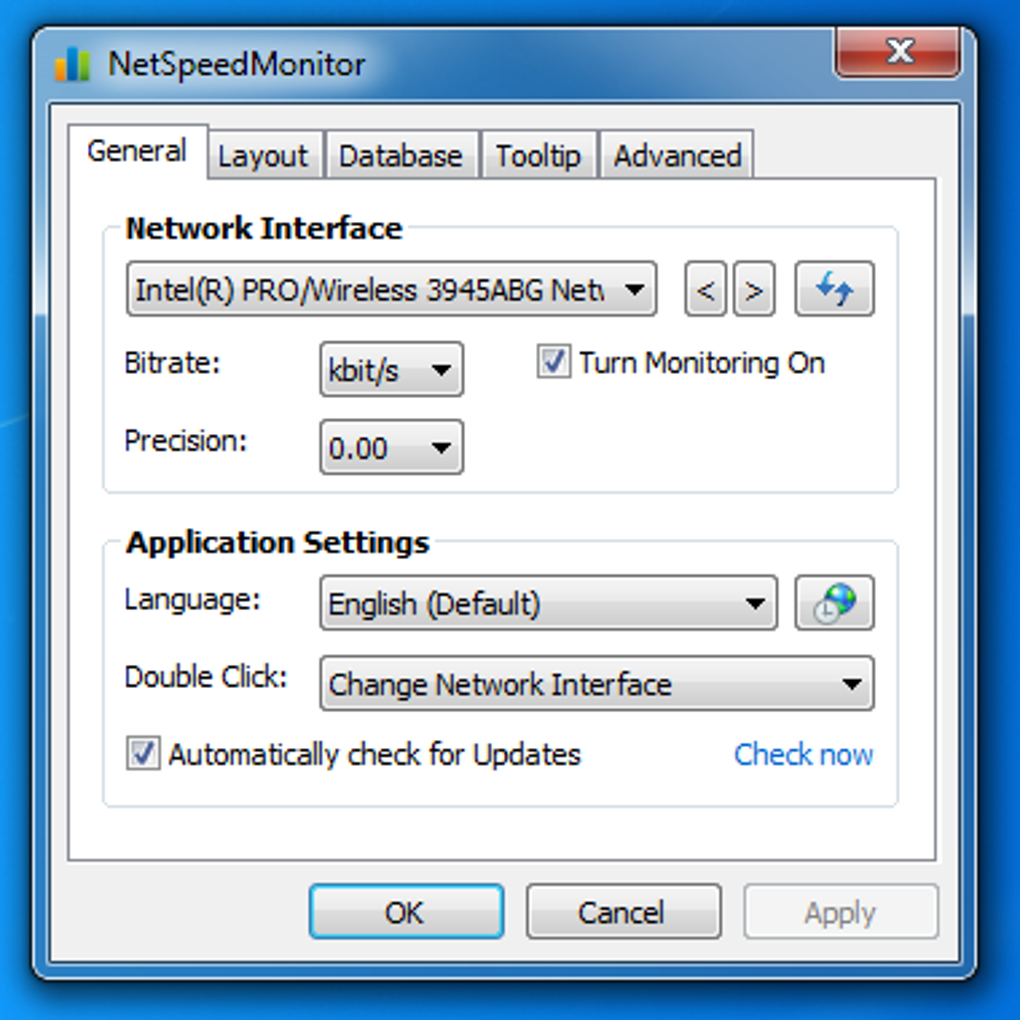
Configuration: This section allows users to customize various aspects of the application, such as selecting the preferred unit of measurement for data (bytes, kilobytes, megabytes, gigabytes) and choosing the language of the interface. Additionally, it allows for selecting a custom directory for saving traffic reports.
NetSpeedMonitor also incorporates an “Advanced” tab, offering further details that are more suited to technically inclined users, such as network professionals or IT administrators. This tab reveals additional network information and provides greater control over how data is reported. While the information presented here is more technical, the overall usage remains reasonably intuitive.
Background Operation and System Tray Integration
One of NetSpeedMonitor’s significant strengths is its ability to run unobtrusively in the background. This feature allows for continuous monitoring of network activity without requiring the user to keep a dedicated window open. The system tray icon provides convenient access to real-time speed information and aggregated data. This unobtrusive nature is ideal for users who prefer minimal interface disruption while still maintaining oversight of their network performance. However, it’s worth noting that while the icon operates smoothly with a horizontally oriented taskbar, users have reported some inconsistencies and crashes when using a vertically oriented taskbar.
Comparison with Alternative Applications
While NetSpeedMonitor effectively fulfills its core function of monitoring internet speed and network traffic, several alternative applications offer additional features or different approaches to network monitoring. Some noteworthy alternatives include:
-
DU Meter: This application offers a more visually appealing graphical representation of network traffic, providing a clear and intuitive display of data usage. It also features alerts for potentially suspicious network activity, enhancing its security aspect. However, DU Meter is typically a paid application, although trial versions are often available.
-
Speed Checker: This tool prioritizes simplicity, offering a straightforward interface for users who require basic internet speed testing without complex features. Its simplicity is its strength, but this also means it lacks the advanced functionality found in other applications. Some features may require a paid premium subscription to access.
-
NetWorx: This program offers comprehensive bandwidth and traffic monitoring, similar to NetSpeedMonitor but with enhanced capabilities for identifying network issues and tracking potentially suspicious activity. However, some users have reported occasional bugs and unexpected freezes.
Strengths and Weaknesses of NetSpeedMonitor
Strengths:
- Free to use: The application is completely free, removing any financial barriers to access.
- Simple interface: The user interface is intuitive and easy to navigate, even for users with limited technical expertise.
- Background operation: The program operates seamlessly in the background, providing continuous monitoring without disrupting workflow.
- Detailed traffic reports: The program generates detailed traffic reports, allowing users to analyze network usage patterns.
- System tray integration: The system tray icon provides quick access to real-time speed and data usage information.
Weaknesses:
- Installation time: Installation can be longer than expected, particularly on older systems or when encountering compatibility conflicts.
- Missing units in initial display: The omission of explicit units (MB/s, KB/s) in the initial system tray display can be initially confusing.
- Vertical taskbar compatibility: The program has shown inconsistencies and potential for crashing when used with a vertically oriented taskbar.
Conclusion
NetSpeedMonitor provides a valuable and free tool for monitoring internet speed and network traffic on Windows PCs. Its simple interface, combined with its background operation and detailed reporting, makes it a practical choice for both casual users and those needing a basic network monitoring solution. While some minor drawbacks exist, such as occasional installation challenges and the lack of units in the initial speed display, these are generally outweighed by its strengths. Overall, NetSpeedMonitor is a decent choice for users who want an easy-to-use and free option to keep a close eye on their internet speed and network usage. However, users requiring more advanced features or sophisticated graphical representations might consider exploring the alternative applications mentioned earlier in this review.
File Information
- License: “Free”
- Version: “2.5.4”
- Latest update: “May 28, 2024”
- Platform: “Windows”
- OS: “Windows 7”
- Language: “English”
- Downloads: “707.4K”
- Size: “3.65 MB”


