
NexusFile is a free, dual-pane file manager for Windows operating systems, offering a compelling alternative to the built-in Windows Explorer. Designed for both casual and power users, it boasts a blend of classic and modern features aimed at improving file management efficiency and productivity. While its interface might initially appear somewhat dated to users accustomed to visually rich applications, NexusFile’s functionality and advanced options compensate for its minimalist aesthetic, making it a powerful tool for those willing to explore its capabilities. This review will delve into the various aspects of NexusFile, examining its strengths, weaknesses, and overall suitability for different users.
Core Features and Functionality
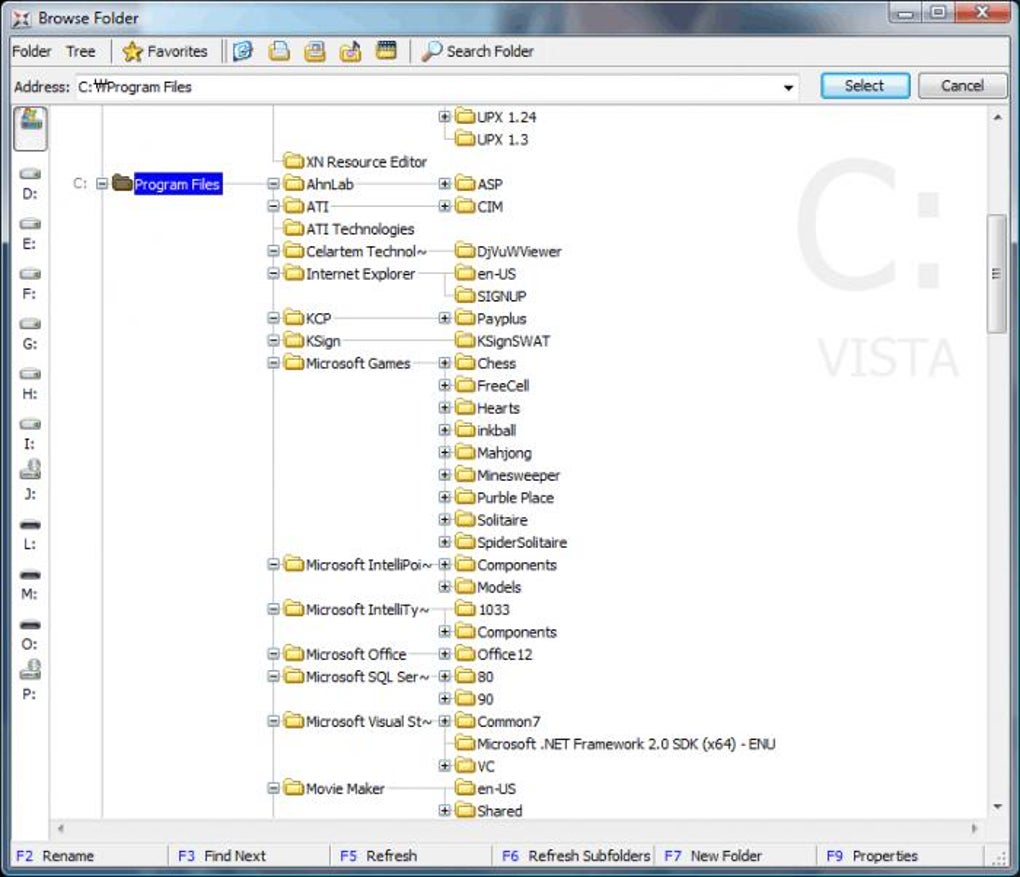
At its core, NexusFile provides a robust set of file management tools, encompassing basic operations like copying, moving, deleting, renaming, and changing file attributes. These fundamental functions are executed smoothly and efficiently, forming the bedrock of the application’s usability. However, NexusFile distinguishes itself through its advanced features, significantly enhancing its appeal to experienced users. The dual-pane interface, a hallmark of many powerful file managers, allows for intuitive drag-and-drop operations between different folders and drives, greatly streamlining file transfers and organization. This is further complemented by extensive keyboard shortcuts, allowing for rapid navigation and manipulation without the need for constant mouse interaction. This caters specifically to users who prefer a keyboard-centric workflow, increasing their overall productivity.
The application’s advanced rename functionality deserves special mention. Unlike the simple rename function found in Windows Explorer, NexusFile provides a sophisticated system for batch renaming files, enabling users to apply complex renaming schemes to multiple files simultaneously. This is particularly useful for tasks such as renaming large numbers of photos, organizing downloaded files, or managing documents with sequential numbering. The flexibility offered in this feature alone significantly surpasses the capabilities of the default Windows file explorer.
Beyond basic file management, NexusFile incorporates direct archiving capabilities. This allows users to create compressed archives directly within the application, eliminating the need for separate archiving utilities. The app supports a variety of common archive formats, ensuring compatibility with other applications and systems. This integrated archiving feature enhances the workflow by avoiding the need for switching between different programs, improving overall efficiency.
Furthermore, NexusFile allows users to modify various file attributes, including the creation date, modification time, and author information. This fine-grained control offers a level of detail not commonly found in simpler file managers, providing users with comprehensive control over their file metadata.
User Interface and Experience
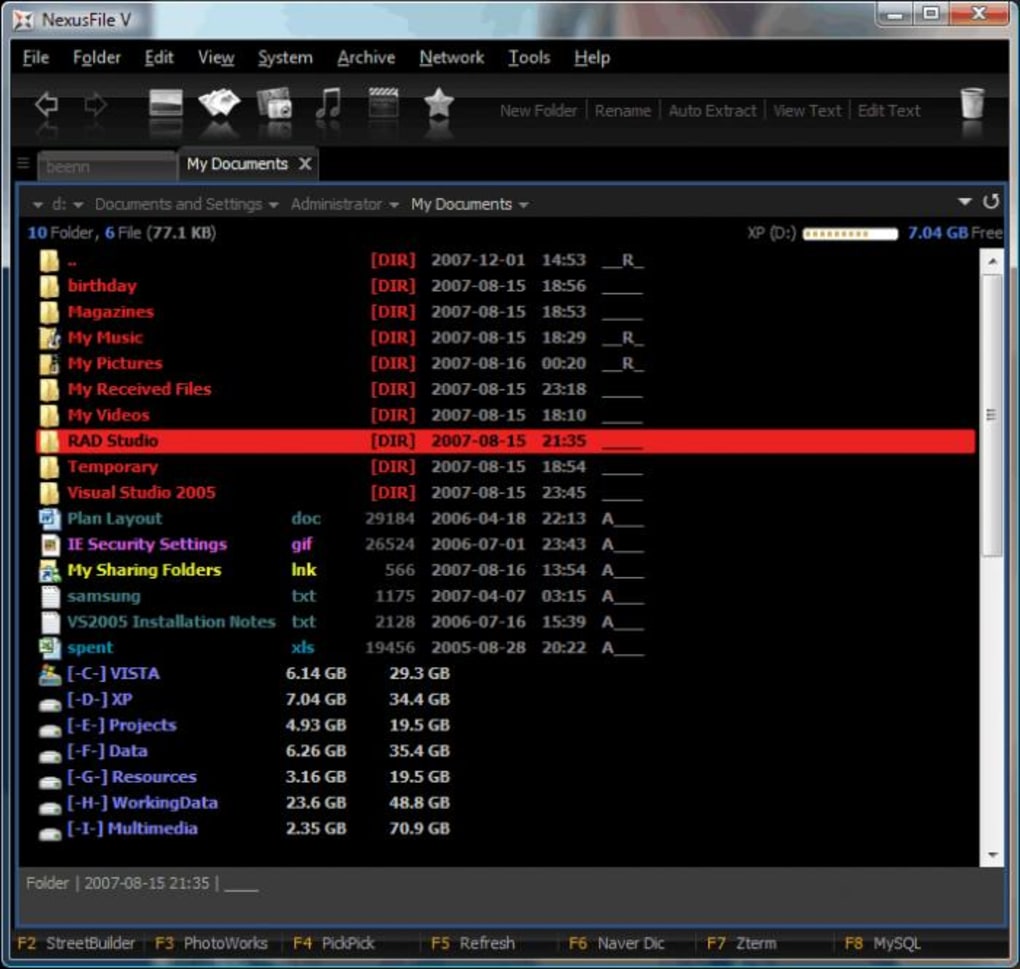
NexusFile presents a user interface that blends elements of classic and modern design. While its high-contrast text on a black background might seem stark to some, others may appreciate its simplicity and minimalist aesthetic. The interface prioritizes functionality over visual embellishment, providing a clean and uncluttered workspace. This approach, while effective for experienced users who prioritize functionality, might present a steeper learning curve for those accustomed to more visually intuitive applications. The lack of an integrated help file further contributes to this potential challenge.
The application does allow for customization through the ability to add different skins to the user interface. While this option enhances personalization, the default appearance might be considered outdated or even unappealing by users accustomed to the more modern and visually engaging interfaces of contemporary software. The potential to personalize the appearance is valuable, yet the need for it highlights the potentially off-putting initial aesthetic.
Despite its functional interface, the lack of readily available contextual help or tutorials could prove frustrating for new users. The reliance on online resources for assistance might create a barrier to entry for those less comfortable navigating web-based help systems. The addition of built-in documentation or easily accessible tutorials would significantly improve user onboarding.
Comparison with Alternative File Managers
NexusFile occupies a space in the Windows file manager market alongside several established competitors like XYplorer and Explorer Commander. While it shares similar functionality with these applications, NexusFile distinguishes itself through its freeware status and direct integration of features that would typically require additional plugins or utilities in other programs. This blend of functionality and accessibility is a key selling point.
However, compared to some competitors, NexusFile might lack the polish and refined visual appeal found in premium applications. This isn’t necessarily a drawback, as the focus on functionality rather than visual design is a deliberate choice. The trade-off between the free, feature-rich offering and the visual appeal of paid competitors will ultimately depend on user priorities.
Several alternative file managers mentioned in the original text, including QT TabBar, Clover, and Explorer++, offer distinct advantages and disadvantages. QT TabBar focuses on improving the usability of Windows Explorer rather than providing a full replacement, Clover enhances multitasking within Explorer, and Explorer++ provides an innovative alternative, each with its own specific strengths and weaknesses. The choice of file manager depends largely on individual needs and preferences.
Strengths and Weaknesses
NexusFile presents a compelling blend of strengths and weaknesses:
Strengths:
- Freeware: The application is freely available, eliminating licensing costs.
- Advanced Features: Offers advanced file management functions, including batch renaming and direct archiving, surpassing the capabilities of Windows Explorer.
- Dual-Pane Interface: Enhances productivity through drag-and-drop functionality between two file panes.
- Keyboard Shortcuts: Allows for efficient keyboard-driven navigation and file manipulation.
- Customization: The ability to change skins allows for some degree of user interface personalization.
Weaknesses:
- Dated Interface: The user interface might appear outdated or unappealing to some users.
- Lack of Help File: The absence of built-in help documentation creates a steeper learning curve for new users.
- Limited System Compatibility: NexusFile may not be compatible with all Windows operating systems.
- Steep Learning Curve: The lack of a user-friendly interface and help resources can make it challenging for novice users.
Conclusion
NexusFile offers a powerful and versatile file management solution for Windows users, particularly those who value functionality and advanced features over a visually polished interface. Its dual-pane structure, comprehensive keyboard shortcuts, and advanced batch renaming tools significantly improve workflow efficiency for experienced users. However, its minimalist design and lack of readily accessible help resources may present a challenge for novice users. While its freeware status makes it highly accessible, potential users should carefully weigh the balance between functionality and interface aesthetics before making a decision. Those seeking a visually engaging and intuitive experience might find other alternatives more suitable, whereas users who prioritize functionality and efficiency will likely appreciate NexusFile’s capabilities. Ultimately, whether NexusFile is the right file manager depends on individual user needs and priorities.
File Information
- License: “Free”
- Latest update: “July 14, 2025”
- Platform: “Windows”
- OS: “Windows 2003”
- Language: “English”
- Downloads: “44.9K”
- Size: “4.55 MB”


