
The Raspberry Pi, a remarkably compact and versatile single-board computer, has revolutionized the world of personal computing and DIY electronics. Its diminutive size, comparable to a credit card, belies its powerful capabilities, making it ideal for a vast array of projects, from home automation and robotics to media centers and retro gaming. However, for those new to the world of computers or Linux-based operating systems, setting up a Raspberry Pi can initially seem daunting. Fortunately, the Raspberry Pi Foundation provides a user-friendly solution: NOOBS, or New Out Of Box Software. This article serves as a comprehensive guide to using NOOBS for Raspberry Pi, helping even the most novice users get their Raspberry Pi up and running with ease.
What is NOOBS for Raspberry Pi?
NOOBS is a highly intuitive operating system installer designed specifically for the Raspberry Pi. It eliminates the complexities typically associated with installing operating systems onto SD cards, making the process accessible to users of all technical skill levels. Unlike traditional methods that require specialized imaging software and a thorough understanding of command-line interfaces, NOOBS simplifies everything. It’s essentially a multi-boot system installer that allows you to choose from various operating systems (OS) directly from the menu presented after booting up the Raspberry Pi for the first time. This means no complicated terminal commands or dealing with .img files; just choose your preferred OS and let NOOBS do the work.
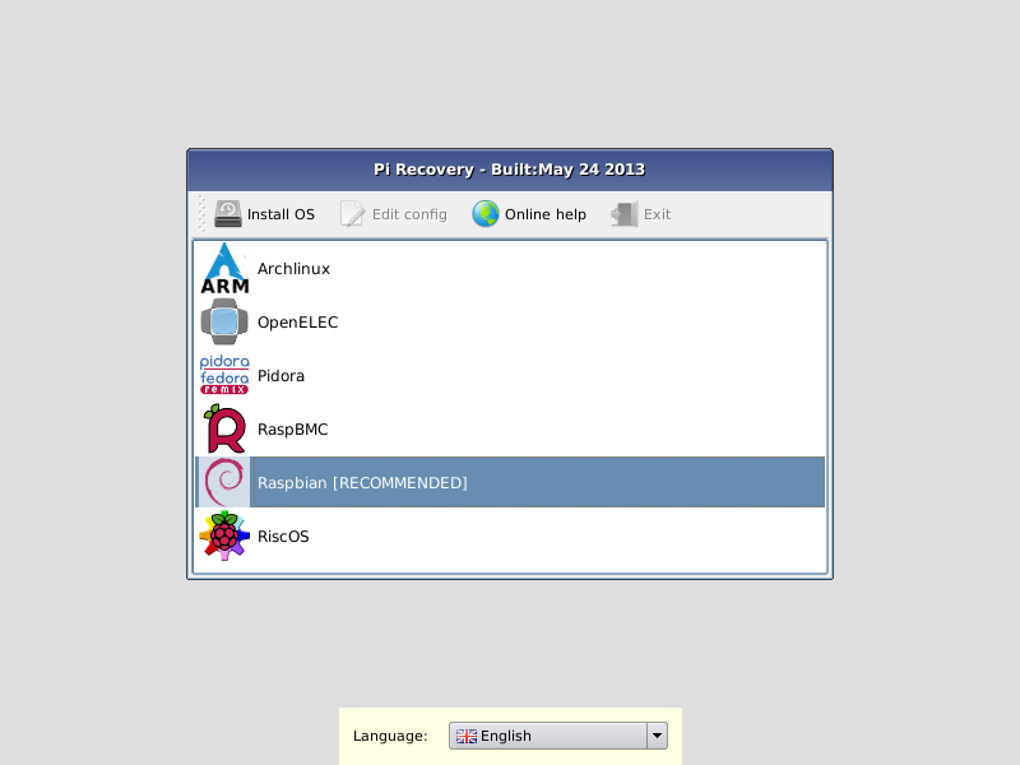
NOOBS comes as a zipped file that needs to be downloaded and then unzipped onto a properly formatted SD card. The minimum recommended size for the SD card is 4GB, but larger cards are generally recommended to provide ample storage for your chosen OS and future projects. Once the unzipped NOOBS files are on the SD card, you insert it into your Raspberry Pi, connect power, and begin the installation process.
Key Features and Benefits of Using NOOBS
NOOBS offers a multitude of benefits, significantly streamlining the Raspberry Pi setup process for beginners and experts alike. Some key advantages include:
-
Simplified Installation: NOOBS eliminates the need for complex command-line operations and specialized software typically required for flashing OS images to SD cards. The process is straightforward and requires minimal technical expertise. This makes it exceptionally user-friendly for beginners.
-
Multiple OS Options: NOOBS provides a selection of different operating systems, allowing users to choose the best fit for their needs and preferences. This includes popular choices like Raspbian (a Debian-based OS specifically tailored for the Raspberry Pi), as well as other options suitable for various applications. Having multiple choices right at your fingertips removes the need for separate downloads and installations.
-
Easy OS Switching: One of the most significant benefits of NOOBS is its ability to switch between different operating systems. Should you decide to explore a different OS or need to reinstall a corrupted one, you can do so directly from the NOOBS menu without needing to reformat the SD card. This is especially helpful for experimentation and troubleshooting.
-
Offline Installation: Unlike many other OS installation methods, NOOBS does not require an active internet connection during the initial installation. This is advantageous in situations where internet access may be limited or unreliable. The OS images are included within the NOOBS package.
-
Overwriting Corrupted Cards: In case your chosen OS becomes corrupted, NOOBS offers a convenient way to overwrite the existing installation with a fresh one. This avoids the complexities of low-level formatting and data recovery for novice users.
Limitations of NOOBS
While NOOBS undeniably simplifies the Raspberry Pi setup, it’s important to acknowledge its limitations:
-
Single OS Installation: NOOBS only allows for the installation of a single operating system at a time. This contrasts with advanced techniques that permit dual-booting or running multiple OS instances concurrently. If you require multiple OS environments, you’ll need to explore alternative methods.
-
Unfamiliarity with Some OS Options: While NOOBS includes several popular operating systems, some of the less commonly used options might be unfamiliar to many users. This can lead to confusion or the selection of an OS that isn’t entirely suitable for the intended purpose. Thoroughly researching available options beforehand is advisable.
-
Potential for Confusion for Complete Novices: Although significantly easier than traditional methods, NOOBS might still present a degree of complexity for users completely new to computers. Understanding basic concepts like file systems and operating systems is beneficial.
Step-by-Step Guide to Using NOOBS
Installing an operating system on your Raspberry Pi using NOOBS is a straightforward process. Follow these steps:
-
Download NOOBS: Navigate to the official Raspberry Pi Foundation website and download the latest version of NOOBS. It’s provided as a zip file.
-
Unzip NOOBS: Extract the contents of the downloaded zip file to a suitable location on your computer.
-
Format your SD Card: Insert a properly sized SD card (at least 4GB) into your computer’s card reader. Use your operating system’s disk management utility to format the SD card to FAT32. Ensure you back up any important data on the SD card before formatting, as this process will erase all existing data.
-
Copy NOOBS to SD Card: Copy the unzipped NOOBS files to the root directory of your formatted SD card. Do not place the files inside a folder; they must be directly on the SD card’s root level.
-
Insert SD Card into Raspberry Pi: Carefully insert the SD card into the designated slot on your Raspberry Pi.
-
Connect Power and Peripherals: Connect the power supply to your Raspberry Pi. Connect a monitor, keyboard, and mouse (preferably USB) to the appropriate ports on the Raspberry Pi.
-
Boot Up: Turn on the Raspberry Pi. You will see the NOOBS boot menu shortly after power-up.
-
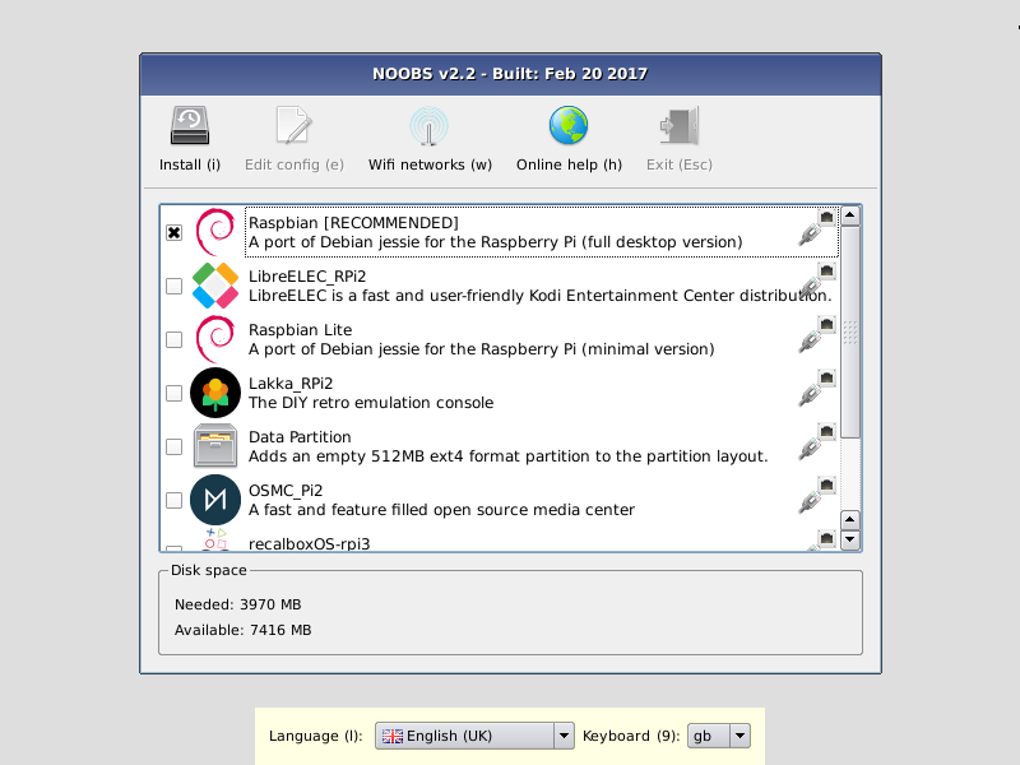
Select and Install OS: The NOOBS menu presents a list of available operating systems. Choose the one you wish to install and follow the on-screen instructions. This typically involves selecting the OS and allowing NOOBS to complete the installation process.
-
First Boot: Once the installation is complete, the Raspberry Pi will automatically reboot into your chosen operating system.
-
Configure the OS: After the first boot, you’ll need to configure your operating system. This typically involves setting up things like the Wi-Fi connection, user account, and other necessary preferences. Consult the documentation for your specific operating system for detailed instructions.
By following these steps, even users with limited technical knowledge can easily set up their Raspberry Pi and begin exploring its extensive capabilities. Remember that consulting the official Raspberry Pi documentation for your chosen OS is recommended for additional support and advanced configuration options. The NOOBS installer is a powerful tool that significantly reduces the barrier to entry for anyone wanting to explore the world of Raspberry Pi computing.
File Information
- License: “Free”
- Version: “3.2.0”
- Latest update: “July 24, 2019”
- Platform: “Windows”
- OS: “Windows 8”
- Language: “English”
- Downloads: “5.3K”


