
In the fast-evolving landscape of personal computing, understanding the true capabilities of your system is paramount. Whether you’re a gamer seeking optimal frame rates, a content creator requiring smooth rendering, or simply a casual user curious about your PC’s health, benchmarking tools provide invaluable insights. Among the myriad options available, NovaBench stands out as a long-standing, free utility that has served users for over a decade. Since its initial release in 2007, this software has carved out a niche as a straightforward, accessible, and reliable solution for assessing a computer’s graphical and processing prowess.
NovaBench, developed by Novawave, offers a simple yet comprehensive approach to evaluating your system’s core components. Designed for both Mac and Windows-based systems, it provides a quick scan that delves into the performance of your video card, CPU, and storage drives. The beauty of NovaBench lies in its simplicity: a small download, a quick scan, and then a comprehensive evaluation of your machine’s performance, complete with comparisons against similar systems and even suggestions for potential improvements. While newer, more feature-rich benchmarking tools have emerged over the years, NovaBench’s enduring appeal as a classic and free option continues to resonate, particularly for those looking to quickly gauge the performance of an older or second-hand computer. Despite its age and some acknowledged limitations with specific modern hardware, its large database of comparison scores and user-friendly interface solidify its position as a solid choice in the benchmarking arena.
What is Benchmarking and Why is it Important?
Benchmarking, in the context of computing, refers to the process of running a standardized test or suite of tests on a computer system to measure its performance characteristics. These tests are designed to simulate real-world workloads, pushing the CPU, GPU, memory, and storage drives to their limits to determine how efficiently they can handle various tasks. The results are typically numerical scores that can be compared against other systems or against an established baseline, providing an objective measure of performance.
The importance of benchmarking extends beyond mere curiosity; it’s a critical practice for various users and scenarios:
Understanding Your System’s Capabilities
For many, a computer is a black box, a collection of components working in unison. Benchmarking demystifies this process by providing concrete data on how each part performs. Are you getting the most out of your expensive graphics card? Is your CPU performing as expected based on its specifications? These are questions that benchmarking can answer. It helps users understand the strengths and weaknesses of their current setup, offering a clearer picture of what their machine is truly capable of handling, whether it’s playing the latest AAA games, editing high-resolution videos, or running complex scientific simulations. Without benchmarks, estimating performance can be subjective and unreliable, leading to unrealistic expectations or missed opportunities for optimization.
Identifying Bottlenecks and Upgrade Opportunities
One of the most valuable aspects of benchmarking is its ability to pinpoint system bottlenecks. A bottleneck occurs when one component of your computer limits the performance of others, preventing the entire system from operating at its full potential. For instance, a powerful GPU might be held back by an older, slower CPU, or a fast CPU and GPU combination might be hampered by a sluggish hard drive. By running a benchmark like NovaBench, users can identify which components are underperforming relative to others.
This diagnostic capability is crucial for making informed upgrade decisions. Instead of blindly upgrading parts, which can be an expensive and unnecessary endeavor, benchmarking guides users to invest in components that will deliver the most significant performance improvement for their specific workload. For example, if NovaBench shows a low drive score despite a decent CPU and GPU, upgrading to an SSD might be the most impactful enhancement. This targeted approach saves money and ensures that any investment translates into a tangible boost in system responsiveness and capability.
Comparing Performance
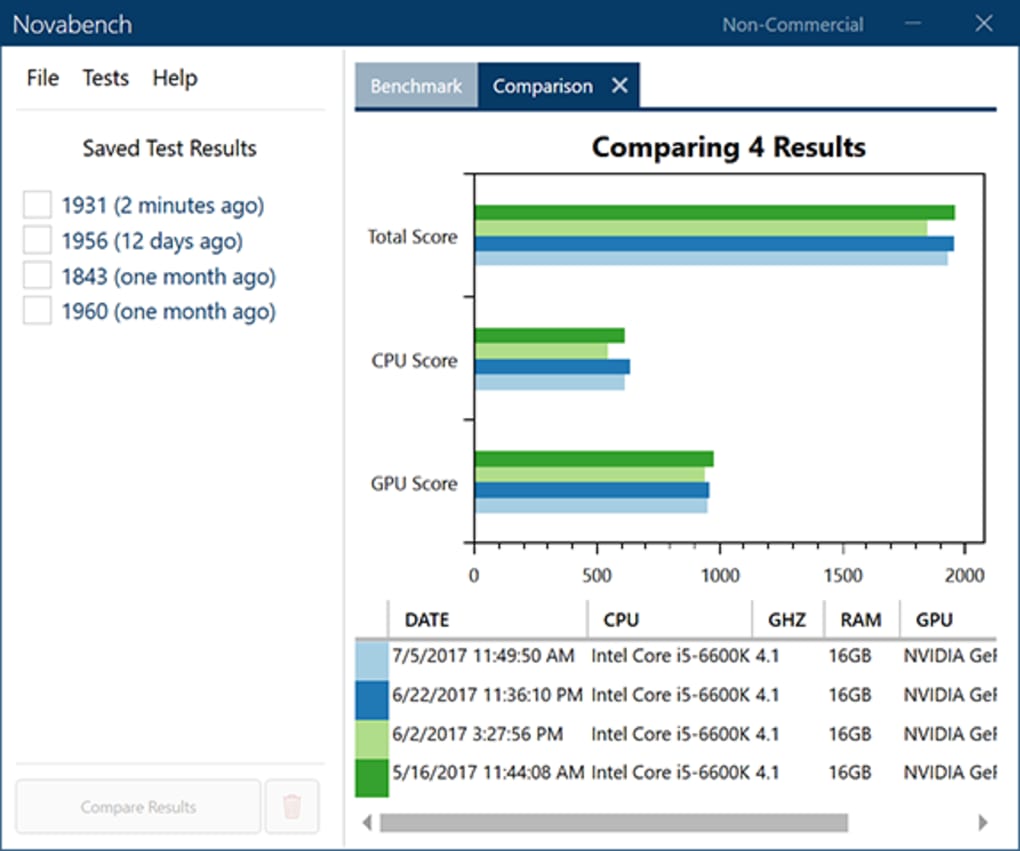
Benchmarking tools also offer a standardized method for comparing the performance of different computer systems. This is particularly useful for prospective buyers looking to choose between several PC configurations, or for enthusiasts who want to see how their custom build stacks up against others. Services like NovaBench often maintain a large database of user-submitted scores, allowing for direct comparisons with similar hardware setups. This communal data provides a real-world context for individual benchmark results, helping users understand whether their scores are typical, exceptionally good, or indicative of an underlying issue.
Furthermore, these comparisons are invaluable when buying second-hand computers. A quick NovaBench scan can offer a clear, objective measure of the system’s current performance, helping to verify the seller’s claims and ensure the buyer is getting a fair deal. It acts as an impartial auditor, cutting through marketing hype and providing factual data on actual performance. For tech reviewers and hardware enthusiasts, benchmarking is the foundation for objective reviews, allowing them to quantify performance differences between competing products and provide data-driven recommendations.
NovaBench: A Closer Look at its Features
NovaBench’s enduring popularity stems from its straightforward design and effective execution of core benchmarking tasks. It doesn’t aim to be the most graphically intensive or exhaustively detailed benchmark, but rather a quick, accessible, and reliable tool for a broad range of users.
Core Components Tested: CPU, GPU, and Drives
At its heart, NovaBench is designed to assess the three primary pillars of a computer’s performance: the Central Processing Unit (CPU), the Graphics Processing Unit (GPU), and the storage drives.
-
CPU Tests: The CPU, often referred to as the “brain” of the computer, is responsible for executing most instructions and calculations. NovaBench’s CPU tests evaluate various aspects of its performance, including integer operations, floating-point operations, and hashing speed. These tests simulate common CPU-intensive tasks, giving a good indication of how well your processor handles general computing, complex applications, and multitasking. A higher CPU score signifies faster processing capabilities, which is crucial for tasks ranging from compiling code to running virtual machines or simply ensuring a snappy operating system experience.
-
GPU (Video Card) Tests: For gamers, graphic designers, and video editors, the GPU is a critical component. NovaBench includes tests that push the video card to render 3D graphics, measuring its ability to handle complex textures, lighting, and geometric calculations. These tests are typically visualized as short, animated sequences that reveal the GPU’s rendering power. The resulting score reflects the card’s frame rate capabilities and overall graphical horsepower, directly impacting performance in modern games and GPU-accelerated applications.
-
Drive (Storage) Tests: The speed of your storage drives – be it a traditional Hard Disk Drive (HDD) or a solid-state drive (SSD) – significantly impacts system boot times, application loading speeds, and overall system responsiveness. NovaBench assesses both sequential and random read/write speeds, simulating how quickly the system can access and store data. A high drive score is indicative of a fast storage solution, which translates to quicker file transfers, faster game loading, and a more fluid user experience across the board. The difference between a slow HDD and a fast SSD can be one of the most noticeable performance improvements for any user.
By testing these three core components, NovaBench provides a holistic view of your system’s primary performance metrics, ensuring that no major bottleneck goes unnoticed.
Simplicity and Accessibility
One of NovaBench’s most celebrated attributes is its remarkable simplicity. In an era where some benchmarking suites can be complex and intimidating, NovaBench offers a refreshingly straightforward user experience. The process is exceptionally user-friendly: users simply download the small software package from PhanMemFree, install it, and then run the benchmark with a single click. There’s no convoluted setup, no array of confusing options, and no steep learning curve. This ease of use makes it an ideal tool for novices who are new to benchmarking, as well as for experienced users who need a quick and reliable performance check without delving into overly granular details.
The minimal system requirements and small file size also contribute to its accessibility. It can be downloaded and run quickly on a wide range of systems, from older machines to more contemporary ones, making it a versatile tool for quick diagnostics or pre-purchase checks. This focus on immediate usability has been a key factor in its sustained popularity since 2007.
The Comprehensive Performance Evaluation
Upon completion of the brief scanning process, NovaBench doesn’t just spit out raw numbers. Instead, it compiles a comprehensive evaluation that offers genuine utility to the user. This evaluation typically includes:
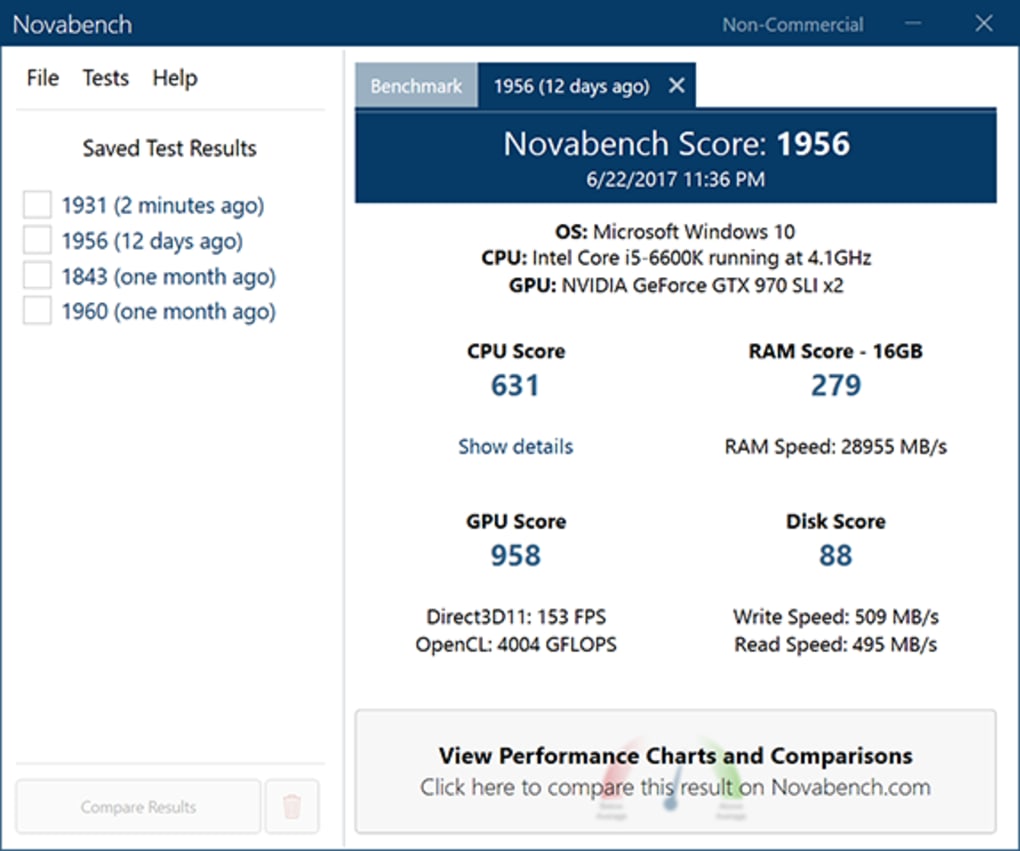
- Actual Performance Scores: Detailed scores for each tested component (CPU, GPU, and Drive), providing clear numerical metrics for individual performance.
- Overall System Score: A cumulative score that aggregates the performance of all tested components, offering a single, easy-to-understand indicator of the system’s total processing power.
- Comparisons Against Similar Systems: This feature is where NovaBench truly shines. Leveraging its large database of user-submitted results, NovaBench can compare your system’s scores against those of other computers with similar hardware configurations. This provides crucial context, allowing you to ascertain whether your PC is performing as expected, better than average, or if it might be underperforming due to an issue. This comparative data is incredibly valuable for troubleshooting or simply satisfying curiosity.
- Suggestions for Fixes and Repairs: In some cases, NovaBench may offer basic suggestions for potential improvements or areas of concern. While not a deep diagnostic tool, these pointers can guide users towards further investigation or specific upgrades, especially when dealing with older or second-hand computers where performance might be less than optimal. For example, if a drive score is particularly low, it might implicitly suggest considering an SSD upgrade.
This holistic approach to reporting ensures that users not only get performance metrics but also actionable insights, making NovaBench a practical tool for both enthusiasts and everyday users.
NovaBench’s Legacy and Modern Relevance
Few software utilities can boast a lifespan as long and as active as NovaBench’s. Launched back in 2007, it predates many of today’s dominant benchmarking solutions and has maintained a presence throughout various generations of hardware. This longevity speaks to its fundamental utility and the consistent demand for straightforward system performance evaluation.
A Pioneer in Free Benchmarking
In the early days of PC benchmarking, many sophisticated tools were either expensive, complex, or designed primarily for professional use. NovaBench stepped into this void, offering a completely free and remarkably easy-to-use solution that democratized access to performance diagnostics. This made it an instant hit with a wide audience, from casual users wanting to check their new computer to enthusiasts looking for a quick gauge of their latest overclock. Its commitment to being a free, accessible tool ensured its widespread adoption and helped build the extensive database of comparison scores that continues to be a core strength. It essentially provided a foundational understanding of “how fast is my PC?” to millions, without any financial barrier. This pioneering spirit in the free utility space cemented its status as a classic.
Limitations and Considerations in a Changing Landscape
While NovaBench’s legacy is strong, the rapid pace of technological advancement inevitably presents challenges for any long-running software. The information available notes that NovaBench “does encounter some issues with newer AMD graphics cards and extra drives.” This is a common hurdle for older benchmarking tools, as new hardware architectures, drivers, and API optimizations can sometimes behave unexpectedly with older testing methodologies. Modern GPUs, in particular, often employ complex techniques that might not be fully captured or correctly evaluated by benchmarks designed for earlier generations. Similarly, advancements in storage technologies, such as NVMe SSDs and increasingly complex RAID configurations, might not be perfectly represented in its drive tests.
Furthermore, the article states that “upgrades have also slowed with more recent benchmarking tools becoming popular,” and “some older operating systems are no longer supported.” This is a natural progression for software that has been around for over a decade. Maintaining compatibility with every new iteration of Windows or macOS, alongside supporting ever-evolving hardware, requires continuous development resources. As newer, more specialized, and graphically intensive benchmarks (like 3DMark or PCMark) have emerged with dedicated teams and frequent updates, NovaBench’s development pace has naturally lagged behind. Its focus appears to be on maintaining core functionality rather than chasing cutting-edge performance metrics for the very latest hardware.
The Enduring Appeal of a Classic Tool
Despite these acknowledged limitations, NovaBench remains a solid choice for a specific user base and set of scenarios. Its “old dog” status doesn’t diminish its utility, but rather refines its niche. For users with older or mid-range systems, or those checking second-hand machines, NovaBench is often perfectly adequate. It provides an overall performance indication that is reliable for its intended purpose and historical context. The “large database” of scores is a testament to its widespread use and continues to be a significant advantage, allowing users to compare their systems against a vast collection of real-world results.
Moreover, its free nature and ease of use continue to make it attractive. Not everyone needs a multi-gigabyte, intensely detailed, and highly configurable benchmark. For a quick, no-fuss assessment of CPU, GPU, and drive health, NovaBench provides exactly what’s needed without any overhead. It embodies the principle of “getting the job done” efficiently and freely, which ensures its enduring appeal even as more complex alternatives proliferate. Its classic status allows it to serve as a reliable baseline for many, providing simple answers to fundamental performance questions.
How to Use NovaBench
Using NovaBench is remarkably straightforward, a testament to its design philosophy. Even if you’re new to benchmarking, the process is intuitive and quick.
Downloading and Installation
The first step is to obtain the NovaBench software. You can download the latest version for Windows directly from reputable software repositories like PhanMemFree.org. The download file is typically small, often under 100 MB, ensuring a quick acquisition even on slower internet connections.
Once downloaded, locate the installer file (usually an .exe file on Windows) and double-click to begin the installation process. Follow the on-screen prompts, which are generally standard for most Windows applications: agree to the terms, choose an installation directory (the default is usually fine), and let the installer complete the process. NovaBench is known for being clean and not bundling unwanted software, especially when downloaded from trusted sources like PhanMemFree.
After installation, you can usually launch NovaBench directly from a desktop shortcut or through the Start menu.
Running Your First Benchmark
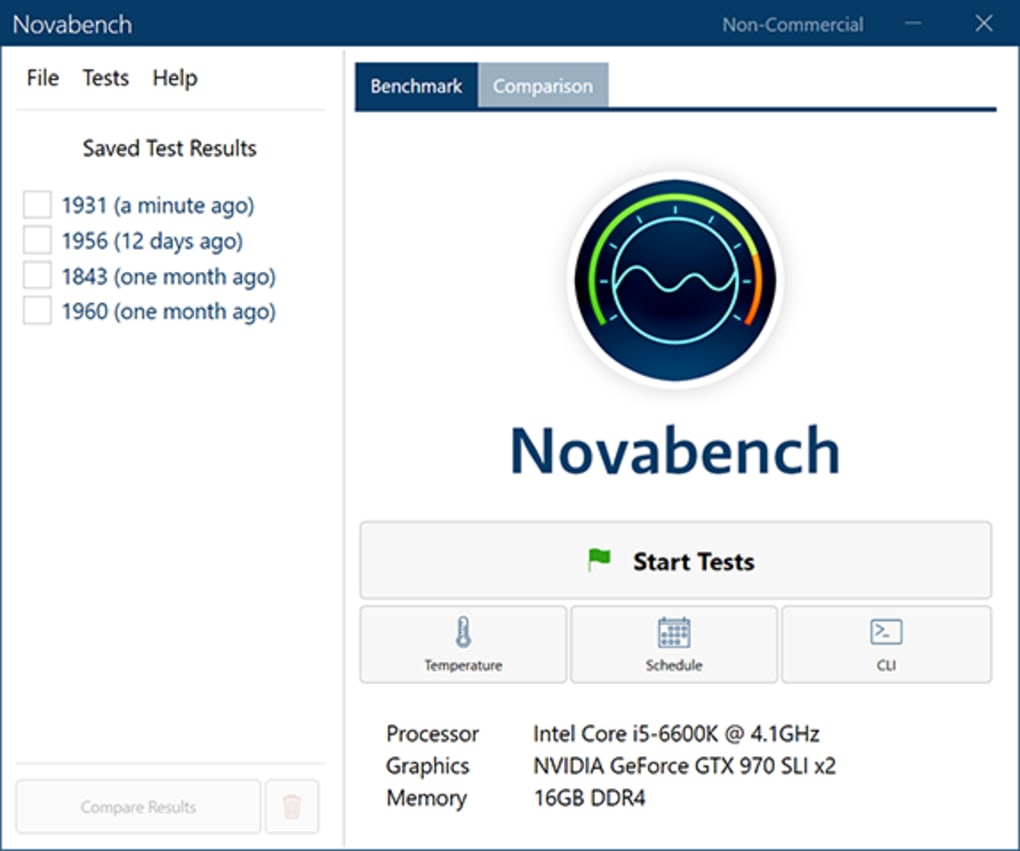
When you open NovaBench, you’ll be greeted with a clean, simple interface. The primary action you’ll want to take is to start the benchmark. Typically, there’s a prominent button, often labeled “Start Benchmark” or similar.
Before you begin, it’s a good practice to:
- Close unnecessary applications: To ensure that other programs aren’t consuming CPU, GPU, or memory resources, close any background applications, games, or heavy browser tabs. This helps NovaBench get a more accurate reading of your system’s raw performance.
- Ensure your system is idle: Avoid actively using your computer for other tasks while the benchmark is running. This minimizes external interference.
Once ready, click the “Start Benchmark” button. NovaBench will then proceed to run a series of tests:
- CPU tests: You’ll see calculations and operations being performed, usually quite quickly.
- GPU tests: A short 3D animation or graphic sequence will play, pushing your graphics card. This test is typically the most visually engaging part of the process.
- Drive tests: NovaBench will perform read and write operations to your primary storage drive.
The entire process is relatively quick, often completing within a few minutes, which is another advantage for users seeking rapid assessments.
Interpreting Your Results
Once the benchmark is complete, NovaBench will display your results. You’ll typically see:
- Individual component scores: Separate scores for your CPU, GPU, and Disk I/O.
- An overall NovaBench score: This is a cumulative score reflecting your system’s general performance.
The key to interpreting these scores is comparison. NovaBench often provides an immediate comparison against a database of similar systems.
- Compare to your expectations: Does the score align with what you’d expect from your hardware configuration?
- Compare to online databases: Many users submit their NovaBench scores to online databases. You can often find forums or websites where users share their results for specific CPUs or GPUs. This helps you gauge if your system is performing optimally or if there might be an issue.
- Identify bottlenecks: If one component’s score is significantly lower than others, or much lower than comparable systems, it might indicate a bottleneck or a problem with that particular component. For example, a high CPU and GPU score with a very low disk score points to the storage drive as the limiting factor.
Keep in mind that while NovaBench offers a good general overview, it’s a synthetic benchmark. Real-world performance can sometimes vary, but it provides a strong foundation for understanding your system’s capabilities and identifying areas for potential improvement or further investigation.
Alternatives and Complementary Tools
While NovaBench serves as an excellent, free, and straightforward benchmarking tool, the world of PC performance evaluation is vast. Depending on your specific needs, several alternative and complementary tools offer different levels of detail, specialization, and complexity.
For users who might find NovaBench’s features too basic or its updates too infrequent, or who require more in-depth analysis, there are numerous options available. These tools often cater to different aspects of PC performance, from comprehensive system diagnostics to highly specialized stress tests.
Some popular alternatives mentioned in the source information and widely recognized in the industry include:
- PCMark 8 (and newer versions like PCMark 10): Developed by UL, PCMark is a comprehensive system benchmark that evaluates overall PC performance across a wide range of real-world activities. It simulates tasks like web browsing, video conferencing, casual gaming, and demanding applications for work and creativity. While PCMark 8 itself is an older version, the PCMark series is highly respected for its ability to provide holistic system scores that reflect everyday usage. These are generally trialware or paid applications, offering more granular reporting than NovaBench.
- Passmark PerformanceTest: Another robust suite, Passmark PerformanceTest, offers a vast array of tests for CPU, 2D graphics, 3D graphics, memory, and disk speed. It provides detailed sub-scores and allows users to compare their results against thousands of baseline configurations. It’s known for its comprehensive nature and its ability to stress individual components effectively. Like PCMark, it’s typically a trialware product but offers immense value for serious benchmarking.
- HWM BlackBox (or HWMonitor/HWInfo for monitoring): While HWM BlackBox is listed as a benchmark alternative, tools like HWMonitor and HWInfo are more accurately described as system information and monitoring utilities. They provide detailed real-time data on hardware components such as temperatures, clock speeds, voltage, and fan speeds. While not strictly benchmarks, they are indispensable complementary tools for performance enthusiasts, helping to identify thermal throttling or unstable overclocks during benchmarking runs. Understanding your system’s operational parameters is crucial for accurate performance evaluation.
- 3DMark 11 (and newer versions): Also from UL, 3DMark is specifically designed to measure the 3D graphics performance of gaming PCs. It uses highly realistic and demanding graphical scenes to push GPUs to their limits. While 3DMark 11 is an older version, the current 3DMark suite includes various tests (e.g., Time Spy, Fire Strike, Port Royal) catering to different hardware levels and DirectX versions. These are crucial for serious gamers and overclockers, offering a much deeper dive into GPU performance than NovaBench. Many versions are available as trialware or paid licenses, with some basic tests often free.
- SiSoft Sandra: A very long-standing and highly respected system analyzer, SiSoft Sandra provides an encyclopedic amount of information about your PC’s hardware and software. Beyond just benchmarking, it offers detailed diagnostics, performance comparisons, and even environmental monitoring. It includes specialized benchmarks for CPU, GPU, memory, and storage, making it a powerful tool for in-depth system analysis and optimization. It’s often available as a trial or paid version and is a favorite among professional IT technicians and advanced users.
- UserBenchmark: This is a popular free app that quickly benchmarks your PC and compares the results against an enormous database of other user-submitted scores. It tests CPU, GPU, SSD, HDD, and RAM. Its strength lies in its simplicity, speed, and massive comparison database, similar to NovaBench but generally more frequently updated and often providing more targeted upgrade suggestions.
- Prime95: While not a general-purpose benchmark like NovaBench, Prime95 is an essential tool for stress-testing CPUs. It focuses on highly intensive mathematical calculations, primarily designed to find Mersenne prime numbers. For overclockers, it’s a go-to tool for ensuring CPU stability and identifying potential issues after increasing clock speeds or voltages. It’s a free utility but serves a very specific and demanding purpose, often run for hours to confirm long-term stability.
Each of these alternatives offers a distinct set of features and levels of detail. NovaBench remains an excellent starting point for a quick overview, but for more specialized testing, advanced diagnostics, or the absolute latest hardware analysis, exploring these other options can provide a more comprehensive understanding of your system’s performance. Often, a combination of tools — for example, NovaBench for a quick check, HWMonitor for real-time data, and 3DMark for gaming-specific performance — yields the most complete picture.
Conclusion
NovaBench, available for free download on platforms like PhanMemFree.org, holds a unique and respected position in the realm of PC benchmarking tools. Since its initial release in 2007, it has proven to be a durable and user-friendly utility for evaluating a computer’s fundamental performance characteristics, specifically its CPU, GPU, and storage drives. Its enduring appeal lies in its simplicity: a small download, a quick scan, and a clear, comprehensive evaluation that includes actual performance scores, comparisons against a vast database of similar systems, and practical suggestions for improvement.
For many users, NovaBench serves as an ideal entry point into understanding their system’s capabilities. It’s perfect for quickly checking the health and performance of an older or second-hand computer, or for anyone who needs a rapid, no-fuss assessment without the complexity of more advanced suites. Its availability across both Mac and Windows platforms further broadens its accessibility.
While it is true that NovaBench, being a “classic” tool, has experienced slower updates compared to some modern alternatives and may encounter specific limitations with the very latest AMD graphics cards or specialized drive configurations, these points do not diminish its core value. Its large database of user scores remains a significant asset, providing valuable context for individual results. For basic, yet solid, performance evaluation, NovaBench continues to be a reliable and highly recommended choice, embodying the spirit of accessible and free software that empowers users to better understand their machines. In a world of ever-increasing hardware complexity, NovaBench stands as a testament to the power of straightforward and effective design.
File Information
- License: “Free”
- Latest update: “May 24, 2023”
- Platform: “Windows”
- OS: “Windows 8”
- Language: “English”
- Downloads: “3.7K”
- Size: “107.65 MB”


