
Accidental key presses on the Caps Lock, Num Lock, and Scroll Lock keys can be incredibly frustrating, disrupting workflow and introducing errors into your work. NumLocker is a lightweight Windows utility designed to eliminate this problem by providing a simple, yet effective, means of disabling these keys when not needed. This eliminates the annoyance of unintentionally activating these lock keys and the subsequent hassle of manually deactivating them. This review will delve into the functionality, ease of use, pros and cons, and user experiences associated with NumLocker.
NumLocker’s Core Functionality: Simple and Effective
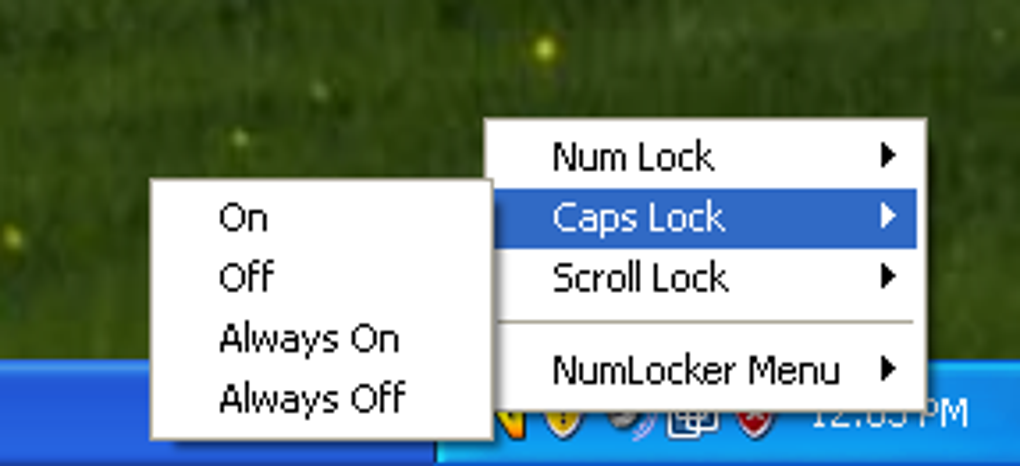
NumLocker’s core functionality is straightforward: it disables the Caps Lock, Num Lock, and Scroll Lock keys. This seemingly simple feature is surprisingly effective in preventing the accidental activation that often plagues users. Unlike more complex keyboard management utilities, NumLocker focuses solely on this specific problem, resulting in a streamlined and efficient solution. The program operates discreetly in the system tray, minimizing its impact on system resources and user interface clutter. Its absence of a traditional graphical user interface (GUI) reflects its minimalist design philosophy – all settings are accessed via a right-click menu on its system tray icon. This simplicity is both a strength and, for some, a potential drawback.
The ease of use is undeniable. Installation is a breeze, and the intuitive right-click menu allows for instant toggling of the lock key functionality. Users can quickly enable or disable the Caps Lock, Num Lock, and Scroll Lock keys as needed, providing granular control over keyboard behavior without any complex configuration. This simplicity makes NumLocker an ideal choice for users who want a quick and easy solution without needing to navigate complex settings or learn a new interface.

Installation and Usage: A Seamless Experience
Installing NumLocker is straightforward and requires minimal user interaction. After downloading the executable file, the user simply needs to run it. The program automatically installs itself and begins running in the system tray, immediately providing its functionality. There’s no lengthy setup process, no complicated configuration options, and no need to reboot the system. This seamless installation experience is a testament to NumLocker’s minimalist design.
The program’s system tray icon provides access to its functionality through a simple right-click context menu. This menu offers options to enable or disable each of the three lock keys independently, allowing for flexible control over their behavior. For instance, a user might only want to disable Caps Lock while leaving Num Lock and Scroll Lock active, or vice versa. This level of individual control enhances the program’s overall utility. The absence of a full GUI means there are no extra windows or dialog boxes to clutter the screen, which many users will appreciate. This keeps the user experience clean and focused on the task at hand.
Advantages and Disadvantages: Weighing the Pros and Cons
NumLocker boasts several advantages. Its primary strength lies in its simplicity and ease of use. The minimal system resource usage makes it unobtrusive and suitable for even older or less powerful systems. The quick and efficient toggling of lock key functionality enhances productivity by reducing interruptions caused by accidental key presses. The lack of a complex interface minimizes the learning curve, making it accessible to users of all technical skill levels.
While NumLocker’s simplicity is a major advantage, it also presents a potential drawback. The absence of a comprehensive user interface might be perceived as limiting by users who desire more advanced features or customization options. Some users may find the lack of configurable settings restrictive, preferring a program with more granular control over keyboard behavior. For instance, there’s no option to customize the behavior of specific keys beyond the three lock keys targeted by the application.

Another potential concern is the program’s reliance on system tray access. While convenient, this approach can become problematic if the system tray is cluttered or if the user inadvertently hides system tray icons. Moreover, the lack of prominent visual indicators for the current status of the lock keys might require users to frequently check the system tray icon, which could become inconvenient over time. This lack of visual feedback is a significant point for some users who need to know the state of the lock keys at a glance.
User Experiences and Reviews: A Mixed Bag
User reviews of NumLocker reflect a mixed bag of experiences. Many users praise its simplicity and effectiveness in preventing accidental lock key presses. The ease of installation and minimal system resource usage are frequently highlighted as positive aspects. However, some users report compatibility issues with specific versions of Windows, particularly newer operating systems like Windows 11. Others find the lack of visual feedback and the absence of more advanced features to be limitations. These conflicting experiences suggest that NumLocker’s suitability depends heavily on the individual user’s needs and technical expertise.
Some users have noted that while the program works well initially, its functionality might cease after a Windows update, highlighting potential compatibility issues that the developer may need to address in future updates. The lack of comprehensive documentation and customer support also leads to frustration among some users struggling to troubleshoot any problems they encounter. This underscores the importance of clear documentation and readily available customer support for software applications.
The sporadic nature of reported issues suggests that while the program generally functions as intended for a significant number of users, there’s a subset of users who experience problems related to compatibility or unexpected behavior. This discrepancy in user experiences highlights the need for robust testing across various Windows versions and configurations. Regular updates and enhanced documentation addressing common issues would significantly enhance the user experience and overall satisfaction.
Conclusion: NumLocker – A Niche Solution with Room for Improvement
NumLocker offers a straightforward solution to the problem of accidental Caps Lock, Num Lock, and Scroll Lock key presses. Its simplicity and ease of use are undeniable advantages, making it a compelling option for users who prioritize minimal configuration and a clean user interface. However, its limitations – the lack of a comprehensive GUI, potential compatibility issues, and absence of visual feedback – might deter users seeking more advanced features or robust error handling.
The program’s effectiveness is largely dependent on the user’s technical skills and willingness to work within its functional constraints. For users who simply want a hassle-free solution for occasional lock key issues, NumLocker adequately addresses the need. However, those seeking a more feature-rich or visually informative keyboard management utility might find more suitable alternatives. Addressing user-reported compatibility issues, providing more comprehensive documentation, and potentially adding visual indicators for lock key status could significantly enhance NumLocker’s overall usability and appeal. The program’s minimalist approach, while appealing to some, might be a disadvantage for others, demonstrating the importance of finding a tool that best suits individual needs and preferences.
File Information
- License: “Free”
- Version: “1.0”
- Latest update: “July 20, 2021”
- Platform: “Windows”
- OS: “Windows Vista”
- Language: “English”
- Downloads: “25.6K”
- Size: “462.24 KB”


