
In the realm of PC gaming and high-performance computing, the NVIDIA Control Panel stands as a cornerstone utility, offering an unparalleled degree of control over your NVIDIA graphics card. Far more than just a settings menu, it’s a comprehensive command center designed for gamers, content creators, and tech enthusiasts seeking to meticulously optimize their 3D rendering, video quality, and overall system performance. This powerful software provides a centralized platform for managing a vast array of graphics-related functions, allowing users to fine-tune everything from anti-aliasing to dynamic super resolution, ultimately unlocking the full potential of their hardware. While its capabilities are deeply intertwined with your computer’s specific hardware configuration, the NVIDIA Control Panel serves as an indispensable tool for anyone looking to transcend basic settings and achieve a truly customized, high-fidelity visual experience. Before delving into the intricate world of advanced features and granular customizations, it’s often advisable to ensure a clean slate, either by removing any pre-installed drivers or opting for a clean installation during updates. This proactive step helps to guarantee maximum stability and performance, preventing potential conflicts and ensuring that the control panel can operate at its peak efficiency. This extensive guide will explore the essential features, profound benefits, and minor drawbacks of the NVIDIA Control Panel, providing a detailed roadmap to significantly enhance your gaming setup and overall PC experience.
What is the NVIDIA Control Panel and How Does It Work?
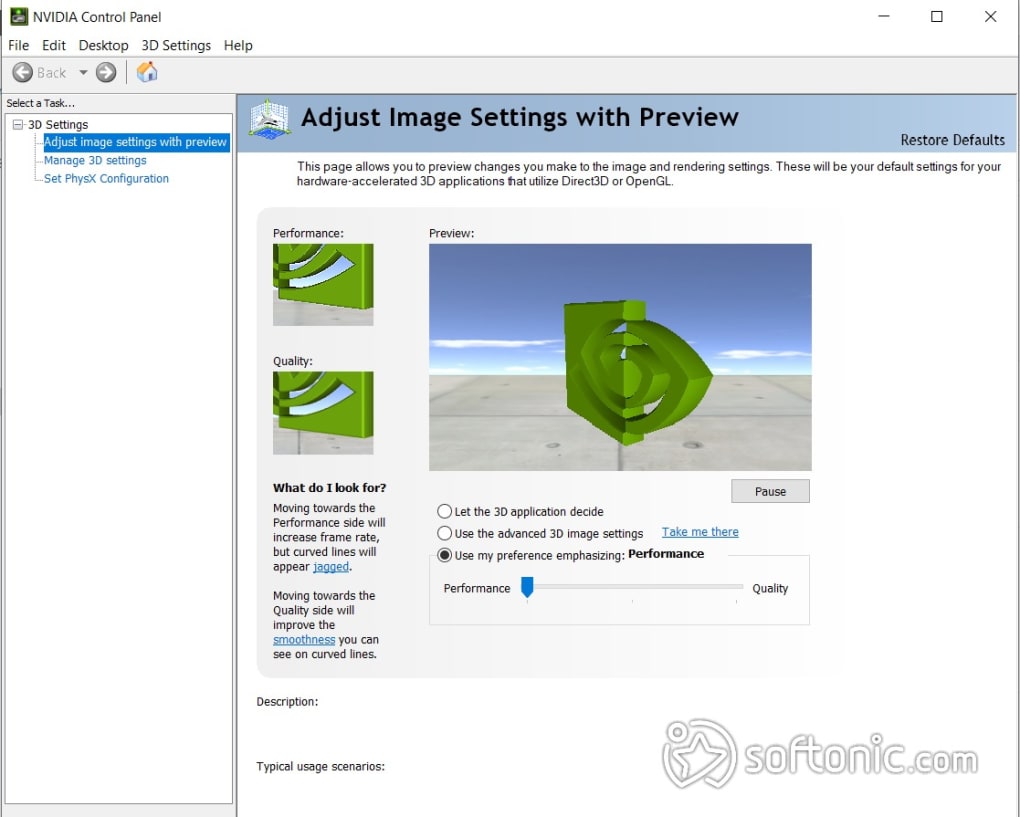
The NVIDIA Control Panel is a proprietary software utility developed by NVIDIA, serving as the primary interface for users to configure and manage their NVIDIA graphics processing units (GPUs). It acts as a bridge between the user and the complex hardware within their system, translating user preferences into tangible performance and visual quality adjustments. For millions of Windows users, especially those invested in gaming or demanding graphical applications, this tool is the key to unlocking superior performance and visual fidelity.
Versions and Installation: A Foundation for Performance
When it comes to the NVIDIA Control Panel, users typically encounter two main versions of its underlying drivers: the WHQL (Windows Hardware Quality Labs) certified version and the “speed-tweaks” version. The WHQL version represents an older, but generally more stable and thoroughly tested iteration of the driver. It has undergone rigorous certification processes by Microsoft, ensuring maximum compatibility and reliability across a wide range of hardware and software environments. This makes it an ideal choice for users who prioritize system stability and consistent performance over bleeding-edge optimizations.
Conversely, the “speed-tweaks” version is often geared towards enthusiasts and early adopters who are eager to extract every last bit of performance from their GPUs. These drivers may incorporate the latest optimizations, experimental features, or performance enhancements that haven’t yet received full WHQL certification. While potentially offering higher frame rates or improved responsiveness in specific scenarios, they might also carry a slightly higher risk of encountering minor bugs or compatibility issues. Regardless of which driver version you opt for, both can typically be downloaded and managed from a single, unified page on NVIDIA’s official website, simplifying the process of obtaining the correct software for your hardware.
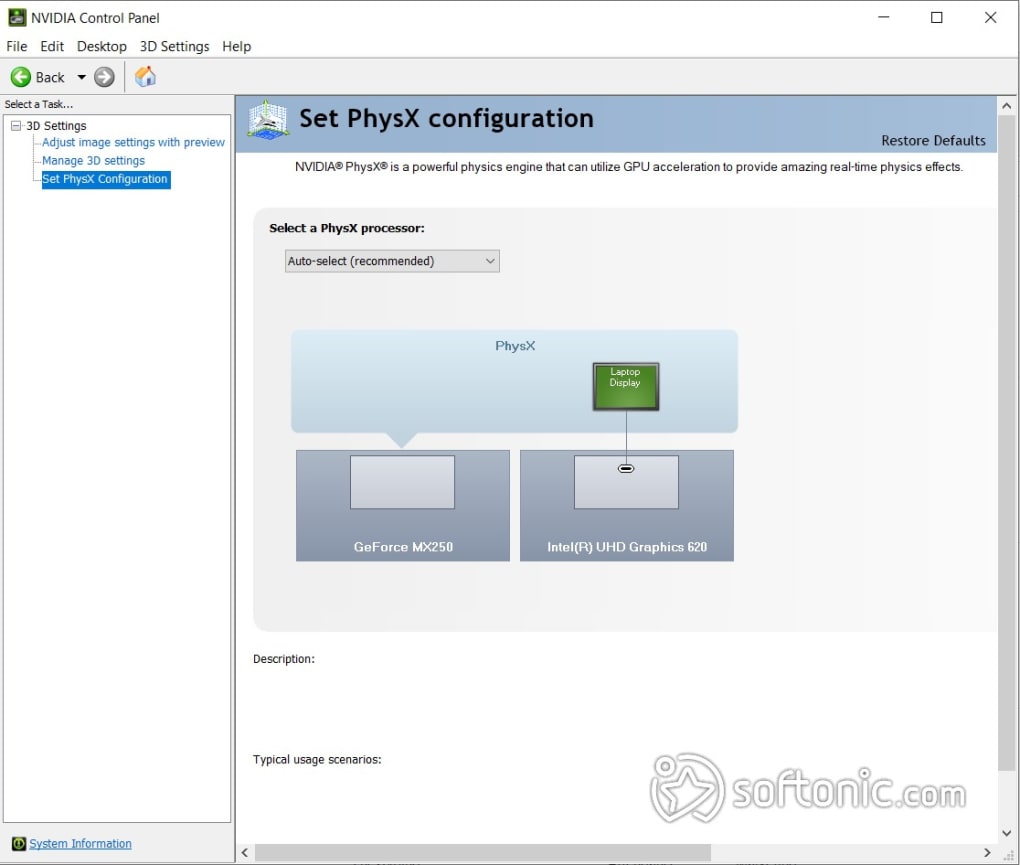
A critical step often overlooked, but paramount for optimal performance, is the installation process itself. Before initiating the download and installation of a new NVIDIA Control Panel or driver package, it is highly recommended to completely remove any previously installed graphics drivers. This “clean installation” approach is vital because remnants of older drivers can often conflict with newer versions, leading to performance degradation, graphical glitches, or even system instability. If for some reason you skip this initial uninstallation, most NVIDIA driver installers offer a “clean installation” option during the update process. Selecting this setting ensures that the installer removes all previous driver files and settings before installing the new ones, thereby minimizing the chances of conflicts. Compared to some other system optimization tools, the installation of the NVIDIA Control Panel itself is typically swift, often taking no more than a few seconds, facilitating a quick return to your computing tasks.
However, users occasionally report a peculiar drawback: the NVIDIA Control Panel program can, on rare occasions, appear to go “missing” from their hard drive or system tray. While disconcerting, this issue is usually resolvable. In most instances, the program file remains on your system and can be located with a simple search on your C: drive, often within the NVIDIA Corporation folder in Program Files. Once the executable (.exe) file is found, a double-click will typically relaunch the program and restore its functionality. While the NVIDIA Control Panel offers an extensive suite of features, it’s worth noting that alternatives like GeForce Experience exist. GeForce Experience is a more lightweight tool that also optimizes drivers and games and even offers game recording capabilities. However, for sheer depth of customization and granular control over graphics settings, the NVIDIA Control Panel generally provides a more robust and feature-rich experience for Windows PCs.
A Centralized Hub for Graphics Control: The Unified Platform
At its core, the NVIDIA Control Panel functions as a centralized hub, consolidating all your NVIDIA graphics card needs into a single, intuitive interface. Instead of scattered settings across different applications or system menus, the Control Panel provides a unified platform where you can manage everything from display resolution and refresh rates to complex 3D application-specific settings. This consolidation simplifies the process of optimizing your visual experience, whether you’re a casual user looking for basic display adjustments or a professional gamer meticulously tweaking every visual parameter for competitive advantage.
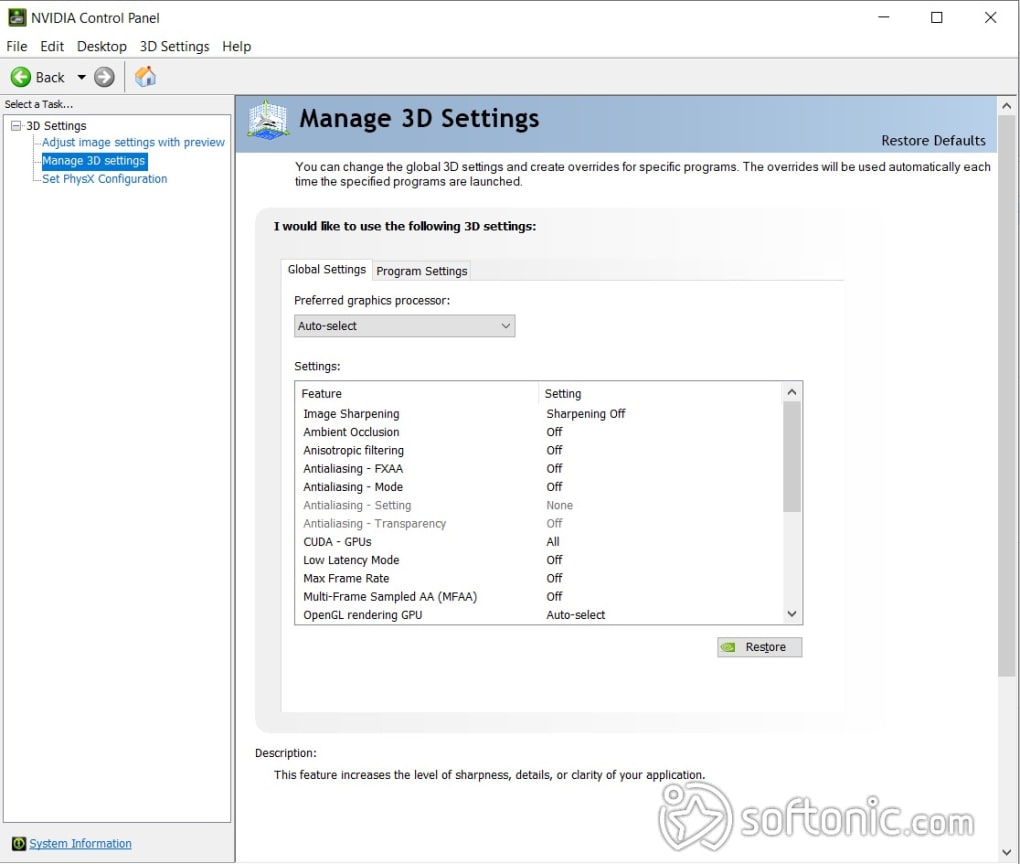
This unified approach ensures consistency across all your applications and games. When you make a global setting change, it can apply to all programs, or you can create specific profiles for individual games, allowing for tailored optimization. For instance, a competitive esports title might benefit from settings that prioritize performance and low latency, while a graphically intensive single-player game might be best enjoyed with settings that maximize visual fidelity, even at the cost of a few frames per second. The Control Panel facilitates this level of precise management, making it an indispensable tool for anyone serious about their PC’s graphical output.
Unlocking Optimal Visuals and Performance
The true power of the NVIDIA Control Panel lies in its ability to empower users to transcend default settings, allowing for a personalized visual experience that can dramatically improve both the aesthetics and responsiveness of games and applications. It moves beyond generic system settings, offering a suite of specialized tools designed specifically for NVIDIA GPUs.
Customizing Video Quality and 3D Settings: Precision at Your Fingertips
NVIDIA takes a remarkably straightforward yet powerful approach to video quality customization. Within the Control Panel, you can modify a game’s imagery and resolution with just a few clicks, making significant visual improvements accessible to users of all experience levels. For beginners, the “Use My Preference” section offers a simplified pathway, allowing them to shuffle between predefined configuration options that balance quality and performance. This acts as an excellent starting point, providing noticeable improvements without requiring deep technical knowledge.
However, the real magic happens when users delve into the “Use the Advanced 3D Image Setting” option. This feature is a game-changer for enthusiasts, enabling them to override global presets and apply highly specific, custom effects to individual games or applications. By leveraging these advanced enhancements, users are able to maximize their hardware’s rendering capabilities, pushing the boundaries of what their graphics card can achieve. For example, you can force higher levels of anti-aliasing than a game’s built-in options provide, or enable ambient occlusion for more realistic lighting and shadows, even if the game itself doesn’t offer robust controls for these features. The result is often a game that appears significantly better than its original, unoptimized version, with sharper textures, smoother edges, and more immersive lighting. Because the program gives you direct control over both quality and speed parameters, the potential for achieving excellent, tailor-made results is virtually limitless, transforming every gaming session into a more visually compelling experience.
Boosting Resolution and Image Clarity: Beyond the Native Display
Unlike more focused utilities such as NVIDIA GeForce Driver or NVIDIA GeForce Shadowplay, the NVIDIA Control Panel dedicates considerable attention to improving a game’s resolution and speed. Virtually all options within the “Settings” section have a direct or indirect impact on these crucial aspects of the gaming experience. To truly make the most of your hardware, focusing on certain key functionalities is paramount.
For instance, Anisotropic Filtering (AF) is a critical setting for enhancing the clarity of textures that appear at oblique angles or at a distance. Without sufficient AF, distant textures can look blurry and indistinct. By increasing the AF level (e.g., from 2x to 16x), you can make images, especially environments and surfaces receding into the background, appear significantly more realistic and sharper, contributing to a more immersive visual field.
Another groundbreaking feature is Dynamic Super Resolution (DSR). This technology allows your GPU to render games at a much higher resolution than your monitor’s native display resolution. For example, if you have a 1080p monitor, DSR could render the game at 4K (3840x2160) and then intelligently scale it down to your monitor’s resolution. While the program confines you to the game’s original physical display size, this downscaling process dramatically improves the pixel density and anti-aliasing quality of the image, ensuring better picture quality with incredibly fine details and significantly reduced jagged edges. The perceived image is exceptionally sharp and clean, making even older games look remarkably modern.
Beyond these, other prominent features further contribute to visual enhancement:
- Ambient Occlusion (AO): This adds realistic shadow effects where objects meet or where light is obstructed, creating a more convincing sense of depth and realism in scenes.
- Anti-aliasing (AA): This crucial setting smooths out jagged edges on objects and textures. Options like FXAA (Fast Approximate Anti-Aliasing), MSAA (Multi-Sample Anti-Aliasing), and TXAA (Temporal Anti-Aliasing) offer different balances between visual quality and performance impact. The Control Panel allows users to override in-game AA settings for superior results.
- Vertical Sync (V-Sync): This synchronizes the game’s frame rate with your monitor’s refresh rate, eliminating screen tearing (when multiple frames are displayed simultaneously). While it can introduce input lag, it ensures a smoother visual experience.
- Texture Filtering Quality: This setting affects how textures are rendered and can be adjusted for higher quality, leading to crisper and more detailed surfaces.
These features collectively provide an extensive toolkit for those who wish to experiment with a game’s visuals and effects. Should you find yourself lost in the myriad of options or wish to revert to a known good configuration, a convenient ‘Reset’ button is always available to revert all settings back to their default values, offering peace of mind during experimentation.
Advanced Features for Power Users
While the NVIDIA Control Panel excels at visual optimization, it also offers a suite of advanced features designed for power users who want to go beyond simple display settings and dive into system maintenance, performance tuning, and detailed hardware monitoring. These functionalities transform the Control Panel into a true powerhouse utility for comprehensive system management.
Keeping Drivers Up-to-Date with NVIDIA System Update
An often underappreciated but immensely valuable feature of the NVIDIA Control Panel is the “NVIDIA System Update.” This component acts as an essential add-on, streamlining the critical task of keeping your system’s graphics drivers current. In the fast-evolving landscape of PC gaming and software, driver updates are not merely about bug fixes; they frequently introduce significant performance enhancements, optimize compatibility with new game titles, and even unlock new features for your GPU.
With NVIDIA System Update, the program automatically checks for the latest available driver updates, notifying you when new versions are ready. This eliminates the need for manual checks on NVIDIA’s website, saving time and ensuring you’re always running the most optimized software for your hardware. Beyond graphics drivers, this feature also gives you the ability to update your system’s BIOS (Basic Input/Output System), a foundational firmware that controls hardware components. Keeping the BIOS up-to-date can improve system stability, enhance compatibility with new hardware, and even offer performance improvements, making the NVIDIA System Update a comprehensive tool for maintaining an optimized and secure system environment.
Performance Tuning with NVIDIA Performance Group and nForce MCPs
For those seeking to extract maximum performance from their NVIDIA-powered systems, the “NVIDIA Performance Group” offers a suite of powerful tools. This section is where enthusiasts can really push the limits of their hardware. One of its most significant functions is facilitating GeForce GPU overclocking. Overclocking involves increasing the clock speed of your GPU beyond its factory settings, which directly translates to higher processing power and, consequently, increased performance in games and graphically intensive applications. Over time, carefully managed overclocking can substantially elevate the frame rates and responsiveness of your computer’s graphics card, having a major, positive impact on the gaming experience. However, it requires careful monitoring and understanding, as excessive overclocking can lead to instability or hardware degradation.
Complementing this, the “nForce MCPs” (Media and Communications Processors) feature caters to users with NVIDIA nForce motherboards. This advanced functionality provides better profiles and tuning options for critical system components such as timings, fans, voltages, and clocks. This allows for fine-grained control over motherboard-level settings, which can influence overall system stability and performance. For example, adjusting memory timings can yield subtle but noticeable improvements in data transfer speeds, while controlling fan speeds helps manage thermals effectively during intensive workloads. Furthermore, this section provides solid support for ESA (Enthusiast System Architecture) components. ESA is an open standard designed to enable communication between various PC components, allowing for more comprehensive monitoring and control of hardware performance and cooling. This integration underscores the NVIDIA Control Panel’s role as an all-encompassing utility for serious hardware enthusiasts.
System Monitoring with NVIDIA System Monitor: A Detailed Overview
To effectively tune and troubleshoot a high-performance system, detailed information about its operational status is crucial. The “NVIDIA System Monitor” feature within the Control Panel provides precisely this, offering a comprehensive and detailed overview of your hardware and system capabilities. This invaluable tool presents real-time data on various critical parameters, enabling users to keep a close eye on their system’s health and performance.
The monitor can display a wealth of information, including:
- Content Files: Overview of files related to NVIDIA software.
- Core Clock: The current operating speed of the GPU’s core.
- Dedicated Video Memory: The amount of RAM specifically allocated to the graphics card.
- Driver Version: The specific version number of the installed graphics driver.
- Memory Interface: Details about the GPU’s memory bus width.
- Memory Clock: The operating speed of the GPU’s video memory.
- Temperature: Real-time thermal readings of the GPU, crucial for monitoring stability during overclocking or heavy load.
- Fan Speed: Current rotational speed of the GPU’s cooling fans.
- GPU Usage: The percentage of the GPU currently being utilized.
- Power Consumption: Estimated power draw of the graphics card.
This detailed telemetry allows users to understand how their system is performing under different loads, identify bottlenecks, and make informed decisions regarding optimization. Whether you’re diagnosing a performance issue or simply curious about your GPU’s current workload, the NVIDIA System Monitor offers a clear and accessible window into your hardware’s vital statistics.
In essence, the NVIDIA Control Panel serves as a comprehensive utility pack, designed to securely improve the capabilities of NVIDIA graphics cards. With just a few clicks, the program empowers users to substantially enhance their gaming experience. If you’ve been searching for a reliable Windows utility tool specifically crafted to impact both gaming and overall system performance, this one will undoubtedly be an excellent choice. NVIDIA is already a renowned name in the industry, offering a suite of drivers, capabilities, and functions. The Control Panel has been consistently targeting gamers and power users worldwide, and it has undeniably become a standard for improving the gaming experience and pushing hardware limits.
Pros, Cons, and Target Audience
Like any powerful software, the NVIDIA Control Panel comes with its distinct advantages and limitations. Understanding these, along with its intended user base, is key to appreciating its value and maximizing its utility.
Advantages and Limitations: A Balanced Perspective
The NVIDIA Control Panel offers a compelling array of advantages for those seeking to optimize their PC’s graphical performance:
Pros:
- Optimized Color Ratio: Provides advanced color controls, allowing users to fine-tune digital vibrance, hue, and contrast for a more accurate and vibrant visual output. This is particularly beneficial for content creators and gamers who prioritize visual fidelity.
- Fast 3D Rendering: Through its extensive customization options for anti-aliasing, texture filtering, and other 3D settings, it facilitates significantly faster and smoother 3D rendering in games and applications, leading to higher frame rates and a more fluid experience.
- Multiple Configuration Settings: Offers an incredibly granular level of control, with a vast number of settings that can be adjusted globally or on a per-application basis, providing unmatched flexibility for optimization.
- Full-Screen Anti-aliasing (FSAA): Allows users to force higher levels of anti-aliasing in games that might not natively support it, or to exceed the in-game options, resulting in significantly smoother edges and a more refined visual appearance across the entire screen.
- Comprehensive Monitoring and Tuning: With features like NVIDIA System Monitor and Performance Group, it extends beyond mere visual settings, offering tools for driver updates, GPU overclocking, and detailed hardware oversight.
However, the NVIDIA Control Panel also presents a few limitations that potential users should be aware of:
Cons:
- Not Beginner-Friendly: The sheer volume of technical settings and jargon can be overwhelming for novice users. While it offers simpler “preference” options, diving into advanced 3D settings requires a certain level of technical understanding to avoid suboptimal configurations or even performance regressions.
- Depends on Hardware: The extent of its capabilities and the impact of its optimizations are inherently tied to the power and features of the installed NVIDIA graphics card. Users with older or lower-end GPUs may not experience the same dramatic improvements or have access to all advanced features compared to those with high-end cards.
- Occasional “Missing Program” Issue: As previously mentioned, the program can sometimes inexplicably disappear from the system tray or desktop context menu, requiring manual intervention to locate and restart it. While usually easy to fix, it can be an annoyance.
Who Benefits Most? The Ideal User Profile
Without a doubt, the NVIDIA Control Panel is an excellent Windows utility tool specifically designed for an improved gaming and overall computing experience. It empowers users to leverage a wide range of functions and features, all organized within an easy-to-use, centralized information database. However, it’s worth reiterating that the program isn’t primarily beginner-friendly. Its extensive and technical options are best navigated by experienced users, gamers, and tech enthusiasts who possess a foundational understanding of graphics settings, hardware performance, and the potential implications of various optimizations.
Casual users might find simpler tools like NVIDIA GeForce Experience more accessible for basic driver updates and game optimization. But for those who revel in delving into the minutiae of graphical configurations, pushing their hardware to its limits, and demanding a truly personalized visual experience, the NVIDIA Control Panel is indispensable. It’s for the user who wants to manually tweak every detail, from frame rendering to texture quality, ensuring that every gaming session feels more fun, interesting, and engaging, precisely tailored to their preferences and hardware. This program is an excellent choice for a wide range of Windows operating systems, including Windows 7, Windows 10, and later versions, solidifying its status as a long-standing and impactful utility in the PC ecosystem.
For a richer, more controlled, and ultimately superior gaming experience, the NVIDIA Control Panel remains a gold standard. Its ability to finely tune everything from color ratios to 3D rendering speeds, combined with powerful diagnostic and update tools, makes it an essential piece of software for anyone serious about optimizing their NVIDIA-powered Windows PC.
PhanMemFree Information:
- License: Free
- Version: 8.1.966.0
- Latest update: July 30, 2024
- Platform: Windows
- OS: Windows 10
- Language: English
- Downloads: 664.8K
- Last month’s downloads: 637K
- Developer: nvidia
- More programs (49)
Disclaimer: Laws concerning the use of this software vary from country to country. PhanMemFree.org does not encourage or condone the use of this program if it is in violation of these laws. PhanMemFree may receive a referral fee if you click or buy any of the products featured here.
File Information
- License: “Free”
- Version: “8.1.966.0”
- Latest update: “July 30, 2024”
- Platform: “Windows”
- OS: “Windows 10”
- Language: “English”
- Downloads: “665.7K”


