
NVIDIA Inspector is a free, open-source system utility designed for in-depth monitoring and fine-grained control of NVIDIA graphics cards. While its interface may appear dated, it provides a wealth of information and customization options not readily available through other tools, making it a valuable asset for both casual users and experienced overclockers. This article delves into the functionalities, features, safety, and overall usability of NVIDIA Inspector, comparing it to alternative solutions and ultimately assessing its value proposition.
Understanding NVIDIA Inspector’s Core Functionality
At its heart, NVIDIA Inspector serves as a comprehensive diagnostic and tweaking tool for NVIDIA GPUs. It goes beyond basic monitoring, offering granular access to various GPU parameters. This allows users to:
-
Gather Detailed Hardware Information: Obtain precise details about your graphics card, including the GPU type, BIOS version, memory specifications (type, size, and clock speeds), driver version, shader architecture, and interface type. This information is invaluable for troubleshooting performance issues or simply understanding the capabilities of your hardware.
-
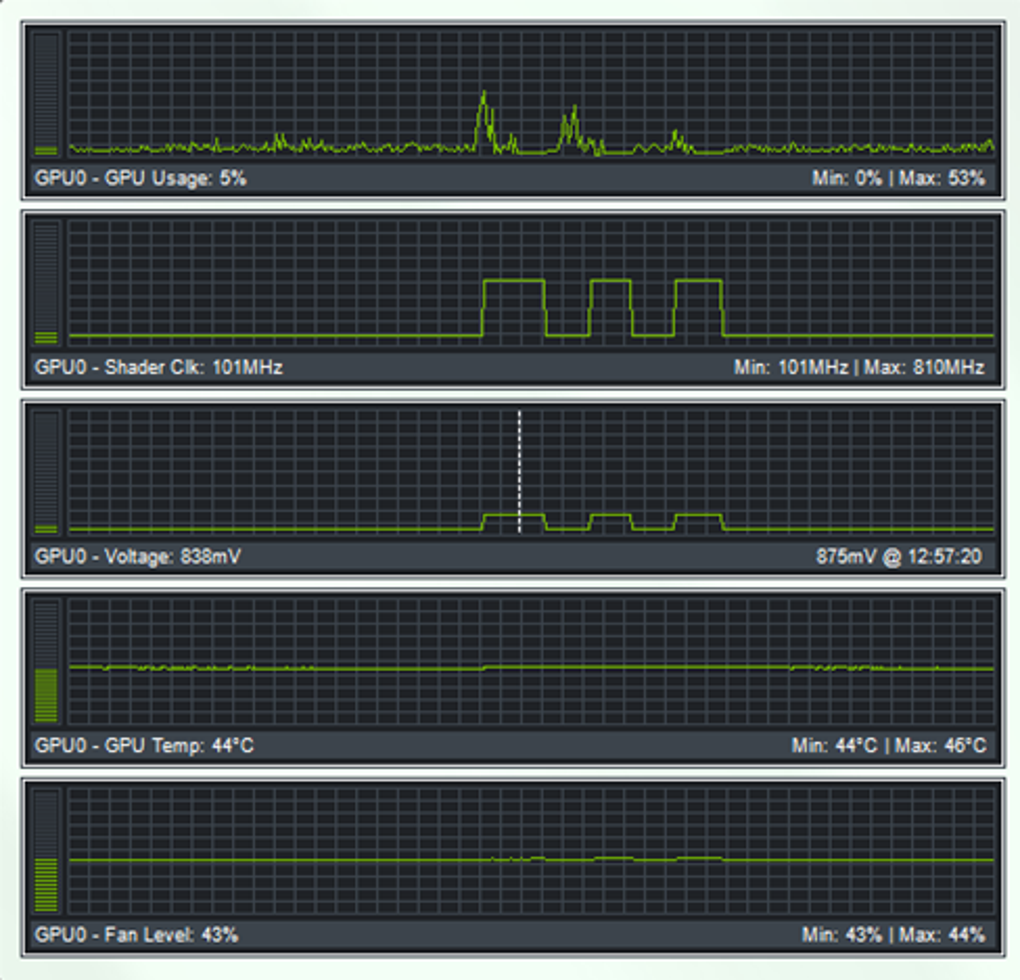
Monitor GPU Performance in Real-Time: Track key performance metrics such as GPU temperature, clock speeds (core and memory), voltage levels, fan speed, and utilization. This real-time data allows users to identify potential bottlenecks or overheating problems, enabling proactive adjustments to prevent damage.
-
Adjust Clock Speeds and Memory Timings: Experienced users can manually adjust core clock, memory clock, and voltage settings to potentially improve performance (overclocking). However, it’s crucial to proceed with caution, as improper adjustments can lead to instability or damage to the hardware. NVIDIA Inspector provides the tools, but responsible usage and understanding of potential risks are paramount.
-
Control Fan Speed: Manually control fan speed to optimize cooling and noise levels. Users can set custom fan curves based on temperature readings, finding a balance between efficient cooling and acceptable noise.
-
Identify Unrecognized Devices: NVIDIA Inspector can assist in identifying devices that the operating system may not recognize, potentially uncovering compatibility issues or hardware conflicts.
-
Access Advanced Settings: The tool provides access to advanced settings, allowing experienced users to fine-tune various GPU parameters beyond the basic options available in the NVIDIA Control Panel.
In essence, NVIDIA Inspector bridges the gap between basic driver controls and the intricate details of GPU hardware, offering a level of granularity not typically found in user-friendly applications.
The User Interface: Simplicity Meets Functionality
NVIDIA Inspector’s interface might initially seem unpolished compared to modern applications. Its design leans towards practicality over aesthetic appeal. However, the information presented is organized logically and clearly, making it accessible even to users with limited technical expertise. The layout is straightforward, placing critical metrics and settings front and center. The main window displays a comprehensive overview of the GPU’s status, while individual tabs provide access to more specific settings and detailed information. Although lacking the visual polish of some competitors, the user experience is streamlined once users understand the layout. The tool’s open-source nature ensures ongoing updates and potential improvements to the interface in future releases.
Key Features and Capabilities
Beyond its core functionality, NVIDIA Inspector boasts several key features that enhance its utility:
-
Open-Source and Regularly Updated: The open-source nature of NVIDIA Inspector ensures transparency and community involvement. This fosters continuous improvement, with regular updates addressing bugs, adding new features, and enhancing compatibility with newer hardware and drivers.
-
Flexibility and Customization: The wide array of settings and monitoring options cater to a broad range of users, from casual users seeking basic information to experienced overclockers striving for maximum performance.
-
Comprehensive Reporting: NVIDIA Inspector efficiently presents a wealth of information, allowing for effective monitoring and analysis of the GPU’s performance and status. The data is easily accessible and organized, making it simple to identify potential problems.
-
Compatibility: The tool supports a wide range of NVIDIA graphics cards and driver versions, ensuring compatibility across different hardware and software configurations.
- Lightweight Footprint: The application has a minimal system impact, ensuring it doesn’t significantly affect system performance even during intensive gaming or application use.
Safety and Security Considerations
NVIDIA Inspector is a free and safe application. Its open-source nature and MIT license contribute to its security. The application runs in the background and provides comprehensive data for users to review. While it offers powerful features such as overclocking, it’s crucial to remember that irresponsible use can damage hardware. Users should exercise caution when making changes to core clock, memory clock, and voltage settings. It’s essential to understand the risks associated with overclocking and to only attempt it if you have the necessary knowledge and are comfortable with the potential consequences. Always start with conservative adjustments and monitor temperatures closely.
Should You Download NVIDIA Inspector?
The decision to download NVIDIA Inspector depends on your needs and technical expertise. If you’re a casual user simply looking for basic GPU information, other simpler tools might suffice. However, if you require detailed hardware information, real-time monitoring capabilities, or the ability to fine-tune your GPU’s settings, NVIDIA Inspector is an excellent choice.
Advantages:
- Free and open-source: No cost and community-driven development.
- Comprehensive monitoring: Detailed real-time data for informed decision-making.
- Advanced customization: Fine-grained control over various GPU settings.
- Lightweight and efficient: Minimal system resource usage.
Disadvantages:
- Dated interface: The visual design may not appeal to all users.
- Steep learning curve for advanced features: Overclocking requires technical knowledge and caution.
Comparison with Alternatives
NVIDIA Inspector is not the only tool available for GPU monitoring and control. Other options include:
-
NVIDIA Control Panel: NVIDIA’s official control panel offers basic GPU settings and monitoring, but lacks the depth and customization options of NVIDIA Inspector.
-
MSI Afterburner: A popular and feature-rich overclocking utility that offers similar functionality to NVIDIA Inspector but with a more modern and user-friendly interface.
-
RivaTuner Statistics Server: A powerful monitoring tool with extensive customization and scripting capabilities, targeting more advanced users.
While alternatives offer comparable features, NVIDIA Inspector stands out due to its comprehensive data provision, open-source nature, and free availability. Its detailed and accessible approach to GPU monitoring makes it an attractive option for both beginners seeking basic information and advanced users seeking granular control over their hardware. The choice ultimately depends on individual user needs and preferences regarding interface style and desired level of control.
File Information
- License: “Free”
- Latest update: “May 23, 2023”
- Platform: “Windows”
- OS: “Windows 7”
- Language: “English”
- Downloads: “223.3K”
- Size: “182.61 KB”


