
Office Tab is a Windows program designed to enhance the user experience of Microsoft Office applications. This review delves into its features, performance, usability, and overall value, comparing it to alternative solutions and addressing user concerns.
Streamlining Microsoft Office: The Core Functionality of Office Tab
Office Tab fundamentally alters how users interact with Microsoft Office applications like Word, Excel, and PowerPoint. Instead of relying on the traditional windowed interface where each document opens in a separate window, Office Tab introduces a tabbed browsing experience similar to what’s found in modern web browsers. This means you can have multiple documents open within a single application window, significantly improving workflow efficiency. Imagine seamlessly switching between a Word document, an Excel spreadsheet, and a PowerPoint presentation without the clutter of numerous windows obscuring your screen. This single, unified interface reduces desktop clutter and simplifies multitasking, making it particularly beneficial for users juggling multiple documents simultaneously. The ease of navigating between different files, previously a cumbersome task involving repetitive window switching, is greatly streamlined. This simplified navigation boosts productivity, allowing for smoother transitions between tasks and a more focused work environment.
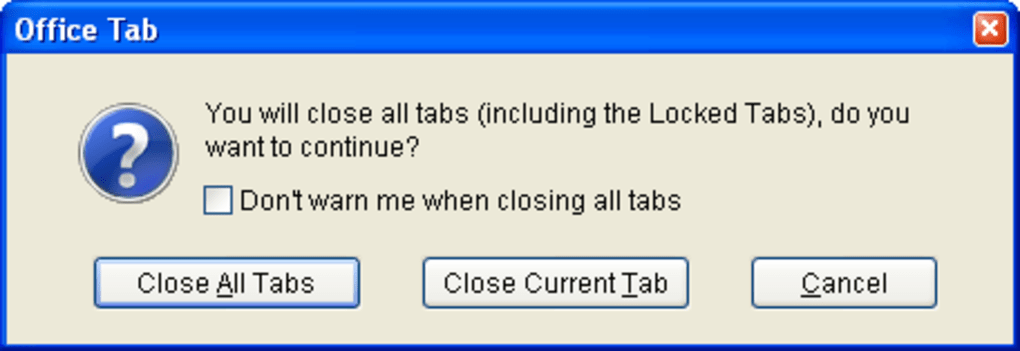
The tabbed interface is intuitive and user-friendly, requiring minimal learning curve for experienced Office users. The familiar tab functionality, easily comparable to web browsers, promotes immediate understanding and quick adoption. Features such as tab renaming, closing individual tabs, and dragging and dropping tabs to rearrange their order add further layers of customization and control, enabling users to personalize their workflow. The program seamlessly integrates into the existing Office environment, requiring no significant alterations to established workflows. The familiar look and feel ensures a smooth transition, minimizing disruption and maximizing usability.
Performance and System Requirements: A Lightweight Solution
Office Tab is designed to be a lightweight application, minimizing its impact on system resources. Unlike some resource-intensive productivity suites, Office Tab maintains a small footprint, ensuring that its implementation doesn’t compromise the performance of the underlying Office applications. This low resource consumption is particularly advantageous for users working with older hardware or those handling large and complex documents simultaneously. The program’s efficient design prevents slowdowns or freezes, maintaining a smooth and responsive user experience. Detailed system requirements are typically provided by the software developer, offering clarity on minimum hardware specifications for optimal performance. These specifications commonly include information regarding operating system compatibility, RAM requirements, and available hard drive space.
Furthermore, the program’s compatibility with older versions of Windows shows a commitment to accommodating a wider user base. Supporting legacy systems demonstrates flexibility and accessibility, expanding the potential user pool. This compatibility extends its reach to users who may not be able to upgrade their systems immediately, ensuring broader applicability and accessibility.
Installation and User Interface: Simplicity and Seamless Integration
Installation of Office Tab is generally straightforward, with a user-friendly installer guiding the process. The installer typically provides clear instructions and options, making the installation process accessible to users with varying levels of technical expertise. The intuitive interface minimizes complexity, allowing for a smooth transition into using the software. The program’s user interface maintains a consistent and familiar design, integrating seamlessly with the existing Microsoft Office interface. The incorporation of tab functionality is smooth and does not disrupt the established workflow of Office applications. This ensures minimal interruption to existing practices and encourages rapid adoption. The program’s overall design philosophy emphasizes intuitive usability, prioritizing a simple and straightforward user experience that reduces the learning curve and promotes effortless integration into existing workflows.
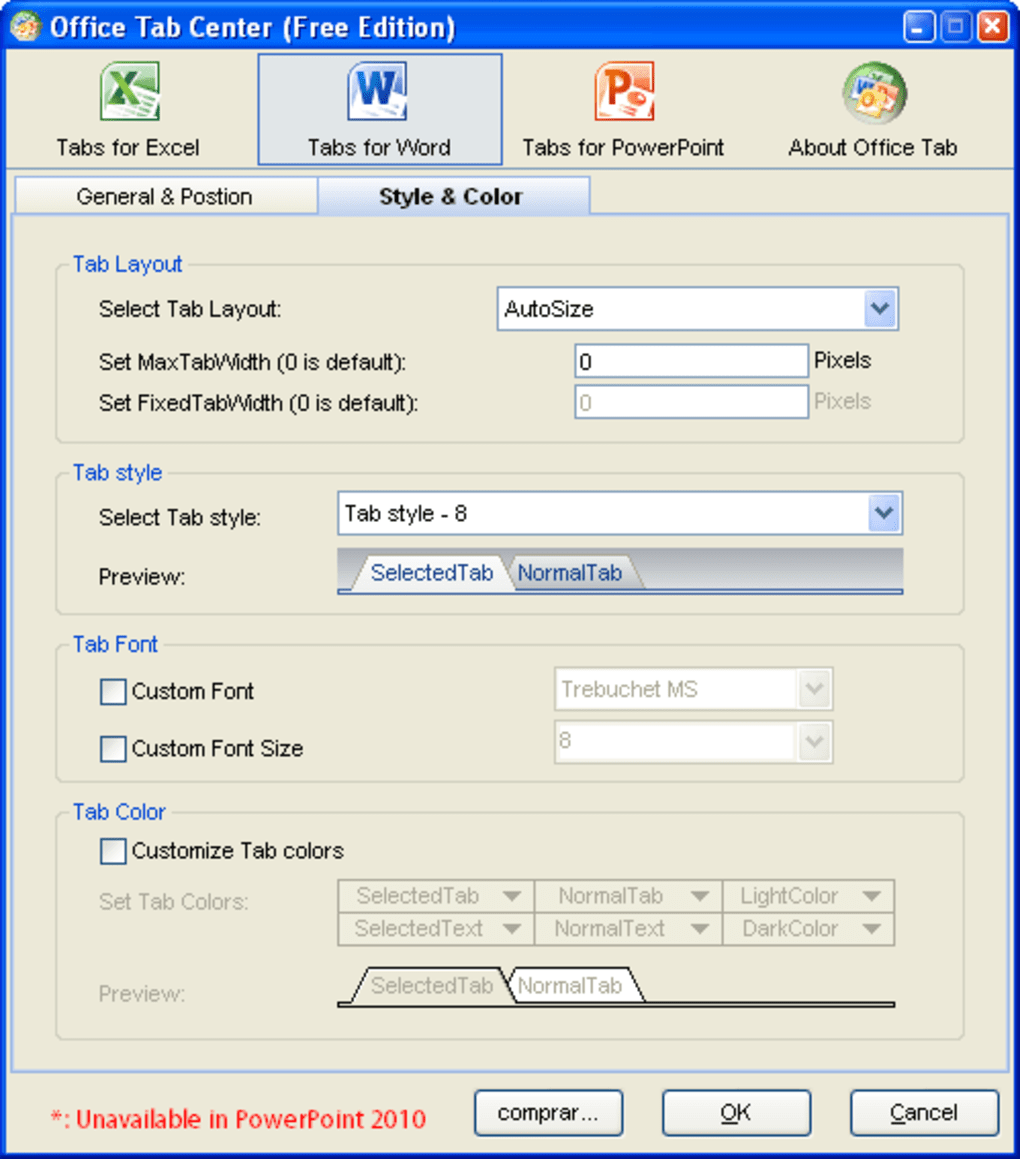
The program’s interface also typically includes options for customization. These options empower users to further tailor the appearance and functionality to their preferences, enhancing the personalized user experience. This flexibility ensures the software can be molded to fit various user needs and preferences, further enhancing the overall appeal and practicality.
Comparison with Alternative Solutions: Standing Out from the Crowd
While Office Tab offers a unique solution to enhance the Microsoft Office experience, it’s crucial to compare it against alternative approaches. Other methods for managing multiple Office documents include using multiple desktops or virtual desktops, offered in modern operating systems. However, these methods often lack the seamless integration and intuitive interface provided by Office Tab. Furthermore, other productivity suites offer various features, but might not focus specifically on the tabbed interface enhancement to Office apps, which is Office Tab’s core strength. The streamlined efficiency of Office Tab in managing multiple documents within a single application window provides a compelling advantage over these alternative strategies, significantly boosting productivity. The comparison highlights the unique value proposition of Office Tab, emphasizing its focused approach to enhancing the user experience within the Microsoft Office ecosystem.
The absence of comparable features in many competing software solutions reinforces Office Tab’s unique position in the market. This niche focus caters to a specific user need, providing a distinct advantage over more generalized productivity suites. The comparison analysis clearly demonstrates that Office Tab offers a specialized function that is not adequately fulfilled by alternative applications, establishing its value proposition within the broader landscape of productivity software.
Security and Privacy: Addressing User Concerns
The security and privacy of user data are paramount concerns, and Office Tab, like any software application, should address these aspects. The developer’s reputation and commitment to security protocols should be assessed. Users should look for transparency regarding data handling practices and adherence to security standards. Positive user reviews that mention security features or the lack of any adverse experiences also provide valuable insight. A secure and privacy-respecting software application assures users of their data’s protection. Understanding the software’s data handling policies ensures a safer and more reliable computing environment. The focus on security reassures users and builds trust in the application’s integrity and reliability. Users should be empowered to make informed choices based on their security preferences and expectations.
Conclusion: A Powerful Tool for Increased Productivity
Office Tab provides a significant enhancement to the Microsoft Office suite by introducing a familiar and intuitive tabbed interface. Its lightweight design, seamless integration, and ease of use make it a powerful tool for boosting productivity. While alternative solutions exist, Office Tab’s focused approach and user-friendly design differentiate it from the competition, making it an attractive option for those seeking to streamline their workflow and improve their efficiency when working with Microsoft Office applications. The program’s value proposition lies in its ability to simplify complex multitasking, making it an indispensable asset for users who routinely manage numerous files and projects within the Microsoft Office environment. The user experience is central to its design philosophy, ensuring an intuitive and efficient workflow enhancement.
File Information
- License: “Trial version”
- Latest update: “April 19, 2025”
- Platform: “Windows”
- OS: “Windows 7”
- Language: “English”
- Downloads: “17.7K”
- Size: “11.23 MB”


