
OmniDiskSweeper is a free utility for macOS that provides a detailed view of your hard drive’s contents, enabling you to identify and remove large, unnecessary files to reclaim valuable storage space. Developed by The Omni Group, this lightweight application offers a straightforward approach to disk space management, making it an excellent tool for users seeking to optimize their Mac’s performance and storage capacity. While several alternative applications exist for disk space analysis, OmniDiskSweeper stands out with its ease of use and comprehensive scan capabilities, all while remaining completely free.
Understanding OmniDiskSweeper’s Functionality
OmniDiskSweeper’s core function is to perform a deep scan of your selected hard drive(s), generating a hierarchical list of files and folders organized by size. This detailed breakdown allows you to quickly identify the largest files and folders consuming the most disk space. The application’s scan covers both internal and external drives connected to your Mac, providing a comprehensive overview of your entire storage ecosystem.
Upon launching the application, a drive list appears, displaying all connected drives along with their respective free, used, and total storage capacities. Users can then select the drive they wish to analyze and initiate the scan by pressing the “Sweep” button or double-clicking the drive’s name. The scan progress is visually represented, with areas under evaluation highlighted in red, changing color as the scan progresses.
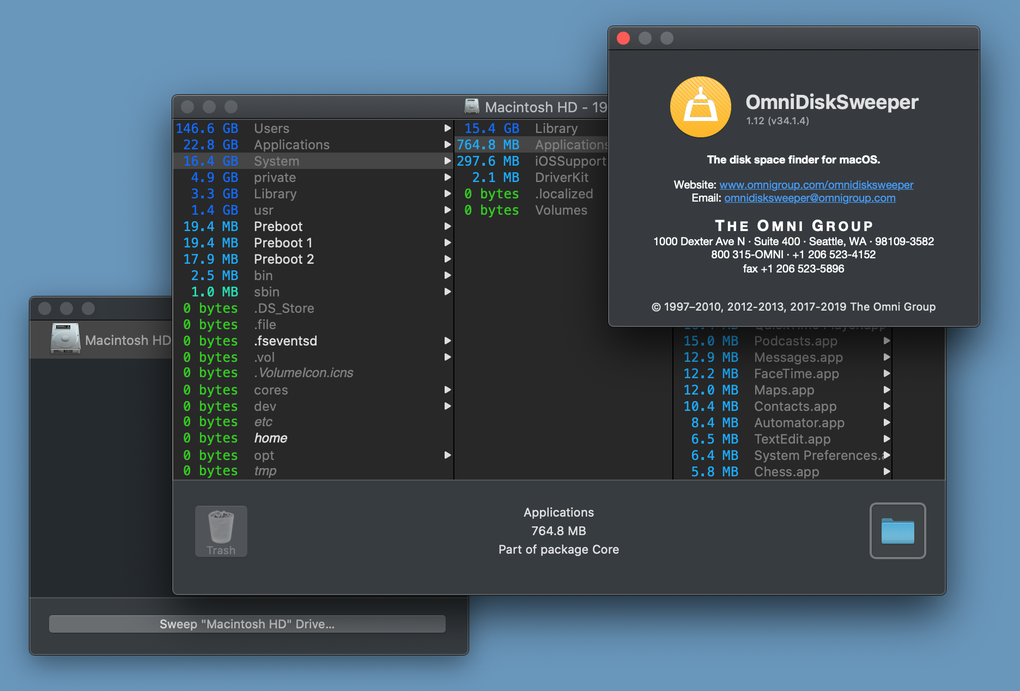
The results are presented in a clear, intuitive interface. The scanned files and folders are listed in descending order of size, making it easy to identify the largest space-consuming elements. Each entry displays the file or folder’s name, size (with units clearly indicated—bytes, KB, MB, GB, etc., each differentiated by color), and location. The main interface features expandable panels, allowing users to drill down into directories and explore their contents in detail. This hierarchical structure mirrors the familiar Macintosh HD menu, providing a familiar and user-friendly navigation experience. Even files with a size of zero bytes are listed, ensuring complete transparency regarding all files present on the drive.
Using OmniDiskSweeper Effectively
The process of using OmniDiskSweeper is remarkably simple. After selecting the desired drive, initiating the scan is a single-click operation. The scanning time varies depending on the size of the drive being analyzed; larger drives naturally require longer scan times. Once the scan completes, the application presents a detailed list of files and folders organized by size, allowing for quick identification of space-hogging elements.
OmniDiskSweeper offers the convenience of directly deleting files from within its interface, using a dedicated “Delete” button located in the bottom-left corner. However, caution is advised due to the absence of file previews. Deleting files without prior verification could potentially lead to the accidental removal of important data. Therefore, it’s recommended to use OmniDiskSweeper as a diagnostic tool to identify large files, then use Finder to locate and verify the files before deleting them. This two-step process ensures that you only delete unwanted files without accidentally removing crucial system files or personal documents.
What Files Are Safe to Delete?
While macOS’s built-in Disk Utility provides basic storage information, its capabilities are limited, particularly regarding access to system files and other obscure categories. OmniDiskSweeper offers a significant advantage by allowing users to scan and analyze these typically inaccessible areas, such as the “System” and “Other” categories. This comprehensive view can reveal hidden files and folders that may be consuming significant storage space.
However, the lack of visual previews within OmniDiskSweeper necessitates an extra step in the deletion process. To mitigate the risk of accidentally deleting important files, always verify files identified by OmniDiskSweeper using the Finder application. Finding the file in Finder provides the ability to preview its content and confirm its suitability for deletion before proceeding. This crucial verification step safeguards against unintentionally removing important system files or personal data. The bottom of OmniDiskSweeper’s interface provides critical information about the currently selected item, including its name, size, and location, further assisting in the identification and verification process.
OmniDiskSweeper: Pros and Cons
OmniDiskSweeper excels in several areas, but it’s also important to acknowledge its limitations.
Pros:
- Safety: OmniDiskSweeper is a safe and reliable application, free of spyware, malware, and distracting advertisements. The developers maintain a clear privacy policy and inform users of any security updates.
- Ease of Use: The application boasts a simple and intuitive user interface, making it accessible to users of all technical skill levels. The straightforward design simplifies the process of identifying and managing large files.
- Lightweight: OmniDiskSweeper has a minimal impact on system resources, ensuring that its operation doesn’t strain your Mac’s performance.
- Comprehensive Scan: The application performs deep scans of both internal and external drives, revealing hidden or inaccessible files that other utilities might overlook. This comprehensive approach ensures you get a complete picture of your storage usage.
- Free to Use: OmniDiskSweeper is completely free, offering unlimited access to its powerful disk analysis and management features without any hidden costs or limitations.
Cons:
- Lack of PC Version: Currently, OmniDiskSweeper is only available for macOS, leaving PC users without access to this beneficial utility.
- Absence of Preview Window: The lack of a preview window could lead to accidental deletions. While this is mitigated by using Finder for verification, it adds an extra step to the process. The inclusion of a preview would significantly enhance the user experience and reduce the risk of accidental data loss.
OmniDiskSweeper: A Detailed Look at Drive Information
OmniDiskSweeper fills a crucial gap left by macOS’s built-in System Information tool. While the built-in tool offers basic storage information, its capabilities are limited. OmniDiskSweeper excels in providing a complete and detailed overview of your storage usage, meticulously analyzing folders typically inaccessible through standard system tools. This detailed analysis is invaluable in identifying space-consuming files and folders that might otherwise remain hidden, allowing for efficient storage optimization. If you’re receiving low-storage notifications on your Mac, OmniDiskSweeper is an excellent tool for pinpointing the culprits and reclaiming valuable disk space.
What’s New in OmniDiskSweeper?
The developers of OmniDiskSweeper consistently release updates, improving the application and addressing any reported issues. The latest version history and release notes are available on the official website, allowing users to stay informed about new features, performance enhancements, and bug fixes. The option to download and install previous versions ensures that users have access to older versions if needed, offering flexibility and control over their usage experience.
Alternatives to OmniDiskSweeper
While OmniDiskSweeper offers a strong solution for disk space management, several alternative applications cater to similar needs. These include:
- Disk Inventory X: This free application provides a graphical representation of disk space usage, offering a different visual approach to identifying large files.
- GrandPerspective: Another free tool, GrandPerspective employs a visual, hierarchical representation of your storage, providing a unique perspective on disk usage.
- CleanMyMac: While offering a free trial, CleanMyMac is a paid application with broader capabilities beyond disk space analysis, including system optimization and cleaning features.
- DaisyDisk: Similar to CleanMyMac, DaisyDisk offers a free trial but is a paid application providing detailed disk visualization and file management tools.
Each of these alternatives offers unique features and approaches to disk space analysis, allowing users to select the application best suited to their specific needs and preferences.
In conclusion, OmniDiskSweeper remains a valuable and powerful free utility for macOS users looking to effectively manage their hard drive space. Its ease of use, comprehensive scanning capabilities, and focus on safety make it a strong choice for optimizing your Mac’s storage and performance. While the lack of a preview window presents a potential drawback, this is mitigated by the recommended practice of verifying files within Finder before deleting. The consistent updates and availability of previous versions further enhance its appeal as a reliable and robust disk management solution.
File Information
- License: “Free”
- Latest update: “November 18, 2024”
- Platform: “Mac”
- OS: “Mac OS X”
- Language: “English”
- Downloads: “414.1K”
- Size: “5.25 MB”


