
OBS Studio, often shortened to OBS, is a powerful and versatile open-source software for recording and live streaming video. Its popularity stems from its free availability, extensive feature set, and active community support. Whether you’re a seasoned streamer, a budding YouTuber, or simply need a reliable screen recorder, OBS Studio offers a robust solution adaptable to a wide range of needs. This guide delves into the capabilities of OBS Studio, exploring its functionality, features, and the steps involved in getting started.
Understanding OBS Studio’s Functionality
At its core, OBS Studio is a video recording and live streaming application. Unlike many proprietary streaming platforms, it doesn’t limit itself to simply broadcasting; it provides a complete suite of tools for capturing, editing, and enhancing your video content before, during, and after your stream. This all-in-one approach is particularly attractive to content creators who want control over their entire production workflow.
OBS Studio’s functionality extends beyond basic recording and streaming. Users can:
- Capture multiple sources: Simultaneously capture video from webcams, game windows, browser windows, images, text, and more. This allows for complex scene compositions, ideal for tutorials, presentations, or gaming streams.
- Create and manage scenes: Organize your various sources into distinct scenes, seamlessly switching between them during your stream or recording. This provides a professional look and avoids the awkwardness of manually adjusting sources mid-broadcast.
- Apply filters and effects: Enhance your video with filters for color correction, noise reduction, image masking, and chroma keying (green screen effects). These features elevate video quality and allow for creative visual effects.
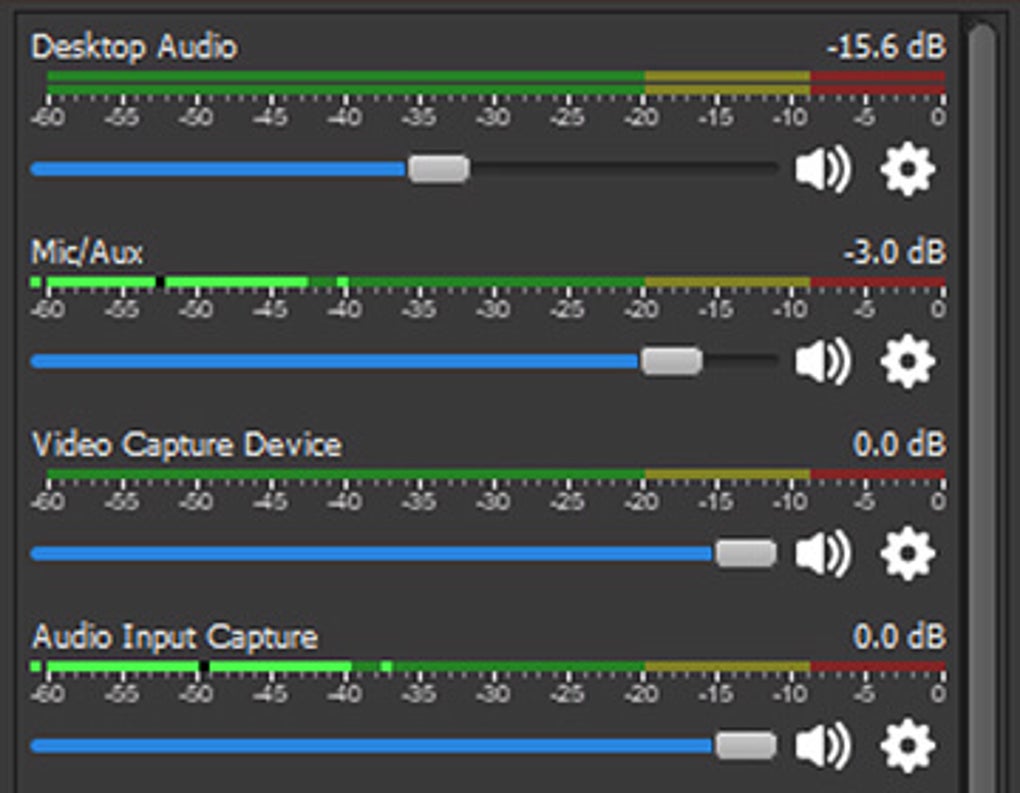
- Mix audio: Combine audio from multiple sources, including microphones, game audio, and music tracks, for a polished and professional audio experience. Features for noise suppression, gain adjustments, and equalization ensure optimal sound quality.
- Customize hotkeys: Assign custom keyboard shortcuts to streamline your workflow and control various functions quickly and efficiently. This is especially beneficial during live streams where rapid responses are often critical.
- Stream to multiple platforms: Simultaneously broadcast your content to various platforms, including Twitch, YouTube, Facebook Live, and more, expanding your audience reach. This eliminates the need for separate broadcasting software for different platforms.
- Record high-quality videos: Capture your broadcasts and recordings in various resolutions and bitrates, ensuring high-quality output suitable for different viewing devices and platforms.
- Utilize plugins: Extend OBS Studio’s functionality with community-developed plugins that add extra features and integrations. This ever-expanding library of plugins ensures continued innovation and adaptation to user needs.
Key Features of OBS Studio
The versatility of OBS Studio is rooted in its extensive feature set. These features cater to both beginners and experienced users, making it a highly accessible yet powerful tool. Some of the most noteworthy features include:
- Intuitive Interface (with a Learning Curve): While initially appearing complex, OBS Studio’s interface is designed for logical organization. With time and practice, users find it intuitive and efficient. However, expect a learning curve, particularly for those unfamiliar with video editing or streaming software. The interface is customizable, allowing users to arrange panels and settings according to their preferences.
-
Scene and Source Management: The core of OBS Studio’s functionality lies in its scene and source management. Scenes represent complete visual layouts, while sources are the individual elements within a scene (webcam, game capture, etc.). The ability to switch between pre-configured scenes smoothly is a hallmark of professional broadcasts and is easily achievable within OBS Studio.
-
Advanced Audio Mixing: OBS Studio provides more than simple audio input; it offers comprehensive mixing capabilities. Users can adjust individual audio source volumes, apply filters (noise gates, compressors), and even route audio to different outputs. This level of control is essential for creating balanced and clear audio in any broadcast.
-
Extensive Video Filters: Beyond basic adjustments, OBS Studio offers a range of video filters to enhance visuals. Color correction tools, chroma keying, noise reduction, and image sharpening allow for substantial improvement in video quality, ensuring a polished and professional aesthetic.
-
Advanced Encoding Options: Users have precise control over encoding settings, allowing optimization for various streaming platforms and target audiences. This includes the choice of encoders (such as x264, NVENC, and AMD AMF), bitrate settings, resolution, and frame rate, leading to better quality and smaller file sizes.
-
Studio Mode for Live Editing: For those seeking advanced live production capabilities, Studio Mode provides a preview of upcoming scenes before going live. This permits seamless transitions and editing without disrupting the live stream, ideal for professional-grade productions.
-
Open-Source and Extensible: As open-source software, OBS Studio is constantly evolving thanks to the contributions of a large and active community. This means regular updates, bug fixes, and new features are consistently being introduced. Moreover, the open-source nature fosters a vast ecosystem of plugins and extensions that add even more functionality.
Setting Up and Using OBS Studio
While the comprehensive feature set might initially seem daunting, setting up and using OBS Studio is a manageable process. The initial steps involve:
-
Download and Installation: Download the appropriate version of OBS Studio from the official website for your operating system (Windows, macOS, or Linux). The installation process is straightforward and requires minimal technical knowledge.
-
Adding Sources: Once installed, the next step is to add sources to your scenes. This typically involves adding your webcam, game capture, screen capture, media sources (images, videos), and text sources. OBS Studio provides clear instructions and guides on how to configure each source type.
-
Creating Scenes: Organize your sources into distinct scenes, each representing a different view or layout for your stream or recording. A common setup might include a “Game Play” scene, a “Talking Head” scene, and a “Outro” scene.
-
Configuring Audio: Connect your microphone and other audio sources, adjusting their levels and applying any necessary filters. Balancing audio levels between different sources is crucial for a positive listening experience.
-
Setting Streaming/Recording Options: Specify the platform you want to stream to (Twitch, YouTube, etc.) and enter the necessary stream key. Configure recording settings, including the desired output format, resolution, and bitrate.
-
Customizing Hotkeys: Assign hotkeys for common actions, such as starting and stopping the stream, switching scenes, and muting audio sources. This significantly accelerates your workflow during live broadcasts.
OBS Studio: Pros and Cons
Like any software, OBS Studio has its strengths and weaknesses. A balanced perspective considers both:
Pros:
- Completely Free and Open-Source: No subscription fees or licensing costs are involved, making it an attractive option for users on a budget.
- Highly Customizable: The extensive range of settings allows for fine-tuning to match specific needs and hardware configurations.
- Cross-Platform Compatibility: Available for Windows, macOS, and Linux, it offers broad compatibility.
- Active Community Support: A large and active community provides ample resources, tutorials, and assistance for troubleshooting.
- Regular Updates and Improvements: Continuous development ensures the software remains current and addresses potential issues.
- Extensive Feature Set: From basic recording to advanced live production tools, OBS Studio caters to a wide range of skill levels.
Cons:
- Steep Learning Curve: Mastering all the features and settings takes time and effort, especially for beginners.
- Resource Intensive: High-quality streaming and recording can demand significant system resources (CPU and GPU).
- Can Be Complex for Beginners: The sheer number of options might feel overwhelming for users unfamiliar with video editing or streaming concepts.
Conclusion
OBS Studio is a formidable and free alternative to many commercial broadcasting and recording softwares. Its open-source nature, expansive feature set, and dedicated community make it a compelling choice for creators of all skill levels. While the initial learning curve can be challenging, the rewards of mastering this powerful tool are significant. Whether you are creating YouTube tutorials, live-streaming games, or recording presentations, OBS Studio offers the tools to produce professional-quality content. With its ever-growing feature set and active community support, OBS Studio remains a top contender in the world of video broadcasting and recording software.
File Information
- License: “Free”
- Latest update: “May 23, 2023”
- Platform: “Windows”
- OS: “Windows 8.1”
- Language: “English”
- Downloads: “298.6K”
- Size: “122.60 MB”


