
In the intricate world of computer graphics, where stunning visuals and seamless performance are paramount, the underlying technologies play a crucial role. Among these, OpenGL stands as a venerable and widely adopted application program interface (API) for rendering 2D and 3D vector graphics. From powering sophisticated video games and professional CAD software to driving scientific visualizations and medical imaging systems, OpenGL provides the standardized language for graphics hardware to communicate with software. However, the world of graphics hardware is constantly evolving, with manufacturers continually pushing the boundaries of what’s possible. This rapid innovation often necessitates the introduction of “extensions” – additional functionalities that go beyond the core OpenGL specification, allowing developers to leverage cutting-edge features as soon as they become available.
For users, developers, and system administrators alike, understanding the specific OpenGL capabilities of a computer’s graphics hardware is vital. Is your system equipped to run the latest graphically intensive applications? Are all the necessary extensions for a particular software package present and functioning correctly? This is where a specialized utility tool like the OpenGL Extension Viewer developed by Realtech VR comes into play. Designed for Windows, this indispensable application offers a clear and concise window into your system’s OpenGL ecosystem, providing detailed insights into its rendering capabilities and the full suite of supported extensions. It acts as a diagnostic lens, allowing you to ascertain the health and potential of your graphics subsystem, ensuring that your applications run smoothly and efficiently.
Understanding OpenGL and Its Extensions
To fully appreciate the utility of the OpenGL Extension Viewer, it’s essential to first grasp the fundamental concepts of OpenGL itself and the critical role that extensions play in its continuous evolution. Without this foundational understanding, the information presented by the viewer might seem abstract; with it, the insights become powerful tools for optimization and troubleshooting.
What is OpenGL? A Foundation for Graphics
OpenGL, which stands for “Open Graphics Library,” is a cross-platform, cross-language API for rendering 2D and 3D vector graphics. Unlike a graphics driver, which is a software layer specific to a particular piece of hardware, OpenGL provides a standard set of commands and functions that software developers can use to interact with any graphics hardware that supports the API. This standardization is one of its greatest strengths, allowing applications written with OpenGL to run on diverse operating systems and hardware configurations, from desktop PCs to workstations and even embedded systems, provided a compatible OpenGL driver is installed.
Developed by Silicon Graphics Inc. (SGI) in the early 1990s, OpenGL quickly became the industry standard for high-performance graphics. Its influence can be seen across numerous fields:
- Gaming: Many classic and contemporary games have leveraged OpenGL for their rendering pipelines, offering developers direct control over the graphics hardware.
- Computer-Aided Design (CAD) and Engineering (CAE): Professional applications used for design, simulation, and analysis heavily rely on OpenGL for visualizing complex 3D models and data.
- Scientific Visualization: Researchers use OpenGL to render complex datasets, enabling them to visualize phenomena in fields like physics, chemistry, and biology.
- Medical Imaging: Applications for viewing and manipulating medical scans (like MRI or CT scans) often employ OpenGL for interactive 3D rendering.
- Virtual Reality (VR) and Augmented Reality (AR): As these fields mature, OpenGL continues to be a foundational technology for rendering immersive environments.
At its core, OpenGL works by providing a state machine model. Developers issue commands to set various states (like color, texture, lighting, camera position) and then draw primitives (points, lines, triangles). The graphics driver, which is specifically designed for the installed GPU, translates these OpenGL commands into instructions that the hardware can understand and execute, ultimately resulting in the pixels displayed on the screen. The power of OpenGL lies in its ability to abstract away the complexities of different graphics hardware, presenting a unified interface to the programmer.
The Concept of Extensions: Pushing Graphical Boundaries
While the core OpenGL specification provides a robust set of functionalities, the pace of innovation in graphics hardware often outstrips the standardization process. Graphics card manufacturers – like NVIDIA, AMD, and Intel – continuously develop new features, optimizations, and rendering techniques that go beyond what the current official OpenGL version mandates. To make these cutting-edge capabilities available to developers without having to wait for the next major OpenGL specification update, the concept of “extensions” was introduced.
An OpenGL extension is essentially an add-on or a supplementary feature provided by a specific vendor or a consortium of vendors. These extensions allow developers to access hardware-specific functionalities that might offer improved performance, introduce new rendering algorithms, or provide more granular control over the graphics pipeline. For instance, an extension might introduce support for a new texture compression format, a novel shading model, or a more efficient way to manage memory on the GPU.
The benefits of extensions are manifold:
- Access to Cutting-Edge Features: Developers can immediately utilize new hardware capabilities, allowing them to create more visually impressive or computationally efficient applications sooner.
- Improved Performance: Many extensions are designed to optimize specific operations, leading to faster rendering and better overall application performance.
- Vendor-Specific Optimizations: Extensions often allow developers to tap into unique optimizations offered by a particular GPU architecture, fine-tuning their applications for the best possible experience on that hardware.
- Flexibility and Innovation: Extensions foster innovation by providing a mechanism for hardware vendors to experiment with new ideas and gauge their utility before potentially proposing them for inclusion in future core OpenGL specifications.
However, extensions also come with their own set of challenges:
- Compatibility Issues: An application relying on a specific extension might not run or might exhibit reduced functionality on hardware that doesn’t support that extension.
- Driver Dependency: Extensions are tightly coupled with graphics drivers. An outdated or incompatible driver might not expose all the extensions supported by the hardware, leading to missing features or performance regressions.
- Increased Complexity: Developers must carefully manage which extensions they use and provide fallback mechanisms for systems where those extensions are not available.
For an end-user, understanding which OpenGL extensions their system supports is crucial. It helps in determining compatibility with demanding software, troubleshooting graphics issues, and even making informed decisions about hardware upgrades. This is precisely the critical gap that the OpenGL Extension Viewer aims to bridge, providing a clear inventory of these vital components.
Introducing the OpenGL Extension Viewer by Realtech VR
Developed by Realtech VR, the OpenGL Extension Viewer serves as a dedicated utility tool designed to demystify your system’s OpenGL capabilities. It goes beyond simply listing a version number; it provides a comprehensive, organized, and easily digestible overview of your graphics hardware’s OpenGL support, including all the intricate extensions that truly define its potential.
A Closer Look at its Core Functionality
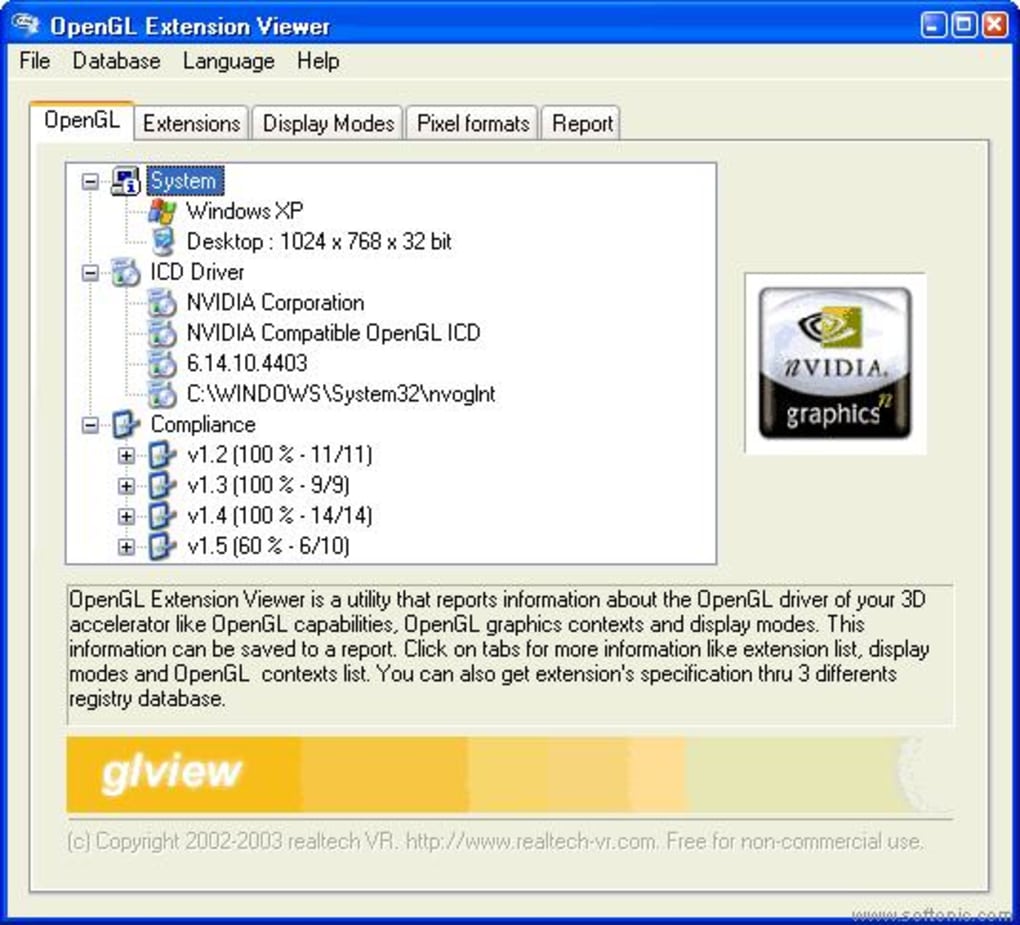
The primary strength of the OpenGL Extension Viewer lies in its ability to present complex technical information in an accessible format. Upon launching the application, users are greeted with a detailed overview, typically displayed in a well-structured tree view. This hierarchical display allows for intuitive navigation through various categories of information.
The viewer typically extracts and presents several key pieces of information:
- OpenGL Version: The core OpenGL specification version supported by your graphics card and driver (e.g., OpenGL 3.3, 4.5). This is fundamental for determining compatibility with many applications.
- Vendor: The manufacturer of your graphics card (e.g., NVIDIA Corporation, AMD Technologies Inc., Intel).
- Renderer: The specific model of your graphics processor unit (GPU) (e.g., GeForce GTX 1080, Radeon RX 580, Intel Iris Xe Graphics).
- Shading Language Version (GLSL): The version of the OpenGL Shading Language supported, which is essential for modern programmable shaders used in advanced graphics.
- Supported Extensions: This is where the viewer truly shines. It lists every single OpenGL extension that your current graphics driver and hardware combination supports. These extensions are often presented with their full names (e.g., GL_ARB_vertex_buffer_object, GL_EXT_texture_filter_anisotropic). The tree view might categorize these extensions by vendor (e.g., ARB for Architecture Review Board, EXT for extensions, NVIDIA for NVIDIA-specific, AMD for AMD-specific), allowing users to quickly identify the source of particular functionalities.
One particularly noteworthy feature mentioned in the original description is the ability to “uncheck programs in order to disable them.” While the exact mechanism and scope of this feature might be limited (it’s unlikely to disable core OS components), it suggests a diagnostic capability for isolating issues related to specific extensions or drivers. For example, if a particular application is crashing and you suspect an OpenGL extension conflict, this feature could theoretically allow you to temporarily disable a suspect extension and see if the problem persists, aiding in the troubleshooting process. However, users should exercise caution with such features, as incorrect disabling of extensions could lead to system instability or graphical glitches in other applications.
Beyond simply listing capabilities, the OpenGL Extension Viewer also boasts the ability to “check the rendering capabilities of your computer.” This implies a built-in testing or benchmarking component. When activated, this feature would likely put a load on your GPU by rendering a series of graphical tests or benchmarks. The purpose is to evaluate the actual performance and stability of your OpenGL implementation under stress. While the original content notes that “It might slow down your PC, but it’s worth it to check your PC sooner rather than later,” this slowdown is a natural consequence of rigorous testing. It ensures that your graphics hardware isn’t just reporting support for certain features, but can actually execute them efficiently and reliably. This diagnostic step is invaluable for identifying potential bottlenecks, driver instabilities, or hardware limitations that might not be immediately apparent during casual use.
User Experience: Installation and Interface
One of the significant advantages highlighted in the original description is the software’s ease of use and installation.
- Installs with ease: The OpenGL Extension Viewer is a lightweight application, with a file size of just 392.26 KB. This small footprint ensures a quick download and a straightforward installation process, typically involving just a few clicks. It doesn’t burden the system with unnecessary files or complex configurations.
- Easy to use: The user interface is designed for clarity and accessibility. The tree display, as mentioned, organizes information logically, making it simple for even non-technical users to navigate and find the information they need. There are no convoluted menus or obscure settings, allowing users to quickly get to the core function of viewing their OpenGL status.
The target audience for this tool is quite broad:
- Gamers: To ensure their systems meet the OpenGL requirements of their favorite games and to diagnose performance issues.
- Developers: To verify their development environment, ensure compatibility across different systems, and test specific extension functionalities.
- Tech Enthusiasts: To understand the intricate details of their hardware and compare capabilities.
- System Administrators: For diagnosing graphics-related problems on client machines and ensuring compliance with software requirements.
Its simplicity, coupled with its comprehensive information display, makes the OpenGL Extension Viewer a valuable addition to any Windows user’s utility toolkit, regardless of their technical proficiency.
Practical Applications and Benefits
The detailed insights provided by the OpenGL Extension Viewer translate into tangible benefits across various user profiles, from casual gamers to professional developers. Its ability to clearly outline a system’s OpenGL capabilities is a powerful diagnostic and informational asset.
For Gamers and Enthusiasts: Optimizing Your Experience
Modern video games are increasingly demanding, often pushing the limits of graphics hardware. Many games, especially those not utilizing DirectX exclusively, rely heavily on specific OpenGL versions and extensions to render their immersive worlds.
- Compatibility Check: Before purchasing or attempting to run a new game, a gamer can use the OpenGL Extension Viewer to quickly ascertain if their graphics card and driver support the minimum required OpenGL version and any critical extensions. This prevents frustrating experiences of games failing to launch or exhibiting severe graphical glitches due to missing features.
- Performance Troubleshooting: If a game is performing poorly, stuttering, or displaying incorrect graphics, one of the first diagnostic steps is to check the OpenGL status. The viewer can help identify if the driver is outdated, if the hardware isn’t truly supporting a reported feature, or if there’s a discrepancy between expected and actual capabilities. For instance, if a game requires a specific OpenGL extension for a particular visual effect, and the viewer shows that extension is missing, the gamer knows to update their drivers or consider a hardware upgrade.
- Informed Upgrades: For enthusiasts looking to upgrade their systems, the viewer provides a benchmark for their current setup. By understanding their existing OpenGL limitations, they can make more informed decisions about which graphics card upgrades would offer the most significant leap in compatibility and performance for their gaming needs.
For Developers and Professionals: Ensuring Compatibility and Performance
For software developers working with graphics, especially those targeting cross-platform environments, the OpenGL Extension Viewer is an invaluable tool for development, testing, and deployment.
- Development Environment Verification: Developers can use the viewer to confirm that their development machine correctly exposes all the OpenGL versions and extensions they intend to use in their applications. This is crucial for avoiding “it works on my machine” syndrome, where code behaves differently on other systems due to subtle differences in OpenGL implementations.
- Cross-Platform Compatibility Testing: While OpenGL is cross-platform, its implementation can vary between operating systems and driver versions. The viewer allows developers to quickly check the OpenGL profile on various test machines, ensuring that their application’s graphics pipeline will function as expected across diverse user configurations.
- Feature Availability Checks: If a developer plans to leverage a specific, performance-critical extension, the viewer can confirm its presence on target hardware. This helps in implementing robust fallback mechanisms if the extension isn’t universally available.
- Benchmarking and Optimization: By using the viewer’s rendering capability test, developers can get an objective measure of their GPU’s OpenGL performance. This data is critical for identifying performance bottlenecks, optimizing their rendering code, and ensuring their applications deliver the best possible frame rates.
System Diagnostics and Troubleshooting
Beyond specific gaming or development scenarios, the OpenGL Extension Viewer serves as a general-purpose diagnostic utility for any Windows user encountering graphics-related issues.
- Diagnosing Display Problems: If you experience flickering, corrupted graphics, or unusual display behavior, checking your OpenGL status can reveal underlying driver issues or hardware malfunctions.
- Verifying Driver Installations: After a graphics driver update, running the viewer can confirm that the new driver has correctly installed and is reporting the expected OpenGL version and extensions. It acts as a quick “health check” for your graphics subsystem.
- Identifying Outdated Components: The viewer clearly displays the OpenGL version. If this version is significantly older than what your hardware theoretically supports, it’s a strong indicator that your graphics drivers are outdated and need an update. This can unlock new features and significant performance improvements.
- Remote Troubleshooting: For IT support personnel or remote assistance scenarios, asking a user to run the OpenGL Extension Viewer and report its findings can quickly narrow down the scope of a graphics-related problem, saving valuable diagnostic time.
In essence, the OpenGL Extension Viewer empowers users with the knowledge to understand, optimize, and troubleshoot their graphics environment, transforming guesswork into informed action.
Performance Considerations and Limitations
While the OpenGL Extension Viewer is an incredibly useful tool, it’s important to approach its usage with an understanding of its operational nuances and certain limitations, particularly given its last update date.
The Trade-off: Performance During Testing
The original description candidly mentions, “Slows down PC when testings” and “Testing takes a while.” These statements directly refer to the viewer’s capability to “check the rendering capabilities of your computer.” This isn’t a flaw but rather an inherent characteristic of any rigorous diagnostic or benchmarking process for graphics hardware.
When the OpenGL Extension Viewer performs its rendering capability tests, it essentially puts your Graphics Processing Unit (GPU) under load. This involves:
- Intensive GPU Utilization: The software will render complex scenes, run various graphical algorithms, and perform operations that stress different parts of the GPU, from vertex processing to pixel shading and texture mapping. This deliberate heavy workload is necessary to accurately gauge the hardware’s performance and stability.
- Resource Consumption: While the GPU is heavily engaged, it will draw more power, generate more heat, and its dedicated memory will be extensively utilized. This can, in turn, momentarily impact the overall system responsiveness, making other applications seem slower.
- Driver Engagement: The tests involve frequent interaction with the graphics driver, which translates OpenGL commands into hardware instructions. This communication overhead also contributes to the perceived slowdown.
Therefore, the advice “it’s worth it to check your PC sooner rather than later” is pertinent. Users should ideally run these tests when they are not actively using other resource-intensive applications. It’s akin to running a full system scan with antivirus software – it’s a necessary diagnostic that temporarily consumes system resources but provides invaluable insights into system health. The “takes a while” aspect is also understandable; thorough benchmarking requires more than a fleeting moment to provide reliable results. Users should be prepared for the test to run for several minutes, allowing the viewer to gather comprehensive data on the GPU’s performance under various conditions.
Outdated Software and Future Relevance
The last update for the OpenGL Extension Viewer, version 2.11-build-177, was on September 20, 2018. In the fast-paced world of computer technology, this date places the software firmly in the category of older tools. This has a few implications:
- Newer OpenGL Versions: Since 2018, newer core OpenGL specifications have been released, particularly OpenGL 4.6 (released in 2017 but widely adopted later) and the continuous evolution of drivers. While the viewer will likely report up to OpenGL 4.6 if supported by your hardware and driver, it may not be optimized to display information about the very latest nuances or esoteric extensions introduced after its last update.
- Emerging Graphics APIs: The graphics landscape has evolved significantly with the rise of new, lower-level graphics APIs like Vulkan (Khronos Group) and DirectX 12 (Microsoft). These APIs offer developers more direct control over hardware, potentially leading to better performance and more efficient resource management. The OpenGL Extension Viewer is strictly focused on OpenGL and will not provide insights into your system’s Vulkan or DirectX 12 capabilities. Users interested in these newer APIs would need complementary tools.
- Operating System Compatibility: While it supports Windows 95 onwards, its interface and possibly some underlying functionalities might not be perfectly aligned with the very latest iterations of Windows (e.g., Windows 10 or 11), though it generally remains functional due to backward compatibility.
Despite its age, the OpenGL Extension Viewer retains significant relevance, especially for:
- Legacy Systems: It’s perfect for diagnosing and optimizing older Windows machines where newer benchmarking tools might be overkill or incompatible.
- OpenGL-Specific Troubleshooting: For applications that only rely on OpenGL, this tool provides the most direct and relevant information.
- Simplicity: Its small size and straightforward operation make it a quick and easy solution for fundamental OpenGL checks, even on modern systems, before resorting to more complex and resource-intensive diagnostic suites.
Therefore, while acknowledging its last update, the OpenGL Extension Viewer remains a valuable utility for its intended purpose: providing a focused, easy-to-understand overview of a system’s OpenGL capabilities and extensions.
Installation and Availability
Acquiring and installing the OpenGL Extension Viewer is a straightforward process, reflecting its design philosophy of simplicity and efficiency.
System Requirements and Download Process
The OpenGL Extension Viewer is specifically designed for the Windows operating system, with broad compatibility spanning from Windows 95 all the way through to modern versions like Windows 10 and 11. This wide compatibility makes it accessible to a vast user base, including those running older hardware or operating system versions.
Key specifications for the software include:
- License: Free. This means users can download, install, and use the software without any cost, making it an accessible utility for everyone.
- Version: 2.11-build-177. This indicates the specific build number, ensuring users can verify they have the correct version.
- Platform: Windows. Exclusively for Microsoft’s operating system.
- Language: English. The user interface and documentation are in English.
- Size: A remarkably small 392.26 KB. This minuscule file size means a virtually instantaneous download, even on slower internet connections, and takes up negligible storage space on your hard drive.
To download the OpenGL Extension Viewer, users would typically visit a reputable software download portal. For example, on a site like Phanmemfree.org, the process is usually as follows:
- Navigate to the specific product page for “OpenGL Extension Viewer.”
- Locate the “Free Download for Windows” or “Free Download for PC” button.
- Click the button to initiate the download of the executable file (e.g.,
opengl-extension-viewer.exe).
Once the download is complete, installation is equally simple:
- Locate the downloaded executable file in your browser’s downloads folder or your designated download directory.
- Double-click the executable to start the installation wizard.
- Follow the on-screen prompts, which typically involve agreeing to the license terms and selecting an installation directory. Given its lightweight nature, the installation usually completes in a matter of seconds.
The small file size and simple installation process underscore the utility’s focus on being a quick and efficient diagnostic tool, readily available to users without complex setup procedures.
Conclusion
The OpenGL Extension Viewer by Realtech VR stands as a testament to the enduring value of specialized utility software. In a computing landscape increasingly reliant on sophisticated graphics, understanding the capabilities of your hardware is no longer a luxury but a necessity. This compact and user-friendly application provides an invaluable window into your system’s OpenGL support, clearly displaying the core version, vendor information, renderer details, and, most importantly, a comprehensive list of all supported extensions.
Its straightforward installation and intuitive tree display make it accessible to a wide audience, from casual users troubleshooting a game to seasoned developers verifying their graphics environment. While its last update dates back to 2018, and it doesn’t delve into newer APIs like Vulkan or DirectX 12, its focused dedication to OpenGL remains highly relevant for diagnostics, compatibility checks, and performance troubleshooting on both legacy and modern Windows systems. The slight performance slowdown during its rendering capability tests is a small, acceptable trade-off for the deep, reliable insights it provides into your GPU’s actual operational limits.
Ultimately, the OpenGL Extension Viewer empowers users with the knowledge needed to optimize their graphics experience, make informed hardware decisions, and swiftly diagnose potential issues. It remains a recommended addition to any Windows user’s toolkit, a simple yet powerful utility for anyone who wants to truly understand the graphical potential residing within their machine, readily available for free download on platforms like Phanmemfree.org.
File Information
- License: “Free”
- Version: “2.11-build-177”
- Latest update: “September 20, 2018”
- Platform: “Windows”
- OS: “Windows 95”
- Language: “English”
- Downloads: “258K”
- Size: “392.26 KB”


