
Open-Shell is a free, open-source application designed to enhance and personalize the Windows Start menu experience. Offering a compelling alternative to the default Windows 10 and 11 Start menus, Open-Shell provides users with extensive customization options, allowing them to tailor their Start menu to their specific needs and preferences. This guide delves into the features, functionalities, and practical applications of Open-Shell, providing a comprehensive understanding of this powerful tool.
Revitalizing the Windows Start Menu Experience
The Windows Start menu, while functional, often lacks the flexibility and customization many users desire. Windows 10 introduced a hybrid Start menu, blending a traditional list of programs with live tiles, a design that proved divisive amongst users. Windows 11 further refined the Start menu, but still fell short of offering the granular control some users crave. Open-Shell steps in to address these limitations, providing a robust and customizable alternative that caters to diverse user preferences.
Open-Shell offers a nostalgic return to classic Start menu designs, mimicking the familiar layouts of previous Windows iterations, while simultaneously offering modern enhancements. This allows users to choose the style that best suits their workflow and aesthetic preferences, regardless of their operating system version. The app is not just about visual appeal; it enhances functionality, enabling users to organize their applications and shortcuts with unprecedented ease and efficiency.
Installation and Initial Setup: A Seamless Process
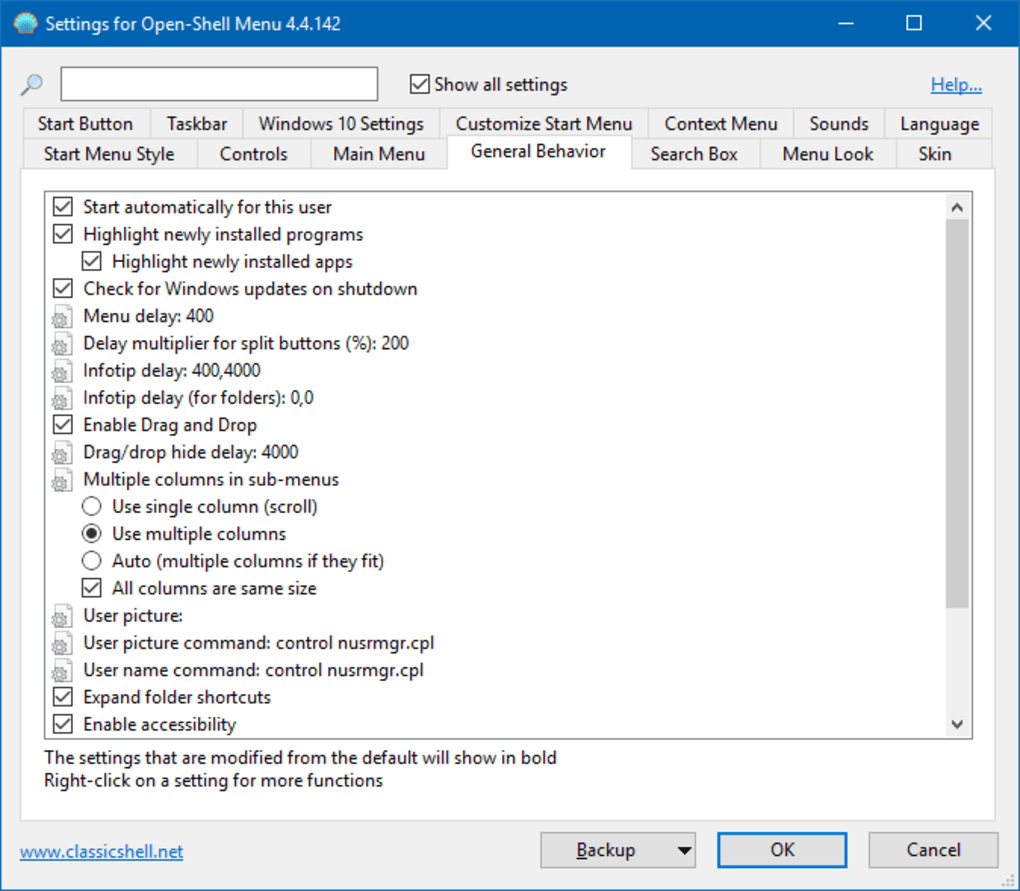
Installing Open-Shell is remarkably straightforward. The process involves simply downloading the executable file (.exe) from the official website or a trusted source and running the installer. The installation itself is quick and requires minimal user interaction. Upon completion, the Open-Shell settings window will automatically launch, presenting users with a comprehensive interface to configure their newly installed Start menu.
The settings window is intuitively designed, even for novice users. It provides several key customization options, including the choice of three distinct Start menu layouts:
-
Classic Style (One Column): This option replicates the simple, single-column Start menu found in earlier Windows versions. This layout prioritizes a clean and uncluttered appearance, ideal for users who prefer a minimalist approach.
-
Classic Style (Two Columns): This layout expands on the one-column design by adding a second column, allowing for a more organized presentation of applications and shortcuts. This option offers a good balance between space efficiency and visual clarity.
-
Windows 7 Style: This option recreates the Start menu from Windows 7, offering a familiar and user-friendly experience for users who are comfortable with this classic design. This layout combines a list of programs with a search bar and quick access to frequently used applications.
Beyond the core layout selection, Open-Shell allows for further customization. Users can select alternative Start button icons, providing a personalized touch to the overall aesthetic. This enables users to seamlessly integrate the Start menu with their chosen desktop theme and overall system styling.
Customizing Your Start Menu: Folders, Shortcuts, and Beyond
The true power of Open-Shell lies in its ability to profoundly customize the organization of applications and shortcuts within the Start menu. This surpasses the limitations of the standard Windows Start menu, providing users with complete control over how their applications are presented and accessed.
Open-Shell provides two primary methods for creating and managing folders within the Start menu:
Method 1: In-Menu Folder Creation: This method involves right-clicking within the “All Programs” menu of the Start menu itself. Selecting “New Folder” creates a new folder directly within the Start menu structure. Users then simply type the folder name and begin dragging and dropping applications or shortcuts into the newly created folder.
Method 2: File Explorer Management: This method provides a more visual and potentially more organized approach. By right-clicking on the “All Programs” entry in the Start menu and selecting “Open” or “Open All Users,” the relevant folder in File Explorer is revealed. The “Open” option shows shortcuts for applications installed in the current user account, while “Open All Users” reveals shortcuts for all users on the system. This dual approach facilitates comprehensive management of all installed applications. Users can now leverage the familiar File Explorer interface to create new folders, move shortcuts, and meticulously arrange their applications within the Start menu hierarchy.
Advanced Customization and Troubleshooting
Beyond the fundamental features, Open-Shell boasts several advanced customization options. These options cater to power users seeking a high degree of control and personalization. While the extensive array of settings might seem daunting initially, mastering these options allows for a deeply tailored and efficient Start menu experience.
The software’s settings are comprehensive, encompassing aspects such as skinning and icon customization. Users can delve deeper into the program’s settings to adjust visual elements, such as fonts, colors, and the overall appearance of the Start menu. The potential for personalization extends to the level of fine-tuning individual components, ensuring a truly unique and personalized user experience.
While Open-Shell is generally stable and user-friendly, occasionally users may encounter minor issues. These issues are typically related to conflicts with other applications or system settings. The developers actively maintain Open-Shell and provide support, addressing reported issues and offering solutions in their online forums or documentation. Online resources often provide detailed troubleshooting guides, helping users resolve any potential conflicts and restore optimal functionality. Consulting online communities dedicated to Open-Shell can be a valuable resource for troubleshooting specific problems and finding solutions shared by other users.
In conclusion, Open-Shell offers a powerful and flexible solution for users seeking to significantly enhance their Windows Start menu experience. Its ease of use, combined with its comprehensive customization features, makes it a valuable tool for both novice and experienced users. Whether seeking a nostalgic return to classic designs or aiming for a deeply personalized and efficient workspace, Open-Shell provides a robust and versatile solution for transforming the Windows Start menu into a true reflection of individual preferences.
File Information
- License: “Free”
- Version: “4.4.142”
- Latest update: “July 20, 2021”
- Platform: “Windows”
- OS: “Windows 8”
- Language: “English”
- Downloads: “3.6K”
- Size: “7.06 MB”


