
Optimizer is a free and open-source utility for Windows PCs developed by the independent developer Hellzerg. This system configuration tool allows users to modify a wide range of system settings and perform tweaks, all presented through a straightforward, tabbed interface. While sharing some functional similarities with tools like WinSlap, Optimizer distinguishes itself through its portability – requiring no installation and functioning seamlessly from external storage – and its broad compatibility with multiple Windows versions. However, it’s crucial to understand that Optimizer’s power comes with a significant caveat: it’s intended for experienced users and carries a steep learning curve. Improper use can lead to system instability or even data loss, as highlighted in a user review detailed later in this article.
Understanding Optimizer’s Functionality
Optimizer’s user interface is organized around eleven distinct tabs, each offering a specific set of configuration options. This comprehensive approach allows for granular control over various aspects of the Windows operating system, but necessitates a strong understanding of the implications of each adjustment. Let’s explore the functionality of each tab:
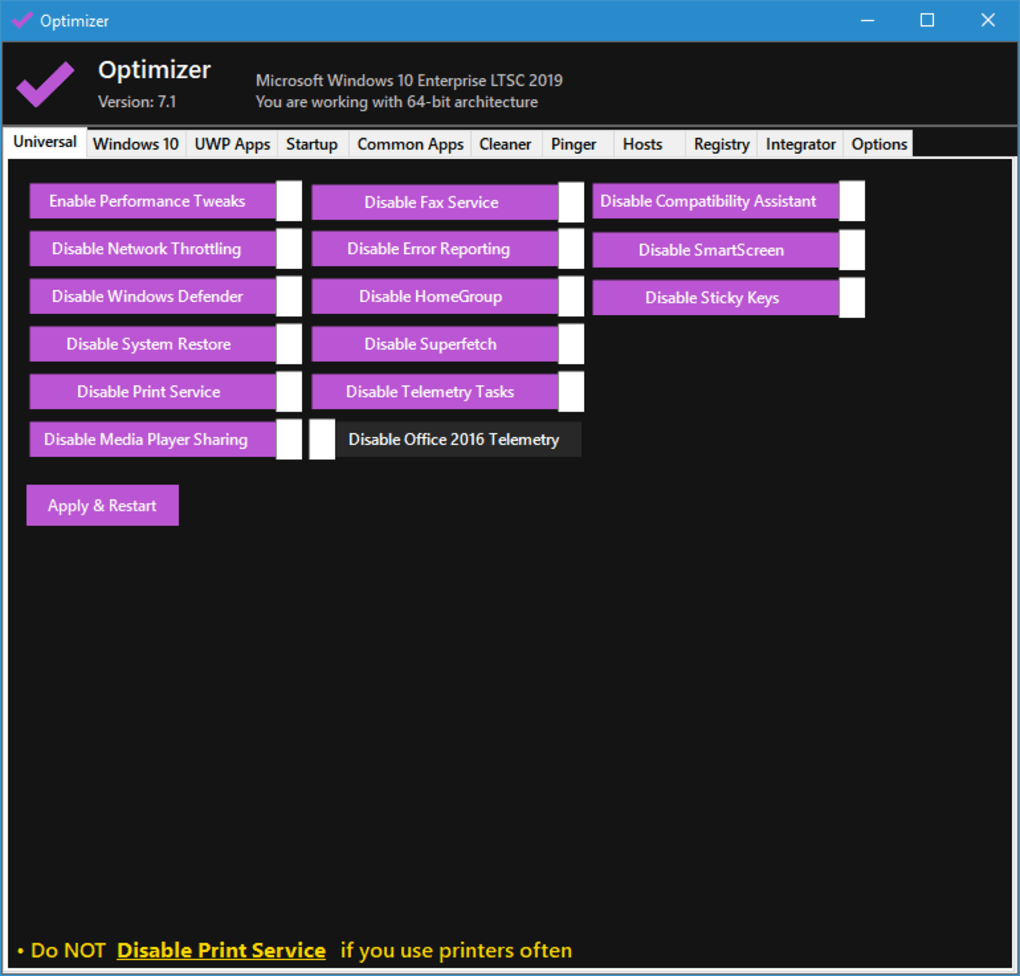
1. Universal Tab: This central hub provides access to fundamental system-wide adjustments. Key features include the ability to disable telemetry tasks (which send data about your system usage to Microsoft) and disable Windows Defender, the built-in antivirus software. Modifying these settings requires a clear understanding of the security implications, as disabling these features can leave your system vulnerable to malware and tracking.
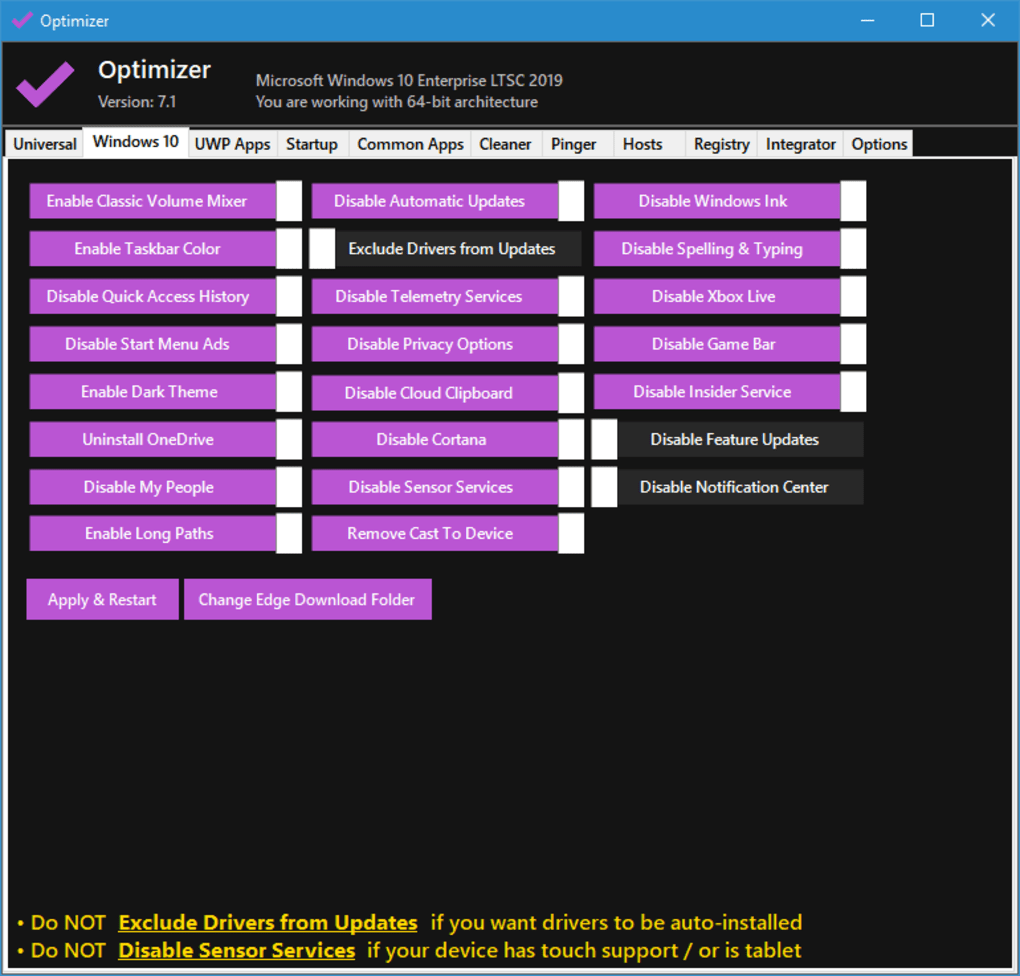
2. Windows 10 Tab (and equivalent for other versions): This tab focuses on features specific to the indicated Windows version. For instance, in the Windows 10 tab, users can disable Cortana, the virtual assistant, or disable automatic updates. Disabling automatic updates can be risky as it prevents the system from receiving crucial security patches. Again, careful consideration of the consequences is essential before making any changes.
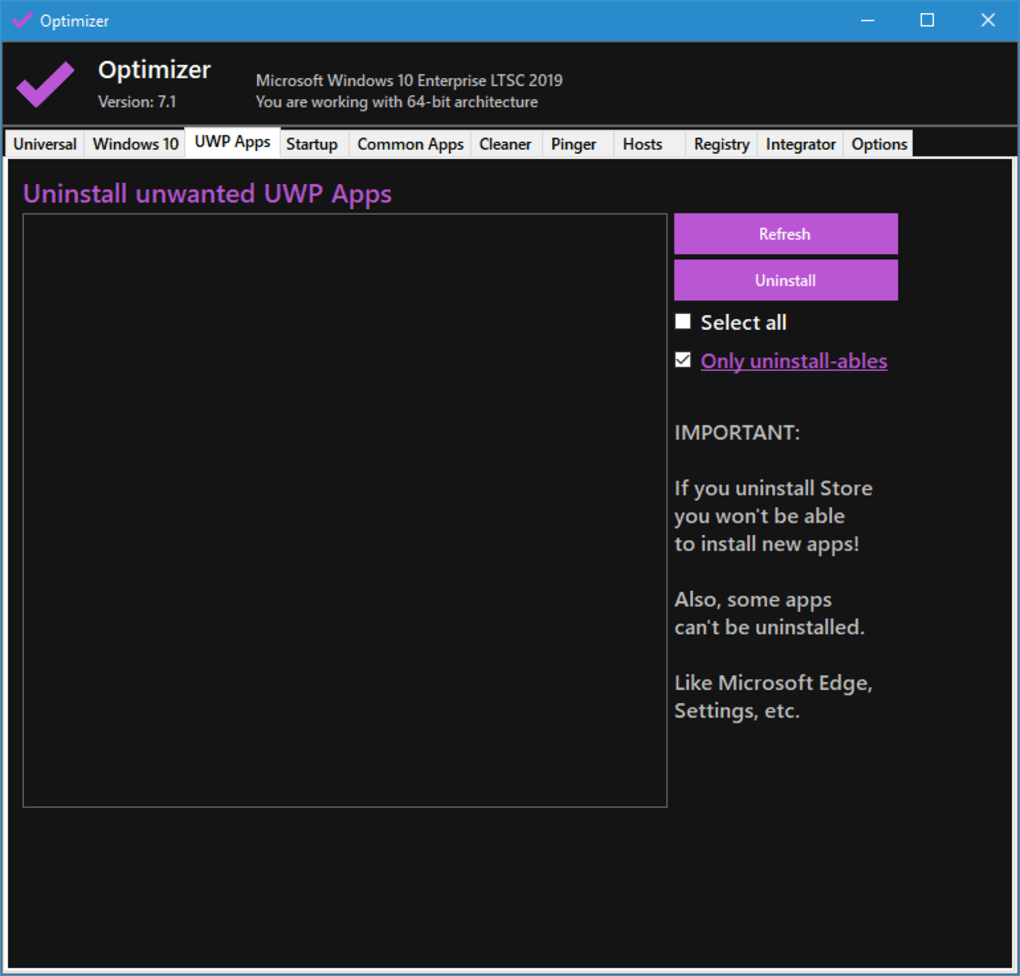
3. UWP Apps Tab: This section targets Universal Windows Platform (UWP) applications, allowing users to uninstall pre-installed Windows apps such as Bing. Removing pre-installed apps might free up disk space, but some applications might be essential for system functionality, so proceed with caution.
4. Startup Tab: This tab provides control over programs that automatically launch during the system boot process. Managing startup programs can significantly improve boot times and system performance by reducing the number of resource-intensive applications running at startup. However, disabling essential programs can lead to application malfunctions or system instability.
5. Common Apps Tab: Unlike other tabs focused on system configuration, this tab presents a selection of commonly used applications, such as web browsers and media players, that users can choose to install. This offers a convenient centralized location to add frequently used software.
6. Cleaner Tab: This function helps users remove temporary files and clear system cache, potentially freeing up disk space and improving system responsiveness. However, it’s important to exercise caution, as deleting certain temporary files could interfere with the proper functioning of some applications.
7. Pinger Tab: This tab allows users to perform latency tests and flush their DNS cache. This functionality is useful for troubleshooting network connectivity issues. It’s a practical tool for experienced users diagnosing network problems.
8. Hosts Tab: This security-oriented feature helps protect the PC from malicious websites by managing the system’s hosts file. The hosts file maps domain names to IP addresses, allowing users to block access to specific websites. This is a valuable tool for enhancing online security.
9. Registry Tab: The Registry tab allows modification of the Windows Registry, a crucial database containing system settings. The Registry is a complex and delicate part of the operating system, and incorrect modifications can render the system unusable. This tab should only be used by highly experienced users with extensive knowledge of the Windows Registry.
10. Integrator Tab: This tab provides the capability to create custom items for apps or actions, potentially integrating external functionalities into Optimizer’s interface. This advanced feature requires advanced technical skills to utilize effectively.
11. Options Tab: Finally, the Options tab offers settings for customizing Optimizer’s appearance (such as themes) and checking for updates to the application itself. This maintains the application’s functionality and user experience.
Optimizer: A Double-Edged Sword
Optimizer’s impressive feature set makes it a highly appealing tool for users seeking comprehensive control over their Windows system. Its open-source nature and portability further add to its appeal. However, the tool’s complexity necessitates a strong understanding of system administration. The potential for unintended consequences resulting from misuse is significant. The steep learning curve presents a considerable barrier to entry for casual users.
User Experience and Potential Risks
While Optimizer boasts a powerful array of functionalities, its user-friendliness is questionable for the average computer user. The lack of extensive documentation and the absence of clear explanations for the implications of each setting contribute to its steep learning curve. A user review aptly illustrates the potential risks associated with Optimizer’s powerful capabilities:
User Review Excerpt: “Dear Optimizer Support Team, I recently downloaded and installed your application on my laptop. While enabling and disabling some settings within the app, I was prompted to restart the device. After completing the restart, I found that my desktop had been completely wiped out. All files, icons, and even the essential Windows taskbar icons were gone. While the applications are still installed, all the files that were previously on my desktop have disappeared, and I cannot find them anywhere on my system. Could you please provide me with a method to recover my missing files or any possible solution to this issue? Your assistance would be greatly appreciated.”
This user’s experience highlights a critical point: the potential for significant data loss due to improper use. The lack of safeguards or warning messages before performing potentially destructive operations adds to the risk. Users should proceed with extreme caution and have a comprehensive backup strategy in place before attempting any system-level modifications using Optimizer.
Alternatives to Optimizer
Several alternative applications offer similar functionalities, often with a more user-friendly interface and built-in safety measures. These alternatives might be a more suitable choice for users who lack the technical expertise required to safely manage Optimizer’s extensive feature set. Some popular alternatives include:
- Cleaner One: A comprehensive PC cleaning and optimization tool with a more intuitive interface.
- WinSlap: A comparable system configuration tool, often cited alongside Optimizer.
- Advanced SystemCare: A widely used suite of optimization tools, balancing functionality with user-friendliness.
- CCleaner: Primarily focused on cleaning temporary files and registry entries, providing a simpler approach to system optimization.
Choosing the right tool depends on the user’s technical skills and desired level of control. For those seeking granular control and willing to navigate the inherent risks, Optimizer might be suitable. However, for the average user, the safer and more user-friendly alternatives may be more appropriate.
Conclusion
Optimizer is a potent system configuration tool offering a wide range of functionalities. However, its power comes with a significant responsibility. The tool’s complexity and potential for causing harm if used incorrectly emphasize the importance of user expertise. Users should possess a thorough understanding of the Windows operating system and the consequences of modifying system settings before attempting to utilize this software. For users lacking this experience, safer and more user-friendly alternatives are readily available. Ultimately, the decision of whether to use Optimizer rests on the user’s technical expertise and willingness to accept the inherent risks involved.
File Information
- License: “Free”
- Version: “7.8”
- Latest update: “January 31, 2023”
- Platform: “Windows”
- OS: “Windows 8”
- Language: “English”
- Downloads: “26.2K”
- Size: “3.96 MB”


