
Microsoft Paint, affectionately known as MS Paint or simply Paint, has been a staple of the Windows operating system for decades. This seemingly simple application has served as an introduction to digital art for millions, providing a user-friendly interface for creating and editing images. While its capabilities may seem basic compared to modern photo editing suites, Paint’s enduring popularity speaks to its accessibility, ease of use, and surprising versatility. This article delves into the history, features, recent updates, and overall impact of this iconic program.
Understanding Microsoft Paint: Its Purpose and Capabilities
Paint’s primary function is image creation and editing. Users can draw, color, and manipulate images using a variety of tools, making it ideal for quick edits, simple illustrations, and even more complex projects with a little creativity. The program supports various file formats, allowing users to import and export images seamlessly. Its straightforward interface makes it accessible to users of all ages and technical skill levels.
Beyond its core image manipulation capabilities, Paint also functions as a basic text editor. Users can add text to their images, choosing from a variety of fonts, sizes, and colors. This makes it particularly useful for adding captions, labels, or other textual information to images. The integration of text editing within the same application streamlines the workflow, eliminating the need for separate programs.
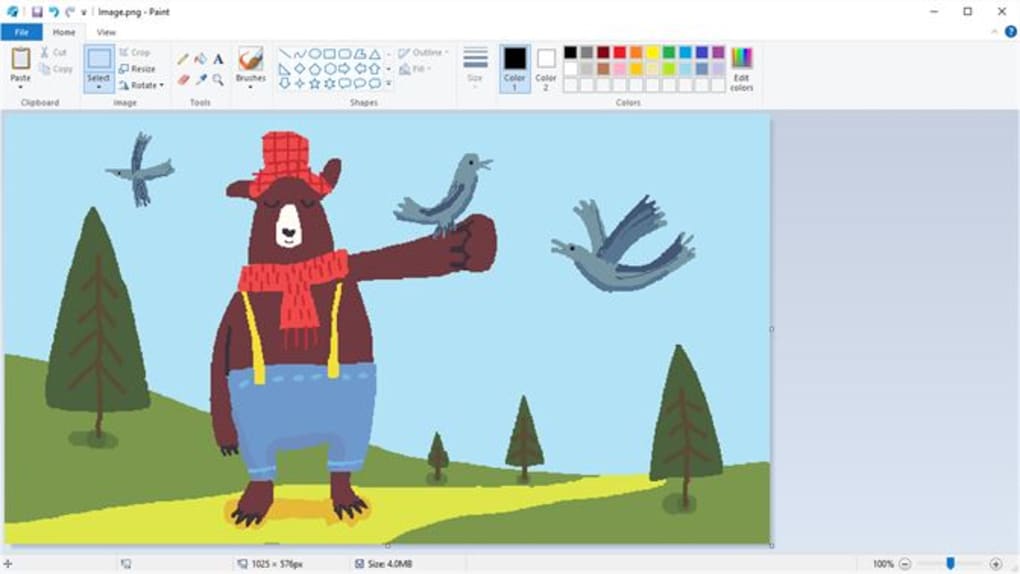
The simplicity of Paint’s interface has been a key to its long-lasting appeal. Unlike complex, multi-layered image editors with countless toolbars and menus, Paint presents a clean, uncluttered space. This makes it easy for beginners to grasp the fundamentals of image manipulation without being overwhelmed by advanced features. For users who need a quick and straightforward way to edit an image, add text, or create a simple drawing, Paint is the perfect solution.
Key Features and Functionality: Exploring Paint’s Toolset
Paint’s enduring appeal isn’t solely based on its simplicity. It offers a surprisingly robust set of tools, albeit basic in nature, enabling a wide range of creative possibilities.
Editing Tools: A Diverse Range for Various Needs
Paint provides a selection of brushes, pencils, and other drawing tools, allowing users to create various lines, shapes, and textures. The range of brush sizes and styles caters to different artistic preferences and project requirements, from delicate lines to bold strokes. The inclusion of fill tools enables the quick coloring of shapes and areas, speeding up the creative process. The eraser tool allows for precise removal of unwanted lines or areas, ensuring clean and polished results. The selection tool allows users to select specific areas of an image for editing, copying, or moving, expanding the range of manipulations possible.
Efficient Cropping: Streamlining Image Editing
The cropping tool in Paint offers a straightforward way to remove unwanted portions of an image. This is a crucial feature for enhancing the focus of an image, resizing for specific purposes, or simply cleaning up messy edges. Its ease of use is a significant factor in the program’s appeal, particularly for users who only need quick and simple edits.
Precision with Rulers and Gridlines: Enhancing Accuracy
For users who value precision and accuracy, Paint offers rulers and gridlines that enable pixel-perfect editing. This feature is especially beneficial for tasks requiring alignment, creating symmetrical designs, or ensuring elements are precisely positioned within the image. The gridlines assist in maintaining consistency and improving the overall visual appeal of the artwork.
Platform Compatibility: Accessibility across Devices
While Paint is primarily associated with Windows PCs, it is optimized for a wide range of Windows versions and hardware configurations. This broad compatibility ensures the program remains accessible to a vast user base, regardless of their specific computer setup. The consistent functionality across different Windows iterations promotes familiarity and allows users to comfortably use the application across various devices and operating systems.
Recent Changes and User Feedback: Navigating the Evolution of Paint
Microsoft has occasionally updated Paint over the years, aiming to improve its functionality and address user needs. However, not all changes have been met with universal approval.
Removal of Color Modes: A Point of Contention
One significant change that has received negative feedback from some users is the removal of color modes from the “Image Properties” section. This feature, which allowed for a greater degree of control over color depth and representation, was valued by users who required specific color profiles for their images. Its absence has been cited by some as a step backward in terms of flexibility and professional image editing possibilities.
Antialiasing Issues: Challenges in Image Pasting and Cropping
Users have also reported antialiasing issues when pasting images onto different canvases and then attempting to crop them. These issues often result in unwanted artifacts or jagged edges around pasted images, detracting from the overall quality of the finished work. This has raised concerns about the quality of image integration and the program’s ability to maintain image integrity after manipulation.
Checkerboard Pattern on Canvas: A Matter of Preference
The introduction of a checkerboard pattern on the transparent canvas is another update that has received mixed reactions. While this pattern can aid in visualizing transparent areas, many users found it cumbersome, particularly when attempting to save images with a white background. The change represents a departure from previous versions and has led to discussions regarding the necessity and impact of such changes on user workflow.
Paint’s Continued Relevance: A Legacy of Simplicity and Accessibility
Despite the criticisms surrounding some recent updates, Paint remains a relevant and valuable image editing tool for many users. Its simplicity and ease of use continue to make it an excellent choice for quick edits, simple illustrations, and users new to digital art. The fundamental tools, while basic, are sufficient for a wide range of tasks, making it a powerful tool for those who don’t need the complexity of professional-level software.
However, Microsoft’s commitment to balancing innovation with user satisfaction is crucial for Paint’s continued success. Addressing the concerns related to the removal of color modes, antialiasing issues, and the new canvas pattern would significantly enhance the user experience and reinforce Paint’s position as a reliable and versatile image editing application. Careful consideration of user feedback and a focus on improving the overall workflow would allow Paint to retain its loyal user base while attracting new users to its simple, yet effective, platform.
The future of Paint depends on Microsoft’s ability to navigate the challenges of keeping a classic application relevant in a constantly evolving technological landscape. Balancing innovation with the preservation of core functionality will determine whether Paint continues its reign as one of the most accessible and widely-used image editing tools.
File Information
- License: “Free”
- Version: “1.0”
- Latest update: “December 11, 2023”
- Platform: “Windows”
- OS: “Windows 10”
- Language: “English”
- Downloads: “41.7K”


