
In an increasingly digitized world, our online identities are secured by a labyrinth of passwords – a necessary evil that often becomes a source of frustration and vulnerability. Remembering dozens, if not hundreds, of unique, complex passwords for every online account is an impossible task for most. The common response, unfortunately, is to reuse simple passwords or write them down in insecure places, both practices significantly elevating the risk of a security breach. It’s against this backdrop that solutions like PasswordBox emerge, promising to centralize, secure, and simplify the management of our digital keys.
PasswordBox presents itself as a practical answer to this modern dilemma. Developed as a browser extension, it aims to consolidate all your online login credentials into a single, encrypted vault. The idea is elegantly simple: you remember one strong “Master Key,” and PasswordBox handles the rest, automatically filling in your usernames and passwords for your various websites. This not only streamlines the login process but, more importantly, encourages the use of strong, unique passwords for every service, thereby fortifying your overall online security posture. This article delves into the intricacies of PasswordBox, examining its features, usability, security mechanisms, and overall value proposition, all while considering its role within the broader ecosystem of digital tools and services.
The Evolving Landscape of Digital Security and Password Management
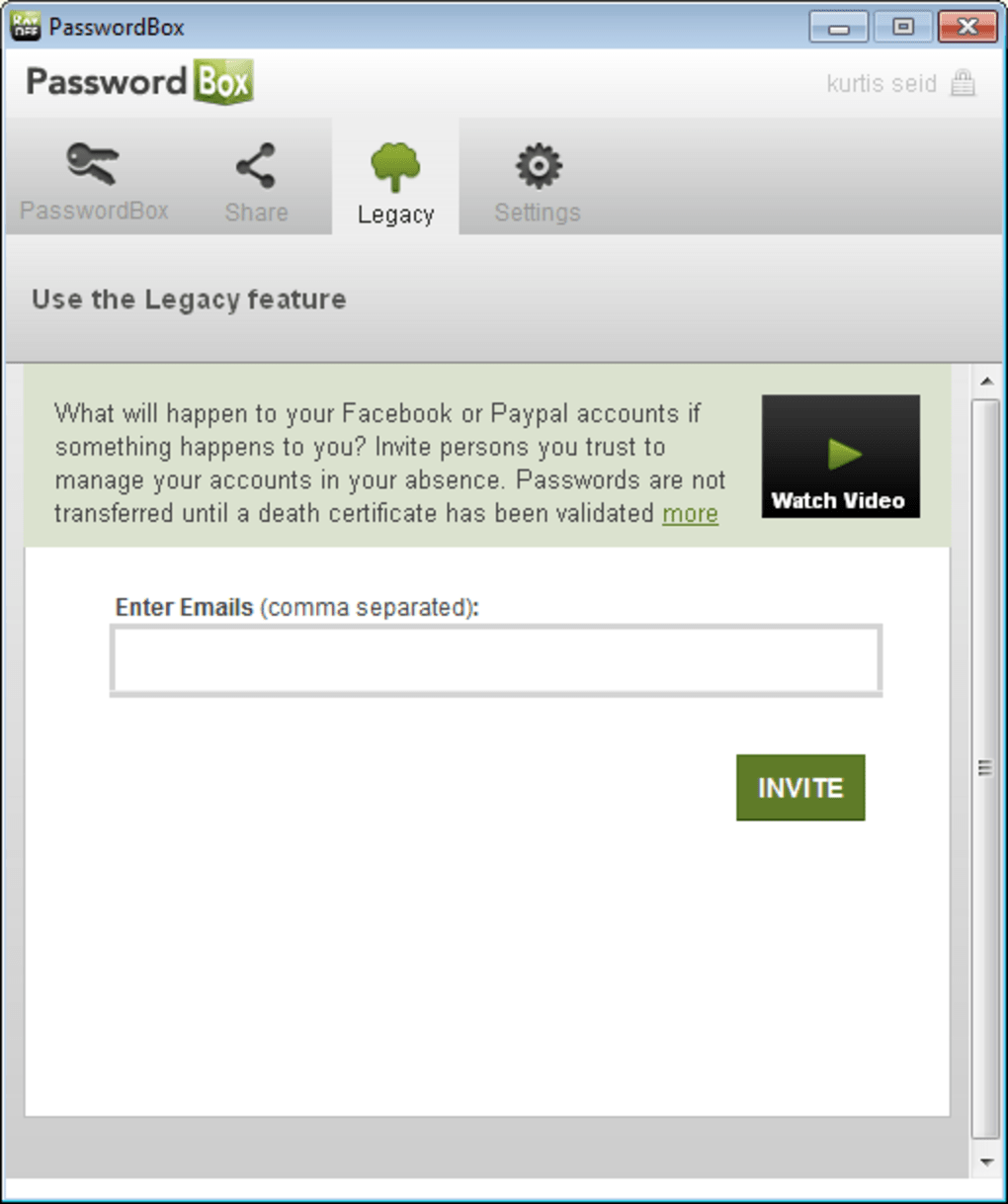
The digital realm has permeated every aspect of our lives, from banking and shopping to communication and entertainment. Each online service demands a unique set of credentials, and the sheer volume of these digital keys has become overwhelming. The traditional advice to use strong, complex, and unique passwords for every account is sound, but its practical application for the average user is daunting. The human brain is simply not wired to effortlessly recall a hundred different combinations of uppercase and lowercase letters, numbers, and symbols.
This challenge has led to widespread insecure practices. Many users resort to password reuse, employing the same easy-to-remember password across multiple platforms. This makes them highly vulnerable; if one service is breached, all other accounts sharing that password are immediately compromised. Others jot down passwords in notebooks or unencrypted digital files, creating a single point of failure that is ripe for physical or digital theft.
Enter password managers – a category of software designed specifically to address these modern security and usability concerns. These tools serve as digital vaults, securely storing all your login information behind a single, master password. They typically offer features like automatic form filling, strong password generation, and cross-device synchronization, all while encrypting your data to protect it from prying eyes. PasswordBox fits squarely into this category, aiming to provide a seamless and secure experience for users navigating the complexities of their digital lives. Its fundamental purpose is to alleviate the burden of password memorization, thus enabling users to adopt more robust security practices without sacrificing convenience.

PasswordBox: A Closer Look at its Core Functionality
At its heart, PasswordBox is designed to simplify and secure your online logins. It functions primarily as a web browser extension, integrating directly into your daily browsing experience. This deep integration is key to its utility, allowing for automatic detection of login fields and seamless credential insertion.
Storing and Encrypting Passwords
The most fundamental feature of PasswordBox is its ability to store numerous passwords for a vast array of different websites. Once installed, it learns and remembers your login credentials as you browse. For popular sites such as Facebook, Twitter, Hulu, LinkedIn, and Amazon, the Chrome and Firefox versions offer robust automatic compatibility. The Internet Explorer version further extends this convenience to financial sites like Bank of America and J.P. Morgan, acknowledging the critical importance of secure access to sensitive financial data.
Beyond these pre-configured integrations, PasswordBox allows for extensive customization. Users aren’t limited to the default selections; they can easily add their own favorite sites and store the corresponding passwords. This flexibility ensures that the manager is adaptable to individual browsing habits and specific online services, covering virtually any website that requires a login.
A critical security aspect of PasswordBox is its encryption mechanism. Unlike some services that might process encryption on their servers, PasswordBox emphasizes local encryption. Before your passwords are ever sent to your PasswordBox account in the cloud, they are encrypted on your own PC. This “client-side encryption” means that your sensitive data is scrambled before it leaves your device, adding a significant layer of protection. Even if a third party were to intercept your data en route to the cloud or gain unauthorized access to PasswordBox’s servers, they would only obtain encrypted gibberish, rendering your passwords safe from immediate exploitation. This design principle underscores a commitment to user privacy and data security, placing the control of encryption firmly in the user’s hands.

Cross-Browser Compatibility and the Master Key
PasswordBox distinguishes itself with its cross-browser accessibility, a crucial feature in an era where users often switch between different web browsers for various tasks or personal preferences. It offers dedicated versions for Internet Explorer, Mozilla Firefox, and Google Chrome. The genius of its design lies in its use of a single login and account for all installations. This means that once you set up your PasswordBox account and define your “Master Key,” you can access all your stored passwords across any browser where the extension is installed and you’re logged into your PasswordBox account. This synchronization ensures a consistent and convenient experience, irrespective of your browser of choice.
The “Master Key” is the linchpin of the entire system. It is the one password you absolutely must remember, as it serves as the ultimate decryption key for your entire password vault. When you visit a site registered with PasswordBox, you use your Master Key to decrypt the site-specific password and log in. This dual mechanism provides both convenience and a strong defense against unauthorized access. Should someone gain access to your computer, they still wouldn’t be able to access your stored passwords without your Master Key.
However, the immense power of the Master Key comes with a significant caveat: there is no way to recover it if lost. This strict security policy, while beneficial for preventing unauthorized access to your vault, means that forgetting your Master Key results in permanent lockout from all your stored accounts within PasswordBox. This necessitates a strong, unique, and memorable Master Key, perhaps one stored securely offline, to mitigate the risk of losing access to your digital life. The emphasis on user responsibility for the Master Key is a direct trade-off for the enhanced security it provides.
User Experience: Installation, Usability, and Interface
The journey with any software begins with its installation, and for PasswordBox, this initial step proves to be an unconventional one. While the core functionality of a password manager needs to be intuitive and seamless, the setup process can sometimes present unexpected hurdles.
The Unique Installation Journey
PasswordBox’s installation process is described as “somewhat counter-intuitive,” which points to a departure from typical software installation expectations. The usual flow for a browser extension would be a direct installation from the browser’s respective store. However, with PasswordBox, the process is multi-staged:
- Initial Program Download: Users must first download and install a standalone PasswordBox program onto their computer. This might strike some as odd, as the immediate expectation for a “browser extension” is that it integrates directly without a separate desktop application. This initial installation does not, in fact, add any extensions to the browsers immediately. Instead, it seems to serve as a foundational component, likely setting up local encryption routines, background services, and granting access to features on its associated website, including the ability to create the central PasswordBox account.
- Browser-Specific Extension Downloads: After the initial program is installed and an account is created, the user then needs to navigate to a separate download page (likely on the PhanMemFree.org or PasswordBox website) to install the specific extension for the browser they are currently using. This means if a user uses all three supported browsers—Internet Explorer, Firefox, and Chrome—they would need to repeat this step individually for each browser.
This segmented approach, while perhaps designed for specific architectural or security reasons, undeniably adds layers of complexity. It contrasts sharply with the expectation of a single, unified installation package. A more streamlined approach, such as a single installer that detects installed browsers and offers to install extensions automatically, would significantly enhance the initial user experience and reduce potential confusion, making the journey from download to active use much smoother.
Browser-Specific Interfaces and Seamless Integration
Once the potentially confusing installation process is complete, the usability of PasswordBox largely depends on the browser in question. The design philosophy appears to vary, leading to different user interfaces across platforms.
- Firefox and Chrome Versions: In these popular modern browsers, PasswordBox typically opens up as a new tab or page within the browser itself. This dedicated page features various tabs for inserting and managing passwords, changing settings, and accessing helpful video tutorials. While this full-page approach provides ample space for information and interaction, the review notes that it sometimes contains “unused space or unnecessarily large text.” This might suggest a design that sacrifices compactness for spaciousness, which can sometimes feel inefficient to users who prefer a more condensed interface, especially when interacting with a utility tool.
- Internet Explorer Version: In contrast, the Internet Explorer extension is presented as a pop-up window. This more compact approach is noted as being “much more compact and easier to navigate,” potentially making it superior to the other two versions in terms of immediate accessibility and non-intrusiveness. Despite the difference in presentation (full page vs. pop-up), the core buttons and functionality remain consistent, ensuring that the underlying operations are familiar regardless of the browser.
After the initial setup and password input, PasswordBox integrates itself quite subtly into the browsing experience. The most noticeable indication that it’s active is a small, green “Box” icon that appears within the password fields of applicable websites. This visual cue informs the user that PasswordBox recognizes the site and is ready to assist with login. The login activation itself is designed to be smooth and automatic, often without requiring explicit confirmations, though users can configure optional prompts via the settings menu for an added layer of control. This seamless auto-login is where PasswordBox truly delivers on its promise of convenience, transforming the often tedious login process into a quick, effortless action.
Furthermore, recognizing that even well-designed interfaces can sometimes be confusing, PasswordBox includes a detailed help section and a gallery of in-depth tutorial videos. These resources are invaluable for new users trying to understand the nuances of the software or for experienced users troubleshooting specific issues. This commitment to user education is a strong positive, enhancing the overall quality and accessibility of the product.
Weighing the Strengths and Limitations of PasswordBox
Every software solution comes with its own set of advantages and drawbacks, and PasswordBox is no exception. A balanced perspective requires a thorough examination of both its strong points and its areas for improvement, especially when dealing with something as critical as password management.
Advantages (Pros)
- Consolidated Password Storage: The primary strength of PasswordBox is its ability to store a multitude of passwords within a single, secure account. This directly addresses the “password fatigue” experienced by most internet users. Instead of trying to recall countless complex combinations, users only need to remember one Master Key. This centralization is not just about convenience; it inherently encourages the use of strong, unique passwords for every site, significantly boosting overall online security.
- Cross-Browser Accessibility and Master Key Portability: The design allows the Master Key and the entire password vault to be accessible across several popular web browsers (Internet Explorer, Firefox, Chrome). This means that users aren’t tied to a single browser for their password management needs, offering flexibility and consistent access to their credentials regardless of which browser they choose for a particular task. This seamless cross-browser experience is a significant convenience factor.
- Custom Site Integration: PasswordBox isn’t limited to a pre-defined list of popular websites. Users have the valuable option to manually add passwords for their “favorite sites” or any other website that requires a login. This customizability ensures that the password manager is truly comprehensive and adaptable to the user’s specific online footprint, making it a versatile tool for almost any online service.
- Robust Client-Side Encryption: A cornerstone of PasswordBox’s security architecture is its commitment to client-side encryption. Passwords are encrypted on the user’s local PC before they are transmitted to the cloud-based PasswordBox account. This design means that sensitive data is scrambled and protected at its source, significantly reducing the risk of exposure even in the event of a data breach on the service provider’s end or during data transit. This emphasis on local encryption provides a high degree of confidence in the security of stored credentials.
Disadvantages (Cons)
- Unconventional and Multi-Step Installation: As previously discussed, the installation process for PasswordBox is notably “strange” and requires multiple steps and separate extension downloads for each browser. This deviates from the expected simplicity of installing a browser add-on and can be confusing or frustrating for less tech-savvy users. A more unified and intuitive installer would significantly improve the initial user experience.
- Non-Recoverable Master Key: While a strong security feature, the inability to recover a lost Master Key is a double-edged sword. If a user forgets this critical password, they are permanently locked out of their PasswordBox account and, by extension, all the stored website credentials. This unforgiving policy necessitates extreme caution and perhaps an external, secure backup of the Master Key (e.g., written down and stored in a physical safe), which can counteract some of the convenience benefits of the digital manager. This inherent risk places a high burden of responsibility on the user.
- Suboptimal UI in Firefox and Chrome Versions: The FireFox and Chrome versions of PasswordBox utilize full webpages for their interface, which, according to the review, often contain “unused space” or “unnecessarily large text.” This can lead to a less efficient or aesthetically pleasing user experience compared to the more compact and functional pop-up interface found in the Internet Explorer version. While functionality remains, a clunky interface can detract from the overall perception of quality and ease of use. This highlights the importance of consistent and optimized UI/UX across all supported platforms.
Beyond Passwords: The Broader Utility of PasswordBox
While its primary function is clear from its name, PasswordBox’s utility extends beyond mere password storage. It subtly touches upon several categories of software and enhances overall digital life, connecting it to broader concepts like Utilities & Tools, Browsers, and Productivity.
PasswordBox as a Security & Privacy Utility
At its core, PasswordBox is a robust Security & Privacy tool, specifically falling under Password Management. In an era rife with cyber threats, such as phishing, brute-force attacks, and data breaches, the importance of strong and unique passwords cannot be overstated. PasswordBox directly contributes to a user’s security posture by making it feasible to employ complex, distinct passwords for every online service. Without such a tool, the temptation to reuse simple passwords or to store them insecurely (e.g., on sticky notes) is overwhelming for most. By encrypting these sensitive credentials on the user’s device before they even leave for the cloud, it adds a critical layer of protection against various forms of digital theft, even if the service provider’s infrastructure were compromised. The Master Key mechanism, while posing a recovery challenge, is a testament to its strong security philosophy, placing the ultimate control and responsibility for decryption firmly with the user. This level of control and encryption elevates it beyond a simple convenience tool to an essential component of modern digital hygiene.
Enhancing Productivity within Browsers
For most users, Browsers are the primary gateway to the internet. PasswordBox, by seamlessly integrating as a browser extension, transforms the browsing experience. No longer do users need to manually type in long usernames and passwords, nor do they need to pause their workflow to consult an external list or memory aid. The automatic login feature provided by PasswordBox streamlines access to websites, effectively turning password management into a Productivity booster. Imagine the cumulative time saved over days, weeks, and years by instantly logging into banking sites, social media, shopping carts, and work platforms. This reduction in friction makes online interactions smoother, allowing users to focus on the task at hand rather than the mechanics of authentication. It minimizes context switching and cognitive load, thus contributing directly to increased efficiency and a more pleasant online experience.
A Versatile Tool for Digital Life
Beyond the specific categories of security and productivity, PasswordBox can broadly be classified under Utilities & Tools. It’s a foundational utility that underpins safer and more efficient online navigation. Just as file compression tools, data recovery software, or system monitors serve to optimize and secure various aspects of computing, PasswordBox serves a similar vital role for online identity and access. Its presence simplifies a complex aspect of digital life, turning what could be a chore or a security risk into a well-managed and almost invisible background process.
The ability to customize which sites it manages, its cross-browser compatibility, and the provision of helpful tutorials further underscore its utility. It’s a tool designed to adapt to the user’s ecosystem rather than forcing the user to adapt to rigid software constraints. In essence, PasswordBox doesn’t just manage passwords; it manages a significant portion of a user’s digital identity, contributing to a more secure, efficient, and less stressful online existence. Its success lies in its ability to take a complex and critical task and make it feel almost effortless.
Conclusion
In a world drowning in digital credentials, PasswordBox emerges as a compelling solution for the pervasive problem of password management. It stands out as an excellent means of consolidating numerous online passwords into a single, encrypted vault, significantly simplifying the daily login routine and, crucially, bolstering overall online security. Its core strength lies in its robust client-side encryption, which ensures that your sensitive login information is scrambled on your own PC before it ever ventures into the cloud. This design choice offers a profound sense of security, reassuring users that their data is protected from various forms of online theft. The cross-browser compatibility, allowing access to your Master Key and stored passwords across Internet Explorer, Firefox, and Chrome, further enhances its utility and convenience for users who navigate multiple web environments. Moreover, the ability to customize and add passwords for any favorite site ensures that PasswordBox can adapt to virtually any online service a user might encounter.
However, the journey with PasswordBox is not without its peculiarities. The initial installation process is notably unconventional, requiring separate steps for the main program and individual browser extensions, which can feel counter-intuitive and cumbersome. This multi-step setup might deter less tech-savvy users or those accustomed to more streamlined installations. The most significant caveat, however, revolves around the Master Key: while it is the linchpin of the entire security system, its non-recoverable nature means that forgetting it results in permanent lockout from all your stored accounts. This unforgiving policy necessitates extreme vigilance from the user, demanding that the Master Key be both strong and impeccably remembered or securely backed up offline. Furthermore, while functional, the user interface in the Firefox and Chrome versions, with its expansive layout and sometimes oversized text, could be more refined for optimal visual efficiency compared to the more compact Internet Explorer counterpart.
Despite these drawbacks, once PasswordBox is successfully set up, its day-to-day usability shines. The automatic login for recognized websites, indicated by a subtle green “Box” icon, is remarkably smooth, transforming a mundane chore into an effortless action. The presence of a detailed help section and tutorial videos further aids users in navigating its features and maximizing its potential.
Ultimately, if you are among the vast majority of internet users struggling to keep track of a growing multitude of complex passwords, PasswordBox offers a powerful and secure solution. It empowers users to adopt better security practices—namely, using unique and strong passwords for every account—without sacrificing convenience. Just remember your Master Key, and PasswordBox will prove to be an invaluable extension for a safer and more streamlined online experience.
App Specifications and Availability
- License: Free Version
- Version: 1.4.2014
- Latest Update: September 18, 2020
- Platform: Windows OS Windows 7
- Language: English (Program available in other languages as well)
- Downloads (Last Month’s): 61.7K
- Size: 259.66 KB
- Developer: PasswordBox
- Security Status: Free Download
- User Rating: 3.7 out of 5 (based on 84 reviews)
PasswordBox for PC is available as a free download from PhanMemFree.
User Reviews
Anonymous reviewed on April 19, 2014 “Very useful, but doesn’t fit everyone. I love the design and ease of use. What I don’t like however is having no offline access to my passwords.” Pros: Design, Security tips
Related Topics
Users interested in PasswordBox also frequently explore:
- Facebook App
- Master Key
- App Store For Windows 7
- Windows Key
- App Store For Windows
- Privacy For Iphone
- Web Store For Windows 7
- App Store
- Internet Explorer
- Agenda For Android Free.
File Information
- License: “Free”
- Latest update: “September 18, 2020”
- Platform: “Windows”
- OS: “Windows 7”
- Language: “English”
- Downloads: “61.7K”
- Size: “259.66 KB”


