
In an increasingly interconnected digital world, the need to quickly and efficiently share snippets of text, code, logs, or any other textual data has become paramount. Whether you’re a developer collaborating on a project, an IT professional troubleshooting an issue, a student sharing notes, or simply someone who needs to store text online for future reference, a reliable platform for temporary or permanent text storage is invaluable. This is where Pastebin.com, a venerable online service, has carved out a significant niche. For years, Pastebin has served as the go-to repository for millions of users worldwide, allowing them to “paste” text onto a public or private page, generate a unique URL, and share it effortlessly. However, even the most efficient web services can benefit from desktop integration, offering a more seamless and integrated experience. This is precisely the gap that Pastebin Desktop aims to fill, providing a dedicated application for Windows users to interact with Pastebin.com directly from their computer’s interface.
PhanMemFree.org proudly presents an in-depth look at Pastebin Desktop, a utility designed to elevate the standard Pastebin experience. This program simplifies the process of uploading text, offering a dedicated portal that bypasses the need to open a web browser, navigate to Pastebin.com, and manually paste content. Instead, it places the core functionality of Pastebin right on your desktop, making text sharing faster, more intuitive, and integrated into your daily workflow. For individuals who frequently rely on Pastebin for sharing code, error messages, configuration files, or any other textual information, Pastebin Desktop is more than just a convenience; it’s a productivity enhancer. This article will delve into the various aspects of Pastebin Desktop, from its core functionality and user benefits to its technical specifications and overall value proposition, ensuring you have a comprehensive understanding of this indispensable tool.
The Core Concept: Understanding Pastebin and Its Desktop Evolution
Before diving deep into the specifics of Pastebin Desktop, it’s crucial to understand the foundational service it interacts with: Pastebin.com. At its heart, Pastebin.com is a simple yet powerful website that allows users to store plain text. Think of it as a digital whiteboard or a temporary notepad accessible from anywhere with an internet connection. Users can copy any block of text—be it lines of code, a lengthy error log, prose, or even a grocery list—paste it into a form on Pastebin.com, and then publish it. Upon publication, Pastebin generates a unique URL for that specific “paste,” which can then be shared with others. This URL provides direct access to the pasted text, eliminating the need to send large files via email or mess with formatting in chat applications.
The utility of Pastebin.com is vast and varied. Developers use it to share code snippets for peer review or debugging without cluttering their version control systems. Gamers share configuration files or strategies. System administrators use it to quickly disseminate log files or system outputs. Writers might use it to share early drafts or collaborate on text. Its popularity stems from its simplicity, speed, and the ability to control the visibility of pastes (public, unlisted, or private for registered users).
However, even with its inherent simplicity, interacting with Pastebin.com typically involves a few steps:
- Opening a web browser.
- Navigating to Pastebin.com.
- Copying the desired text from its source application.
- Pasting the text into the Pastebin web form.
- Configuring options like syntax highlighting, paste expiration, and privacy settings.
- Clicking the “Create New Paste” button.
- Copying the generated URL to share.
While these steps are straightforward, they can become repetitive and interruptive for frequent users. Every time you need to share a quick snippet, you’re forced to switch contexts from your primary application (like an IDE, text editor, or terminal) to a web browser and back again. This is precisely the “friction” that Pastebin Desktop aims to eliminate.
Pastebin Desktop acts as a direct conduit between your local machine and Pastebin.com. It’s an application installed on your Windows operating system that replicates the essential uploading functionality of the website within a dedicated, streamlined interface. By providing a desktop client, Pastebin Desktop addresses the need for quicker access and a more integrated workflow. Instead of going through the browser-based steps, users can now initiate a paste operation directly from their desktop, often with fewer clicks and less distraction. This evolution from a purely web-based service to one complemented by a desktop application is a natural progression for popular utilities, designed to enhance user convenience and productivity, especially for those who rely heavily on the service as part of their daily routine. It represents a commitment to optimizing the user experience, bringing the power of Pastebin.com closer to the user’s immediate workspace.
Key Features and How Pastebin Desktop Elevates Your Productivity
Pastebin Desktop isn’t just a simple wrapper for the website; it’s a thoughtfully designed application that bundles essential functionalities into a user-friendly package, significantly boosting productivity for its users. The core value proposition of this tool lies in its ability to streamline the entire text-sharing process.
Effortless Uploads and Customization Options
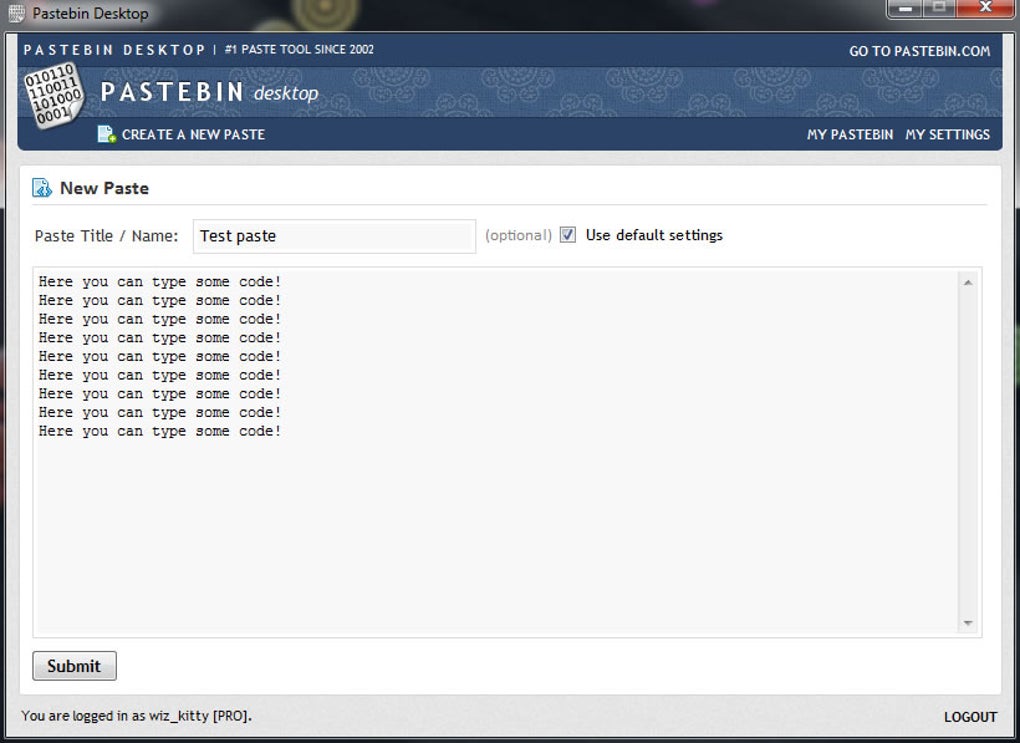
The primary function of Pastebin Desktop is, of course, to facilitate the quick uploading of text to Pastebin.com. The application provides a clean, intuitive interface where users can paste their desired text directly. Once the text is in the input area, the magic of the desktop client begins. Instead of navigating through multiple dropdown menus on a webpage, Pastebin Desktop offers readily accessible controls for all crucial paste settings.
Users can easily specify:
- Privacy Settings: This is a critical feature inherited from Pastebin.com. You can choose whether your paste should be public (visible to anyone), unlisted (only accessible via direct link), or private (only visible to your Pastebin.com account, if logged in). This control over visibility is essential for handling sensitive information or internal collaboration.
- Link Type: While not explicitly detailed in the reference, a desktop client would typically generate the standard Pastebin.com URL for sharing. This ensures compatibility and universal access to your pasted content.
- Syntax Highlighting: A cornerstone feature for developers, Pastebin.com supports a vast array of programming languages and formats. Pastebin Desktop allows users to select the appropriate syntax highlighter from a comprehensive list (e.g., Python, Java, C++, HTML, CSS, JavaScript, Plain Text, SQL, etc.). This ensures that shared code is presented clearly and legibly, with proper color coding and formatting, making it easier for others to read and understand.
- Paste Expiration: For temporary snippets or logs that shouldn’t live online indefinitely, users can set an expiration time for their pastes. Options typically range from “Never” (permanent) to specific timeframes like “10 Minutes,” “1 Hour,” “1 Day,” “1 Week,” “2 Weeks,” “1 Month,” or “6 Months.” This feature is invaluable for managing data retention and preventing clutter on the Pastebin.com servers.
- Paste Name/Title: Giving your paste a descriptive title makes it easier to identify, especially if you’re managing multiple pastes or sharing it in a context where a clear label is beneficial.
The beauty of Pastebin Desktop is that all these options are presented in a compact and accessible manner within the application window. Once the text is pasted and settings are configured, a single click on the “Upload” or “Create Paste” button is all it takes. The application then handles the communication with Pastebin.com, uploads the text, and often automatically copies the generated Pastebin URL to your clipboard, ready for instant sharing in your chat application, email, or forum post. This seamless flow reduces cognitive load and saves valuable seconds, which accumulate into significant time savings over the course of a busy workday.
Enhanced Workflow for Frequent Users
For those who find themselves creating pastes multiple times a day, the benefits of Pastebin Desktop extend far beyond mere convenience. It fundamentally alters the workflow by keeping the pasting process within the desktop environment.
- Reduced Context Switching: As mentioned, avoiding the browser means fewer distractions. You stay within your primary work environment, whether that’s an IDE, a terminal window, or a document editor.
- Speed and Efficiency: The dedicated application loads faster than a browser page and the interface is optimized solely for pasting. There are no ads, no extraneous elements, just the core functionality. This translates to quicker paste creation and sharing.
- Accessibility: A desktop icon or a quick shortcut can bring up the Pastebin Desktop window almost instantly, making it always at your fingertips.
- Potential for Integration: While the provided information focuses on basic upload, a desktop client inherently offers more potential for operating system integration. This could include right-click context menu options (e.g., “Paste to Pastebin Desktop” from a selected text file), drag-and-drop functionality, or even global hotkeys for pasting. Such integrations further embed the tool into the user’s operating system, making it an almost invisible, yet powerful, utility.
In essence, Pastebin Desktop takes a utilitarian task—copying and pasting text for online storage and sharing—and transforms it into an almost instantaneous, background process. By centralizing the controls and removing browser dependencies, it not only simplifies the act of pasting but also makes it a more integrated and less disruptive part of a user’s digital routine. This enhancement is particularly valuable in fast-paced environments where every second and every click saved contributes to overall efficiency and focus.
Who Needs Pastebin Desktop? Ideal Use Cases and Benefits
While Pastebin Desktop offers a generalized benefit of streamlined text sharing, its utility is particularly pronounced for specific user groups and scenarios. Understanding these ideal use cases helps clarify why this seemingly simple application can be a powerful addition to one’s software arsenal.
1. Developers and Programmers: This is perhaps the largest demographic benefiting from Pastebin Desktop. Developers constantly deal with code snippets, error messages, configuration files, and API responses.
- Sharing Code: Whether asking for help on a forum, collaborating with a team member, or demonstrating a concept, sharing code cleanly with syntax highlighting is crucial. Pastebin Desktop makes this instantaneous.
- Debugging: When an application throws a long stack trace or an obscure error message, pasting it to Pastebin.com via the desktop client is far more efficient than copying it into a chat window or email body, which often distorts formatting.
- Quick References: Developers might paste useful functions, command-line tricks, or common configurations for their own future reference or to share with junior developers.
2. IT Professionals and System Administrators: Those managing servers, networks, or user support frequently encounter logs, command outputs, system diagnostics, and configuration settings that need to be shared or recorded.
- Log Sharing: Sharing system logs (e.g.,
/var/log/syslogoutputs, Windows Event Viewer details) with colleagues or support teams is made easy and readable. - Command Outputs: The output of complex commands (like
ipconfig /all,ps aux,df -h) can be quickly shared to assess system status or troubleshoot issues. - Configuration Files: Distributing specific network settings, server configurations, or software setup instructions becomes straightforward.
3. Technical Support and Helpdesk Staff: Support personnel often need to receive or send technical details to users or escalate issues to higher tiers.
- Gathering Information: Asking users to paste error messages or system information into Pastebin and providing a link simplifies the data collection process, especially for non-technical users.
- Providing Solutions: Sharing diagnostic steps, code fixes, or detailed instructions in a format that preserves formatting and readability.
4. Writers, Editors, and Content Creators: While often associated with code, Pastebin is also useful for sharing plain text.
- Draft Sharing: Collaborating on text documents, sharing article drafts, or exchanging ideas can be done without relying on specific document editors or cloud platforms.
- Collecting Notes: Quickly pasting research snippets, brainstormed ideas, or interview transcripts for later organization.
5. Students and Educators: Academic environments often require sharing code, experimental data, or written assignments.
- Submitting Code Assignments: Students can quickly paste their code to Pastebin for review by instructors.
- Sharing Study Notes: Collaborating on study guides or sharing quick explanations with classmates.
6. Casual Users and Gamers: Even for everyday use, the convenience is clear.
- Sharing Game Configurations: Gamers often share specific game settings, mod lists, or console commands.
- Quick Information Exchange: Any time you need to share a long URL, a complex password, or a block of instructions that would be cumbersome in a chat message.
Benefits of Using Pastebin Desktop Across These Groups:
- Time-Saving: The most immediate and tangible benefit. Reducing clicks and context switching saves minutes throughout the day, which accumulates significantly over a week or month.
- Improved Workflow: Integrates text sharing into the natural flow of work, rather than being a separate, disruptive task.
- Enhanced Readability: Consistent application of syntax highlighting and preservation of formatting ensures that shared text is always clear and easy to understand for the recipient.
- Control over Privacy: The ability to quickly set pastes as public, unlisted, or private is crucial for managing sensitive or confidential information.
- Focus and Reduced Distraction: By staying out of the web browser, users avoid the temptation of other tabs, notifications, or general internet distractions, allowing them to remain focused on their primary task.
- Accessibility: With the application living on the desktop, it’s always just a click or a hotkey away, making the act of pasting almost second nature.
In summary, Pastebin Desktop is particularly beneficial for anyone whose daily routine involves frequent copying and sharing of textual data. It transforms a minor inconvenience into a seamless operation, proving that small optimizations can lead to substantial gains in overall productivity and user satisfaction. It’s a testament to the idea that a dedicated desktop client can often provide a superior experience compared to its web-based counterpart for power users.
Technical Specifications, Installation, and Ensuring a Smooth Experience
Understanding the technical underpinnings and practical aspects of installation and operation is essential for anyone considering integrating Pastebin Desktop into their workflow. As highlighted by PhanMemFree.org, the application is designed to be lightweight and efficient, catering to a broad range of Windows users.
App Specifications (as per PhanMemFree.org listing):
- License: Free
- Version: 1.15(1) (as of the last update provided)
- Latest update: May 16, 2024 (This indicates active development and maintenance, which is a positive sign for ongoing compatibility and security.)
- Platform: Windows
- OS: Windows Vista and later. This wide compatibility ensures that even users on older Windows systems (Vista, 7, 8, 8.1, 10, 11) can run the application without issues. This broad support is a significant advantage, as many utilities often drop support for legacy operating systems.
- Downloads: 133 (total) / 9 (last month’s downloads as per the snippet). While these numbers might seem modest, they represent a consistent user base utilizing the tool through PhanMemFree.org.
- Size: 5.56 MB. This is an exceptionally small footprint, signifying that the application is not bloated and will not consume significant disk space or system resources. Its minimal size contributes to faster downloads and quick installation.
- Developer: Pastebin. This is a crucial detail, as it confirms that the desktop client is developed and maintained by the same entity behind Pastebin.com, ensuring official support, consistent features, and reliable integration with the core service.
Installation Process:
Installing Pastebin Desktop is typically a straightforward process, designed to be accessible even for less tech-savvy users. Given its small file size and the developer, it likely follows a standard Windows installer procedure:
- Download: Obtain the installer file (e.g.,
Pastebin_Desktop_v1.15.exe) from a trusted source like PhanMemFree.org. PhanMemFree.org’s commitment to scanning all files for potential harm (as indicated by their “Clean” status protocol) provides an extra layer of confidence. - Run Installer: Double-click the downloaded executable file to start the installation wizard.
- Follow Prompts: The wizard will guide you through the necessary steps, which usually include:
- Accepting the End-User License Agreement (EULA).
- Choosing an installation directory (the default location is usually sufficient).
- Selecting whether to create a desktop shortcut or start menu entry.
- Complete Installation: Once the process is finished, the application will be ready to launch.
Given the small size and specific function, the installation should be quick and require minimal user input, making it a hassle-free experience.
Ensuring a Smooth Experience:
To get the most out of Pastebin Desktop, consider the following:
- System Requirements: The stated compatibility with Windows Vista and later means almost any modern Windows PC will meet the requirements. The application’s minimal size suggests low RAM and CPU usage, so it shouldn’t impact system performance even on older machines.
- Internet Connection: As an application that interacts with an online service (Pastebin.com), a stable internet connection is essential for uploading pastes. Without it, the client cannot communicate with the server.
- Updates: Regularly check for updates (or ensure auto-updates are enabled if the application supports it). The latest update date (May 16, 2024) indicates ongoing development, meaning newer versions might offer bug fixes, performance improvements, or even new features. Keeping the software updated ensures optimal performance and security.
- Security Status (PhanMemFree.org Verified): The “Security Status: Free Download for Windows” and “Security Status: Free Download for PC” alongside the V1.15(1) designation on PhanMemFree.org is a crucial indicator. PhanMemFree.org explicitly states: “It’s extremely likely that this software program is clean. We have scanned the file and URLs associated with this software program in more than 50 of the world’s leading antivirus services; no possible threat has been detected.” This rigorous scanning process provides users with peace of mind regarding the safety and integrity of the downloaded software, mitigating concerns about malware or unwanted bundled programs.
- User Feedback: While no specific user reviews are provided in the snippet, the option to “Rate it!” and “Report Software” on PhanMemFree.org encourages user interaction. Providing feedback helps the developer improve the product and informs potential users about real-world experiences. If you encounter any issues, reporting them helps the PhanMemFree.org team and the developer address them promptly.
In conclusion, Pastebin Desktop is built with efficiency and broad compatibility in mind. Its small footprint, straightforward installation, and official developer backing, coupled with PhanMemFree.org’s security vetting, make it a reliable and secure choice for Windows users seeking to enhance their text-sharing capabilities.
The PhanMemFree.org Perspective: Security, Reviews, and Our Verdict
When evaluating any software, especially a free utility that interacts with online services, security, user feedback, and the overall value proposition are paramount. PhanMemFree.org plays a vital role in providing a trusted platform for software downloads, and their insights into Pastebin Desktop are particularly relevant.
Security Status as Assessed by PhanMemFree.org:
One of the most reassuring aspects highlighted by PhanMemFree.org regarding Pastebin Desktop is its robust security status. The listing explicitly states, “Security Status: Free Download for Windows” and confirms that the program is “Clean.” This isn’t an arbitrary label; PhanMemFree.org employs a comprehensive scanning process:
“In PhanMemFree we scan all the files hosted on our platform to assess and avoid any potential harm for your device. Our team performs checks each time a new file is uploaded and periodically reviews files to confirm or update their status. This comprehensive process allows us to set a status for any downloadable file as follows: Clean. It’s extremely likely that this software program is clean. What does this mean? We have scanned the file and URLs associated with this software program in more than 50 of the world’s leading antivirus services; no possible threat has been detected.”
This rigorous methodology means that users downloading Pastebin Desktop from PhanMemFree.org can do so with a high degree of confidence, knowing that the file has been thoroughly vetted by multiple antivirus engines. In an era where malware and unwanted bundled software are common concerns, such a clear and verified “Clean” status from a reputable platform like PhanMemFree.org is invaluable. It alleviates typical user anxieties about downloading third-party applications, especially those that provide direct access to an online service.
User Reviews and Community Feedback:
The PhanMemFree.org review section, while currently showing “Have you tried Pastebin Desktop? Be the first to leave your opinion! Rate it!”, serves as an important hub for community feedback. The absence of specific written reviews in the provided snippet doesn’t diminish the importance of this feature. User reviews are crucial for:
- Real-world Insights: They offer perspectives on the software’s performance, stability, and ease of use in diverse environments.
- Identifying Edge Cases: Users often report specific issues or highly effective use cases that might not be apparent from official descriptions.
- Guiding Potential Users: Positive reviews build confidence, while constructive criticism helps developers improve.
PhanMemFree.org encourages users to “Rate it!” and provides a “Report Software” feature. This mechanism is vital for maintaining a clean and high-quality catalog. Should any user encounter an issue, or if a “false positive” (where a benign program is incorrectly flagged as malicious) occurs, the reporting system allows PhanMemFree.org to investigate and update the status, ensuring ongoing reliability for their users.
PhanMemFree.org’s Verdict and Overall Value:
Based on the information provided and a general understanding of similar productivity tools, PhanMemFree.org’s overall perspective on Pastebin Desktop is unequivocally positive. The program is described as “useful” and “especially beneficial for frequent Pastebin users looking to streamline their workflow.”
Pros:
- Simplicity and Ease of Use: The core strength lies in its intuitive interface and straightforward process of pasting text, specifying settings, and uploading.
- Productivity Boost: It significantly cuts down on the steps and time required to share text online, minimizing context switching.
- Lightweight: At just 5.56 MB, it’s a small application that won’t burden system resources.
- Official Developer: Being developed by Pastebin itself ensures optimal compatibility and adherence to the service’s features.
- Broad OS Compatibility: Supports Windows Vista and all newer versions, making it accessible to a wide user base.
- PhanMemFree.org Verified Clean: High security assurance for downloads.
Cons (Minor, or areas for potential enhancement):
- The current description focuses primarily on uploading. Future versions might benefit from features like managing past pastes (viewing, editing, deleting) directly from the desktop client, or integration with user accounts for more advanced features like private pastes. (These are speculative as not explicitly mentioned in the snippet).
- No explicit mention of hotkey support or deeper OS integration (like right-click menu options for files) which could further enhance workflow.
Our Final Recommendation:
Pastebin Desktop, as presented on PhanMemFree.org, stands out as an excellent example of how a dedicated desktop client can enhance a popular web service. It takes a fundamental online utility and brings it closer to the user’s immediate workspace, transforming a multi-step browser-based process into a quick, desktop-native action. For developers, IT professionals, writers, and anyone who frequently shares text snippets online, Pastebin Desktop is a highly recommended tool. Its free license, official developer backing, minimal resource footprint, and the strong security endorsement from PhanMemFree.org make it an essential utility for boosting digital productivity on Windows. If you’re looking to streamline your text-sharing workflow and leverage Pastebin.com with maximum efficiency, Pastebin Desktop is an obvious choice.
File Information
- License: “Free”
- Version: “1.1”
- Latest update: “May 16, 2024”
- Platform: “Windows”
- OS: “Windows Vista”
- Downloads: “138”
- Size: “5.56 MB”


