
Patch Cleaner is a free utility designed to streamline the cleanup of your Windows Installer directory, freeing up valuable disk space and improving system performance. This tool specifically targets orphaned and outdated installer (.msi) and patch (.msp) files, files that often remain after software installations, updates, or uninstalls. While manually deleting files from the C:\Windows\Installer directory is strongly discouraged due to the risk of system instability, Patch Cleaner provides a safe and efficient method for identifying and managing these files.
Understanding the Windows Installer Directory and its Clutter
Every time you install or update a program on a Windows system, the installer and its associated patch files are saved within a hidden directory located at C:\Windows\Installer. This directory acts as a repository for installation data, allowing for repairs, uninstalls, and updates. However, over time, this directory can accumulate numerous obsolete files. These files are essentially remnants of past installations that are no longer needed. They occupy disk space and can contribute to system clutter, potentially affecting performance.
The problem stems from the fact that uninstalling a program doesn’t always remove all related files from the Installer directory. Similarly, applying patches and updates can leave behind older versions of installer packages. These orphaned files remain, consuming precious storage space without serving any functional purpose. The inherent complexity of manually identifying and removing these files safely makes the task challenging and risky for the average user. Incorrectly deleting files within this directory could lead to system errors, requiring significant troubleshooting or even a complete Windows reinstallation.
How Patch Cleaner Works: A Safe and Efficient Approach
Patch Cleaner addresses this issue by providing a systematic and safe method to identify and manage outdated installer files. It leverages Windows Management Instrumentation (WMI) to access a comprehensive list of currently installed programs and their associated installers. This allows Patch Cleaner to cross-reference the files in the C:\Windows\Installer directory with the current system registry.
The process involves several key steps:
-
Scanning: Upon launch, Patch Cleaner automatically scans the
C:\Windows\Installerdirectory for .msi and .msp files. A manual refresh option allows users to initiate a new scan anytime. -
Identification and Analysis: The software intelligently compares the files found in the Installer directory with the information obtained via WMI. This comparison identifies files that are no longer associated with any installed programs, flagging them as “orphaned.” The scan results provide a summary of the number of orphaned files detected and the total disk space they occupy.
-
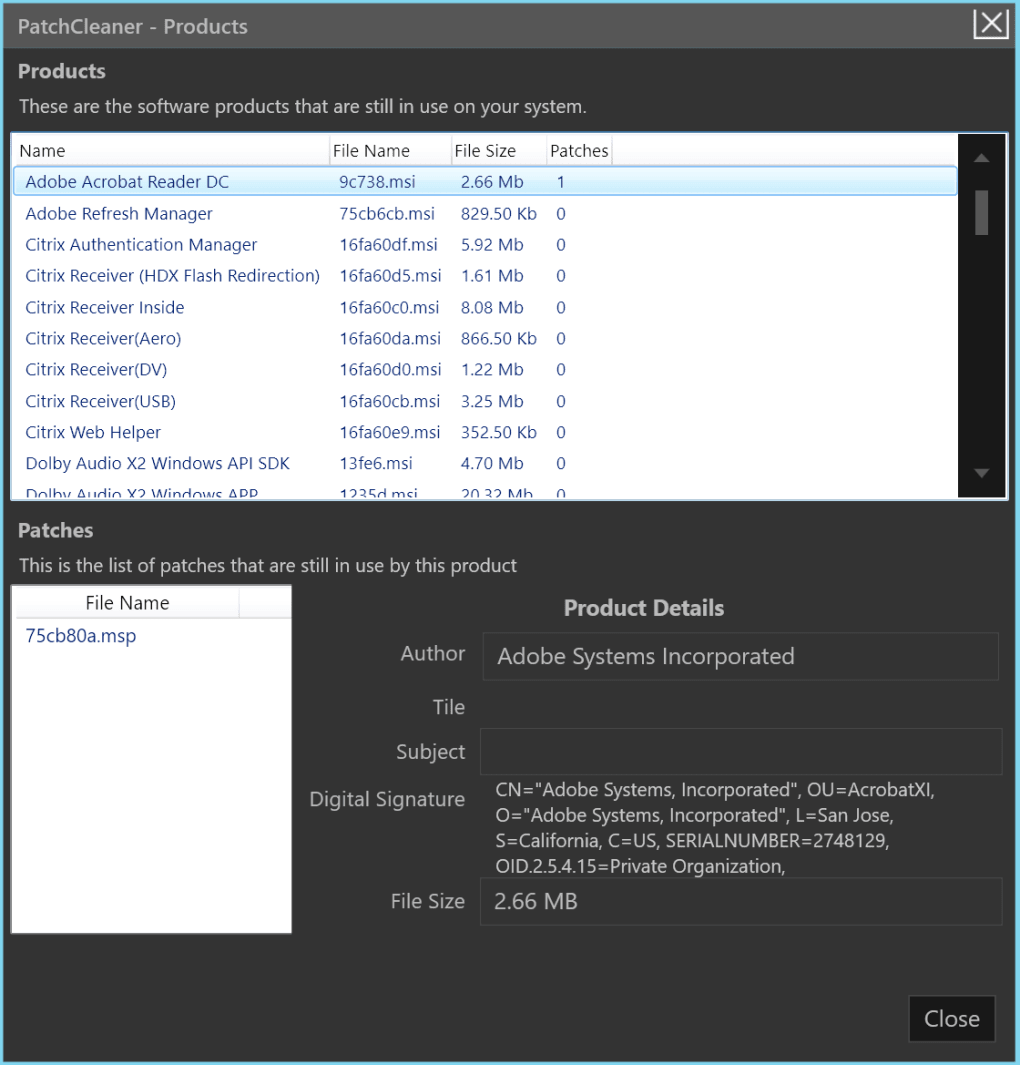
Detailed Review: A detailed view allows users to inspect the identified files individually. This transparency enables users to review the list before initiating any deletion or relocation. Patch Cleaner also clearly indicates which files are still in use, preventing accidental removal of critical system components. This feature ensures safety and minimizes the risk of unintended consequences.
-
Safe Removal Options: Instead of directly deleting files, Patch Cleaner offers two options for managing the identified obsolete files:
- Move: This option allows users to relocate orphaned files to a specified directory. This provides an extra layer of security, enabling users to keep a backup of the files before permanently deleting them. The default location is usually specified within Patch Cleaner’s application settings, but the user may specify a custom path.
- Delete: Once the user confirms the files are no longer needed, this option permanently removes them from the system. This is the final step in the cleanup process, reclaiming the disk space occupied by the obsolete files.
Patch Cleaner’s Command-Line Interface (CLI)
For advanced users or automated scripting, Patch Cleaner offers a powerful command-line interface (CLI) starting from version 1.3. This allows users to integrate the cleanup process into batch scripts or other automation tools. The following command-line switches are supported:
/d: Triggers the delete action, permanently removing the identified orphaned files./m: Triggers the move action, relocating orphaned files to the default location specified within the application settings./m[FilePath]: Triggers the move action, but allows the user to specify a custom location to which the files should be moved. This offers greater flexibility in managing the relocation of the files.
Safety Considerations and Best Practices
While Patch Cleaner is designed for safe and efficient cleanup, it’s crucial to follow best practices to minimize the risk of unintended consequences. The software is designed to alert the user to potential risks and allows manual file review to prevent the accidental deletion of files that might be in use. However, always exercise caution and perform the following:
-
Backup: Before performing any deletions, it’s highly recommended to create a backup of the system or at least back up the files Patch Cleaner identifies as orphaned. This precaution safeguards against accidental data loss and allows for recovery if necessary.
-
Review: Carefully review the list of identified files before initiating the deletion or move operation. Even with Patch Cleaner’s robust analysis, there’s always a small chance of a false positive. Manual confirmation helps ensure that only truly obsolete files are removed.
-
Test: If unsure about the safety of deleting certain files, first relocate them to a separate directory. Observe the system’s behavior for a while to ensure no functionality issues arise. Only delete the files after confirming their redundancy and absence of negative impact on the system.
-
Administrative Privileges: Running Patch Cleaner with administrative privileges is recommended to ensure it has the necessary access to system files and directories.
Comparing Patch Cleaner to Other Cleaning Utilities
Several other programs offer system cleanup functionalities. CCleaner, for example, is a popular and comprehensive cleaning tool that addresses a broader range of system clutter, including unwanted applications, browser cookies, temporary files, and duplicate files. While CCleaner can effectively free up significant disk space, its extensive feature set can be overwhelming for users who only need to clean their Windows Installer directory. Patch Cleaner’s focused approach makes it more user-friendly for this specific task, offering a simple and efficient solution without unnecessary complexity.
Conclusion: Patch Cleaner – A Simple Solution for a Common Problem
Patch Cleaner offers a streamlined and user-friendly solution for managing the often-overlooked clutter within the Windows Installer directory. Its intuitive interface, combined with its robust analysis and safe removal options, makes it a valuable tool for maintaining system health and performance. By efficiently identifying and removing orphaned installer files, Patch Cleaner reclaims valuable disk space and contributes to a cleaner, more efficient Windows operating system. The ability to use either the graphical interface or the CLI offers flexibility for both casual users and system administrators. While always exercising caution and reviewing the identified files, Patch Cleaner provides a powerful yet safe method for managing the often-overlooked issue of obsolete installer files.
File Information
- License: “Free”
- Latest update: “May 24, 2023”
- Platform: “Windows”
- OS: “Windows 8.1”
- Language: “English”
- Downloads: “9.9K”
- Size: “1.32 MB”


