
Converting PDF files to JPG images is a common task for many users, whether for sharing documents online, archiving important papers, or simply for easier image manipulation. This comprehensive guide explores the world of PDF to JPG converters, focusing on the features, benefits, and considerations involved in choosing the right software for your needs. We will delve into the specifics of a particular application, addressing its functionalities and user experience while also providing a broader overview of the process and alternative solutions.
Understanding PDF to JPG Conversion
The core function of a PDF to JPG converter is to transform a Portable Document Format (PDF) file—a widely used format for document sharing and archiving—into a JPEG (Joint Photographic Experts Group) image. JPEGs are raster images, meaning they are composed of pixels, unlike the vector-based nature of PDFs. This conversion process involves rendering each page of the PDF as a separate JPG image, preserving as much of the original layout and content as possible. However, the fidelity of the conversion depends on the quality settings of the converter and the complexity of the original PDF. For instance, highly detailed graphics or intricate text layouts might lose some sharpness or clarity during the conversion process. Factors such as font embedding, image resolution, and the chosen compression level in the output JPEG all contribute to the final visual quality.
Features of a Robust PDF to JPG Converter
A good PDF to JPG converter offers a range of features beyond the basic conversion functionality. These features often determine the overall user experience and efficiency:
-
Batch Conversion: This crucial feature allows users to convert multiple PDF files simultaneously, saving considerable time and effort compared to processing each file individually. This is particularly useful for large volumes of documents or when dealing with multiple files from different sources.
-
Page Range Selection: The ability to choose specific pages within a PDF to convert, rather than the entire document, provides granular control and avoids unnecessary processing of irrelevant sections. This feature is invaluable when only particular sections of a larger PDF are required in image format.
-
Output Format and Quality Control: While the primary output is typically JPG, a good converter often supports other image formats like PNG, TIFF, GIF, and BMP. Additionally, options for adjusting image quality, resolution (measured in pixels per inch or DPI), and compression levels allow users to balance file size with image clarity. Higher quality often translates to larger file sizes and vice-versa.
-
Image Editing Capabilities: Some advanced converters may include basic image editing tools, such as rotating images, cropping, or adding watermarks. These built-in features streamline the post-conversion workflow.
-
Password Protection Handling: For password-protected PDF files, a reliable converter should be capable of handling the password and converting the content without issue.
-
Command-Line Interface (CLI): A CLI allows for automated conversion processes, particularly useful for integrating the converter into scripts or batch processing workflows. This is a valuable feature for advanced users and developers.
-
User Interface (UI): An intuitive and user-friendly interface is essential for ease of use. A simple drag-and-drop functionality, clear settings menus, and straightforward progress indicators all contribute to a positive user experience.
PDF to JPG Converter Software: A Case Study
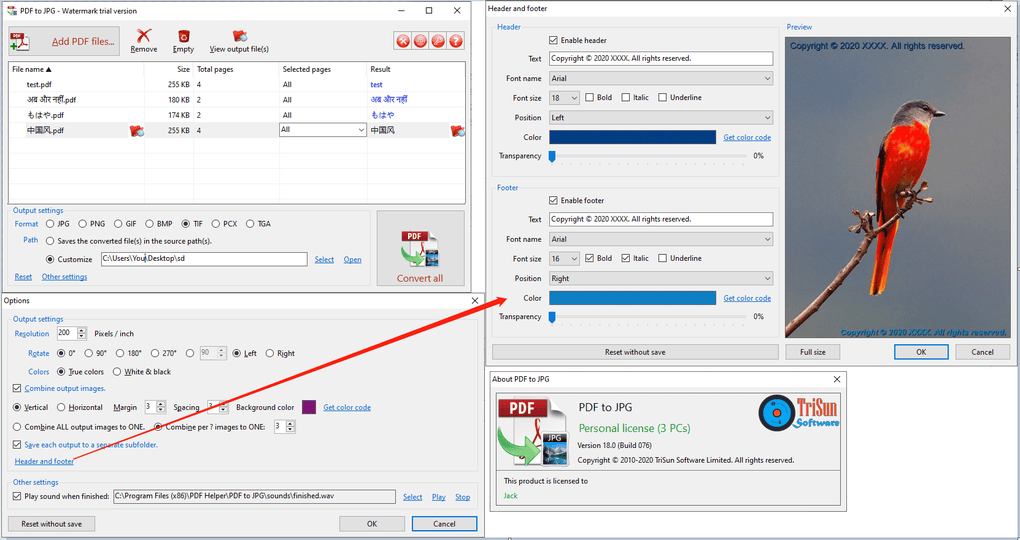
Many PDF to JPG converter applications exist, each with its own strengths and weaknesses. Let’s examine a specific example to illustrate the typical features and functionality. One such application, mentioned in the provided text, boasts a range of features:
-
Fast and Accurate Conversion: The application claims to perform conversions quickly and accurately, minimizing waiting times and ensuring the integrity of the converted images. The speed of conversion is directly impacted by the processing power of the computer and the size and complexity of the PDF files.
-
Multiple Output Formats: The software supports a variety of image formats, including JPG, PNG, TIFF, GIF, PCX, and BMP, giving users flexibility in their choice of output. The appropriateness of a specific format depends on the intended use of the converted image. For example, PNG is preferred for images with sharp edges and text, while JPG is better suited for photographs.
-
Batch Conversion Support: The ability to convert multiple files simultaneously significantly enhances efficiency, particularly beneficial for handling large numbers of PDF documents.
-
Image Editing Options: Capabilities such as image rotation and merging provide added value beyond the core conversion functionality, allowing for basic post-processing within the application itself.
-
Simple Interface: The emphasis on a user-friendly interface simplifies the conversion process, making it accessible to users of all technical skill levels.
-
Offline Operation: Unlike online converters, this application operates locally, ensuring data privacy and security.
-
Command-Line Interface: The inclusion of a CLI opens up possibilities for integrating the converter into more complex workflows or scripting tasks. This feature targets advanced users familiar with command-line interactions.
Is a Paid Converter Worth the Investment?
The availability of both free and paid PDF to JPG converters raises the question of value. Free converters often come with limitations, such as advertisements, watermarks on the output images, restricted features, or lower conversion speeds. Paid versions usually offer a more comprehensive feature set, faster processing, better image quality, and enhanced support. The decision of whether to opt for a paid version depends on individual needs and usage patterns. If the frequency of PDF to JPG conversions is high and image quality is paramount, a paid converter may represent a cost-effective solution. However, for occasional use with less demanding requirements, a free converter might suffice. A free trial often provides a good opportunity to evaluate the software before committing to a purchase.
Alternatives to Dedicated Converter Software
Beyond dedicated PDF to JPG converter applications, alternative methods exist for performing this task. Some word processing suites and image editing software also include PDF import and export features that can facilitate conversion to image formats. Additionally, numerous online converters are available, although these often involve uploading files to a third-party server and raise concerns about data security and privacy. These online converters are generally suitable for small files and infrequent use cases but might not be ideal for large files or sensitive documents.
Choosing the Right PDF to JPG Converter
Selecting the appropriate PDF to JPG converter involves considering several factors:
-
Frequency of Use: For occasional use, a free converter or a built-in feature of another application might be sufficient. For frequent use, a paid application with a comprehensive feature set is generally more efficient.
-
Volume of Files: The ability to handle batch conversions is essential when working with large numbers of PDF files.
-
Image Quality Requirements: If high-quality images are critical, a converter offering fine-grained control over output settings is essential.
-
Security and Privacy Concerns: For sensitive documents, a locally installed application is preferred over online converters to minimize risks associated with data transmission.
-
Budget: The cost of the software should align with the user’s budget and the frequency of use.
In conclusion, converting PDF files to JPG images is a straightforward process facilitated by a variety of software options. Understanding the features of different converters and choosing one that aligns with individual needs and priorities ensures efficiency and a positive user experience. Consider the volume of conversions, desired image quality, security concerns, and budget when making your selection. Whether you choose a dedicated application or an alternative method, the right tool will simplify your workflow and optimize your image conversion needs.
File Information
- License: “Trial version”
- Latest update: “February 5, 2025”
- Platform: “Windows”
- OS: “Windows 8”
- Language: “English”
- Downloads: “951.6K”
- Size: “1.96 MB”


