
In an age where visual content reigns supreme, the desire for perfect, unblemished photographs has never been stronger. Whether you’re a casual smartphone photographer capturing precious family moments, a dedicated travel blogger showcasing exotic landscapes, or a professional aiming for pristine product shots, the presence of unwanted elements can significantly detract from an image’s impact. From accidental photobombers and intrusive power lines to distracting watermarks and date stamps, these imperfections often necessitate post-processing. Enter Photo Stamp Remover, a specialized photo editing tool developed by SoftOrbits, designed with the singular purpose of digitally erasing unwanted objects from your pictures. This comprehensive guide will delve into the capabilities, features, and nuances of Photo Stamp Remover, exploring how it empowers users to transform their ordinary photos into polished masterpieces, all while highlighting its strengths and considerations.
The Quest for Flawless Photography: Understanding Photo Stamp Remover
Imagine you’ve just captured the perfect shot of a breathtaking landmark, only to realize later that a stranger inadvertently walked into your frame, or a prominent sign now mars the background. Such scenarios are commonplace in photography, and traditionally, correcting them required advanced skills in complex image manipulation software. Photo Stamp Remover was conceived to simplify this process, offering a focused solution for eradicating these visual nuisances. Its core promise is to deliver photos free from any undesirable elements, allowing the intended subject and composition to shine.
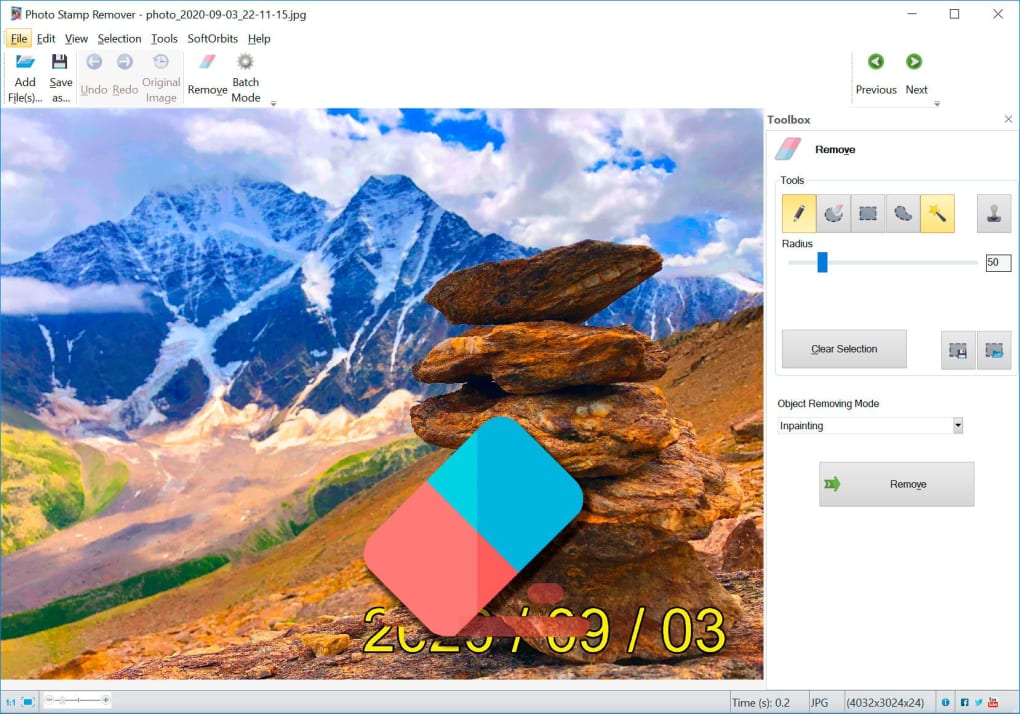
At its heart, Photo Stamp Remover is a utility built for efficiency and effectiveness. It addresses a wide array of common photographic challenges, including the removal of:
- Photobombers: Those unexpected individuals who sneak into the background of your shots, especially in crowded tourist spots.
- Logos and Watermarks: Often found on images sourced from the internet or on personal photos that have been previously stamped.
- Date Stamps: A common feature on older digital cameras, these timestamps can clutter an otherwise beautiful photograph.
- Power Lines, Wires, and Obstructions: Environmental distractions that can clutter outdoor shots.
- Scratches, Dust, and Imperfections: Particularly useful for restoring old, damaged physical photographs that have been digitized.
- Other Random Objects: Anything from litter on the ground to an accidental thumb in the corner of the frame.
The goal is to provide users with a clean slate, allowing their images to convey the exact message or memory they intend, unmarred by visual clutter. PhanMemFree, recognizing the universal need for such a tool, positions Photo Stamp Remover as an accessible yet powerful solution for both amateur enthusiasts and those with a moderate understanding of photo editing.
Intuitive Interface and Powerful Selection Tools
One of the first things users will notice about Photo Stamp Remover is its commitment to simplicity in design. The user interface (UI) is remarkably uncomplicated, striking a balance between functionality and ease of access. When a photo is loaded onto the canvas for editing, the primary tools for object removal are neatly organized in a panel to the right side of the display. This straightforward layout ensures that users can quickly locate and utilize the necessary features without being overwhelmed by an excessive array of options, which is often the case with more complex photo editing suites.
The efficiency of Photo Stamp Remover largely hinges on its robust selection capabilities, which allow users to precisely define the areas they wish to modify or remove. The software provides a versatile suite of selection tools, each tailored for different types of objects and scenarios:
Precision Selection for Targeted Removal
- Brush Tool: This is arguably the most intuitive selection method, allowing users to “paint” over the unwanted object directly. It mimics the action of using a physical brush, making it easy to select irregular shapes or fine details. The properties of the brush, such as its hardness (determining the sharpness of the edge of the selection) and radius (controlling the size of the brush), can be dynamically adjusted using sliders. This granular control is crucial for achieving clean selections without accidentally spilling over into areas that should remain untouched.
- Rectangle Tool: Ideal for selecting objects with straight edges or entire rectangular regions. This tool is quick and efficient for larger, more defined distractions, such as text boxes or certain types of watermarks.
- Magic Wand Tool: A smarter, automated selection option. The magic wand automatically selects contiguous areas of similar color or tone. Users can adjust parameters like color fuzziness (tolerance) to refine the selection, making it broader or narrower based on the color variations within the image. This tool is particularly effective for removing objects that stand out distinctly against a relatively uniform background.
The ability to adjust tool properties like hardness, radius, and color fuzziness directly impacts the quality of the initial selection. A soft-edged brush might be better for blending, while a hard-edged brush is suitable for precise cuts. Similarly, tweaking the magic wand’s fuzziness ensures that only the intended pixels are selected, minimizing the risk of inadvertently affecting surrounding details. This thoughtful inclusion of adjustable parameters within a simple interface underscores Photo Stamp Remover’s design philosophy: powerful functionality delivered through an approachable user experience.
The Art of Object Removal: Manual vs. Automatic Approaches
Once an unwanted object has been meticulously selected using the aforementioned tools, Photo Stamp Remover offers two distinct methodologies for its eradication: manual editing and automatic processing. Each approach has its merits and is suited to different types of image imperfections and user preferences.
Manual Editing with the Clone Stamp Tool: For those who prefer a hands-on approach and demand absolute control over the restoration process, the clone stamp tool is the primary manual editing instrument. This classic photo editing utility allows users to “clone” pixels from one area of an image and “paint” them over another.
- How it Works: The user first selects a “reference point” from a clean, suitable area of the picture – an area whose texture, color, and lighting match the context surrounding the unwanted object. Then, by painting over the selected object, the pixels from the reference point are replicated onto the target area.
- Benefits: This method ensures that the patched area blends seamlessly with its surroundings, maintaining consistency in texture, tone, and lighting. It is invaluable for intricate removals where automated algorithms might struggle to interpret complex patterns or gradients. Skilled use of the clone stamp can make it virtually impossible to detect that an object was ever present.
- Skill Requirement: While powerful, mastering the clone stamp tool requires a degree of artistic sensibility and patience. Users must carefully choose appropriate reference points, adjust brush sizes and opacities, and often work in multiple passes to achieve a natural look. This is part of the “intermediate knowledge” highlighted in the software’s limitations, as improper use can lead to repetitive patterns or obvious patching.
Automatic Object Removal Modes: For users seeking quicker results or tackling simpler obstructions, Photo Stamp Remover provides several automated removal modes. These algorithms attempt to intelligently analyze the surrounding pixels and “fill in” the selected area with plausible content.
-
Inpainting: This advanced technique attempts to reconstruct the missing information within the selected area based on the surrounding image data. It analyzes patterns, textures, and colors to generate new pixels that blend naturally, effectively “healing” the image. Inpainting algorithms are particularly effective for areas with relatively uniform backgrounds or predictable patterns.
-
Hole Filling: As the name suggests, this mode is designed to fill the selected “hole” (the unwanted object) with content derived from its immediate periphery. It often uses a simpler interpolation method compared to full inpainting, making it suitable for smaller, less complex removals.
-
Texture Generation: This mode focuses on generating new textures to cover the selected area. It’s especially useful when the surrounding area has a distinct, repeating texture, allowing the software to create a believable continuation of that pattern.
-
Quick Removal: This is typically the most straightforward and fastest automatic option, often employing a basic content-aware fill or blurring technique. While convenient, it’s generally best suited for very small, non-critical objects or when a high degree of precision isn’t paramount.
-
Considerations for Automatic Modes: It is important to note that, as the reference content indicates, “results tend to be random and varied” with automatic methods. While these modes offer speed and convenience, their success can be highly dependent on the complexity of the background and the size of the object being removed. For highly detailed or textured areas, automatic removal might sometimes produce noticeable artifacts or an “uncanny” look that doesn’t quite match the original image seamlessly. Therefore, users should be prepared to experiment with different modes and, if necessary, revert to manual refinement for optimal outcomes. The trade-off between speed and control is a key factor when deciding between manual and automatic approaches.
Beyond Basic Cleanup: Advanced Applications and Intelligent Restoration
While Photo Stamp Remover excels at its primary function of removing unwanted objects, its underlying technology, particularly the intelligent restoration capabilities, extends its utility far beyond simple cleanup tasks. SoftOrbits has imbued this tool with features that cater to a broader range of image enhancement and restoration needs.
The cornerstone of Photo Stamp Remover’s effectiveness, especially in its automatic modes, is its intelligent restoration technology. This sophisticated algorithm goes beyond merely cloning pixels. Instead, it meticulously analyzes the context of the selected area, identifying surrounding textures, colors, and gradients. It then uses this information to “synthesize” new pixels that seamlessly blend into the image. This isn’t just a copy-paste operation; it’s a smart reconstruction that aims to make the removed area look as if nothing was ever there. This technology is crucial for producing results that are not just acceptable but truly professional-looking, avoiding the tell-tale signs of editing that often plague less advanced tools. The natural blending achieved through this intelligent approach is what differentiates Photo Stamp Remover from simpler content-aware tools.
Rejuvenating Memories and Professional Enhancement
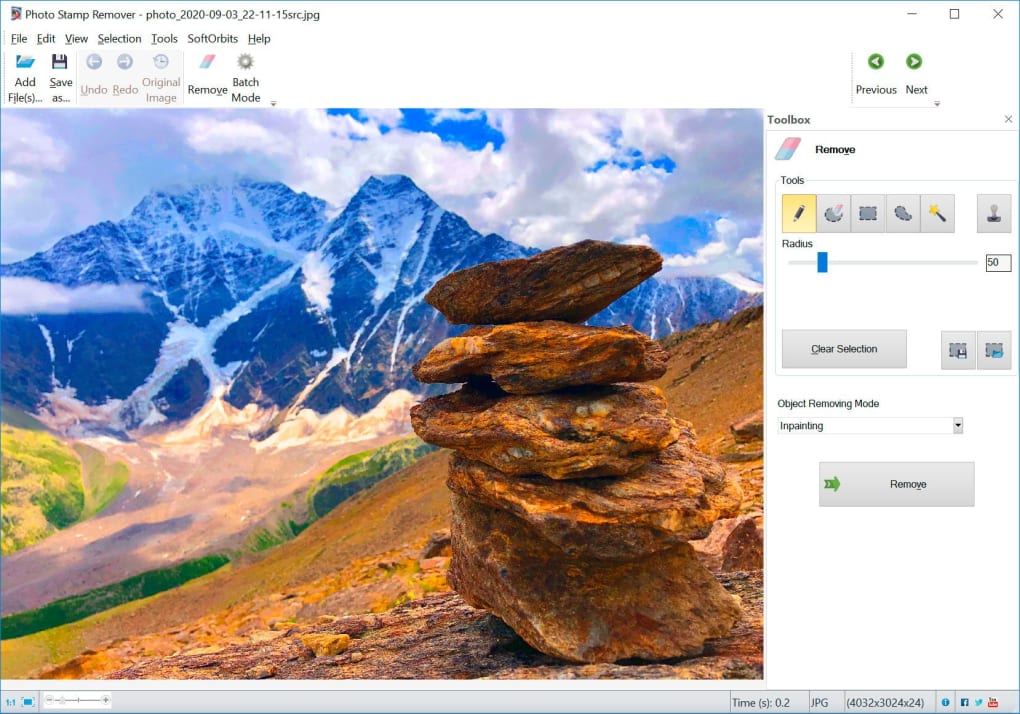
Leveraging this intelligent restoration, Photo Stamp Remover can be applied to several specialized scenarios:
- Rejuvenating Old Photographs: Many families possess boxes of cherished old photographs that have suffered the ravages of time. Scratches, dust spots, creases, and faded colors are common issues. Photo Stamp Remover can be a powerful ally in digitizing and restoring these precious memories. By carefully selecting scratches or dust, the intelligent restoration technology can fill these imperfections with surrounding texture, bringing old photos back to life without extensive manual retouching. This allows users to preserve and share their family history with greater clarity and appeal.
- Removing Artifacts by Color: Sometimes, images can suffer from various digital artifacts – perhaps remnants of aggressive compression, chromatic aberration, or even minor sensor dust that appears as colored specks. If these artifacts manifest as distinct color anomalies, Photo Stamp Remover’s selection tools (particularly the magic wand with its color fuzziness adjustment) can target them. The restoration engine then works to eliminate these color discrepancies, restoring uniformity to the affected areas.
- Cleaning Up Imperfections: Beyond major objects, photographs often contain minor blemishes that, while not central, can distract the viewer. This could include small stains on a shirt, tiny specks of dirt on a pristine surface, or even a stray hair. Photo Stamp Remover provides an efficient way to “spot heal” these imperfections. Its precise selection tools and intelligent filling algorithms make quick work of these minor details, resulting in a cleaner, more professional-looking image. This makes it invaluable for portrait photographers or product photographers who need their subjects to be absolutely flawless.
Moreover, the tool’s capability to process hundreds of images simultaneously (batch processing) makes it incredibly efficient for tasks like removing a recurring watermark from an entire album of photos or cleaning up date stamps from a large collection of digitized slides. This automation, combined with its intelligent algorithms, significantly reduces the time and effort required for repetitive editing tasks, making it a valuable asset for anyone managing a substantial image library.
Navigating the Nuances: Limitations and Best Practices
While Photo Stamp Remover offers compelling features and promises to deliver clean, professional-looking photos, it’s essential for potential users to understand its limitations and the knowledge required to wield it effectively. Like any specialized tool, its maximum potential is unlocked through informed usage and an understanding of its capabilities and constraints.
The Learning Curve: More Than Just Basic Knowledge
Despite its “simple and intuitive” interface, PhanMemFree acknowledges that Photo Stamp Remover is “not a tool that a beginner can use.” The official description clarifies that “intermediate knowledge of photo editing will be necessary to produce high-quality work.” This distinction is critical and often misunderstood. While the buttons and menus are easy to navigate, the art of successful object removal demands more:
- Understanding Light and Shadow: Effective object removal requires an eye for how light interacts with surfaces. When patching an area, users need to ensure the cloned or generated pixels mimic the existing lighting conditions to avoid flat or unnaturally bright/dark spots.
- Texture Matching: The ability to identify and replicate textures seamlessly is paramount. An intermediate editor understands how to select a reference point that provides the most consistent texture for cloning, or when to rely on automatic modes for simpler textures.
- Perceptual Blending: Knowing when a patch “looks right” and when it appears artificial is a skill honed through practice. This involves evaluating the edited area for consistency in color, tone, and sharpness with its surroundings.
- Strategic Use of Tools: A skilled user understands when to deploy the precise brush tool versus the quick magic wand, and when to opt for manual cloning over an automatic fill mode. This strategic decision-making comes from experience.
Without this intermediate understanding, users might achieve a basic removal, but the results could look “uncanny” or “very easy to spot,” leaving behind noticeable artifacts. The simplicity of the interface is a facilitator, not a substitute, for fundamental photo editing principles.
Avoiding Noticeable Artifacts: The “Uncanny” Effect
One of the significant challenges in object removal is preventing the edited area from looking artificial or “Photoshopped.” The reference content wisely warns, “It’s also important to be careful about leaving behind noticeable artifacts. Some edits might end up looking uncanny and very easy to spot.” Artifacts are visual imperfections that betray the editing process. These can manifest as:
- Repetitive Patterns: If the clone stamp is used without sufficient variation, repeating textures can become obvious, creating an unnatural look.
- Color or Tone Mismatches: Patched areas that are slightly off in color, brightness, or contrast will stand out.
- Blurriness or Sharpness Discrepancies: If the cloned content has a different level of detail or blur than the surrounding area, the edit will be apparent.
- Edge Distortions: Imperfect selections or aggressive automatic fills can create jagged or unnatural edges around the removed object.
Best Practices to Minimize Artifacts:
- Zoom In: Always work at a high zoom level to ensure precision in selections and fine-tune manual painting.
- Small, Multiple Passes: For complex removals, it’s often better to make several small, careful edits rather than one large, aggressive one.
- Vary Clone Source: When using the clone stamp, regularly change your reference point to introduce natural variation and avoid repetitive patterns.
- Experiment with Automatic Modes: If an automatic mode produces artifacts, try another, or switch to manual refinement.
- Review Critically: Step back and view the image at different zoom levels and from various distances to spot inconsistencies that might not be visible up close.
Trial Version Limitations
Another practical limitation to consider, particularly for those evaluating the software, is the restriction in the trial version: “Cannot save in trial version.” This means users can experiment with the full suite of removal tools and see the results on their images, but they cannot save or export their edited work. While this allows for a comprehensive assessment of the software’s capabilities, it means a purchase is necessary to unlock the ability to retain any work done. This is a common practice for premium software but important for users to be aware of upfront.
Furthermore, the note about “Must undo selection manually” refers to the selection tools. Unlike some advanced editors where selections might automatically disappear or be easily deselected, users of Photo Stamp Remover need to explicitly deselect areas once an operation is complete if they wish to start a new selection without interference, adding a minor, but notable, step to the workflow.
In essence, Photo Stamp Remover is a powerful ally for image cleanup, but it demands a cooperative user. Those willing to invest a little time in understanding its nuances and applying fundamental editing principles will find it an incredibly rewarding tool for transforming their photographs.

Is Photo Stamp Remover the Right Tool for You? Conclusion and Verdict
After a thorough examination of its features, functionalities, and limitations, Photo Stamp Remover emerges as a highly capable and focused utility in the realm of photo editing. Its primary mission – to erase unwanted elements from images – is something it fulfills with commendable efficiency and often, impressive results, provided the user approaches it with the right level of skill and understanding.
For anyone who frequently encounters photographic nuisances such as photobombers, watermarks, date stamps, or general clutter, Photo Stamp Remover offers a compelling solution. Its specialized nature means it avoids the overwhelming complexity of general-purpose image editors like Adobe Photoshop, yet it delivers powerful results for its specific niche. The developers at SoftOrbits have crafted a tool that, once mastered, can achieve transformations that make images look as if they were “taken by professional photographers and edited for postcards.”
Key Strengths Revisited:
- Dedicated Purpose: Its singular focus on object removal allows for a streamlined workflow and specialized algorithms optimized for this task.
- Intuitive Interface: The clean and uncluttered UI makes it easy to navigate and access tools without extensive training.
- Versatile Selection Tools: With brush, rectangle, and magic wand options, users have precise control over defining areas for removal.
- Dual Removal Approaches: The choice between manual clone stamp precision and various automatic intelligent fill modes (Inpainting, Hole Filling, Texture Generation, Quick Removal) caters to different needs and skill levels.
- Intelligent Restoration Technology: This core algorithm ensures that removed areas are filled with smooth textures that blend naturally, preventing an artificial look.
- Batch Processing: The ability to process multiple images simultaneously is a huge time-saver for repetitive tasks like watermark removal across an entire collection.
- Beyond Basic Cleanup: Its applications extend to rejuvenating old photographs, removing color artifacts, and general imperfection cleanup, adding significant value.
- Fast Image Processing: Efficiency is a hallmark, allowing users to see results quickly.
Important Considerations:
- Intermediate Skill Requirement: It’s crucial to reiterate that while the interface is simple, achieving high-quality, undetectable edits requires more than basic photo editing knowledge. Understanding concepts like texture, lighting, and strategic tool application is key.
- Potential for Artifacts: Users must be diligent in their editing process and critically review their work to avoid creating “uncanny” or easily detectable artifacts, especially with automatic modes on complex backgrounds.
- Trial Version Limitations: The inability to save edits in the trial version means a commitment is required to fully utilize the software for actual projects.
In conclusion, Photo Stamp Remover, developed by SoftOrbits and available through platforms like PhanMemFree.org, stands out as an excellent tool for its intended purpose. It empowers users to meticulously clean up their photographs, removing distractions and enhancing their visual appeal. For those with a foundational understanding of image editing, the investment in Photo Stamp Remover will undoubtedly lead to “stunning photos” that will elevate your visual content, making your vacation photos, professional portfolios, or cherished family albums truly stand out. It delivers on its promise, offering a powerful yet accessible pathway to flawless photography.
File Information
- License: “Trial version”
- Latest update: “June 23, 2025”
- Platform: “Windows”
- OS: “Windows Vista”
- Language: “English”
- Downloads: “19.5K”
- Size: “1.79 MB”


