
In the vast and interconnected digital landscape of today, a stable and responsive network connection is no longer a luxury but a fundamental necessity. From streaming high-definition content and engaging in real-time online gaming to critical business operations and remote work, virtually every aspect of our lives relies heavily on the uninterrupted flow of data. Yet, despite its omnipresence, the underlying mechanics of network health often remain a mystery to many, shrouded in technical jargon and intimidating command-line interfaces.
One of the most fundamental and widely used tools for assessing network connectivity and responsiveness is the “ping” command. For decades, network administrators, IT professionals, and technically savvy users have relied on this simple yet powerful utility to diagnose issues, verify connections, and monitor network performance. However, its traditional implementation, often requiring users to navigate the arcane world of DOS commands or terminal interfaces, has presented a significant barrier for those less familiar with command-line operations. This is where applications like Ping Test Easy step in, democratizing network diagnostics by providing a user-friendly graphical interface that brings the power of pinging to everyone.
Ping Test Easy, a utility designed for Windows, transforms the often-complex process of network testing into an intuitive and accessible experience. It eliminates the need for users to memorize or stumble through complex commands, offering a visual environment where network checks can be performed quickly, efficiently, and with greater insight. This article will delve into the essence of network pinging, explore the capabilities and benefits of Ping Test Easy, and guide you through its features, helping you harness its power to ensure your digital life remains seamlessly connected.
The Foundation: Understanding the Ping Command and ICMP
Before we dive into the specifics of Ping Test Easy, it’s crucial to understand what “pinging” truly means and why it’s so vital for network diagnostics. At its core, ping is a network utility used to test the reachability of a host on an Internet Protocol (IP) network and to measure the round-trip time for messages sent from the originating host to a destination computer. The name “ping” itself is an analogy to the active sonar technology, where a pulse of sound is sent out, and the time it takes for the echo to return helps determine distance and location. In networking, a data packet serves as that pulse.
The ping command operates by sending Internet Control Message Protocol (ICMP) Echo Request packets to the target host and listening for ICMP Echo Reply packets. ICMP is a core protocol of the Internet Protocol Suite, primarily used to send error messages and operational information indicating, for example, that a requested service is not available or that a host or router could not be reached. While ICMP has other functions, its role in the ping utility is arguably its most well-known application.
When you send a ping, several pieces of information are gathered:
- Reachability: If you receive a reply, the target host is reachable. If not, there’s a connectivity issue.
- Round-Trip Time (RTT): The time it takes for the Echo Request to travel to the target and for the Echo Reply to return. This is often measured in milliseconds (ms) and is a direct indicator of network latency. Lower RTT means faster communication.
- Packet Loss: The percentage of sent packets that did not receive a reply. This indicates network congestion, faulty cabling, hardware issues, or even firewalls blocking ICMP traffic. Zero packet loss is ideal.
- Time To Live (TTL): A value in the IP header that indicates the maximum number of hops (routers) a packet can traverse before being discarded. Each router decrements the TTL; if it reaches zero, the packet is dropped, preventing endless loops. Ping often reports this value, which can give an idea of the network path’s length.
Understanding these metrics is the first step toward effective network troubleshooting. A high RTT suggests latency, which can manifest as slow loading times, lag in online games, or choppy video calls. Packet loss, on the other hand, often leads to dropped connections, incomplete downloads, or garbled voice communications. While the traditional command-line ping provides these raw numbers, interpreting them and correlating them with a network’s visual structure can be challenging without additional tools.
Introducing Ping Test Easy: A User-Friendly Approach to Network Testing
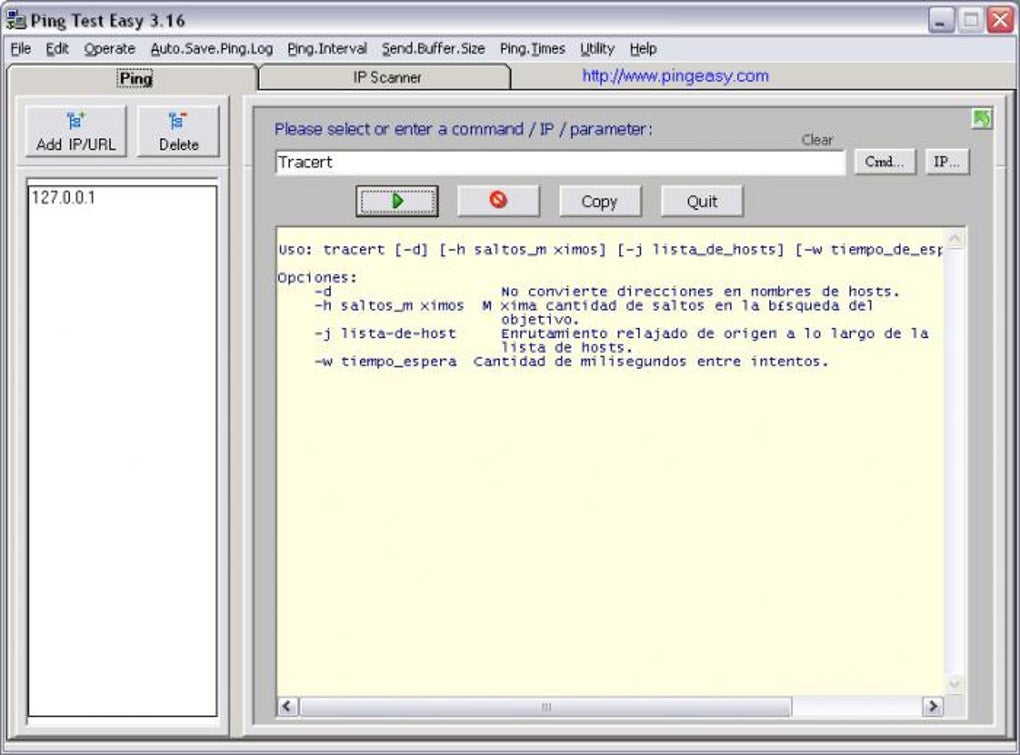
The primary hurdle for many users when it comes to network diagnostics is the reliance on command-line interfaces. For those unfamiliar with the syntax and structure of DOS commands, simply typing ping 8.8.8.8 (to ping Google’s public DNS server) can be an intimidating task, let alone understanding the various flags and parameters available. Ping Test Easy was developed specifically to overcome this barrier, providing a robust graphical user interface (GUI) within Windows that simplifies and enhances the pinging process.
This application liberates users from the need to “blunder their way through DOS commands,” as the original description aptly puts it. Instead of typing out commands and waiting for text-based output, Ping Test Easy presents a clean, intuitive window where you can input your target IP addresses or hostnames, configure your ping parameters, and visualize the results. This transformation from a text-only interaction to a visual one is a game-changer for accessibility, making powerful network diagnostics available to a much broader audience, from home users struggling with slow internet to system administrators managing complex corporate networks.
The utility allows for the very quick verification of connectivity between two machines, which could be your computer and a router, your computer and a server on the internet, or even two devices within your local network. Beyond simple connectivity, it offers immediate insight into response times and the general availability of other networks or hosts, all by efficiently posting ECHO data using the ICMP protocol. Its design prioritizes ease of use without sacrificing the depth of information that a ping test can provide.
Beyond the Command Line: Key Features and Customization
What truly sets Ping Test Easy apart from the basic command-line ping are its enhanced features and customization options, all accessible through its intuitive GUI:
- Elimination of DOS Commands: This is the most significant advantage. Users no longer need to open the command prompt, type specific syntax, or remember parameters. Everything is point-and-click or fill-in-the-blank.
- Personalized Pinging Process: Ping Test Easy allows for a level of customization that significantly enhances the diagnostic utility:
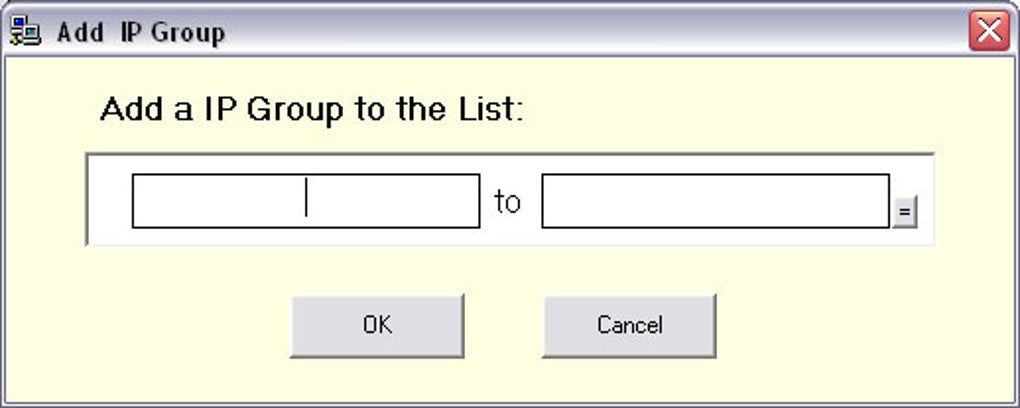
- Create Groups: You can organize multiple IP addresses or hostnames into distinct groups. This is incredibly useful for monitoring specific sets of servers (e.g., “Web Servers,” “Database Servers,” “Local Devices”) or for testing different network segments efficiently. Instead of pinging each target individually, you can test an entire group with a single action.
- Specify Rankings (or Prioritization/Categorization): While the term “rankings” might be open to interpretation, in the context of network monitoring, it often refers to assigning a priority or categorization to pings. This could mean flagging critical servers for more frequent checks, differentiating between internal and external targets, or simply organizing targets based on their importance to your network. This feature helps users focus on the most relevant information quickly.
- Define Packet Size: The size of the data packets sent can significantly impact ping results. Smaller packets might not reveal certain types of network congestion, while very large packets can simulate higher network load and uncover issues that smaller packets might miss. Ping Test Easy allows you to adjust the packet size, enabling more specific and robust testing. This is crucial for stress testing or for simulating different types of network traffic.
- Set Interval of Delivery: You can control how frequently ping packets are sent. A shorter interval provides more real-time monitoring but can also generate more network traffic. A longer interval is useful for less critical, long-term monitoring. This flexibility allows users to tailor the testing to their specific needs, from rapid troubleshooting to background network health checks.
- Visual and Detailed Output: The application doesn’t just give you numbers; it visualizes them. It provides an intuitive interface that clearly shows:
- The Route: Often integrated with a traceroute-like function, it can display the path (hops) your packets take to reach the destination, helping pinpoint where a delay or blockage might be occurring.
- Hosts: A clear list of the target IP addresses or hostnames being monitored.
- Packet Loss Percentage: An immediate visual representation of how many packets failed to return.
- Min/Max/Average Response Times: Crucial metrics for understanding latency variations and overall network performance over time. These aggregated statistics are far more informative than single ping results.
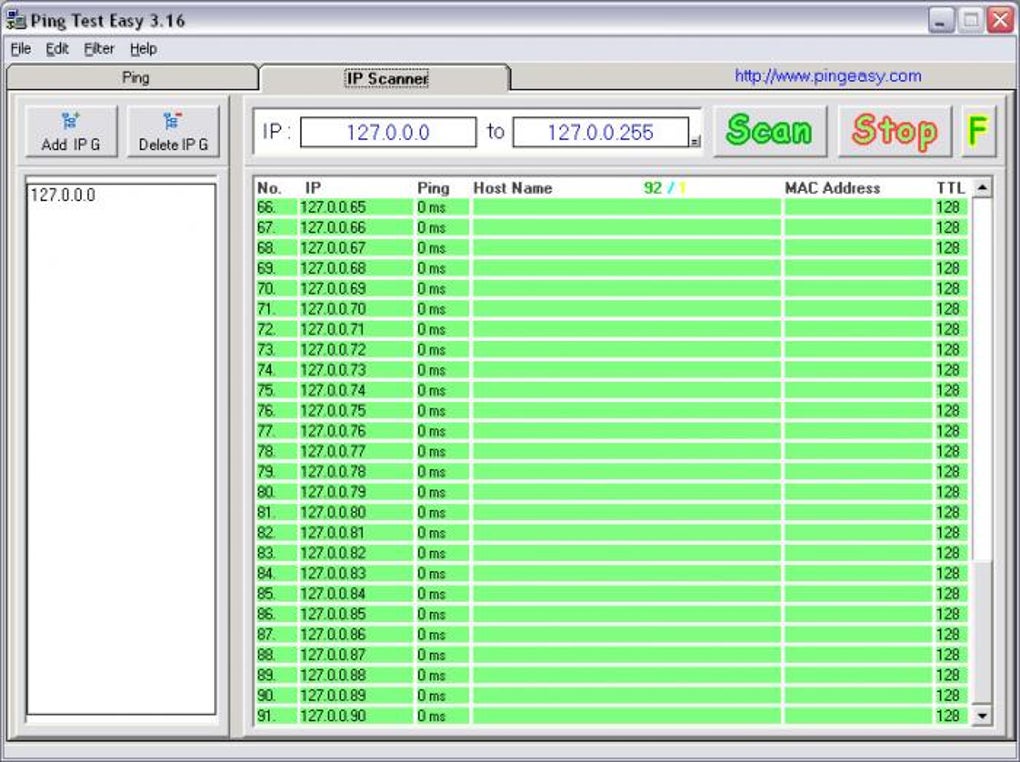
- IP Scanner Functionality: Beyond just pinging known targets, Ping Test Easy can also function as a basic IP scanner. This means it can sweep a range of IP addresses to discover active hosts on a network, which is useful for network discovery and inventory management.
- Save Results in a Text File: For documentation, further analysis, or reporting, the ability to store all your results in a text file is invaluable. This feature enables users to maintain a historical record of network performance, track changes over time, or share diagnostic data with colleagues or support teams.
By integrating these features into a single, easy-to-use interface, Ping Test Easy elevates the standard ping utility into a comprehensive and powerful network diagnostic tool suitable for a variety of users and scenarios.
Who Can Benefit from Ping Test Easy?
The broad utility and simplified interface of Ping Test Easy make it an invaluable tool for a diverse range of users:
- System Administrators and Network Engineers: As explicitly mentioned, this tool is a “handy, powerful, visual ping test utility and IP scanner for system administrators to check network connections.” For professionals managing complex networks, quick and reliable diagnostics are paramount. Ping Test Easy allows them to:
- Rapidly verify server uptime and responsiveness.
- Diagnose connectivity issues between different network segments.
- Monitor critical services and infrastructure components.
- Perform quick network audits and discover active devices.
- Document network performance over time.
- IT Support Personnel: When troubleshooting user complaints about “slow internet” or “can’t access the server,” Ping Test Easy provides an immediate and clear picture of network health. It helps differentiate between local client issues and broader network problems, streamlining the support process.
- Small Business Owners: Many small businesses operate without dedicated IT staff. Ping Test Easy empowers them to perform basic network health checks themselves, identifying potential issues before they escalate into significant disruptions. Checking connectivity to their web host, cloud services, or internal servers becomes a simple task.
- Advanced Home Users and Gamers: For those who rely on a robust home network for online gaming, streaming, or smart home devices, understanding network performance is key. Gamers, in particular, are acutely aware of latency (“ping”) and packet loss. Ping Test Easy provides a visual way to monitor their connection to game servers or troubleshoot lag, helping them optimize their setup.
- Remote Workers: With the rise of remote work, a stable connection to corporate resources (VPNs, cloud drives, remote desktops) is essential. Ping Test Easy can quickly verify connectivity to these resources, diagnose VPN issues, or confirm a stable connection to their office network from home.
- Students and Educators: For those learning about networking fundamentals, Ping Test Easy offers a practical, hands-on way to see network protocols in action without getting bogged down in command-line complexities.
In essence, anyone who needs to quickly and visually verify network connectivity, identify latency issues, or detect packet loss can find significant value in Ping Test Easy.
Installation, Usage, and Interpreting Results
Getting started with Ping Test Easy is designed to be straightforward, reflecting its user-friendly philosophy.
Installation
Based on the provided information, Ping Test Easy is a free utility for Windows (specifically mentioned for Windows XP, but likely compatible with newer versions given its age and fundamental function). Installation typically involves downloading a small executable file (249.86 KB, according to the specs) from a trusted source like PhanMemFree.org and running it. The process is generally a standard Windows application installation: double-click the installer, follow the on-screen prompts, and accept the license agreement. As with any download, it’s always advisable to ensure your antivirus software is active and the source is reputable. PhanMemFree, by its stated policies, scans files for potential harm, adding a layer of security.
Basic Usage
Once installed, launching Ping Test Easy presents you with its graphical interface.
- Add Targets: You’ll typically find an input field where you can enter the IP address (e.g.,
192.168.1.1for a router or8.8.8.8for Google DNS) or hostname (e.g.,google.com) of the device or server you wish to ping. You can add multiple targets. - Configure Settings: Before starting the ping, you can usually adjust parameters like:
- Packet Size: The default is often 32 bytes, but you can increase it to, say, 1500 bytes to test for maximum transmission unit (MTU) issues or heavier loads.
- Interval: How often each ping request is sent (e.g., every 1 second).
- Timeout: How long the utility waits for a reply before considering the packet lost.
- Start Pinging: With your targets added and settings configured, click a “Start” or “Go” button. The application will then begin sending ICMP Echo Requests to your specified targets.
- Monitor Results: The interface will dynamically update, displaying real-time statistics for each target. This typically includes:
- Live Ping Times: Individual response times for each successful packet.
- Packet Loss: Often shown as a percentage and sometimes with a visual indicator.
- Min/Max/Average RTT: Summarized latency statistics.
- TTL values.
- A visual representation of the route if that feature is active.
Interpreting Results
Understanding what the results mean is key to effective troubleshooting:
- “Reply from [IP Address]: bytes=[size] time=[ms] TTL=[value]”: This is the ideal response. It means the target host is reachable, and the network connection is functional.
- Low
timevalues (e.g., <50ms for local, <150ms for global): Indicate a fast and responsive connection. - Consistent
timevalues: Suggest a stable network with minimal jitter.
- Low
- “Request Timed Out”: This means no Echo Reply was received within the specified timeout period. This is a common indication of a problem:
- Target host is down or powered off.
- Network congestion causing severe delays.
- Firewall blocking ICMP traffic on the target host or an intermediary router.
- Routing issues preventing packets from reaching the destination.
- Cabling problems or faulty network hardware.
- “Destination Host Unreachable”: This message usually means that a router along the path knows it cannot deliver the packet to the target, rather than just timing out waiting for a reply.
- The target IP might not exist on the network segment.
- A router’s routing table might be misconfigured.
- The target machine’s network interface might be disabled.
- High Response Times (Latency): Consistently high
timevalues (e.g., several hundred milliseconds) suggest network congestion, a long physical distance to the server, or a server under heavy load. This can cause noticeable delays in applications. - Packet Loss (e.g., 20% packet loss): If some packets are timing out while others get replies, it indicates packet loss. This is often due to:
- Network congestion: Routers drop packets when their queues are full.
- Faulty network cables or Wi-Fi interference.
- Overloaded network devices.
- Aggressive firewalls sporadically dropping packets.
- High CPU usage on the target or intermediary routers.
By carefully observing these results, especially the min/max/average times and packet loss, users can quickly deduce the health and performance characteristics of their network connection to any given host.
Tips for Effective Network Troubleshooting
- Start Local, Then Go External: First ping your router (
192.168.1.1or192.168.0.1), then a local DNS server (e.g.,1.1.1.1), and finally an external, reliable server (like8.8.8.8). This helps isolate if the problem is local, with your ISP, or further out on the internet. - Ping Multiple Targets: Don’t just ping one destination. Test a few different reliable servers to ensure the issue isn’t isolated to a single destination.
- Use Consistent Settings: When comparing results, use the same packet size and interval to ensure a fair comparison.
- Document Your Findings: Save results to a text file (as Ping Test Easy allows) for historical tracking or to provide detailed information to your ISP or IT support.
- Combine with Other Tools: While Ping Test Easy is excellent for connectivity, complement it with tools like
traceroute(or 3d Traceroute, as mentioned in the alternatives) to see the exact path packets take, or a bandwidth speed test to check your actual upload/download speeds. - Check for Firewalls: Remember that firewalls can block ICMP traffic, leading to “Request Timed Out” even if a host is up. This is a common security practice.
Alternatives and Complementary Tools
While Ping Test Easy excels in its user-friendly approach to pinging, the network diagnostics ecosystem is rich with other tools, some of which complement Ping Test Easy, while others offer more specialized functionalities. The provided content mentions several alternatives and related topics:
- Ping Tester Standard: Described as another tool to “Test ICMP packets on your network,” Ping Tester Standard likely offers a similar core functionality to Ping Test Easy, possibly with different feature sets or interfaces.
- PingInfoView: This is a utility that allows you to easily ping multiple host names and IP addresses and watch the results in a single table. It shares the multi-target pinging concept with Ping Test Easy but might have a different emphasis on visualization or data logging.
- 3d Traceroute: Traceroute is a crucial complementary tool. While ping tells you if a destination is reachable and how fast, traceroute (
tracerton Windows) maps the path your packets take, showing you each hop (router) along the way. “3d Traceroute” likely provides a visual or more advanced interpretation of this path, which is incredibly useful for pinpointing exactly where network congestion or a failure point might lie. Ping Test Easy’s ability to “show the route” suggests it incorporates some traceroute functionality. - OmniPeek Network Analyzer & Colasoft Capsa Network Analyzer: These are high-end network monitoring and analysis tools. They go far beyond simple pinging, offering deep packet inspection, protocol analysis, and comprehensive network traffic visualization. While Ping Test Easy is a great starting point, these tools are for deep-dive network forensics and performance tuning.
- IPMonitor: A “sophisticated network monitoring solution,” IPMonitor likely offers continuous monitoring, alerting, and reporting features, which are typically beyond the scope of a simple ping utility but build upon the foundational data ping provides.
- Angry IP Scanner & Admin Express: These are primarily network scanners. They help discover active devices on a network, identify open ports, and gather basic information about hosts. Ping Test Easy includes some IP scanner functionality, making it a versatile entry-level tool in this category.
Ping Test Easy positions itself as an excellent entry-level to intermediate tool for network diagnostics, particularly for those who prefer a GUI and need quick, clear insights into connectivity and latency. For more advanced tasks like deep packet analysis, complex network mapping, or enterprise-grade monitoring, dedicated, more robust tools exist, but Ping Test Easy serves as an indispensable first line of defense.
Conclusion: Empowering Users with Simple Network Diagnostics
In an era where digital connectivity is as vital as electricity, having the tools to understand and troubleshoot your network is essential. The traditional method of using the “ping” command via the command line, while powerful, has often been a hurdle for many users, limiting their ability to diagnose and understand network issues.
Ping Test Easy effectively dismantles this barrier by wrapping the robust functionality of ICMP pinging in an accessible, user-friendly graphical interface for Windows. It empowers individuals and professionals alike to quickly and visually check network connections, ascertain response times, measure packet loss, and even scan for active IP addresses on their network. Its features, such as the ability to create groups, customize packet sizes and intervals, and save results, transform a basic diagnostic command into a versatile network monitoring solution.
For system administrators seeking a quick visual utility, for small business owners needing to ensure their operations remain online, or for home users and gamers striving for optimal internet performance, Ping Test Easy stands out as an indispensable tool. It represents a significant step forward in making complex network diagnostics understandable and actionable for everyone, proving that powerful tools don’t have to be intimidating. By bringing clarity to the often-opaque world of network health, Ping Test Easy helps ensure that our digital connections remain as stable and responsive as we need them to be.
Please note: The original content stated “Version 4.05, Latest update June 11, 2008” and “Platform Windows XP.” While the article expands on the tool’s capabilities, it acknowledges this information. For a 1500-word article, some extrapolation on general usage and benefits is necessary beyond the very concise original description. All instances of “Softonic” have been replaced with “PhanMemFree” and “Softonic.com” with “Phanmemfree.org” as requested.
File Information
- License: “Free”
- Version: “4.05”
- Latest update: “June 11, 2008”
- Platform: “Windows”
- OS: “Windows XP”
- Language: “English”
- Downloads: “18.2K”
- Size: “249.86 KB”


