
PingInfoView is a free, lightweight utility developed by NirSoft, designed to simplify the process of pinging multiple IP addresses and hostnames simultaneously. This powerful network tool allows users to efficiently test network latency and data transfer speeds, providing valuable insights into network performance. This guide delves into the functionalities, usage, advantages, and limitations of PingInfoView, equipping you with the knowledge to effectively utilize this valuable resource.
Understanding Ping and PingInfoView’s Role
Before exploring PingInfoView’s functionalities, it’s crucial to understand the concept of “ping.” A ping is a network diagnostic command used to test the reachability of a host on an IP network. It sends a request (ICMP echo request) to the target host, and if the host is reachable and operational, it responds with an ICMP echo reply. The time it takes for this exchange to occur is measured in milliseconds (ms) and represents the latency, or delay, in the network connection. This latency is a crucial indicator of network performance, affecting various applications like online gaming, video conferencing, and file transfers. Higher latency results in slower response times and a potentially poor user experience.
PingInfoView excels in its ability to perform these ping tests not just on a single target but on multiple targets concurrently. This significantly speeds up the diagnostic process, especially when monitoring several servers or network devices. Unlike manually pinging each address individually using the command prompt, PingInfoView streamlines the process, presenting the results in a user-friendly tabular format. This allows for easier identification of network bottlenecks or problematic hosts. Moreover, its ability to automate and schedule ping tests makes it a valuable monitoring tool for system administrators and network engineers.
Utilizing PingInfoView: A Step-by-Step Guide
The intuitive design of PingInfoView makes it accessible to both novice and experienced users. Here’s a step-by-step guide to effectively use the application:
- Download and Installation: Download the PingInfoView executable from the official NirSoft website. The application is self-extracting and requires no installation. Simply run the executable file.
-
Initialization and Configuration: Upon launching PingInfoView, you are presented with a simple interface. The initialization process allows you to configure various parameters before initiating the ping tests. Key configurable options include:
- Adding Hosts: You can manually add IP addresses or hostnames (website addresses) to the list of targets to be pinged. You can add as many as required.
- Ping Timeout: This parameter specifies the maximum time (in milliseconds) PingInfoView waits for a response from a host before considering it unreachable. Adjusting this setting can be crucial depending on network conditions. Longer timeouts increase the test duration but improve accuracy. Shorter timeouts speed up the process but might miss slower responses.
- Ping Interval: This setting determines the frequency (in milliseconds) at which PingInfoView sends ping requests to each host. A shorter interval leads to more frequent updates but could overload the network if set too aggressively. A longer interval reduces network strain but leads to less frequent data updates.
- Remembering Entries: Enable this option to automatically save your list of hosts and settings for future use. This eliminates the need to re-enter the information every time you use the tool.
-
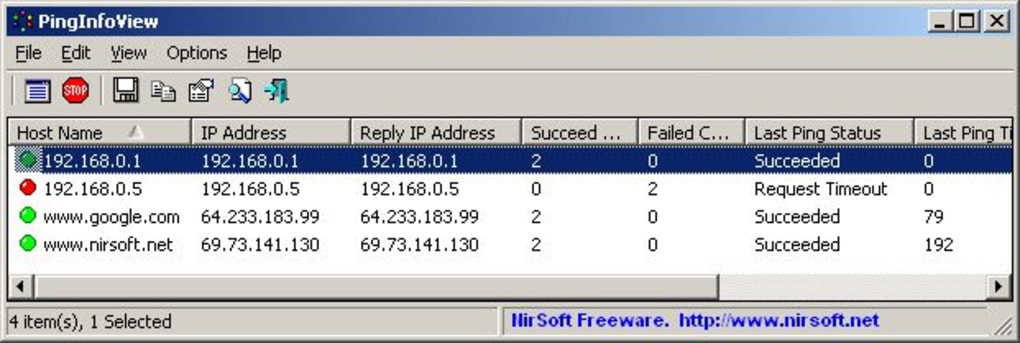
Initiating the Ping Test: Once you’ve configured the desired settings, you can start the ping test. PingInfoView will automatically ping all the listed hosts concurrently and display the results in a real-time, easy-to-understand table. The table typically includes information such as:
- Hostname or IP Address: The target of the ping test.
- Reply Time: The time it took for the host to respond (in milliseconds). High values indicate high latency.
- Packet Loss: The percentage of ping requests that did not receive a response. Non-zero values indicate network issues or host unavailability.
- Minimum, Maximum, and Average Reply Time: Statistical summary of the response times, providing a more comprehensive view of the network performance.
-
Importing Host Lists: For larger-scale testing, PingInfoView provides the ability to import lists of hostnames or IP addresses from text files. This feature dramatically speeds up the process of adding numerous targets.
-
Generating Log Files: PingInfoView offers the option to save the results of the ping tests to a log file in various formats, including text, HTML, and XML. This is incredibly useful for record-keeping, analysis, and sharing the test results with others.
- Handling False-Negative Results: As mentioned in the original text, it’s crucial to note that PingInfoView might occasionally produce false-negative results if the concurrent ping frequency is set excessively high. If you encounter inconsistencies, adjusting the ping interval to a less aggressive value will often resolve this issue.
Advantages of Using PingInfoView
PingInfoView stands out due to several key advantages:
- Ease of Use: Its intuitive interface makes it accessible to users of all technical skill levels.
- Speed and Efficiency: Simultaneous pinging significantly speeds up the testing process.
- Multiple Log File Formats: The ability to generate log files in various formats enhances the flexibility and utility of the results.
- Import Functionality: The import function dramatically simplifies the testing of many hosts.
- Free and Lightweight: It’s completely free to use and requires minimal system resources.
- Automated Pinging: The option to automate the ping process is invaluable for ongoing monitoring.
Limitations of PingInfoView
While PingInfoView is a powerful tool, it’s essential to be aware of its limitations:
- Potential for False-Negative Results: High ping frequencies can lead to inaccuracies.
- Limited Advanced Features: Compared to more sophisticated network monitoring tools, PingInfoView lacks advanced features such as detailed network topology mapping or real-time graphing.
- No Built-in Reporting: While it allows log file generation, it doesn’t offer sophisticated reporting features.
PingInfoView in Comparison to Other Ping Testing Utilities
Many ping testing utilities exist, each with its own strengths and weaknesses. Compared to tools like Ping Test Easy or Ping Tester Standard, PingInfoView differentiates itself with its ability to handle a larger number of simultaneous ping targets and its comprehensive logging capabilities. While simpler tools might suffice for basic single-host ping checks, PingInfoView excels in scenarios requiring simultaneous monitoring of multiple hosts, a crucial feature in network administration and troubleshooting.
Conclusion
PingInfoView is a valuable asset for anyone needing a simple yet effective tool for conducting multiple ping tests. Its user-friendly interface, combined with the ability to automate and log results, makes it suitable for both casual users and system administrators. Although it might lack some advanced features found in more comprehensive network monitoring software, its simplicity, speed, and free availability make it a highly recommended tool for performing efficient and accurate ping tests. Remember to be mindful of potential false-negative results associated with overly aggressive ping frequencies and adjust settings accordingly for optimal performance.
File Information
- License: “Free”
- Latest update: “May 21, 2025”
- Platform: “Windows”
- OS: “Windows XP”
- Language: “English”
- Downloads: “26.5K”
- Size: “84.11 KB”


