
Data loss is a pervasive problem affecting individuals and businesses alike. Whether it’s accidental deletion, a system crash, a virus attack, or hard drive failure, the sudden disappearance of crucial files can be devastating. Fortunately, powerful data recovery tools exist to mitigate this risk, and Power Data Recovery is a leading contender in this field. This comprehensive guide will delve into the features, functionality, and overall effectiveness of Power Data Recovery, exploring its strengths and weaknesses to help you determine if it’s the right solution for your needs.
Understanding the Power Data Recovery Software
Power Data Recovery is a data recovery utility designed to retrieve lost or deleted files from various storage devices. It’s marketed as a user-friendly application capable of handling a wide range of data loss scenarios, from simple accidental deletions to more complex issues involving hard drive damage or partition loss. The software boasts a straightforward interface, aiming to make the data recovery process accessible even to users without extensive technical expertise. Its core functionality relies on sophisticated scanning algorithms to identify and recover deleted or corrupted files.
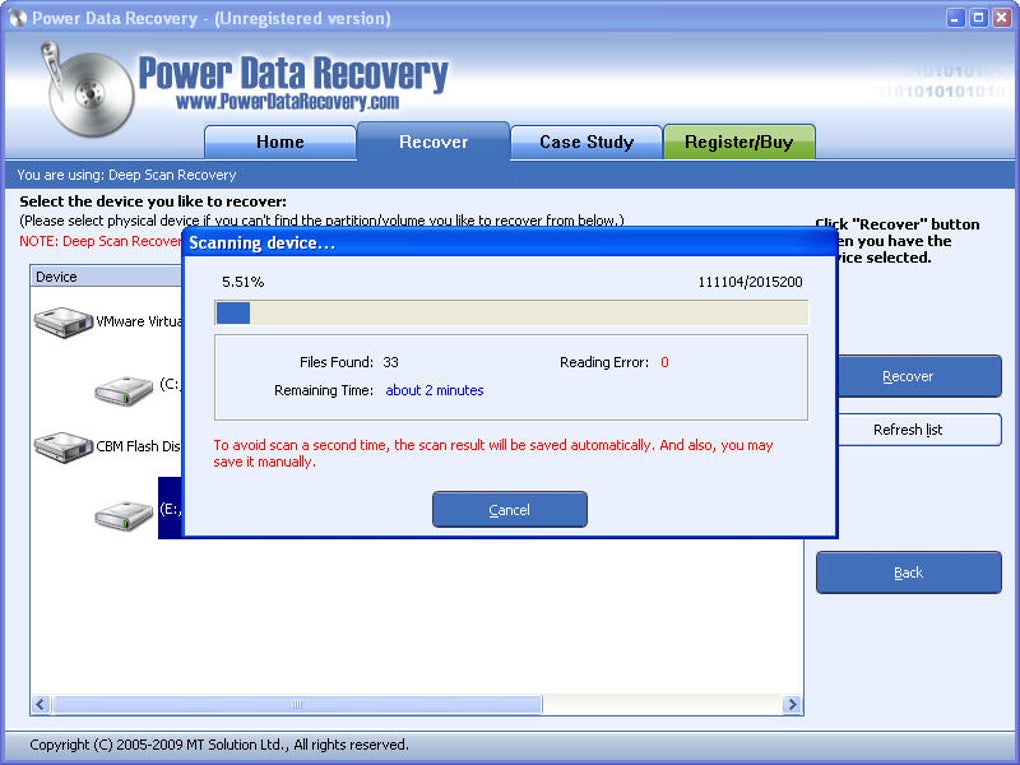
Power Data Recovery distinguishes itself through its modular approach. Rather than relying on a single, one-size-fits-all scanning method, it offers three distinct recovery modules, each tailored to specific data loss scenarios:
1. Undelete Recovery: This module focuses on recovering files that have been accidentally deleted but haven’t been overwritten by new data. It’s the quickest and least intensive scan option, ideal for situations where files were recently removed from the recycle bin or emptied storage. The speed and efficiency of this method make it the preferred choice for simple recovery tasks.
2. Advanced Recovery: This module is designed for more complex scenarios, such as recovering data from lost or damaged partitions. When a hard drive partition becomes inaccessible or corrupted, this module employs more rigorous scanning techniques to search for file fragments and reconstruct lost files. This process is more time-consuming but offers a higher likelihood of recovery in cases where standard methods fail.
3. Deep Scan Recovery: This is the most comprehensive and time-intensive scanning option offered by Power Data Recovery. This module performs an exhaustive search of the entire storage device, analyzing every sector for traces of deleted files. This method is best suited for situations where data loss is severe, files have been overwritten, or other recovery methods have proven unsuccessful. While potentially recovering files that other methods miss, the prolonged scan time is a significant drawback.
Ease of Use and User Interface
Power Data Recovery is designed with user-friendliness as a primary goal. Its interface is intuitive and straightforward, guiding users through the recovery process with clear instructions and visual cues. The three distinct recovery modules are clearly defined, allowing users to select the most appropriate option based on their specific situation. The software’s simplicity contrasts with some of its competitors, which often present users with complex settings and technical jargon.
The software walks the user through a four-step process:
- Selection of the drive or partition: Users select the storage device (hard drive, SSD, USB drive, etc.) from which they wish to recover data.
- Choosing a recovery module: The software presents the three modules (Undelete, Advanced, and Deep Scan), allowing the user to choose the method best suited to their needs.
- Initiating the scan: Once a module is selected, the scan process begins. Users can monitor the progress of the scan, and the software provides estimated completion times.
- File preview and recovery: After the scan is complete, the software displays a list of recoverable files. Users can preview files (images, videos, audio, and text) before initiating recovery, ensuring they are selecting the correct files. The ability to selectively recover files allows for more efficient use of storage space and avoids recovering unnecessary data.
The ability to pause and resume scans is a valuable feature, particularly for Deep Scan Recovery, which can take hours or even days to complete depending on the size of the drive. This pause/resume functionality ensures that interruptions do not necessitate restarting the entire scan.
Supported File Systems and File Types
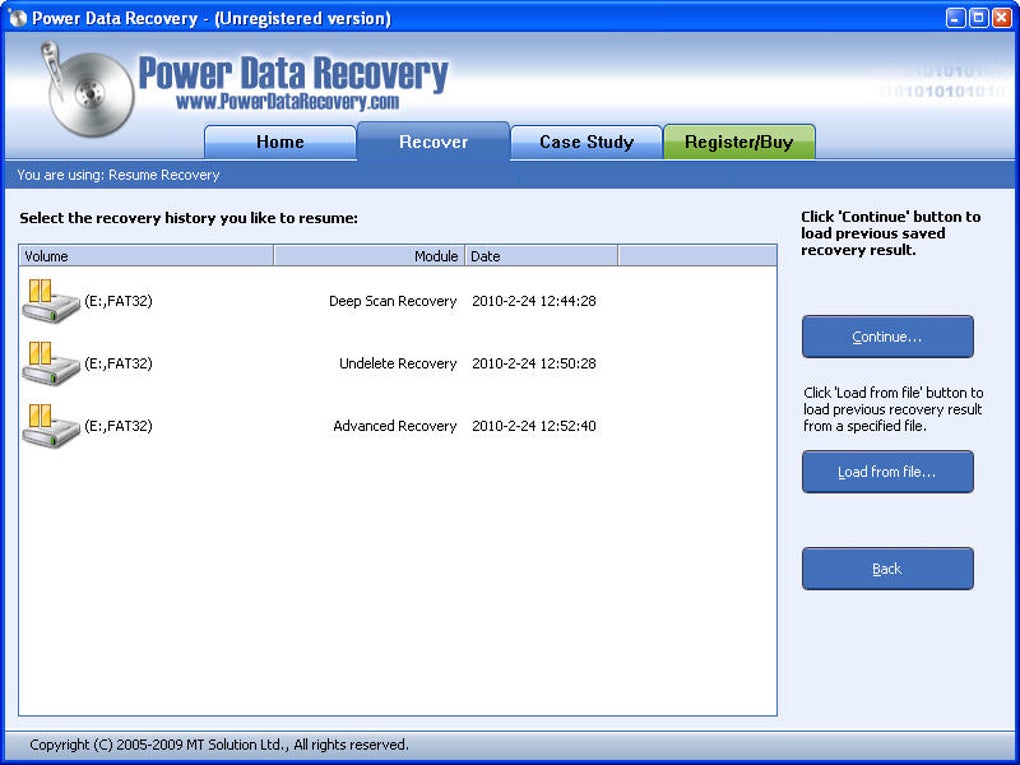
Power Data Recovery supports a range of file systems, including FAT12, FAT16, FAT32, and NTFS, covering most common storage devices used in personal computers. It also handles NTFS compressed and encrypted files, expanding its compatibility and usefulness for users with specific data encryption practices. The software’s ability to recover various file types, from documents and images to videos and audio files, makes it a versatile tool for a wide range of users. While the software claims broad support, it’s worth noting that the success rate of recovery can vary depending on the extent of data corruption and the specific file format. Highly fragmented or severely damaged files may not be recoverable, regardless of the software used.
Advantages and Disadvantages of Power Data Recovery
Power Data Recovery, like any data recovery software, has its strengths and weaknesses.
Advantages:
- User-friendly interface: The intuitive design makes it accessible to users with limited technical knowledge.
- Modular approach: The three recovery modules offer flexibility to handle diverse data loss scenarios.
- Pause and resume functionality: Allows for interruptions without the need to restart scans.
- File preview: Allows users to preview files before recovery, ensuring they only recover what they need.
- Supports multiple file systems: Compatible with FAT and NTFS file systems.
- Handles compressed and encrypted files: Expands its compatibility with various data storage methods.
Disadvantages:
- Trial limitations: The free trial version might have size restrictions, limiting its usefulness for extensive data recovery needs.
- Recovery success not guaranteed: The success of data recovery depends on several factors, including the severity of the data loss and the state of the storage device. The software may not recover all files in every instance.
- Performance: The Deep Scan module can be very time-consuming, especially for large storage devices.
- Cost: The full version requires a purchase, which may be a barrier for some users.
- User reviews are mixed: While some users report positive experiences, others have noted issues with navigation and recovery success rates, suggesting variability in performance.
Alternatives to Power Data Recovery
The market offers a range of data recovery software, and Power Data Recovery is not the only option available. Users should consider alternatives based on their specific needs and budget. Some popular alternatives include Recuva, EaseUS Data Recovery Wizard, and Wondershare Recoverit. Each of these offers similar functionalities, but with variations in interface, features, and pricing. Comparing reviews and features before making a decision is highly recommended.
Conclusion
Power Data Recovery provides a user-friendly approach to data recovery, offering a range of options for handling different data loss situations. Its intuitive interface and modular scanning methods make it accessible to a wide range of users, while features like file preview and the ability to pause and resume scans add significant convenience. However, potential users should carefully consider the trial limitations, the potential for unsuccessful recovery attempts, and the overall cost before purchasing the full version. Comparative research into alternative software is recommended to find the best solution for individual needs and budget. Remember that no data recovery software guarantees a perfect recovery, and data loss prevention strategies, such as regular backups, remain crucial for protecting valuable data.
File Information
- License: “Trial version”
- Latest update: “May 6, 2025”
- Platform: “Windows”
- OS: “Windows 2003”
- Language: “English”
- Downloads: “242.5K”
- Size: “2.33 MB”


