
PowerShell, a command-line shell and scripting language, is a powerful tool integral to the Windows operating system. Far exceeding the capabilities of its predecessor, the command prompt (cmd.exe), PowerShell leverages the .NET Framework to provide a robust and versatile environment for system administration, automation, and scripting. This article explores the intricacies of PowerShell, examining its features, capabilities, and applications.
Understanding PowerShell’s Core Functionality
PowerShell’s strength lies in its object-oriented nature. Unlike cmd.exe, which primarily handles text strings, PowerShell operates on .NET objects. This fundamental difference grants significantly enhanced functionality. Each command (cmdlet) in PowerShell returns objects with properties and methods, enabling complex manipulation and analysis. This object-oriented approach allows for streamlined data processing and simplifies scripting tasks that would be cumbersome in traditional command-line environments.
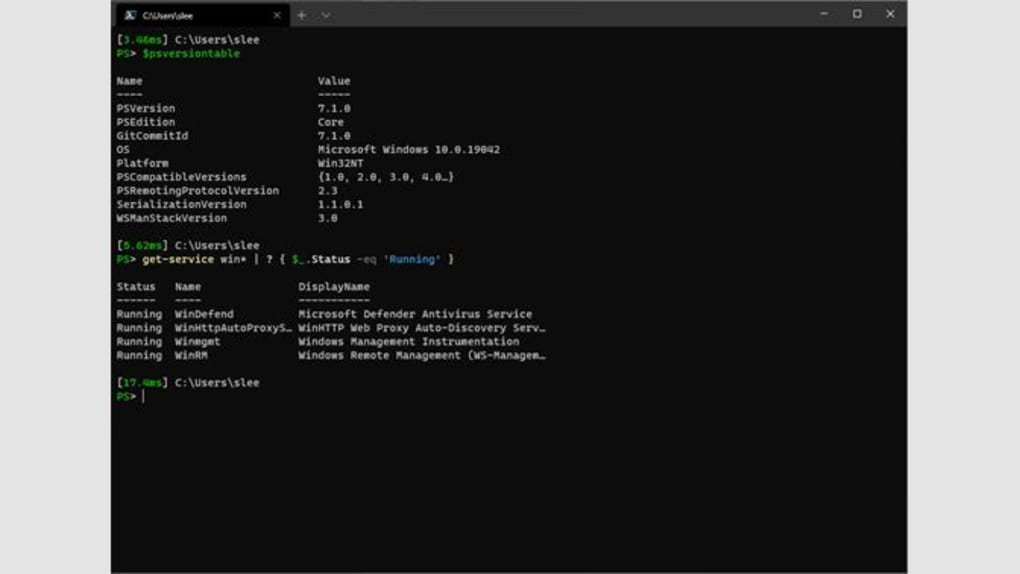
Furthermore, PowerShell’s extensive cmdlet library offers a comprehensive set of commands for managing virtually all aspects of the Windows operating system. From managing files and processes to configuring network settings and interacting with Active Directory, PowerShell provides a unified interface for diverse system administration tasks. This centralized management capability is a significant advantage over using disparate tools for different administrative functions.
PowerShell scripts, written in its own scripting language, allow for the automation of repetitive tasks and the creation of custom tools. These scripts can be used to automate system maintenance, deploy software, configure applications, and much more. The ability to create custom functions and modules extends PowerShell’s capabilities even further, allowing administrators to tailor the environment to their specific needs. This extensibility is a key factor in PowerShell’s wide adoption across various organizations and technical domains.
The pipeline, a core component of PowerShell, allows for the sequential processing of data. This means the output of one cmdlet can be directly piped as input to another, creating powerful and efficient workflows. For instance, a script could retrieve a list of running processes, filter them based on specific criteria, and then terminate the selected processes – all within a single, elegant pipeline. The pipeline’s inherent efficiency streamlines complex tasks and dramatically reduces the amount of code required compared to traditional scripting methods.
PowerShell’s Advantages and Applications
PowerShell offers several key advantages over traditional command-line interfaces and other scripting languages. Its object-oriented nature, combined with its extensive cmdlet library and powerful scripting capabilities, makes it an invaluable tool for system administrators, developers, and anyone needing to automate tasks on Windows systems.
Enhanced System Management: PowerShell’s comprehensive cmdlets provide granular control over all facets of the Windows operating system. Tasks such as user account management, event log analysis, and service control are significantly simplified compared to manual or GUI-based methods. The ability to automate these tasks through scripting further enhances efficiency and reduces the risk of human error.
Simplified Automation: Repetitive and time-consuming tasks can be automated with PowerShell scripts, leading to significant time savings and improved productivity. For instance, deploying software to multiple machines, generating reports, or performing routine maintenance can all be automated with PowerShell scripts, enabling system administrators to focus on more strategic initiatives.
Improved Security: PowerShell can be utilized to enhance system security through automated security audits, vulnerability assessments, and intrusion detection. Its ability to interact with security logs and other system components allows for proactive security monitoring and incident response.
Custom Tool Development: PowerShell’s flexible scripting language allows for the creation of custom tools tailored to specific needs. This enables organizations to build solutions that seamlessly integrate with existing infrastructure and workflows, thereby enhancing efficiency and reducing reliance on third-party tools.
Remote Management: PowerShell Remoting allows for the remote management of multiple computers, simplifying the administration of large networks. This remote access capability streamlines tasks such as software deployment, configuration management, and troubleshooting across distributed environments.
Mastering PowerShell: Key Concepts and Techniques
To effectively utilize PowerShell, understanding several core concepts is essential:
Cmdlets: These are the fundamental commands in PowerShell. They typically follow a verb-noun naming convention (e.g., Get-Process, Set-Location, Stop-Service). This consistent naming scheme simplifies learning and use.
Pipelines: As previously mentioned, pipelines are crucial for chaining cmdlets together to create complex workflows. The pipe symbol (|) is used to connect cmdlets, passing the output of one as input to the next.
Variables: PowerShell allows for the storage and manipulation of data using variables. Variables are prefixed with a dollar sign ($).
Functions: These are reusable blocks of code that can be called multiple times within a script. Functions promote code reusability and improve organization.
Modules: Modules are collections of related cmdlets, functions, variables, and other resources. They extend the functionality of PowerShell by providing access to specialized commands. Numerous pre-built modules are available, covering areas such as Active Directory, Azure, and Exchange.
Scripting: PowerShell scripting enables automation of complex tasks. Scripts can incorporate conditional logic, loops, and error handling, creating sophisticated automation workflows.
Advanced PowerShell Techniques and Best Practices
Beyond the fundamentals, several advanced techniques enhance PowerShell’s capabilities:
PowerShell Remoting: This enables managing remote computers directly from your local machine, greatly enhancing administrative efficiency, especially in large networks. Proper security configuration is paramount when using remote management.
Windows Management Instrumentation (WMI): WMI allows for interacting with various aspects of the Windows operating system through a standardized interface. PowerShell provides cmdlets that leverage WMI, opening up access to a wealth of system information and management capabilities.
Desired State Configuration (DSC): This declarative configuration management system allows defining the desired state of a system and automatically applying the necessary changes to achieve that state. DSC enhances consistency and reduces the risk of configuration drift.
Error Handling: Robust error handling is crucial in any scripting environment. PowerShell provides mechanisms for trapping and handling errors, preventing unexpected script termination and allowing for graceful error recovery.
Best Practices: Follow coding best practices such as using descriptive variable names, adding comments to explain complex logic, and thoroughly testing scripts before deployment to production environments.
PowerShell is a constantly evolving tool. Microsoft regularly releases updates and new modules, expanding its functionality and addressing vulnerabilities. Staying current with the latest releases is crucial for leveraging its full potential and ensuring security. Through consistent practice and exploration of its advanced features, users can unlock the full power of PowerShell, significantly improving their efficiency and effectiveness in managing and automating Windows systems. The learning curve may initially seem steep, but the rewards of mastering this powerful tool far outweigh the initial investment of time and effort.
File Information
- License: “Free”
- Version: “7.5.1”
- Latest update: “June 20, 2025”
- Platform: “Windows”
- OS: “Windows 8.1”
- Language: “English”
- Downloads: “15.2K”
- Size: “104.41 MB”


