
Realtek HD Audio Drivers x64 are essential software components for enabling high-quality audio on 64-bit Windows PCs. While crucial for optimal sound reproduction, these drivers are notorious for their sometimes unpredictable installation and user interface. This comprehensive guide explores the intricacies of Realtek HD Audio Drivers x64, examining their functionality, installation challenges, interface variations, configuration options, and overall user experience.
Understanding Audio Drivers and Their Importance
Before delving into the specifics of Realtek HD Audio Drivers x64, it’s crucial to understand the fundamental role of audio drivers within a computer’s operating system. Drivers act as intermediaries, translating instructions from software applications (like music players or video editors) into commands that the computer’s hardware (in this case, the sound card) can understand and execute. Without properly functioning audio drivers, your computer’s sound card remains mute, unable to process and output audio signals.
Realtek is a prominent manufacturer of integrated sound cards frequently found in motherboards and laptops. Their HD Audio drivers are designed to harness the full potential of their audio hardware, delivering high-fidelity sound reproduction and enhancing the overall audio experience. The “x64” designation signifies that these drivers are specifically optimized for 64-bit versions of Windows, a prevalent architecture for modern PCs.
The Installation Process: A User’s Perspective
Installing Realtek HD Audio Drivers x64 can range from straightforward to frustrating, depending on various factors. In the ideal scenario, the process mirrors that of most software installations:
- Download: Download the appropriate driver package from a trusted source, such as the Realtek website or a reputable software distributor.
- Uninstallation (if necessary): Uninstall any pre-existing Realtek audio drivers. This step is crucial to prevent conflicts and ensure the new drivers install correctly.
- Installation: Execute the downloaded installer. The installer will guide you through the process, usually requiring minimal user interaction.
- Restart: After installation, restart your computer to complete the process and allow the changes to take effect.
However, the process is not always this smooth. Several factors can complicate the installation:
- Conflicting drivers: Pre-existing drivers may not uninstall cleanly, leading to conflicts and installation failures.
- Windows Updates: Simultaneous Windows updates can interrupt the driver installation, causing delays and potential errors.
- Hardware incompatibility: In rare cases, there might be incompatibility issues between the drivers and the specific sound card hardware.
- Missing dependencies: The installer may require other system components or libraries to be present for a successful installation.
These complications underscore the importance of patience and methodical troubleshooting when installing these drivers. If installation problems persist, consulting Realtek’s support documentation or seeking help from online forums can be beneficial.
Navigating the Realtek Audio Interface: A Diverse Landscape
Once successfully installed, interacting with Realtek HD Audio Drivers x64 can also present a degree of variability. The user interface for configuring audio settings isn’t standardized; its appearance and functionality depend on several factors:
- Windows version: Different versions of Windows may present different interfaces or control panels.
- Realtek driver version: Newer driver versions may incorporate updated interfaces with improved functionality.
- Motherboard manufacturer: Motherboard manufacturers might customize the Realtek interface, resulting in slight variations in appearance and features.
Three common methods for accessing Realtek audio settings include:
- Realtek Audio Console (Windows Store App): This app, if available, provides a user-friendly interface for adjusting various audio settings.
- RtkNGUI64 (Program Files): Manually locating and running the RtkNGUI64 executable in the Realtek program files directory can provide access to advanced audio settings.
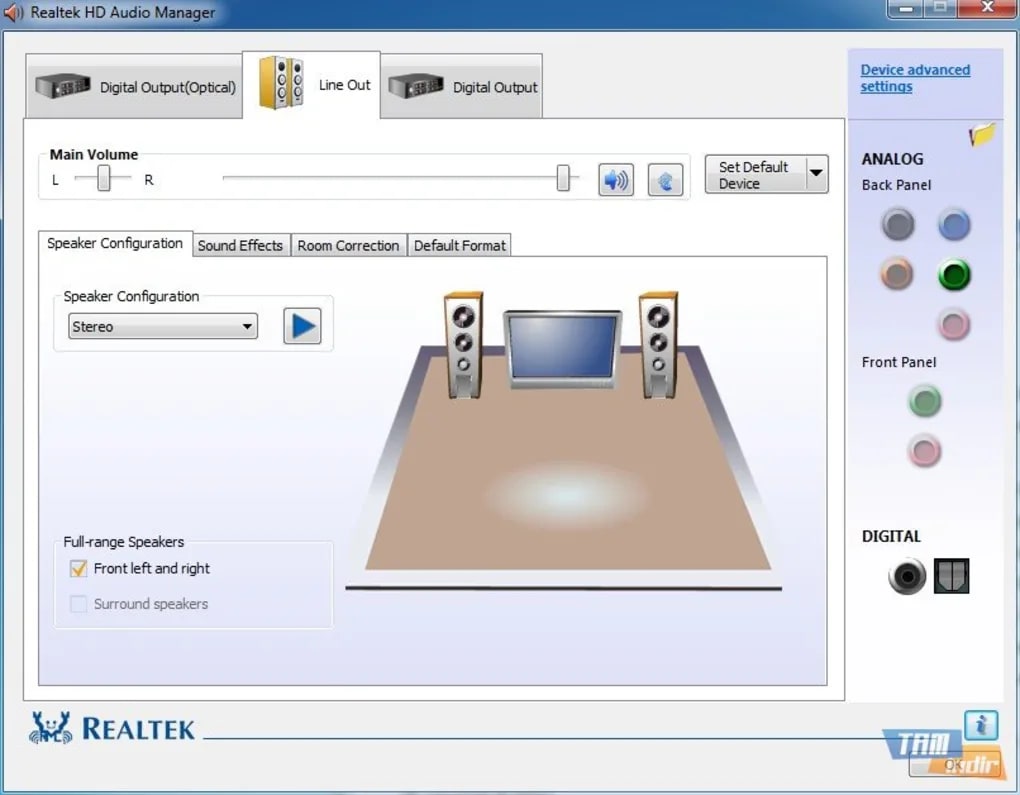
- Realtek HD Audio Manager (Control Panel): The standard Windows control panel might include a dedicated Realtek HD Audio Manager, offering a range of audio configuration options.
This lack of uniformity can be confusing for users. Determining the correct method for accessing audio settings necessitates some trial and error, which can be frustrating for those unfamiliar with these configurations.
Configuring Audio Settings: Tailoring Your Sound Experience
Gaining access to the Realtek audio interface grants access to a range of configuration options for both playback and recording. These configurations allow users to customize their audio experience to their preferences and needs:
Playback Settings:
- Speaker configuration: Define the audio output configuration (stereo, 5.1 surround, etc.) and assign specific speakers to channels.
- Volume levels: Independently adjust the volume for individual speakers or output channels.
- Audio formats: Select the preferred audio format (bit depth and sample rate) for CD and DVD playback.
Recording Settings:
- Microphone configuration: Adjust the microphone’s input levels, balance, and other settings.
- Far-field pickup: Enable or disable far-field pickup for improved voice recognition even when not speaking directly into the microphone.
- Microphone boost: Increase microphone sensitivity to amplify quieter voices.
Beyond these fundamental settings, some Realtek interfaces also offer advanced options:
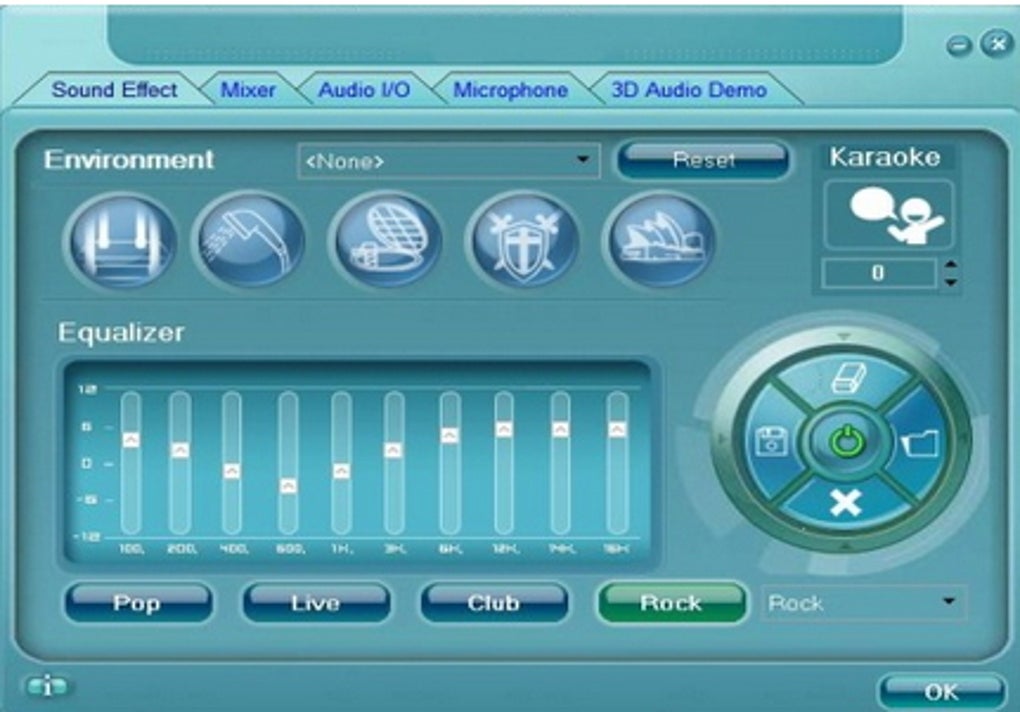
- Sound effects: Apply various audio enhancements like equalization, surround sound simulation, and other effects.
- Voice cancellation: Reduce background noise to improve the clarity of voice recordings.
The availability of these advanced options varies depending on the specific Realtek driver version and the interface used.
Challenges and Limitations: Why Realtek HD Audio Drivers Can Be Tricky
The inconsistent user experience and unpredictable interface are primary reasons why Realtek HD Audio Drivers x64 have a reputation for being complicated. The lack of a unified interface across different systems and driver versions makes it challenging for users to learn and master the available settings.
Furthermore, the variability in available options and the absence of comprehensive documentation can lead to frustration. Users may find themselves experimenting with different settings to achieve their desired audio configuration, which might not always be successful.
The lack of consistent help and support documentation further exacerbates these challenges. Users may struggle to find solutions to common problems without resorting to extensive online searches or relying on community forums.
Conclusion: Weighing the Pros and Cons
Realtek HD Audio Drivers x64, while undeniably essential for enabling high-definition audio on many PCs, are not without their challenges. Their benefits include providing extensive control over audio settings, enabling advanced sound effects, and enhancing the overall audio experience. However, their inconsistent user interface, unpredictable installation process, and sparse documentation can lead to frustration for many users.
Ultimately, the decision of whether to meticulously configure Realtek audio settings depends on individual user priorities. Those seeking granular control over audio output and input might find the effort worthwhile. However, users who prioritize simplicity and hassle-free audio might prefer to accept the default settings and avoid the potential complexities. In the end, the experience can be highly variable, highlighting the need for improved standardization and documentation from Realtek.
File Information
- License: “Free”
- Latest update: “May 23, 2023”
- Platform: “Windows”
- OS: “Windows 8.1”
- Language: “English”
- Downloads: “3M”
- Size: “108.96 MB”


