
RecForth is a versatile screen recording software designed for a broad range of users, from tutorial creators and video makers to YouTubers and gamers. Its intuitive interface and powerful features make it a compelling choice for capturing various activities, including gameplay, tutorials, lectures, webinars, live streams, and even Skype calls. This comprehensive guide delves into the features, benefits, and overall user experience of RecForth, exploring its strengths and limitations.
Powerful Recording Capabilities for Diverse Needs
RecForth’s core strength lies in its ability to cater to a wide spectrum of recording needs. Its functionality extends beyond simple screen capture, offering advanced features designed to enhance the quality and usability of recordings. The software seamlessly integrates audio and webcam recording, allowing for rich, multi-faceted content creation.
High-Definition Recording: RecForth supports high-definition (HD) recording, enabling users to capture their screens in 1080p and even 4K resolution. This high-resolution capability ensures that recordings maintain clarity and detail, crucial for producing professional-looking videos. The ability to record at up to 120 frames per second (FPS) when recording gameplay ensures smooth, fluid footage, especially beneficial for fast-paced games. This is a significant advantage for gamers looking to create high-quality gameplay videos for online platforms like YouTube or Twitch.
Flexible Recording Area Selection: Users aren’t limited to recording their entire screen. RecForth allows for precise selection of the recording area. Whether it’s the full screen, a specific application window, or a custom-defined region, users have complete control over the area captured in their recordings. This flexibility is incredibly useful for creating focused tutorials or highlighting specific aspects of a program without unnecessary clutter.
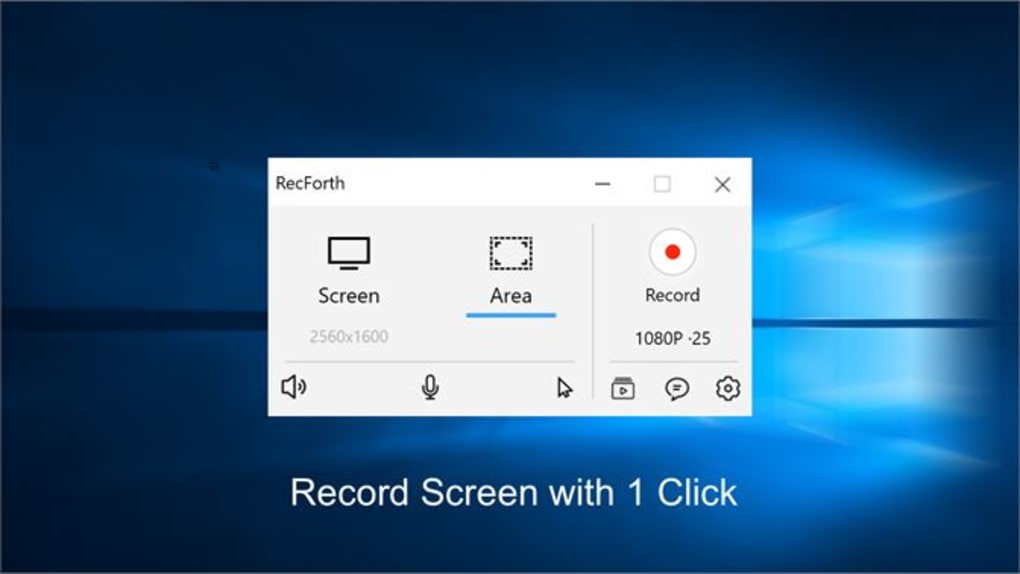
Comprehensive Audio Capture: Audio is often a critical component of screen recordings, and RecForth excels in this area. It provides options to capture system sounds, microphone input, and other audio sources simultaneously. This feature ensures that all relevant audio is included in the recording, making the final product more engaging and informative. For instance, this is ideal for creating tutorials that incorporate both visual demonstrations and verbal explanations.
Webcam Integration and Mouse Pointer Effects: Adding a webcam feed to screen recordings can significantly enhance viewer engagement. RecForth allows users to integrate their webcam footage into the recording, enabling a direct-to-camera presentation alongside the screen capture. Furthermore, the software offers customizable mouse pointer effects, such as highlighting or enlarging the pointer, making it easier for viewers to follow the on-screen actions. This can be particularly helpful for tutorials where precise mouse movements are crucial.
User-Friendly Interface and Intuitive Controls
RecForth prioritizes user experience with a clean, intuitive interface. Its straightforward design ensures that even users unfamiliar with screen recording software can quickly grasp its functionalities and begin creating recordings with minimal effort. Key features contributing to its user-friendliness include:
- Simple Recording Initiation: The process of initiating a recording is streamlined, eliminating any unnecessary steps. Users can start and stop recordings with a few simple clicks.
- Pause and Resume Functionality: RecForth allows users to pause and resume recordings as needed, providing flexibility and control over the recording process. This is particularly beneficial for longer recordings that might require interruptions.
- Countdown Timer: A built-in countdown timer gives users ample time to prepare before recording commences, reducing the chance of capturing unwanted initial footage.
- Pointer Highlighting: As previously mentioned, the pointer highlighting feature enhances viewer clarity and understanding during recordings.
These user-friendly features contribute to a smooth and efficient workflow, allowing users to focus on creating high-quality content without being bogged down by complex settings or confusing interfaces.
Premium Features and Pricing
While RecForth offers a substantial suite of features in its free version, it also provides premium features accessible through in-app purchases. These upgrades enhance the functionality and capabilities of the software significantly.
- Watermark Removal: The free version includes a watermark on recordings. The premium version removes this watermark, enabling users to create professional-looking videos without branding.
- Unlimited Recording Duration: The free version might have limitations on the length of recordings. The premium version lifts these restrictions, allowing for unlimited recording durations.
- Higher Resolutions and Frame Rates: Premium users can access higher resolutions and frame rates, surpassing the capabilities of the free version. This is particularly beneficial for high-quality content creation, such as 4K gaming videos at higher FPS for ultra-smooth gameplay footage.
- Customizable Cursor Effects: The premium version allows for further customization of cursor effects, offering more creative options for highlighting actions within the recording.
These premium features are available through two payment options: an annual subscription of $9.99 or a one-time purchase of a lifetime license for $14.99. The choice between these options depends on individual preferences and long-term usage plans. The one-time purchase provides a cost-effective solution for users who intend to use the software extensively over a long period.
Comparison with Alternative Screen Recorders
RecForth competes with a multitude of screen recording software options available in the market. While a detailed comparison against every competitor is beyond the scope of this guide, we can highlight some key differentiators:
RecForth’s user-friendly interface and straightforward design sets it apart from more complex and feature-rich alternatives. Some professional-grade screen recorders offer an overwhelming array of settings and functionalities, which can be daunting for novice users. RecForth strikes a balance between ease of use and powerful features, catering to a broader user base.
Compared to completely free screen recorders, RecForth’s premium features offer a significant upgrade. While free alternatives exist, they often lack features like high-resolution recording, unlimited recording duration, and watermark removal, crucial aspects for creating polished videos. RecForth’s pricing model presents a viable alternative to completely free options that often come with limitations.
Conclusion: A Versatile Tool for Various Content Creators
RecForth offers a compelling solution for users seeking a user-friendly yet powerful screen recording software. Its ability to seamlessly capture various activities, from simple screencasts to high-quality gameplay footage, combined with its intuitive interface, makes it a strong contender in the market. While the premium features add significant value, the free version still provides a solid foundation for users looking to explore screen recording capabilities. The balance of ease of use and powerful features makes RecForth a versatile tool for a broad range of content creators. Its flexibility and ability to adapt to different recording needs make it a valuable asset for anyone looking to create high-quality video content.
File Information
- License: “Free”
- Version: “1.0.9”
- Latest update: “February 6, 2024”
- Platform: “Windows”
- OS: “Windows 10”
- Language: “English”
- Downloads: “14.2K”


