
Managing multiple remote desktop connections can quickly become a logistical nightmare. Juggling various usernames, passwords, and IP addresses across numerous applications leads to inefficiency and potential security risks. Fortunately, the Remote Desktop Connection Manager (RDCMan) offers a streamlined solution, consolidating your remote access points into a single, user-friendly interface. This powerful utility, developed by Microsoft, significantly simplifies the management of multiple remote desktop sessions, enhancing productivity and security for both personal and professional use.
Understanding the Power of RDCMan
RDCMan is a free, invaluable tool designed to manage multiple remote desktop connections simultaneously. Its core function lies in centralizing the management of various remote computers, eliminating the need to navigate multiple RDP windows and connection strings. Instead of launching individual Remote Desktop Protocol (RDP) connections for each server or workstation, RDCMan allows users to organize these connections into logical groups, making access quick, efficient, and highly organized. This is particularly beneficial for system administrators, network engineers, and anyone regularly managing a large number of remote machines, such as those involved in server maintenance, virtual machine administration, or large-scale network deployments.
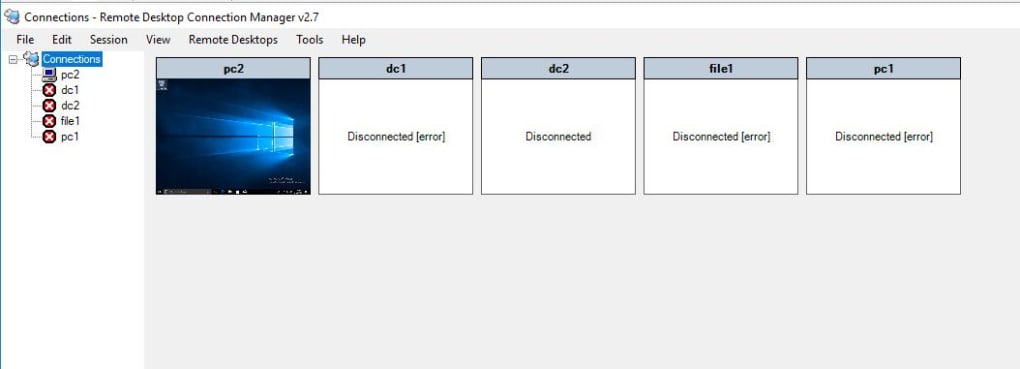
The application’s strength resides in its ability to neatly organize these connections, greatly enhancing workflow. The intuitive interface permits the creation of groups representing different projects, departments, or locations. Within each group, you can add individual servers, each with its own defined credentials and settings. This organizational structure allows for swift access to specific machines without the confusion of multiple, disparate RDP sessions cluttering the desktop. This not only increases efficiency but also significantly improves the overall user experience.
Key Features and Functionality
RDCMan offers a range of features geared towards simplifying and securing remote access. Its core functionality revolves around:
-
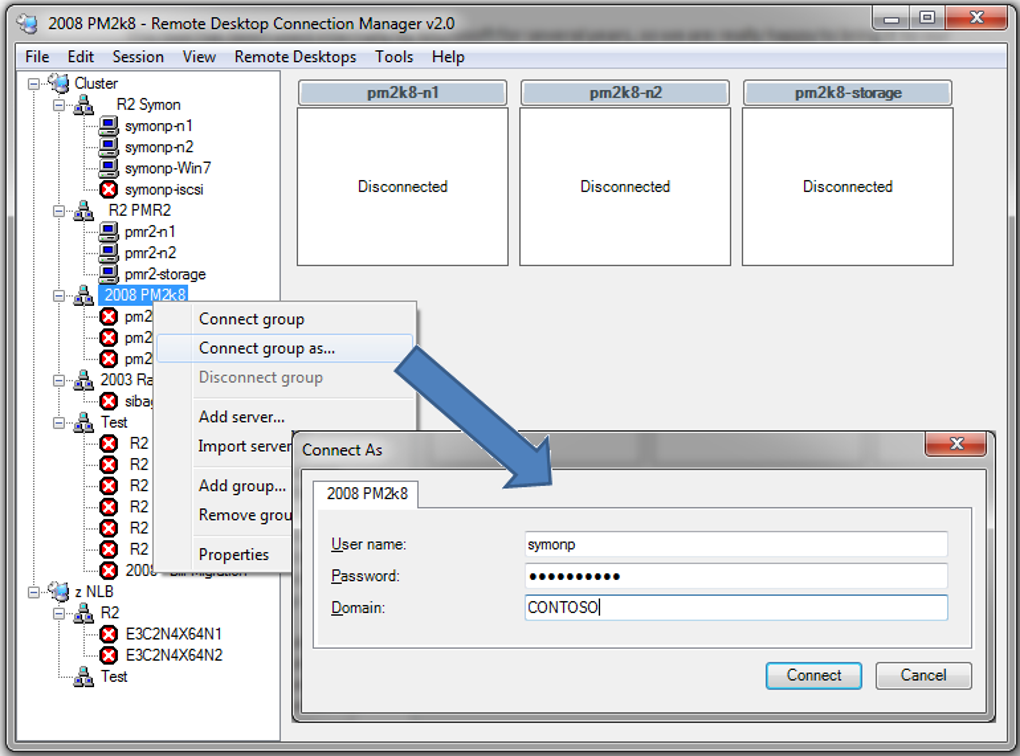
Group Management: The ability to create and manage multiple groups is central to RDCMan’s effectiveness. Each group can represent a different project, department, or logical grouping of remote computers, enabling users to efficiently organize numerous connections. This hierarchical structure simplifies navigation and access, preventing confusion when dealing with a large number of remote desktops.
-
Individual Server Configuration: Within each group, you can add individual servers with their respective IP addresses or hostnames. Importantly, RDCMan allows for the saving of individual credentials for each server, enhancing ease of access. This eliminates the need to repeatedly enter login details for each connection, streamlining the process and saving valuable time. The application also supports credential encryption with certificates for enhanced security.
-
Thumbnail View: RDCMan provides a thumbnail view of each connected server, offering a visual representation of the active sessions. This feature aids quick identification of specific machines and their status, contributing to a more intuitive and efficient management system.
-
Connect-to-Console Support for Virtual Machines: For those managing virtual machines, RDCMan offers seamless connect-to-console support. This allows direct access to the virtual machine’s console, simplifying troubleshooting and management tasks within the virtual environment.
-
Centralized Management: The ability to manage all remote connections from a single interface is a significant advantage. This contrasts with the cumbersome process of opening and managing numerous individual RDP connections, highlighting RDCMan’s efficiency in handling numerous remote access points.
Streamlining Workflow and Enhancing Productivity
The impact of RDCMan on productivity is substantial. Consider the scenario of a system administrator responsible for monitoring and managing hundreds of servers across different geographical locations. Without a tool like RDCMan, accessing and managing these servers would involve a complex process of navigating multiple RDP windows, remembering various IP addresses, and repeatedly entering credentials. This not only consumes significant time but also increases the risk of human error.
RDCMan eliminates these inefficiencies. The centralized management interface reduces the time spent accessing and managing remote connections, allowing administrators to focus on crucial tasks. The organization features significantly improve the workflow, leading to enhanced productivity and reduced frustration. The ability to quickly access specific groups and servers streamlines troubleshooting, maintenance, and other remote management tasks.
Security Considerations and Best Practices
While RDCMan itself doesn’t inherently introduce new security vulnerabilities, its use necessitates adherence to robust security best practices to avoid potential risks. These include:
-
Strong Passwords: Using strong, unique passwords for each server connection is paramount. Avoiding easily guessable passwords and employing password management tools helps protect against unauthorized access.
-
Credential Encryption: RDCMan supports credential encryption using certificates, enhancing the security of stored credentials. Utilizing this feature is highly recommended to protect sensitive login information.
-
Network Security: Ensuring the underlying network’s security is crucial. Implementing appropriate firewalls, intrusion detection systems, and other network security measures is vital to protect against external threats.
-
Regular Updates: Staying current with the latest version of RDCMan is essential to benefit from security patches and bug fixes. Regularly checking for updates and promptly installing them mitigates potential vulnerabilities.
-
Access Control: Implementing appropriate access controls within the RDCMan configuration ensures only authorized personnel can access specific groups and servers. This prevents unauthorized access and helps maintain the integrity of the managed systems.
-
Regular Audits: Periodically reviewing the RDCMan configuration, including user permissions and access logs, is crucial for identifying potential security issues and ensuring compliance with security policies.
Comparison with Alternative Solutions
Several alternative solutions exist for managing multiple remote desktop connections. However, RDCMan distinguishes itself through its simplicity, ease of use, and integration with the Windows operating system. While some commercial solutions offer more advanced features, such as automated scripting and remote control capabilities, RDCMan’s strength lies in its user-friendly interface and its ability to quickly and effectively manage multiple connections without the complexity of higher-end, often costly, software.
Other solutions may require extensive configuration or specialized knowledge to use effectively. RDCMan’s straightforward approach makes it accessible to a broader range of users, reducing the learning curve and allowing for immediate productivity gains.
Conclusion: A Must-Have Tool for Efficient Remote Management
The Remote Desktop Connection Manager is a powerful and user-friendly tool for anyone who regularly manages multiple remote desktops. Its ability to consolidate connections into a single, organized interface dramatically improves efficiency, reduces errors, and enhances security. Whether you’re a system administrator managing a large network or a developer working with multiple virtual machines, RDCMan offers a significant improvement over managing individual RDP connections. Its straightforward approach, coupled with essential security features, makes it an indispensable tool for efficient and secure remote management. The free availability of RDCMan further enhances its appeal, making it an accessible and valuable asset for users across various technical skill levels.
File Information
- License: “Free”
- Version: “2.7.1406.0”
- Latest update: “September 24, 2019”
- Platform: “Windows”
- OS: “Windows 8.1”
- Language: “English”
- Downloads: “25.1K”
- Size: “1.19 MB”


