Factory resetting your phone, also known as a hard reset, is a powerful tool for resolving various issues and returning your device to its original state. While seemingly straightforward, the process can be intimidating for users unfamiliar with their phone’s settings. This comprehensive guide will explore different methods for performing a factory reset, addressing common concerns and providing step-by-step instructions for various phone operating systems. We’ll also examine the advantages and disadvantages of factory resets, explore alternative solutions, and highlight crucial steps to take before initiating the process.
Understanding Factory Resets
A factory reset completely erases all data and settings on your phone, returning it to the condition it was in when you first purchased it. This includes everything from downloaded apps and personal files (photos, videos, documents, etc.) to customized settings like wallpapers, ringtones, and Wi-Fi passwords. Essentially, it’s like starting fresh with a brand-new device.
Why Perform a Factory Reset?
There are several reasons why you might consider a factory reset:
- Troubleshooting software problems: If your phone is experiencing persistent glitches, crashes, or slow performance, a factory reset can often resolve these issues by eliminating corrupted files or settings.
- Selling or giving away your phone: Before selling or gifting your phone, a factory reset is essential to protect your personal information and ensure the recipient starts with a clean slate.
- Preparing for a software update: Sometimes, a major software update requires a factory reset to ensure a smooth and successful installation.
- Resetting after a malware infection: If your phone has been infected with malware, a factory reset is a crucial step in removing the malicious software and restoring your device’s security.
- Returning to default settings: If you’ve extensively customized your phone and want to revert to its original settings, a factory reset can simplify this process.
Before You Begin: The Importance of Backups
Before initiating a factory reset, it’s absolutely critical to back up all your important data. A factory reset is irreversible, and any data not backed up will be permanently lost. Consider these backup options:
- Cloud services: Services like Google Drive, iCloud, OneDrive, and Dropbox allow you to automatically back up photos, videos, contacts, and other files to the cloud. Ensure your backup is complete and up-to-date before proceeding.
- Computer backup: Connect your phone to your computer and use a file management program to copy important files to your hard drive.
- External storage: If your phone has a microSD card slot, you can transfer photos, videos, and other files to the card for safekeeping.
What Happens During a Factory Reset?
The process involves several steps, ultimately resulting in a completely wiped device. The specific steps may vary slightly depending on your phone’s operating system and manufacturer, but the general process remains consistent:
-
Initiating the reset: This typically involves navigating to the “Settings” menu, finding the “System” or “General” section, and selecting “Reset” or a similar option. You will likely be presented with a confirmation screen, asking you to verify your decision.
-
Data erasure: The phone will then begin the process of erasing all data and settings. This can take anywhere from a few minutes to over half an hour, depending on the amount of data stored on your device and its processing power.
- Rebooting: Once the data erasure is complete, the phone will reboot, essentially starting up as a brand-new device. You will be guided through the initial setup process, including setting up your language, Wi-Fi connection, and Google account (if applicable).
Performing a Factory Reset: Step-by-Step Guides
The specific steps for performing a factory reset vary slightly depending on your operating system (Android or iOS). Below are general guidelines. Always consult your phone’s user manual or your manufacturer’s website for precise instructions specific to your device model.
Android Factory Reset:
- Open Settings: Find the “Settings” app on your home screen or app drawer.
- Navigate to System: Look for a section labeled “System,” “General Management,” or something similar. The exact wording may differ depending on the Android version and phone manufacturer.
- Find Reset Options: Within the System menu, you’ll find options related to resetting your phone. This might be called “Reset options,” “Reset,” or something similar.
- Select Factory Data Reset: This is the option that will perform a full factory reset.
- Confirm the Reset: You’ll be prompted to confirm your decision. This step is crucial to prevent accidental data loss. Carefully read any warnings and confirmations before proceeding.
- Enter your PIN or password: You might need to enter your device’s PIN, password, or pattern to authorize the reset.
- Wait for the Reset to Complete: This process can take several minutes, depending on your phone’s storage capacity and processing speed. Do not interrupt the process.
- Setup Your Phone: Once the reset is complete, your phone will reboot. You’ll then need to go through the initial setup process as if you were setting up a new phone.
iOS Factory Reset (iPhone):
- Open Settings: Locate the “Settings” app on your iPhone’s home screen.
- Go to General: Tap on “General” within the Settings menu.
- Select Transfer or Reset iPhone: This option is usually towards the bottom of the General settings.
- Tap on Erase All Content and Settings: This will initiate the factory reset process. You’ll be prompted to confirm your action.
- Enter your Passcode: You will need to enter your iPhone’s passcode to authorize the erase.
- Wait for Completion: The process will take some time, depending on the amount of data on your iPhone.
- Set up your iPhone: After the reset, your iPhone will reboot and prompt you through the initial setup process.
Alternative Solutions to Factory Resets
Before resorting to a factory reset, consider these alternative troubleshooting methods:
- Restart your phone: A simple restart can often resolve minor software glitches.
- Clear app cache and data: If a specific app is causing problems, clearing its cache and data can sometimes resolve the issue without requiring a complete factory reset.
- Check for software updates: Ensure your phone’s operating system and apps are up-to-date. Updates often include bug fixes and performance improvements.
- Perform a selective data wipe (if available): Some phones offer the option to wipe specific data, like cached files or app data, without erasing all your personal information.
Reset Phone Mobile Full Factory Reset App: A Review
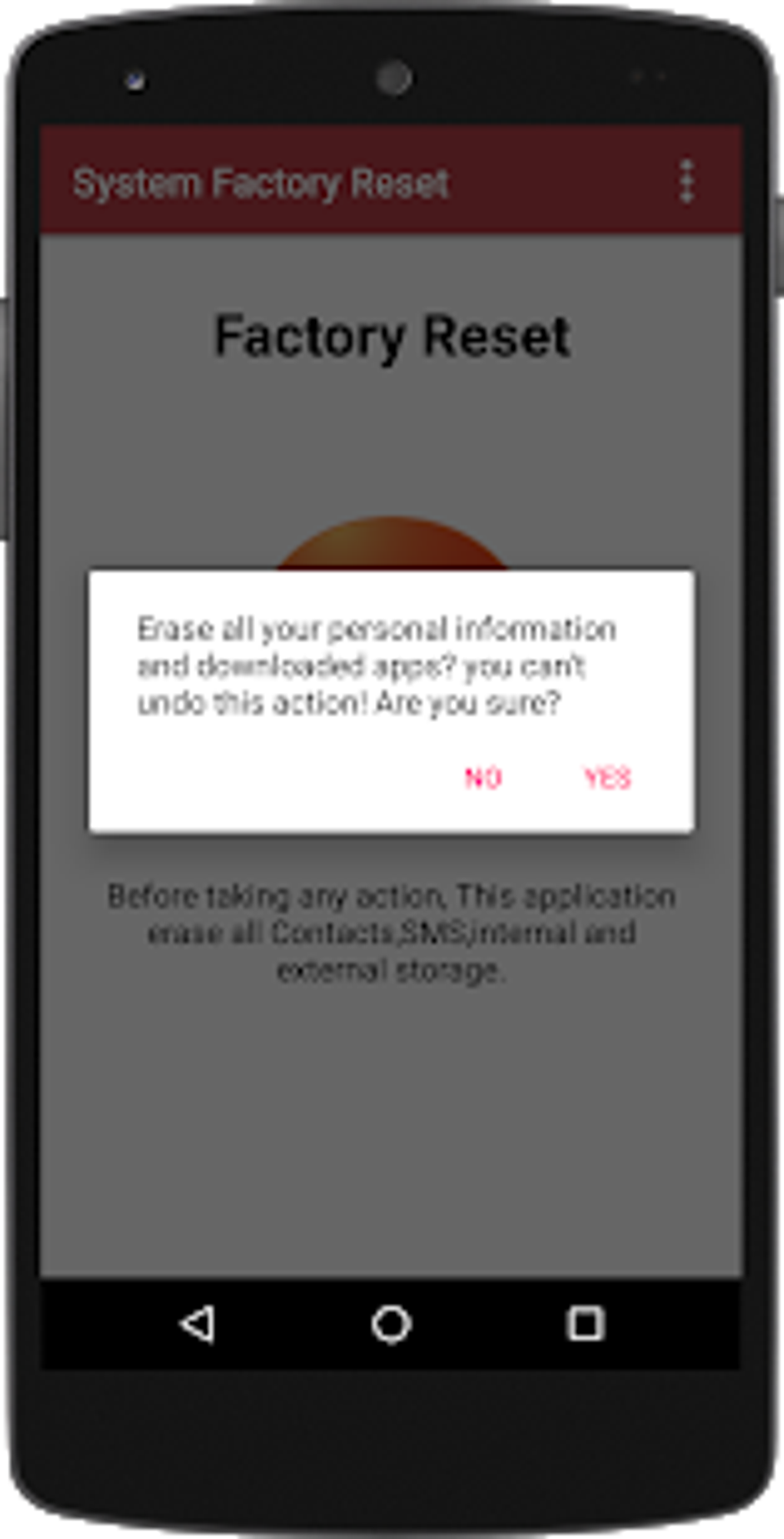
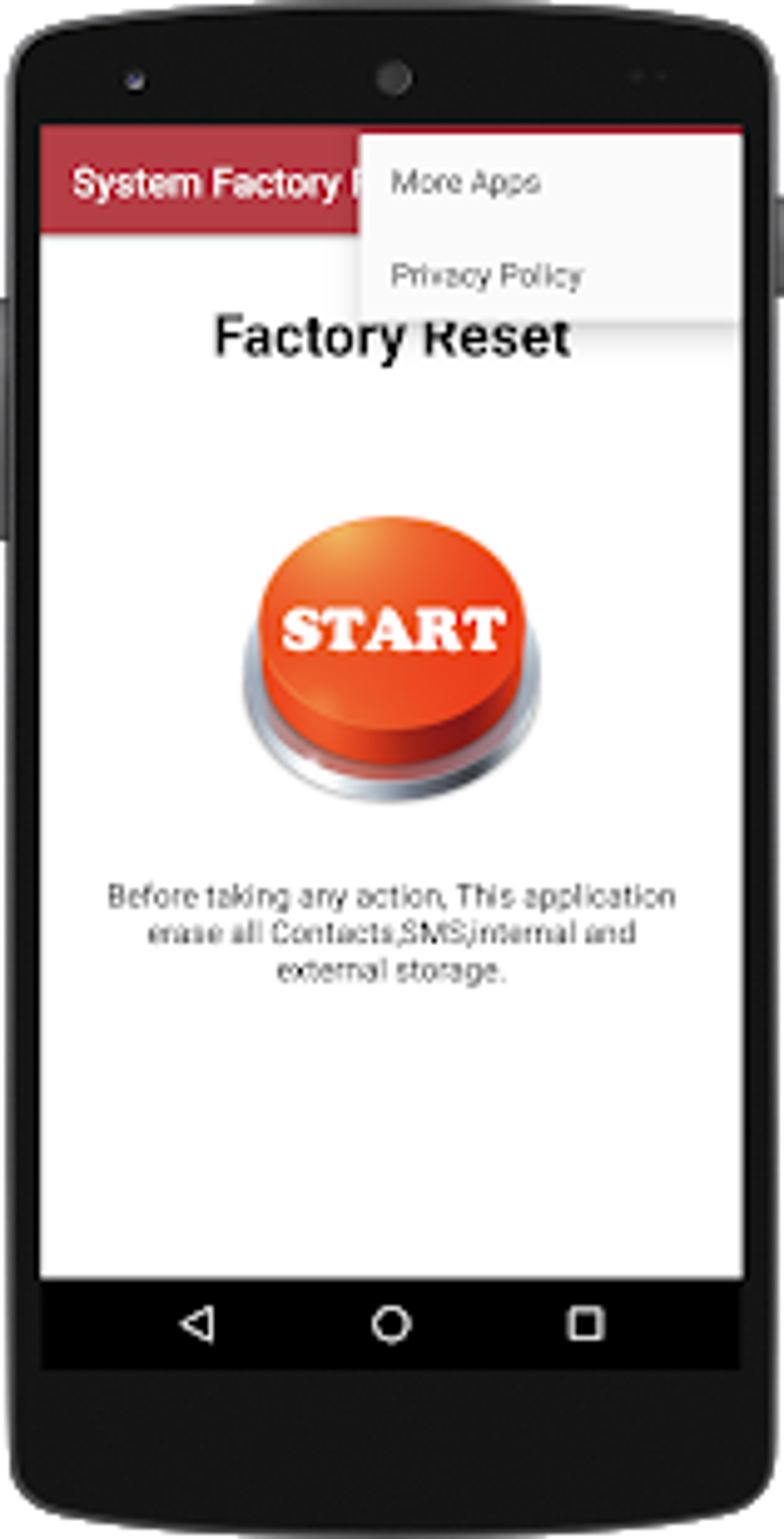
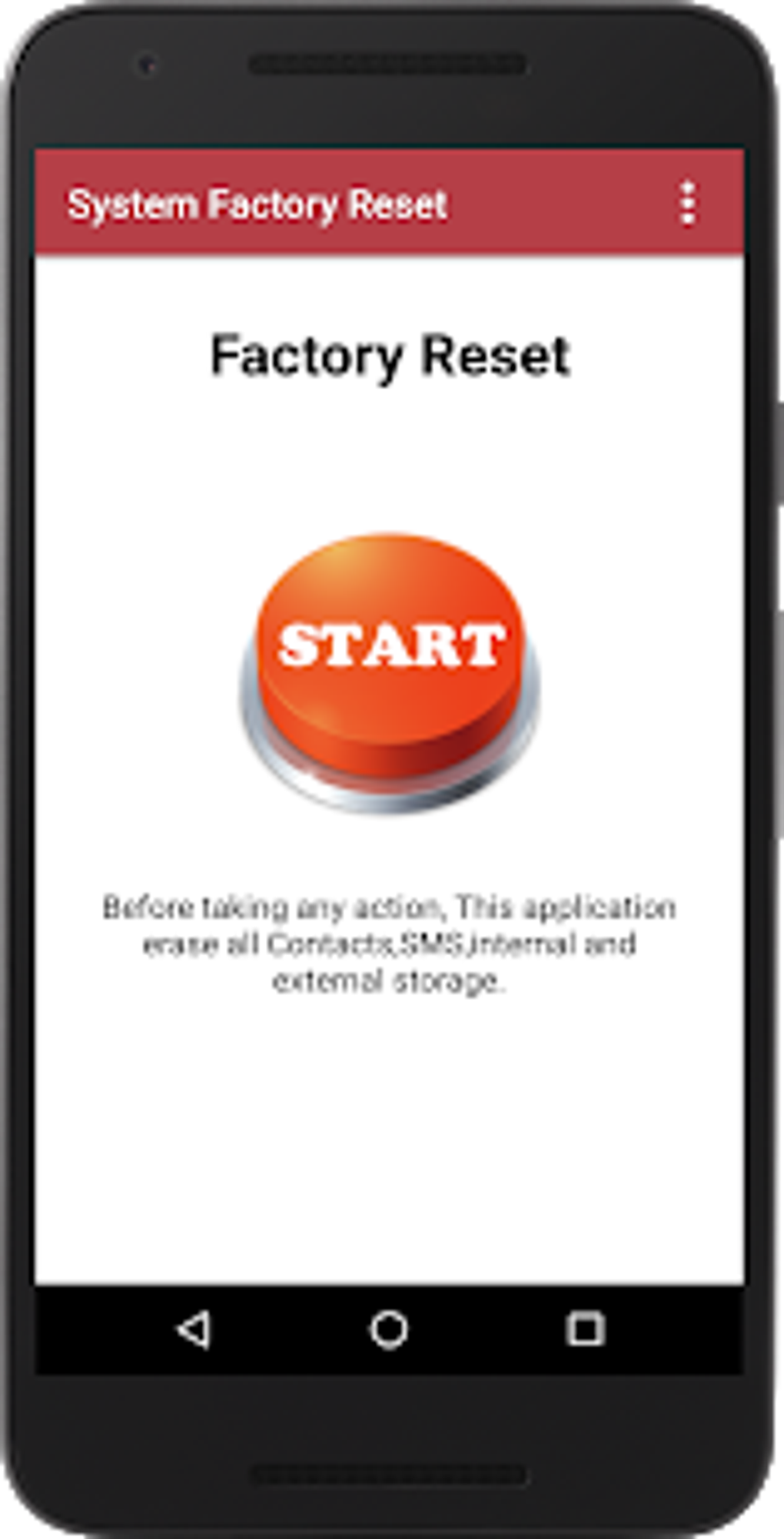
The “Reset Phone Mobile Full Factory Reset” app aims to simplify the factory reset process for users who find navigating phone settings challenging. While the app streamlines the process with a single button, its functionality is limited to this single task. For tech-savvy users who are comfortable navigating their phone’s settings, the app is unnecessary. Its value lies primarily in its accessibility for non-technical users. However, remember that this app cannot substitute for backing up your data.
Pros:
- Simplicity: The app provides a user-friendly interface, making the factory reset process accessible to everyone, regardless of technical skill.
- Convenience: It eliminates the need to navigate through multiple menu screens within the phone’s settings.
Cons:
- Limited Functionality: The app serves only one purpose; it doesn’t offer any other features or tools.
- Redundancy: Tech-savvy users can easily perform factory resets without needing a dedicated app.
- Potential Security Risks: Downloading apps from unofficial sources can expose your device to security risks. It is crucial to download apps only from trusted sources like the official Google Play Store or Apple App Store.
Conclusion
Factory resetting your phone can be a powerful solution for various problems, but it’s a significant action that should not be taken lightly. Always remember to back up your data before initiating a factory reset to avoid irreversible data loss. While apps like “Reset Phone Mobile Full Factory Reset” offer a streamlined experience for some users, understanding the manual process is equally, if not more, important. This comprehensive guide equips you with the knowledge and steps needed to safely and effectively reset your phone, whether you choose the traditional method or utilize a dedicated app. Always remember to prioritize data backup as the most critical step in this process.
File Information
- License: “Free”
- Latest update: “May 17, 2024”
- Platform: “Android”
- OS: “Android 9.0”
- Downloads: “57.5K”
- Size: “3.69 MB”
- Download Options: “APK, Google Play”
- Filename: “com-system-factory-reset-14-61658923-9ddbc76275ee7c334922fc5c201e2e0b.apk”