
Resolution Changer - Uses ADB is a free Android utility application that allows users to override their device’s default screen resolution. Unlike many apps that simply offer pre-set resolution options, this application provides a more granular level of control, enabling users to specify custom resolutions and pixel densities. However, this enhanced control comes with a crucial caveat: it requires a degree of technical understanding and careful execution to avoid potentially damaging your device. This article will explore the application’s functionalities, its advantages and disadvantages, the setup process, and crucial safety precautions.
Understanding the Need for Resolution Customization
Modern smartphones and tablets boast increasingly high-resolution displays, offering stunning visual fidelity. However, this comes at a cost. Higher resolutions demand more processing power and significantly increase battery drain. For users who prioritize extended battery life or smoother performance in graphically demanding applications, lowering the screen resolution can be a beneficial trade-off. While some devices offer built-in resolution adjustments within their system settings, these options are often limited. Resolution Changer - Uses ADB provides a solution by leveraging the Android Debug Bridge (ADB) to access and modify underlying system settings that are usually unavailable to the average user.
This app isn’t just about optimizing battery life and performance. Specific use cases might include:
- Gaming on Lower-End Devices: Reducing resolution can significantly improve frame rates in resource-intensive games, making them playable on devices that might otherwise struggle.
- Testing and Development: Developers might use this app to simulate different screen resolutions during the testing phase of their applications.
- Accessibility: For users with visual impairments, adjusting the resolution and pixel density can sometimes improve readability and reduce eye strain.
- Debugging Display Issues: In certain situations, altering the screen resolution can help troubleshoot display glitches or artifacts.
How Resolution Changer - Uses ADB Works
The app’s core functionality relies on the Android Debug Bridge (ADB), a command-line tool included in the Android SDK platform-tools package. ADB acts as a bridge between your computer and your Android device, allowing you to execute commands on the device. Resolution Changer - Uses ADB utilizes ADB to enable a hidden API within the Android operating system responsible for controlling the screen resolution. This API is typically disabled for security and stability reasons, making this app’s functionality somewhat unique.
Here’s a breakdown of the process:
-
Enabling Developer Options: Before using the app, you must enable developer options on your Android device. This typically involves repeatedly tapping the “Build Number” in the system settings’ “About Phone” section.
-
Enabling USB Debugging: Once developer options are enabled, you must enable USB debugging. This allows your device to communicate with your computer via ADB.
-
Installing the App and Connecting to Your PC: Install the Resolution Changer - Uses ADB app on your device. Connect your device to your computer using a USB cable. The app will then detect your device and establish a connection through ADB.
-
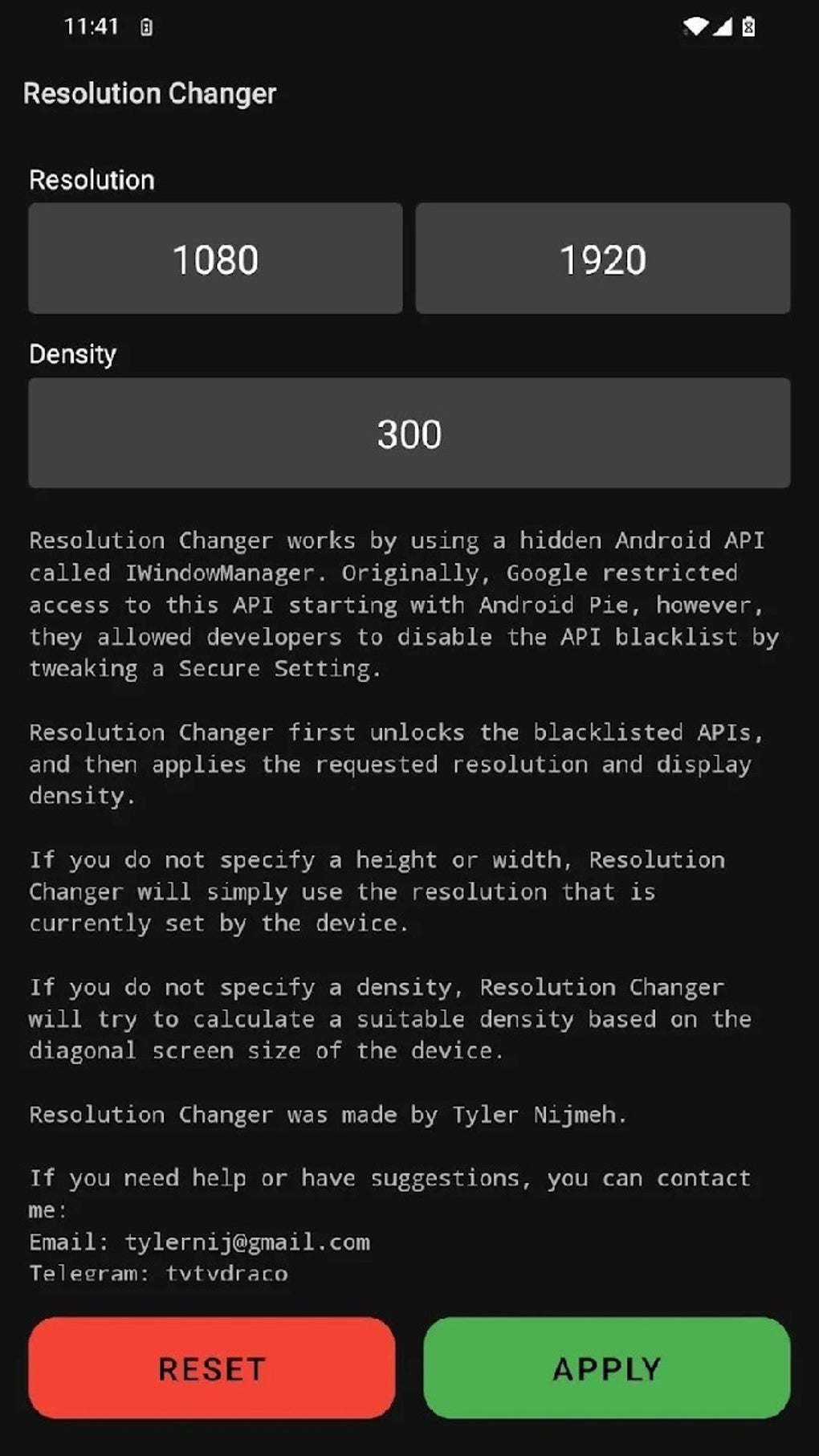
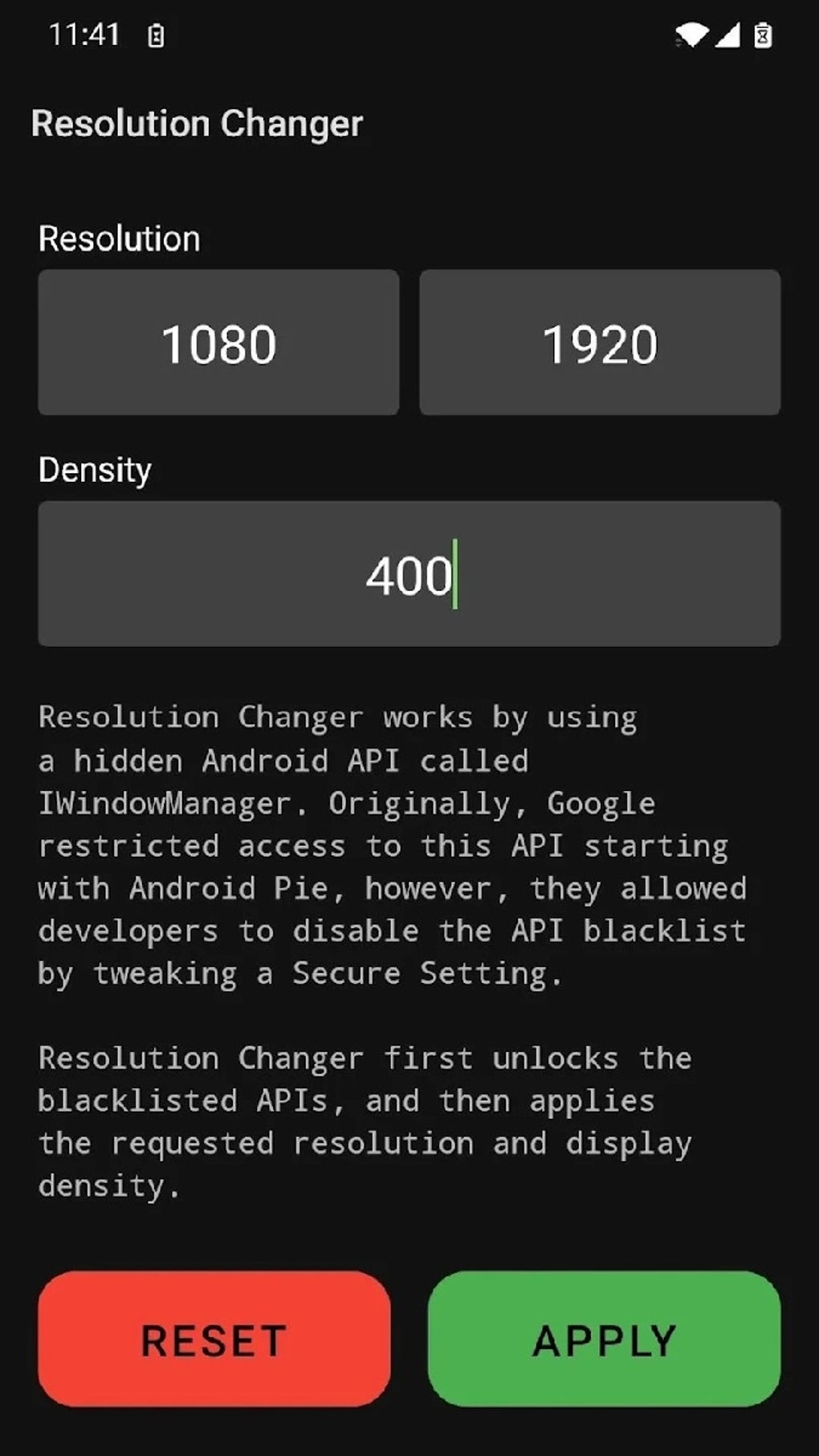
Setting the Custom Resolution: Once connected, the app allows you to input a custom resolution in pixels (e.g., 1920x1080) or specify a custom pixel density (DPI). The app will then send the appropriate commands to your device via ADB to implement the changes. These changes take effect immediately.
-
Reverting to Default Settings: Should you accidentally set an incorrect resolution that causes display issues (such as a blank screen or distorted visuals), the app typically provides a mechanism to revert to the default resolution, often through ADB commands entered within the app itself.
Advantages and Disadvantages
Resolution Changer - Uses ADB offers several advantages:
- Fine-Grained Control: Unlike many built-in or simpler resolution changing apps, this app offers complete control, allowing users to input precise resolution and density values.
- Immediate Changes: Changes are applied immediately without needing a restart.
- Potential Performance Boost: Lowering the resolution can lead to improved frame rates in games and more efficient battery usage.
- Troubleshooting Tool: Can be used to diagnose and resolve specific display-related problems.
However, it’s essential to acknowledge the drawbacks:
- Technical Expertise Required: The setup process requires familiarity with ADB and Android developer options. Users lacking this knowledge might find the process daunting and risk damaging their device.
- Potential for System Instability: Incorrectly setting the resolution can lead to display errors, boot loops, or even data loss. Proceed with extreme caution.
- No Guarantee of Compatibility: The app’s functionality may vary depending on the Android device and its firmware version. It’s not universally compatible.
- Security Considerations: Granting ADB access to your device introduces a potential security vulnerability if not managed correctly.
Safety Precautions and Best Practices
Using Resolution Changer - Uses ADB carries risks. To mitigate these risks, adhere to the following safety precautions:
- Backup Your Data: Before making any changes, back up your important data to prevent potential data loss. This is critical in case something goes wrong.
- Start with Small Changes: Don’t immediately jump to drastic resolution changes. Start with small adjustments and gradually increase or decrease the resolution to observe the effects.
- Research Your Device’s Capabilities: Before making changes, research your specific device’s supported resolutions to ensure compatibility. Using an unsupported resolution could lead to serious issues.
- Understand the Risks: Be fully aware of the potential consequences of incorrect usage, including potential display issues, boot loops, or the need for a factory reset.
- Test in a Safe Environment: If possible, test the app on a secondary or less critical device first.
- Use Reliable Sources: Download the app only from trusted sources to avoid malware.
- Read the Documentation: Carefully read the app’s instructions and documentation to understand the parameters and their potential impact.
- Know How to Revert: Understand the process of reverting to your device’s default resolution in case of problems. This usually involves using ADB commands provided by the app or within the Android SDK.
Conclusion
Resolution Changer - Uses ADB offers a powerful and flexible way to customize your Android device’s screen resolution, enabling performance improvements and battery life optimization. However, its advanced nature necessitates a cautious approach. The potential risks associated with incorrect usage must be carefully considered. This app is best suited for technically proficient users who understand the implications and are prepared to handle potential complications. For average users, simpler, pre-configured resolution options are a safer alternative. Always prioritize data backups and proceed with extreme caution before experimenting with your device’s core settings.
File Information
- License: “Free”
- Version: “1.5”
- Latest update: “September 26, 2024”
- Platform: “Android”
- OS: “Android 9.0”
- Language: “English”
- Downloads: “187.7K”
- Size: “1.46 MB”
- Download Options: “APK, Google Play”
- Filename: “com-draco-resolutionchanger-6-68845115-6aaa6ccf1dcec0e008443c2fd156c92d.apk”


