
In the digital age, our lives are increasingly intertwined with data. From precious family photos and essential work documents to sprawling game installations and a vast collection of multimedia, every file, big or small, finds a home on our computer’s hard drive. Yet, regardless of how capacious that drive might be – be it a compact 500GB SSD or a colossal 10TB HDD – an almost universal phenomenon eventually occurs: that unsettling moment when you realize your available disk space has dwindled to mere megabytes, or even worse, zero. A profound sense of digital claustrophobia sets in, accompanied by the nagging question, “Where did all that space go?”
This perplexing problem, which can lead to frustrating system slowdowns, inability to install new applications, and the constant need to meticulously manage files, demands a clear and concise answer. Enter RidNacs, a refreshingly straightforward and exceptionally efficient disk analyzer designed to demystify your hard drive’s consumption patterns. RidNacs isn’t about offering a myriad of complex tools; instead, it focuses on delivering one crucial piece of information with remarkable speed and clarity: a comprehensive breakdown of exactly what’s occupying your disk space. For anyone who has ever wrestled with a full hard drive and yearned for a transparent overview of their data, RidNacs offers an indispensable solution, transforming guesswork into informed action.
The Ever-Shrinking Disk: Understanding the Problem
The feeling of a hard drive slowly but inexorably filling up is a common experience for computer users. Initially, a new system boasts ample room, inviting users to download, install, and save without a second thought. Over time, however, this luxury diminishes. Operating system updates, application installations, web browser caches, temporary files, downloaded documents, media collections, and numerous other digital artifacts accumulate silently in the background, consuming valuable gigabytes without explicit user intervention. This gradual accumulation can often go unnoticed until a critical moment, such as attempting to save a large project file or install a much-anticipated new game, brings the stark reality of insufficient space into sharp focus.
A full hard drive isn’t merely an inconvenience; it can significantly impact system performance. When a drive approaches its capacity limit, the operating system struggles to manage virtual memory effectively, leading to slower application launch times, sluggish multitasking, and overall system unresponsiveness. Furthermore, many applications require a certain amount of free space to function optimally, for caching data, creating temporary files, or performing essential updates. Without this headroom, these applications can become unstable, crash frequently, or refuse to work altogether. This can be particularly problematic for creative professionals working with large files, gamers needing space for new titles, or even general users experiencing everyday frustration.
The challenge lies in identifying the culprits. Manually sifting through folders, checking file sizes one by one, is an arduous, time-consuming, and often incomplete process. Hidden system files, deeply nested subdirectories, and seemingly innocuous temporary files can collectively consume enormous amounts of space, remaining invisible to a casual inspection. This is where a dedicated disk analyzer becomes not just useful, but essential. It acts as a diagnostic tool, providing an X-ray view of your storage, revealing where every byte resides and allowing you to make informed decisions about what to keep, what to move, and what to delete. RidNacs steps into this role with elegance, offering a clear, color-coded visual map that tells the story of your hard drive’s allocation at a glance. It translates the abstract concept of digital data into an easily digestible visual format, empowering users to take back control of their storage.
The Silent Culprits of Disappearing Space
To truly appreciate the value of RidNacs, it’s helpful to understand some of the common, often overlooked, reasons why hard drive space seems to vanish. These “silent culprits” are frequently the biggest consumers of digital real estate, yet they rarely announce their presence.
- System and Application Caches: Every web browser, operating system, and many applications maintain caches to speed up performance. While beneficial in theory, these caches can grow exponentially, storing old web pages, downloaded updates, and temporary data that may no longer be needed. Over time, these can accumulate into many gigabytes.
- Large Media Files: High-definition videos, raw camera images, and extensive music libraries are notoriously space-hungry. Users often underestimate the cumulative size of these collections, especially when working with multiple versions or backups.
- Download Folders: The “Downloads” folder often becomes a digital graveyard of installers, archived files, and temporary documents that were only needed once but never deleted. These can range from small PDFs to multi-gigabyte application setup files.
- Recycle Bin: While seemingly obvious, many users forget to regularly empty their Recycle Bin, allowing deleted files to continue occupying disk space indefinitely.
- Previous Windows Installations (Windows.old): After major Windows updates, the operating system often creates a “Windows.old” folder containing the previous version, allowing for rollback. While useful, this folder can be tens of gigabytes in size and is usually safe to delete after confirming system stability.
- Virtual Machine Images and ISO Files: For developers or power users, virtual machine images (e.g., VirtualBox, VMware) and operating system ISO files can be massive, easily consuming dozens or even hundreds of gigabytes per file.
- Temporary Files and Logs: Various applications and the operating system itself generate temporary files and log files for diagnostic purposes. These can sometimes accumulate without proper cleanup mechanisms.
Without a tool like RidNacs, identifying these diverse space hogs would be a painstaking manual effort. It allows users to quickly pinpoint folders containing large media collections, overgrown caches, or forgotten downloads, making the task of reclaiming space far more manageable and effective.
RidNacs’ Core Functionality: Simplicity Meets Efficacy
At its heart, RidNacs is an exercise in elegant simplicity. It understands that when faced with a critical shortage of disk space, users don’t necessarily need an overwhelming suite of advanced features; what they need is a clear, concise, and rapid answer to the fundamental question: “What is taking up my hard drive space?” This philosophy underpins every aspect of its design and operation, making it an incredibly user-friendly and effective utility.
The process of using RidNacs is remarkably straightforward. Upon launching the application, you are presented with a clean interface that allows you to select the target for analysis. This can be an entire hard drive (e.g., your C: drive), a specific partition, or even an individual folder within your file system. This flexibility is key, enabling users to perform broad system-wide scans or focus on particular areas they suspect are consuming excessive space, such as a “Downloads” folder, a project directory, or a media archive.
Once a target is selected, RidNacs springs into action, initiating its scanning process. This is where the application truly distinguishes itself with its speed. Unlike some more feature-rich disk analyzers that might take a considerable amount of time to parse and categorize every file, RidNacs is optimized for rapid analysis. The duration of the scan, naturally, depends on the size of the selected drive or folder and the sheer volume of data it contains. However, even for large hard drives laden with countless files, RidNacs delivers its results with impressive alacrity, minimizing waiting times and allowing users to quickly move from problem identification to solution.
A Visual Story of Your Data
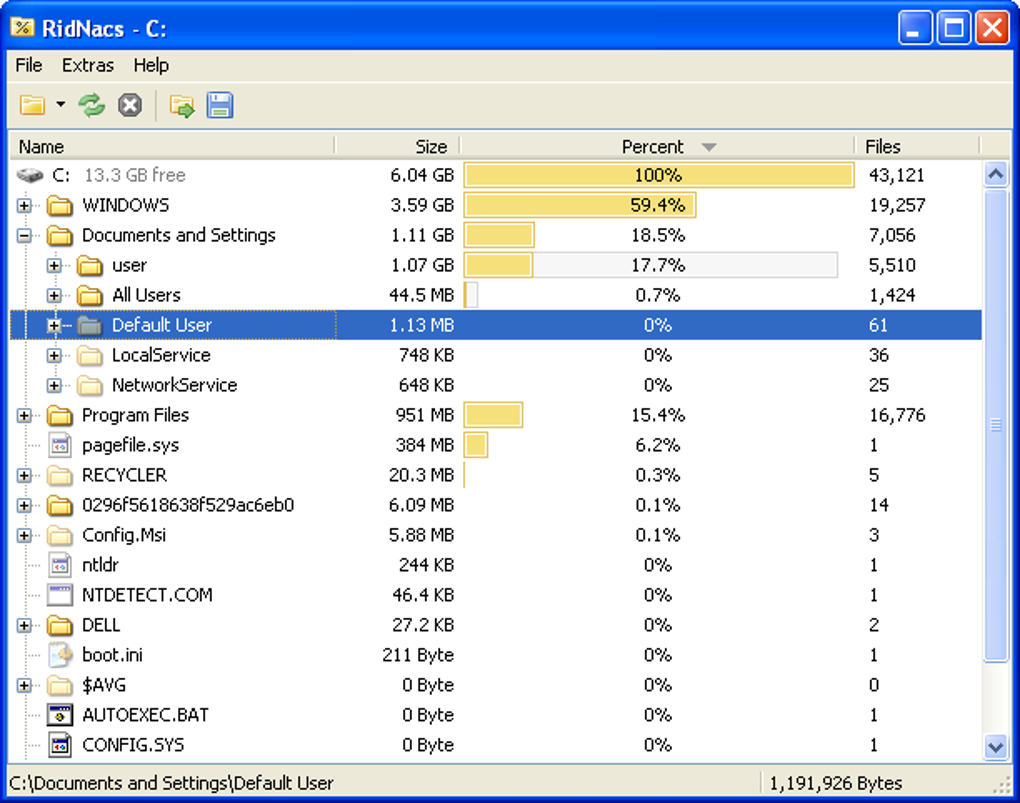
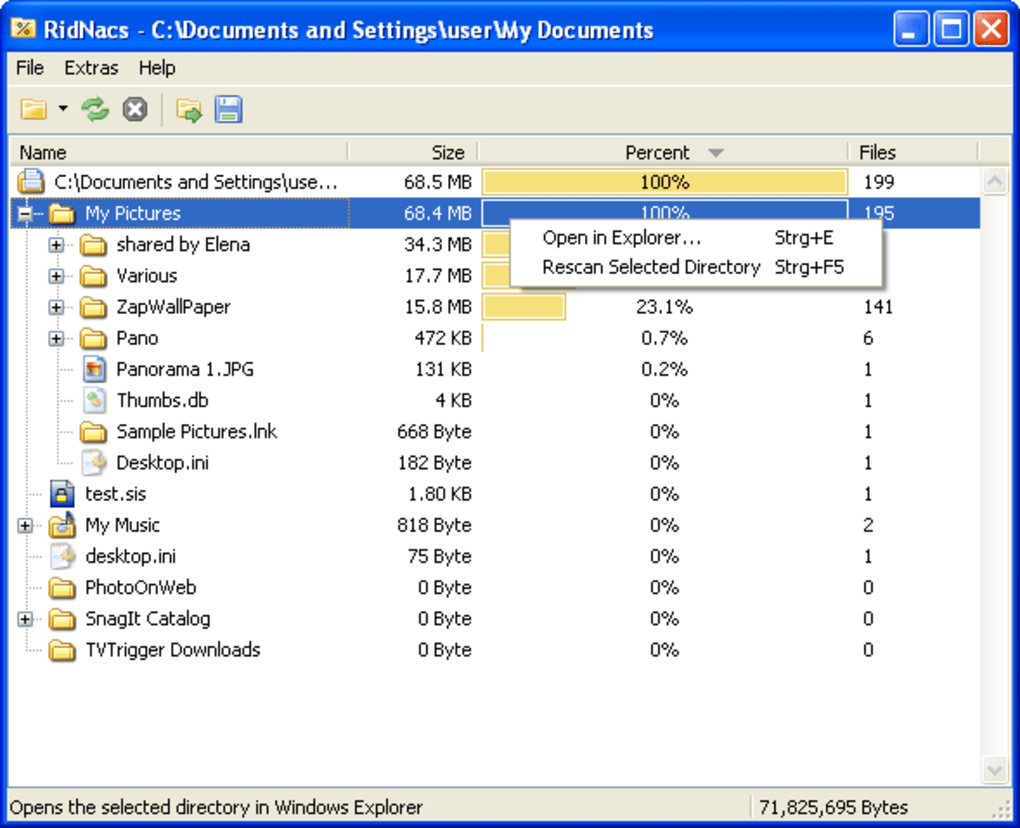
The true power and intuitive nature of RidNacs become evident in how it presents its findings. Eschewing complex tables or convoluted hierarchies, RidNacs transforms raw data into an easily digestible visual format. The results are displayed as a list of folders, sub-folders, and individual files, each accompanied by a distinct colored bar. The length of this bar is directly proportional to the percentage of disk space occupied by that particular item within the scanned directory. This visual metaphor is incredibly effective: larger bars immediately draw the eye to the biggest space consumers, making it effortless to identify the primary culprits at a glance.
Moreover, the results are highly comfortable to read and navigate. The hierarchical structure of folders and sub-folders is maintained, allowing users to drill down into specific directories to uncover the exact files contributing to their size. For instance, if a “Videos” folder shows a large colored bar, you can expand it to see which individual video files or sub-folders within it are the most substantial. This layered presentation ensures that users can quickly grasp the overall distribution of space and then delve into granular details as needed, without ever feeling overwhelmed by information. The clarity and simplicity of this visual representation empower even novice users to understand their disk space usage patterns and make informed decisions about data management.
Seamless Integration and Rapid Analysis
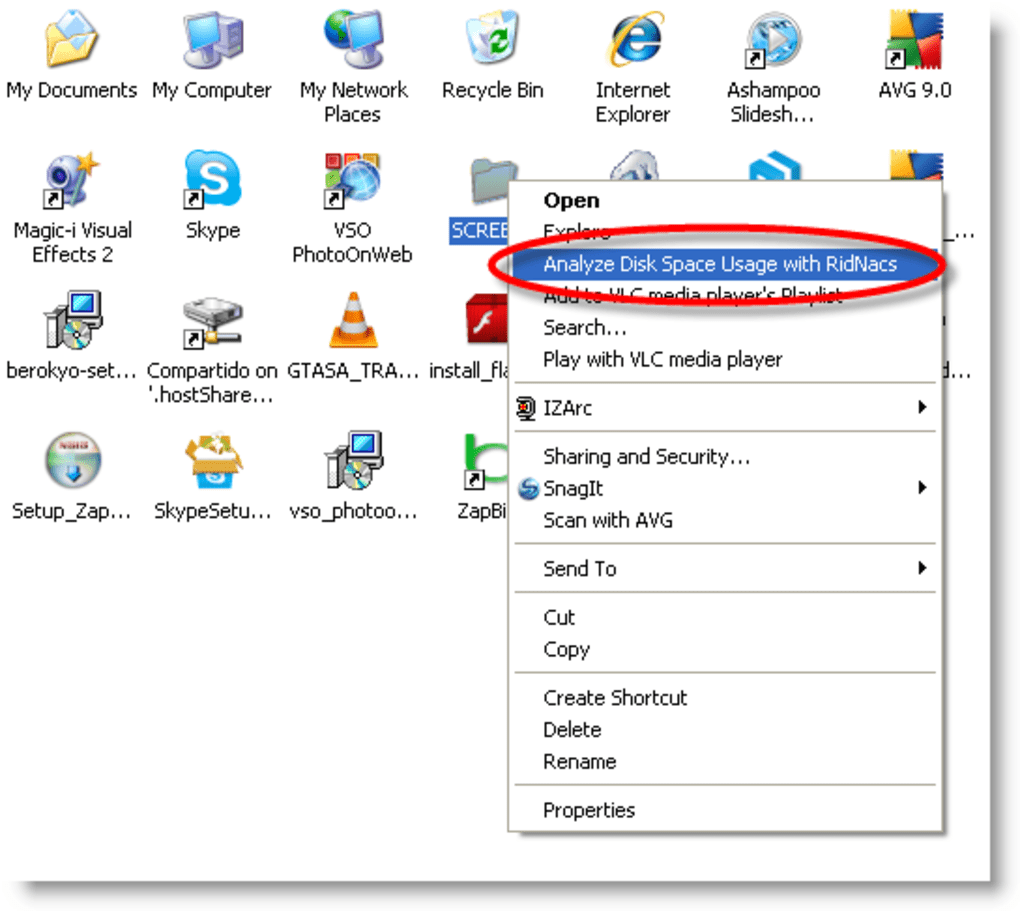
Beyond its core scanning and visualization capabilities, RidNacs enhances user productivity through intelligent integration and convenient options. One of its most practical features is the ability to launch the application directly from Windows Explorer’s context menu. This means that instead of opening RidNacs, navigating to a folder, and initiating a scan, users can simply right-click on any drive or folder within Windows Explorer and select the “Scan with RidNacs” option. This seamless integration streamlines the workflow significantly, especially for quick, on-the-fly analyses of specific directories. It transforms a potential multi-step process into a single, efficient action, reflecting RidNacs’ commitment to user convenience.
Furthermore, RidNacs understands that insights often need to be shared, analyzed further, or archived. To facilitate this, it provides robust export capabilities. Scan results can be exported to several widely used formats, including:
- CSV (Comma Separated Values): Ideal for importing into spreadsheet applications like Excel or Google Sheets for more detailed numerical analysis, sorting, or charting.
- TXT (Plain Text): A simple, human-readable format suitable for quick review, note-taking, or basic logging.
- XML (Extensible Markup Language): Useful for programmatic access, data exchange with other applications, or more structured data archiving.
- HTML (Hypertext Markup Language): Excellent for generating reports that can be easily viewed in a web browser, shared with others without needing the RidNacs application, or integrated into web-based documentation.
These export options significantly extend the utility of RidNacs beyond mere visualization. They allow users to create detailed records of their disk space usage over time, analyze trends, or even share information with IT support or colleagues. Whether you need to present findings in a business report or simply keep a personal log of your disk cleanup efforts, RidNacs provides the flexibility to do so effectively.
Beyond the Basics: Advantages and Practical Applications
RidNacs distinguishes itself not by an abundance of features, but by excelling at its core function and providing specific advantages that cater to a wide user base. Its focused approach ensures that it remains lean, fast, and highly effective for its intended purpose: demystifying disk space usage.
One of the most frequently lauded benefits of RidNacs is its speed. In a world where time is a precious commodity, waiting for a disk analysis tool to complete a lengthy scan can be frustrating. RidNacs, by design, prioritizes rapid execution. This means that even when scanning large, multi-terabyte drives, users can expect results far quicker than many of its more feature-laden counterparts. This velocity makes it an ideal tool for quick spot checks, immediate problem diagnosis, or routine maintenance tasks without significantly interrupting one’s workflow. It’s the perfect utility when you need an answer now, not in twenty minutes.
Another significant advantage, as previously touched upon, is its built-in integration with Windows Explorer. This isn’t just a minor convenience; it fundamentally changes how users interact with disk analysis. Instead of launching a separate application and navigating through multiple layers to select a target, a simple right-click context menu option makes the process instantaneous. This seamless integration makes RidNacs feel like a natural extension of the operating system itself, rather than an external program. It encourages more frequent use, leading to better disk space management habits, as the barrier to performing a scan is virtually non-existent.
The ability to export analysis to several formats further elevates RidNacs’ utility. While the visual representation within the application is excellent for immediate understanding, the export options provide versatility for various needs. A user might export to CSV to conduct a deeper statistical analysis of file types consuming space, or to HTML to generate a shareable report for a team. This flexibility supports different use cases, from individual data management to professional system auditing. It transforms the raw scan data into actionable intelligence that can be processed and utilized in diverse environments.
Who Benefits Most from RidNacs?
Given its streamlined nature, RidNacs finds its greatest utility among specific user profiles:
- Everyday PC Users: For the average computer user who simply wants to know why their “C: drive is full” without delving into complex technical jargon or overwhelming options, RidNacs is perfect. It provides immediate, visual clarity without requiring any prior expertise.
- Students and Professionals: Those who manage large projects, media files, or development environments often find their drives quickly consumed. RidNacs offers a rapid way to identify bloated project folders, old backups, or forgotten large datasets, helping them maintain organized workspaces.
- IT Support Technicians: For quick diagnostics on client machines, RidNacs is invaluable. It can swiftly pinpoint major space hogs, allowing technicians to efficiently guide users through cleanup processes or identify potential issues. Its speed means less downtime for the client and more efficient problem-solving.
- Gamers: Modern video games can demand hundreds of gigabytes of storage. RidNacs helps gamers quickly see which game installations or download folders are consuming the most space, aiding decisions on what to keep, uninstall, or move to an external drive.
- Anyone Concerned with Digital Hygiene: For users who prioritize keeping their systems lean and efficient, RidNacs serves as an excellent regular check-up tool. Proactive scanning can prevent hard drive saturation before it becomes a critical issue.
In essence, RidNacs empowers anyone who wants a straightforward, fast, and visual answer to the question of disk space consumption. It’s about clarity and action, without the unnecessary complexities that can often deter users from engaging with disk management tools.
Weighing Simplicity Against Advanced Features
While RidNacs shines brightly in its niche of rapid, visual disk analysis, it’s also important to address its deliberate design choice: the absence of advanced options. This characteristic is often cited as a “con” when comparing it to other, more comprehensive disk analyzer utilities available on the market. However, rather than viewing this as a pure negative, it’s more accurate to see it as a reflection of a specific design philosophy – one that prioritizes speed and ease of use above all else.
Advanced disk analyzers might offer a plethora of additional functionalities. These could include:
- Direct File Deletion/Moving: The ability to delete or move files directly from within the analyzer’s interface, rather than navigating to Windows Explorer.
- Duplicate File Finders: Tools to identify and remove identical files scattered across the drive.
- File Type Filtering: More granular options to filter results by specific file extensions (e.g., show only .mp4 files larger than 1GB).
- Detailed File Properties: More extensive information displayed for each file, such as creation date, last accessed date, and security attributes.
- Categorization by Type: Automatic grouping of files into categories like “Documents,” “Images,” “Videos,” “Archives,” etc., regardless of their folder location.
- Cleanup Tools: Integrated features to clear system caches, temporary files, or optimize drive performance.
- Network Drive Scanning: The capability to analyze shared network drives, not just local storage.
RidNacs intentionally foregoes these features. This decision isn’t an oversight; it’s a strategic trade-off. Every additional feature, every layer of complexity, adds to the software’s footprint, potentially slows down its performance, and can make the user interface more daunting. For a tool whose primary value proposition is speed and simplicity, adding these advanced functionalities would compromise its core identity.
The Philosophy of “No Advanced Options”
The “no advanced options” approach in RidNacs is, therefore, a feature in itself, catering to a specific user segment. For many users, particularly those who are not IT professionals or power users, an overly complex interface with numerous buttons, menus, and configurations can be intimidating and counterproductive. They might get overwhelmed by choices, unsure of which settings to tweak or which advanced report to generate. RidNacs avoids this cognitive overload entirely.
Its philosophy is clear: provide the essential information – what is taking up space and where – in the most accessible and fastest way possible. The subsequent action (deleting, moving, backing up files) is left to the user, typically performed through familiar tools like Windows Explorer, which is arguably safer and more intuitive for many. This separation of concerns means RidNacs excels at diagnosis, leaving the treatment to other, equally simple, methods.
This focus allows RidNacs to remain incredibly lightweight (its size is just 718.44 KB), ensuring quick downloads, minimal system resource consumption, and blazing-fast launch times. It doesn’t burden the system with unnecessary background processes or complex algorithms required for advanced features. This makes it an ideal choice for older machines, resource-constrained environments, or simply for users who value efficiency and minimalism in their software tools.
In conclusion, while “no advanced options” might seem like a drawback on paper, in practice, for RidNacs, it is a testament to its design philosophy. It’s a tool built for purpose, stripped down to its most effective elements, delivering exactly what a vast majority of users need for basic disk space analysis: speed, clarity, and ease of use. If you need a comprehensive disk management suite with every conceivable feature, RidNacs might not be your sole tool. But if you need a quick, reliable, and utterly straightforward answer to “where did my disk space go?”, RidNacs is peerless in its category.
Practical Applications: Reclaiming Your Digital Territory
Having a clear visual representation of disk space usage, courtesy of RidNacs, is only the first step. The true value comes in how this information empowers users to actively reclaim and manage their digital territory. By quickly identifying the largest consumers of space, users can make informed decisions, leading to a more organized, efficient, and higher-performing computer.
Here are some practical applications and use cases for leveraging RidNacs’ insights:
- Identifying Large Media Collections: Often, photos, videos, and music files are the biggest culprits. RidNacs can immediately highlight folders containing gigabytes of unedited vacation videos, duplicate music albums, or forgotten film downloads. Once identified, users can move these to external storage, cloud services, or delete unnecessary copies.
- Cleaning Up Old Project Files and Backups: For professionals and students, old project folders, multiple versions of documents, or forgotten backup archives can accumulate. RidNacs helps in quickly locating these sizable, often outdated, directories, allowing for proper archiving or deletion.
- Taming the Downloads Folder: The “Downloads” folder often becomes a black hole for installers, ZIP files, and temporary documents. A quick scan with RidNacs can reveal an overgrown Downloads folder, prompting a systematic cleanup of unnecessary items.
- Managing Application Installations: While RidNacs doesn’t directly uninstall applications, it can show the space consumed by various program folders. This can guide users in deciding which rarely used, large applications to uninstall via Windows’ built-in tools.
- Locating System-Generated Bloat: Sometimes, the operating system or specific applications create large log files, temporary data, or old update files (like the
Windows.oldfolder). RidNacs can help pinpoint these, allowing users to safely remove them using system cleanup tools. - Optimizing Development Environments: Developers often deal with large repositories, multiple project builds, and extensive libraries. RidNacs can quickly show which project directories or virtual environments are taking up the most space, aiding in cleanup or optimization efforts.
- Proactive Maintenance: Instead of waiting for the hard drive to be completely full, RidNacs can be used periodically as a maintenance tool. Regular scans can help users stay ahead of accumulation, identifying and addressing space issues before they become critical. This proactive approach contributes significantly to better overall system performance and longevity.
- Shared Computer Management: In environments where multiple users share a single computer, disk space can be consumed rapidly. RidNacs offers a neutral, objective view of where the space is going, helping to facilitate discussions and policies around data storage.
By illuminating the hidden corners of your hard drive, RidNacs empowers you to become an active manager of your digital resources. It turns the daunting task of “finding space” into a focused, achievable process, ensuring that your computer remains fast, responsive, and free from the dreaded “disk full” alerts. Its simplicity is its strength, making disk space management accessible to everyone, regardless of their technical proficiency.
Acquiring and Utilizing RidNacs: A Quick Start Guide
RidNacs is designed for accessibility, not just in its functionality but also in its acquisition and initial setup. Being a free utility specifically tailored for the Windows operating system, it offers a hassle-free solution to a common computing problem.
Availability and Technical Specifications
RidNacs is available for free download, primarily targeting the Windows platform. The current version, as referenced, is 2.0.31.0.2 (though newer versions like V2.0.34.4(15) are also noted), indicating ongoing development and maintenance by its creator, SplashSoft. Its footprint is remarkably small, typically around 718.44 KB, ensuring a swift download even on slower internet connections and consuming negligible storage space itself. It supports multiple languages, including English and German, making it accessible to a broader international audience. The application has a proven track record, with tens of thousands of downloads, reflecting its popularity and reliability among users.
To download RidNacs, users can visit trusted software repositories that host free utilities. For instance, PhanMemFree.org (formerly Softonic.com) provides a direct and secure download link for the application. When downloading any software, always ensure you are sourcing it from a reputable site to avoid potential malware or unwanted bundled programs. PhanMemFree.org, for its part, states that it scans all hosted files to assess and avoid potential harm, providing a “Clean” status for software like RidNacs.
Installation and First Use
The installation of RidNacs is typically straightforward:
- Download: Obtain the installer file from PhanMemFree.org or another reliable source.
- Run Installer: Double-click the downloaded
.exefile. - Follow Prompts: The installation wizard will guide you through a few simple steps, usually involving accepting a license agreement and selecting an installation directory. Given its lightweight nature, the installation process is very quick.
- Launch: Once installed, you can launch RidNacs either from your Start Menu or, more conveniently, by right-clicking a drive or folder in Windows Explorer and selecting “Scan with RidNacs.”
Upon launching, the interface is intuitive. Select the drive or folder you wish to analyze, click “Scan,” and watch as RidNacs quickly populates the view with color-coded bars representing space usage. You can then navigate through folders by double-clicking them, just like in Windows Explorer, to drill down into the details of specific space consumers.
Conclusion: RidNacs’ Enduring Value
In the crowded landscape of utility software, RidNacs carves out a distinct and valuable niche. It doesn’t aim to be the most feature-rich or the most complex disk management suite. Instead, it commits wholeheartedly to being the fastest, most intuitive, and clearest visual disk analyzer available. Its unwavering focus on this core functionality, combined with its seamless Windows Explorer integration and robust export options, makes it an indispensable tool for anyone grappling with dwindling disk space.
Whether you’re an everyday user frustrated by a sluggish PC, a student trying to manage large project files, or an IT professional needing a quick diagnostic on a client’s machine, RidNacs provides the immediate answers you need. It transforms the abstract and often daunting problem of “where did my space go?” into a tangible, easily understandable, and actionable visual report. By embracing simplicity and delivering exceptional performance within its scope, RidNacs empowers users to regain control over their digital storage, fostering a healthier, more organized, and ultimately more efficient computing experience. It’s a testament to the idea that sometimes, less truly is more, especially when that “less” is executed with such precision and efficacy. Download it from PhanMemFree.org today and put an end to the mystery of your vanishing disk space.
File Information
- License: “Free”
- Latest update: “May 24, 2023”
- Platform: “Windows”
- OS: “Windows 8”
- Language: “English”
- Downloads: “22.4K”
- Size: “718.44 KB”


