
In an increasingly interconnected digital world, safeguarding personal and professional information has become paramount. While robust antivirus programs and secure password managers form the bedrock of cybersecurity, a crucial, often overlooked, layer of protection lies in physical access control: securing your screen when you step away from your computer. This is precisely where ScreenBlur, a remarkably effective and user-friendly software developed by InDeep Software, carves out its niche. Designed specifically for Windows operating systems, ScreenBlur offers an elegant solution to protect your desktop from prying eyes and unauthorized access, transforming your screen into an impenetrable, yet aesthetically pleasing, digital barrier.
ScreenBlur isn’t just another lock screen utility; its distinctive blurring effect sets it apart. Instead of a stark, opaque barrier, users are presented with a softly diffused view of their desktop, preserving a sense of continuity while effectively obscuring sensitive data. This unique visual approach, combined with robust password protection, makes ScreenBlur an indispensable tool for anyone seeking to enhance their digital privacy without sacrificing usability. Whether you’re working in a busy office, studying in a public library, or simply stepping away from your home computer, ScreenBlur provides immediate, reliable security, ensuring your digital workspace remains private and secure.
The Core Mechanism: How ScreenBlur Safeguards Your System
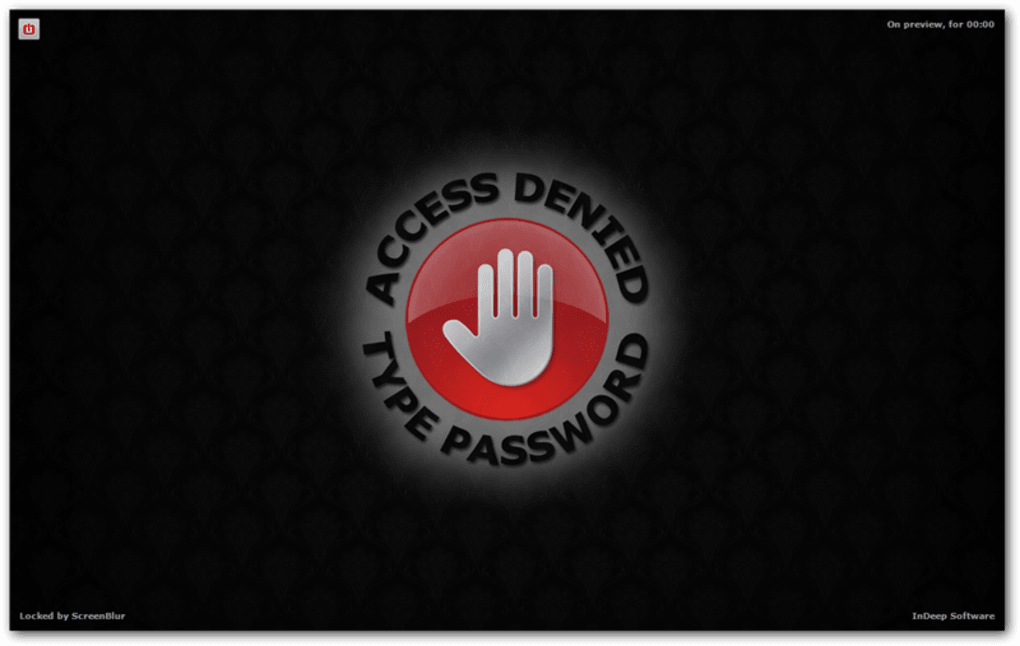
At its heart, ScreenBlur operates on a simple yet highly effective principle: immediate, password-protected screen obfuscation. When activated, the software doesn’t just display a static lock screen; it intelligently blurs the content of your current desktop, rendering any open applications, documents, or personal data unreadable. This is a significant improvement over traditional lock screens that might display system information or a generic background, potentially giving away clues about your active processes or personal preferences. The blur ensures that sensitive information remains entirely private, visible only as an indistinct array of colors and shapes.
The primary method of activation is remarkably straightforward. Users can manually engage ScreenBlur by clicking its dedicated icon, typically found conveniently in the taskbar. This instantaneous activation makes it ideal for those quick moments when you need to step away from your desk for a coffee break, a brief conversation, or to attend to another task. The moment the icon is clicked, your screen instantly transitions to its blurred, locked state. To regain access, a predefined password must be entered. This simple yet powerful two-step process – manual trigger and password authentication – provides an immediate on-demand security blanket.
Beyond manual activation, ScreenBlur incorporates a critical feature for proactive security: inactivity protection. In the hustle and bustle of daily work, it’s easy to forget to manually lock your computer. ScreenBlur mitigates this risk by allowing users to configure the software to automatically engage after a specified period of inactivity. This configurable timeout ensures that even if you walk away from your desk in a hurry and forget to click the lock icon, your computer will automatically secure itself after a few minutes (or whatever duration you’ve set). This automated safeguard is invaluable in environments where security breaches can occur due to human oversight, ensuring a continuous layer of protection regardless of user diligence.
The effectiveness of ScreenBlur lies in its elegant simplicity and efficiency. The software is lightweight, with a compact installation size of just 861.72 KB, meaning it consumes minimal system resources and installs quickly. This ensures that it doesn’t bog down your system or interfere with other applications, maintaining a smooth user experience. The developer, InDeep Software, has prioritized reliability and ease of use, making ScreenBlur accessible even to users who may not be highly technically proficient. Its “set it and forget it” nature, coupled with the option for immediate manual control, makes it a versatile security tool for a wide range of users and scenarios.
Unpacking Features and Customization Options
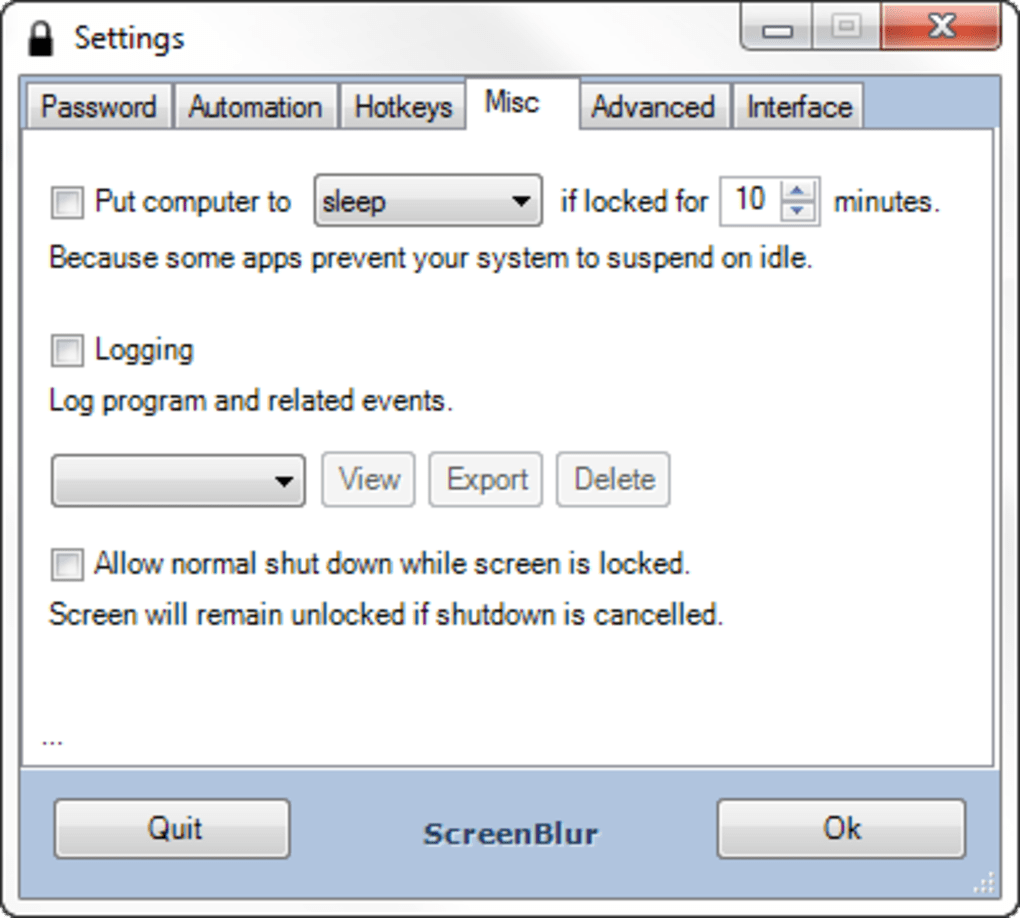
While the core functionality of blurring and password-locking the screen is robust, ScreenBlur distinguishes itself further through a surprising array of customization options, fulfilling the promise of “loads of options for protecting Windows” mentioned in its description. These options empower users to tailor the software to their specific security needs and aesthetic preferences, transforming a utilitarian tool into an integrated and personalized security solution.
One of the most notable customization features likely revolves around the blur intensity and style. Users might be able to adjust the degree of blur, ranging from a subtle diffusion that maintains a general sense of content layout to an extreme fuzziness that completely obliterates any discernible details. Some advanced implementations of this concept might even allow for different blur algorithms or visual effects, adding a layer of personalization to the security screen. This level of control ensures that the blur effect is both effective for privacy and visually pleasing to the user.
Beyond the blur itself, background customization is a common and highly desired feature in screen lockers. While ScreenBlur’s primary identity is the blur, users might have the option to overlay custom images or themes on top of the blurred desktop. This could range from a simple company logo in a professional setting to a personal photograph for a home user, allowing the lock screen to reflect individual or organizational identity without compromising security. The ability to select different color schemes or add subtle visual elements can also enhance the user experience, making the act of locking the screen feel less like a disruption and more like a natural part of workflow.
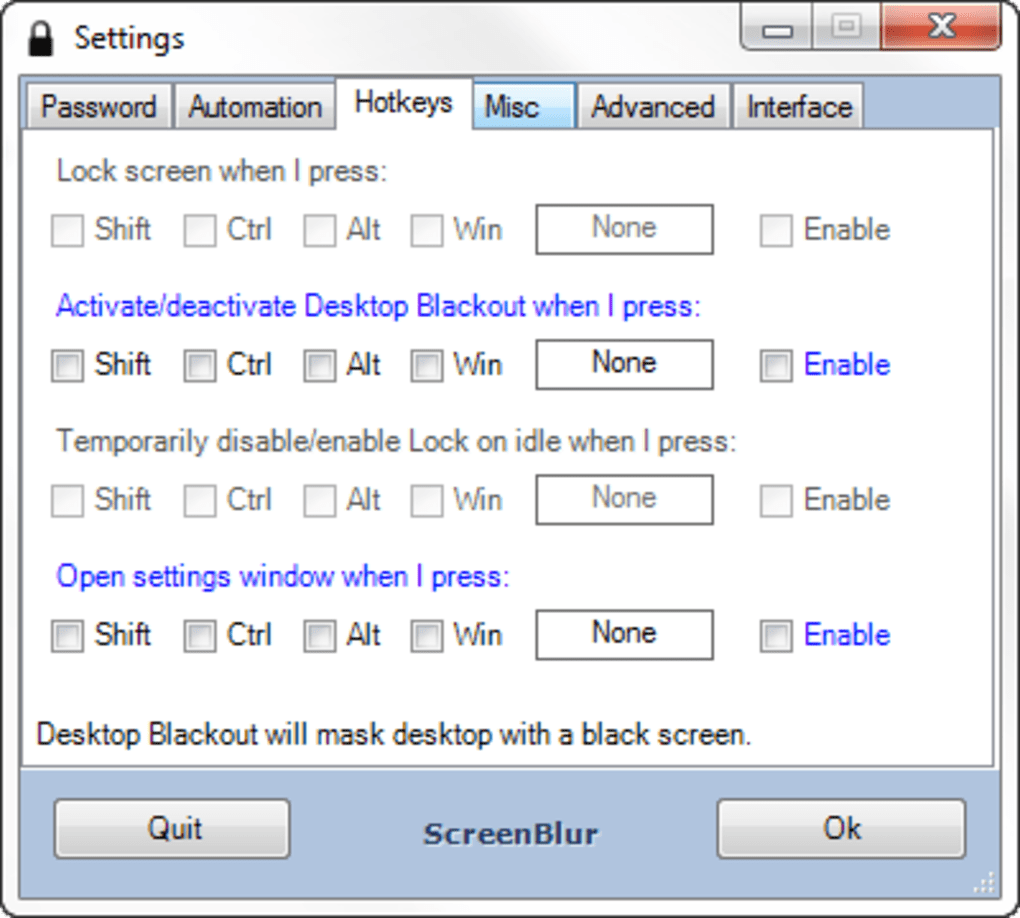
Hotkeys and keyboard shortcuts are another crucial aspect of efficient security software. ScreenBlur likely offers the ability to assign a customizable hotkey combination (e.g., Ctrl+Alt+L) for instant activation. This bypasses the need to navigate to the taskbar icon, making the locking process even faster and more seamless, particularly for users who frequently toggle between an active and locked state. Furthermore, options to disable specific system shortcuts (like Alt+Tab or Ctrl+Esc) while the screen is locked would prevent unauthorized users from attempting to bypass the lock through system-level commands, thereby bolstering security.
For environments with multiple users, multi-user support and profile management could be a valuable feature. While not explicitly detailed in the provided snippet, “loads of options” could suggest that ScreenBlur might allow for different password configurations for various user accounts on the same machine, or even separate settings profiles for different security contexts (e.g., a stricter profile for public use, a more relaxed one for private use). This would cater to shared computer environments, ensuring that each user’s privacy is respected.
Advanced users might appreciate notification and alert settings. ScreenBlur could include options to display specific messages on the locked screen, such as a “This computer is locked. Please do not disturb” message, or even a way to receive alerts if unauthorized access attempts are made (though the latter is more common in comprehensive security suites). While ScreenBlur focuses on prevention, such features would add another layer of utility.
The software’s configurability extends to its automatic activation settings. Users can precisely define the duration of inactivity before the screen locks, from a few seconds to many minutes. This granular control is essential for balancing security requirements with user convenience. Additionally, options like locking upon system resume from sleep or hibernation, or even integrating with power management settings, would ensure comprehensive coverage across various system states.
Finally, the password management component itself offers various security options. ScreenBlur would undoubtedly allow users to set strong, alphanumeric passwords, potentially with options for password strength indicators or periodic password change reminders. While the current version doesn’t mention multi-factor authentication, the framework for “loads of options” could potentially accommodate future enhancements like integration with biometric authenticators (fingerprint readers) or hardware tokens, pushing its security capabilities even further. These robust customization features ensure that ScreenBlur is not just a simple screen locker but a versatile tool adaptable to a diverse range of user needs and security postures.
Installation, Performance, and Compatibility
Acquiring and deploying ScreenBlur is a straightforward process, reflecting InDeep Software’s commitment to user-friendliness. Users can easily download the free application directly from reputable software platforms like PhanMemFree.org. The download process is quick, owing to the software’s remarkably compact file size, typically around 861.72 KB. This small footprint means it downloads rapidly even on slower internet connections and consumes negligible storage space on your hard drive.
Once downloaded, the installation is equally uncomplicated. A standard Windows installation wizard guides the user through a few simple steps, typically involving agreeing to the terms of service and selecting an installation directory. There are no complex configurations or hidden bundled software, ensuring a clean and hassle-free setup. This ease of installation is a significant advantage, particularly for users who may be less technically inclined or who need to quickly deploy the software across multiple machines.
Regarding system requirements, ScreenBlur is designed to be highly compatible across various Windows versions. While the reference material specifically mentions Windows XP, indicating its long-standing presence and stability, it is safe to infer that later versions of Windows, including Windows 7, 8, 10, and 11, are fully supported. The software’s lightweight nature ensures that it runs smoothly on both older and modern hardware configurations, without demanding significant processor power or memory. This broad compatibility makes ScreenBlur an accessible security solution for a wide user base, from individuals with older machines to organizations running diverse IT environments.
In terms of performance, ScreenBlur is exemplary. Its minimal resource consumption means it operates discreetly in the background, without causing system slowdowns or conflicts with other applications. The activation and deactivation of the screen lock are instantaneous, with no noticeable lag. This seamless integration into the Windows environment ensures that the security measure enhances productivity rather than hindering it. Users can quickly lock their screen and return to their work without enduring any delays, a critical factor for any utility that aims to be a constant companion in the digital workspace.
The Importance of Digital Privacy in an Interconnected World
In an era defined by ubiquitous connectivity and the pervasive nature of digital data, the concept of privacy has evolved beyond merely protecting online activities. Physical access to a computer, even momentarily, can compromise sensitive information, making screen locking utilities like ScreenBlur more critical than ever. Whether you’re a professional handling confidential client data, a student working on academic papers, or an individual managing personal finances and communications, the information displayed on your screen is a potential target.
Consider the diverse scenarios where ScreenBlur becomes invaluable:
- The Corporate Environment: In open-plan offices, shared workspaces, or even individual cubicles, leaving a computer unattended for a short period can expose proprietary information, client lists, or internal communications to colleagues, visitors, or even cleaning staff. ScreenBlur provides an immediate visual and technical barrier, preventing accidental glances or deliberate snooping.
- Public and Educational Settings: Libraries, university computer labs, co-working spaces, and cafes are common places where individuals work on their laptops. The risk of someone casually walking by and seeing sensitive data, or even briefly interacting with an unlocked machine, is high. ScreenBlur offers peace of mind, allowing users to step away from their devices knowing their screen content is secure.
- Home Environment: Even at home, privacy can be a concern. Children, curious guests, or other family members might inadvertently (or intentionally) access personal emails, financial information, or ongoing projects. ScreenBlur ensures that your digital workspace remains your private domain.
- Remote Work and Hybrid Models: With the rise of remote and hybrid work models, home offices often blend with living spaces. The need to quickly secure a screen when moving between tasks or interacting with family members is paramount to maintaining professional boundaries and data security.
ScreenBlur addresses these challenges head-on by offering an immediate, effective, and visually distinct layer of protection. It reinforces the principle that digital security isn’t just about firewalls and anti-malware; it’s also about controlling physical access to the display of your information.
ScreenBlur in the Landscape of Security Tools
The market for security software is vast, encompassing everything from comprehensive antivirus suites to specialized tools like password managers and encryption utilities. Within this landscape, screen lockers occupy a particular niche, focusing on physical access control to the desktop. ScreenBlur stands out among its peers, often providing a unique blend of functionality and user experience.
When evaluating alternatives, one might consider solutions like Matrix Screen Locker or Lock My PC, which are also designed to secure your computer. While these applications provide similar password protection, ScreenBlur’s distinctive blurring effect offers a key differentiating factor. Rather than a solid, potentially jarring lock screen, the blurred view maintains a softer aesthetic while effectively obscuring content. This visual approach can be more appealing and less intrusive for many users.
Other related tools, though not direct competitors in terms of primary function, include Free Folder Lock for file and folder protection, or powerful password managers like Kaspersky Password Manager or Bitwarden, which secure credentials rather than the entire desktop. BitLocker Password recovery tools or even operating system-native lock screens (like Windows’ own Win+L function) exist, but ScreenBlur offers a more customizable and visually unique alternative, particularly with its “loads of options” that go beyond basic system functions.
The advantage of ScreenBlur lies in its dedicated purpose and user-centric design. It doesn’t attempt to be an all-encompassing security suite, but rather excels at its specific task: providing immediate, password-protected screen privacy with a unique blurred interface. Its lightweight footprint, ease of use, and robust customization options make it a compelling choice for users who prioritize efficient physical desktop security without unnecessary overhead. Compared to more complex enterprise solutions or trialware alternatives, ScreenBlur’s free license from PhanMemFree.org and straightforward functionality positions it as an accessible and highly effective tool for everyday personal and professional use.
In conclusion, ScreenBlur by InDeep Software is more than just a screen locker; it’s an essential component of a comprehensive digital privacy strategy. Its unique blurring interface, combined with flexible activation methods and extensive customization options, provides an elegant and effective solution for protecting your Windows desktop from unauthorized access. In an age where digital information is precious, ScreenBlur offers peace of mind, ensuring your screen remains private and your data secure, whenever you step away.
File Information
- License: “Free”
- Latest update: “June 25, 2025”
- Platform: “Windows”
- OS: “Windows XP”
- Language: “English”
- Downloads: “6.4K”
- Size: “861.72 KB”


