
Scrivener, long a favorite among Mac users, has finally arrived on Windows. This comprehensive writing project management tool offers a robust suite of features designed to streamline the writing process from initial brainstorming to final publication. While the Windows version may lag slightly behind its Mac counterpart in terms of feature parity, it remains a powerful tool for authors of all levels. This review will delve into the software’s functionality, strengths, and weaknesses to provide a comprehensive understanding of its capabilities.
Installation and Initial Impressions
Installing Scrivener for Windows is straightforward. The installation process is quick and uncomplicated, with clear instructions. Upon completion, the software immediately prompts new users to watch a tutorial, a recommendation that is strongly endorsed. This roughly 30-40 minute tutorial, accessible via the “Help” tab, proves invaluable, easing the learning curve considerably. Even without the tutorial, the initial launch presents users with a clear selection of project templates, including options for fiction, non-fiction, poetry, and screenwriting. This initial ease of access is a welcome introduction to the software’s more complex features.
Exploring the Three Core Views: Text, Corkboard, and Outline
Scrivener’s strength lies in its multifaceted approach to project organization. Each document type within Scrivener offers three distinct views: a simple text editor, a corkboard view, and an outline view.
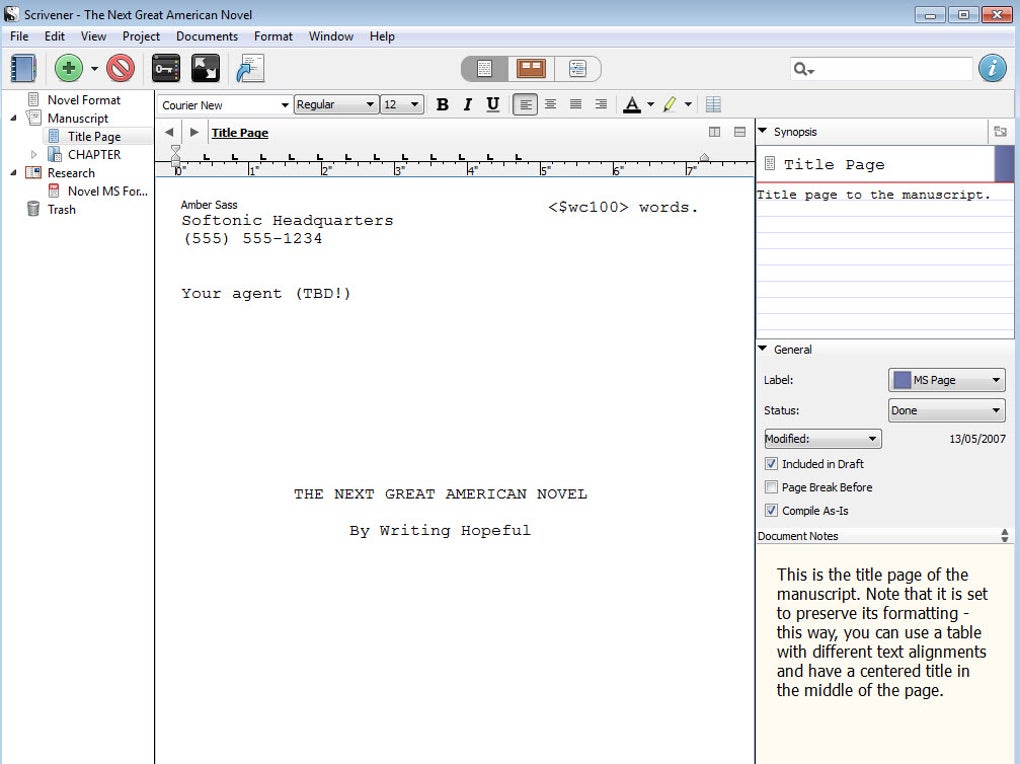
The text view is exactly what it sounds like – a clean, distraction-free writing environment focused solely on the text itself. This mode is ideal for uninterrupted writing sessions, allowing writers to focus on crafting their prose without the clutter of organizational elements.
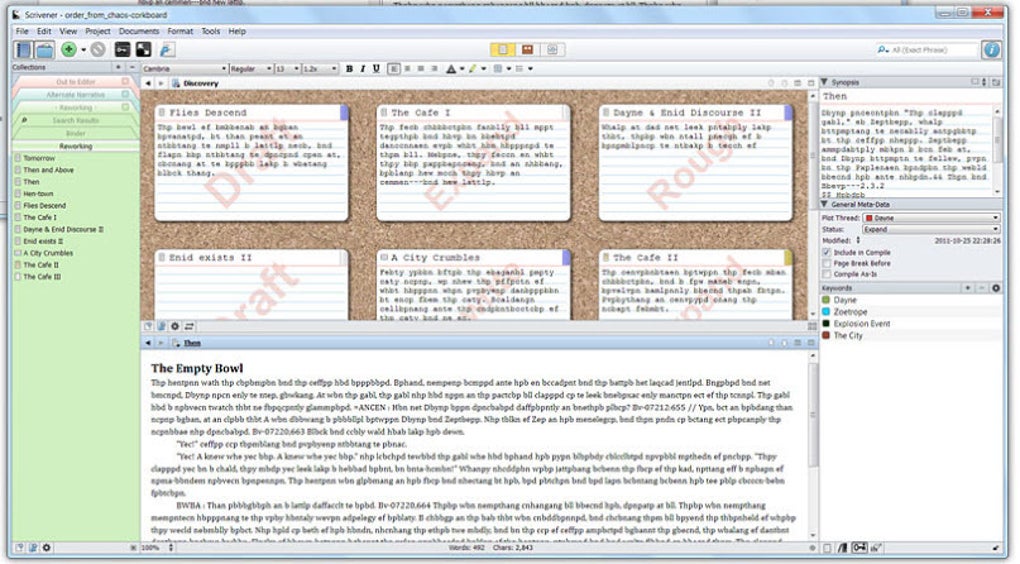
The corkboard view represents a unique and powerful feature of Scrivener. This visual workspace allows writers to arrange individual scenes or sections of their work as virtual “cards” on a digital corkboard. Each card can be labeled with chapter numbers, scene descriptions, keywords, or any other relevant metadata. This visual representation provides a dynamic overview of the project’s structure, facilitating easy reorganization and identification of potential plot holes or narrative inconsistencies. Writers can drag and drop cards to rearrange scenes, add new cards for fresh ideas, and easily visualize the overall flow of their narrative.
The outline view provides a structured hierarchical list of all documents within the project. This view displays each document’s title, labels, status (e.g., “first draft,” “complete,” “needs revision”), and a synopsis of its content. This organized overview allows writers to quickly navigate their project, track progress, and identify areas requiring attention. The outline view is particularly helpful for managing large and complex writing projects, allowing for a clear overview of the entire work’s structure and progression. The ability to easily navigate between these different views provides an unparalleled level of flexibility and organizational control.
Mastering Scrivener: Navigating the Learning Curve
While Scrivener’s versatility is a significant advantage, its initial learning curve is undeniably steep. The software’s functionality is rich, and newcomers might find the interface overwhelming. The integrated tutorial is an essential resource, offering step-by-step guidance on using the core features. However, even with the tutorial, discovering all the intricacies and nuanced features takes time and dedicated effort. The software’s depth of functionality, while ultimately beneficial, can present an initial challenge for those accustomed to simpler writing applications.
The lack of immediate intuitiveness is a noticeable downside. While experienced users will likely appreciate the breadth of options, beginners might feel lost or frustrated without the accompanying tutorial. The learning curve could be significantly mitigated by a more streamlined initial experience, perhaps with more intuitive default settings or a simplified introductory mode for new users.
Strengths and Weaknesses: A Balanced Perspective
Scrivener’s strengths are undeniable. Its multi-view approach to document management is revolutionary, allowing for unparalleled organization and flexibility. The corkboard view, in particular, provides a unique and insightful tool for visualizing and manipulating the narrative structure of a project. The ability to label, categorize, and annotate individual sections offers an exceptional level of control over the writing process. Furthermore, the built-in tools for compiling and exporting the final manuscript in various formats simplifies the publication process. The robust support via the interactive and video tutorials demonstrates a commitment to user experience, even acknowledging the complexity of the software.
However, the software is not without its shortcomings. The Windows version, as noted by some users, still lags behind its Mac counterpart in terms of features and overall polish. Some users have reported bugs and performance issues, highlighting the need for continued development and refinement. The steep learning curve, even with the tutorials, remains a barrier to entry for some writers. While the comprehensive features are highly valuable for large-scale projects, they might prove overly complex for those simply looking for a basic word-processing experience. The limited exporting options to formats outside the standard publishing formats could be improved. The lack of cloud synchronization across devices further limits usability in a collaborative context.
Comparison to Alternative Writing Software
Compared to simpler word processors like Microsoft Word or Google Docs, Scrivener offers a vastly different approach to writing. Where those applications focus primarily on text editing, Scrivener prioritizes project management and organization. While Word or Docs might suffice for shorter projects, Scrivener excels when dealing with complex, multi-part works. The corkboard view and extensive metadata features are simply not replicated in other comparable software.
Alternatives like yWriter, FocusWriter, and Storybook offer simpler, more streamlined interfaces, but lack the comprehensive organizational features of Scrivener. These alternative tools cater to writers who prioritize a minimalist writing experience, focusing on uninterrupted text creation. Ultimately, the choice between Scrivener and these alternatives depends on the individual writer’s needs and preferences. Scrivener aims for comprehensive organization, while others prioritize distraction-free writing environments.
Conclusion: A Powerful Tool for Serious Writers
Scrivener for Windows, despite its learning curve, remains a powerful and versatile tool for serious writers. Its strengths lie in its unique organizational features, particularly the corkboard view and the ability to manage large, complex projects with ease. The comprehensive compilation and export options simplify the final stages of the writing process. While some bugs and missing features might be frustrating, the overall functionality and potential benefits for organized writing make Scrivener a worthwhile investment for those willing to dedicate the time to master its complexities. The availability of a comprehensive tutorial mitigates much of the learning curve’s difficulty, making the software accessible to determined writers. For those seeking a highly organized and efficient writing environment, Scrivener offers an unparalleled level of control and flexibility.
File Information
- License: “Free”
- Latest update: “December 11, 2024”
- Platform: “Windows”
- OS: “Windows 11”
- Language: “English”
- Downloads: “40.5K”


