
SD cards are essential components of many electronic devices, from smartphones and cameras to tablets and laptops. These small but mighty storage devices allow us to easily transfer and store large amounts of data. However, over time, SD cards can become corrupted, filled to capacity, or simply need a fresh start. In such situations, reformatting becomes necessary. This guide explores the SD Memory Card Formatter, a popular and readily available tool for accomplishing this task. We will delve into its functionality, advantages, limitations, and alternatives.
Understanding the Need for SD Card Formatting
Before diving into the specifics of the SD Memory Card Formatter, let’s clarify why formatting an SD card is sometimes necessary. There are several reasons why you might want to reformat your SD card:
-
Space Management: As you store more data on your SD card, it eventually fills up. While you can manually delete files, reformatting provides a faster and more comprehensive solution to reclaim all available space. It erases all data and creates a completely clean slate, ready for new files.
-
Data Corruption: SD cards, like any storage device, are susceptible to data corruption. This can occur due to various factors, including power failures, accidental removal, or even physical damage. Corrupted data can lead to errors, slowdowns, and even data loss. Reformatting can often resolve these issues by rebuilding the file system.
-
Troubleshooting Issues: If you’re experiencing problems with your SD card—such as your device unable to read it, or errors appearing when trying to access files—reformatting can sometimes be a helpful troubleshooting step. It’s often a simpler fix than more complex repairs.
-
Preparing for New Devices: When using an SD card with a new device or operating system, reformatting can ensure compatibility. Different operating systems may have different file system requirements, and formatting to the appropriate system can resolve any incompatibility issues.
-
Selling or Giving Away an SD Card: Before selling or gifting your SD card, it’s crucial to erase all personal data. Reformatting completely removes all existing information, ensuring your privacy.
Introducing SD Memory Card Formatter
The SD Memory Card Formatter, developed by the SD Association, is a dedicated tool designed specifically for formatting SD memory cards. It offers a simple and straightforward interface, making it accessible to users of all technical skill levels. The software is primarily intended for Windows-based operating systems, offering a quick and efficient method for reformatting SD cards.
Key Features and Functionality
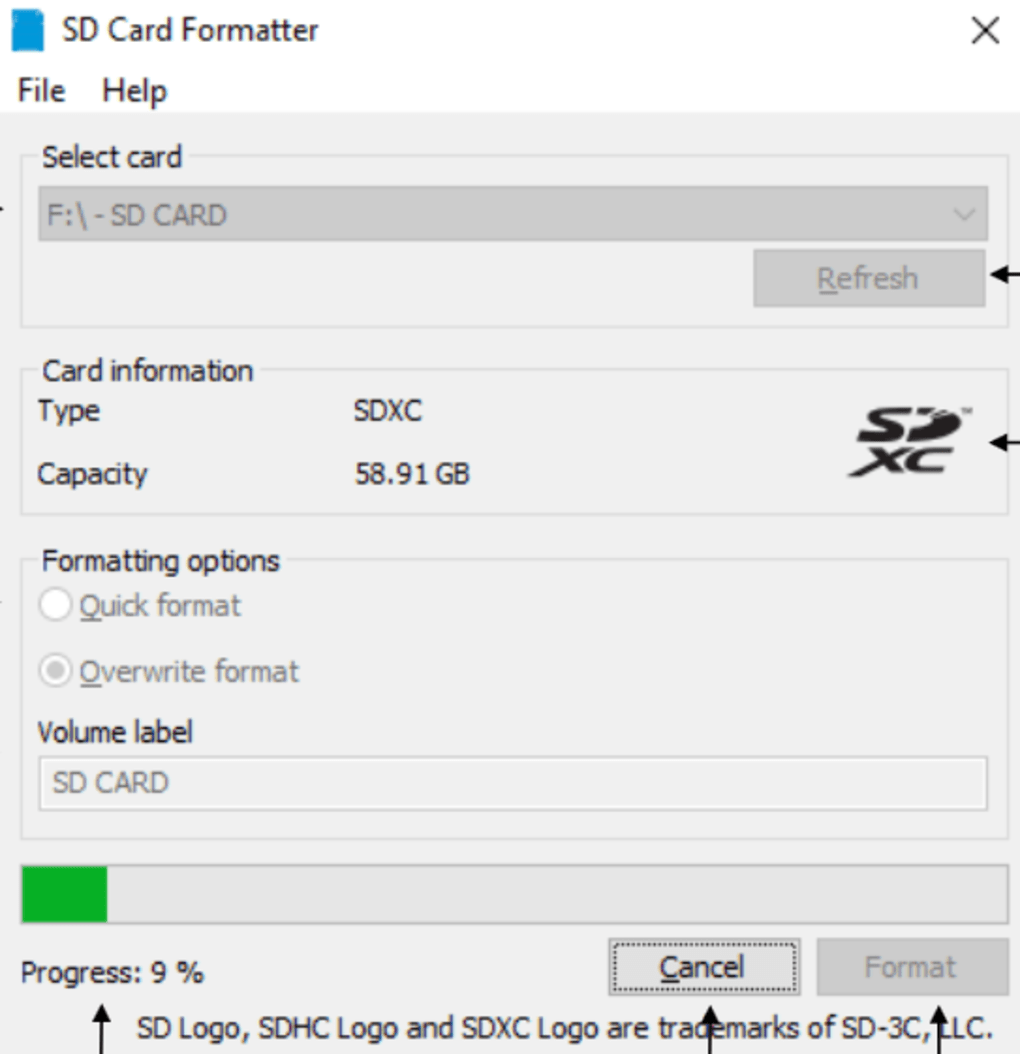
The SD Memory Card Formatter’s primary function is, as its name suggests, to reformat SD cards. This involves erasing all data on the card and rebuilding the file system. While seemingly simple, this process is crucial for ensuring the card’s functionality and data integrity. The software’s interface is minimalistic, focusing on ease of use. The key features include:
-
Quick Formatting: This option performs a relatively fast format, suitable for most situations. It overwrites the file allocation table and prepares the card for immediate use.
-
Overwrite Formatting: This option provides a more thorough format, repeatedly overwriting the data on the card multiple times. This makes it more difficult for data recovery tools to retrieve the deleted information. This option is recommended for situations where data security is paramount, such as before selling or disposing of an SD card.
-
Support for Various SD Card Types: The SD Memory Card Formatter supports a wide range of SD card sizes and types, including SD, SDHC, and SDXC cards.
-
Windows Compatibility: The software is designed specifically for Windows, integrating seamlessly with the operating system.
Advantages of Using SD Memory Card Formatter
The software offers several advantages over other formatting methods, including:
-
Simplicity: The user-friendly interface requires minimal technical knowledge. Even novice users can easily reformat their SD cards.
-
Efficiency: The formatting process is generally fast and efficient, reducing downtime.
-
Security: The overwrite formatting option enhances data security, making data recovery significantly more challenging.
-
Reliability: Developed by the SD Association, the software is generally reliable and trustworthy.
Limitations of SD Memory Card Formatter
While the SD Memory Card Formatter is a useful tool, it does have some limitations:
-
Windows Only: The software is exclusively available for Windows operating systems. Users of macOS, Linux, or other operating systems will need to seek alternative solutions.
-
Lack of Advanced Options: The software lacks advanced options often found in more comprehensive disk management tools. For instance, you cannot select specific file systems beyond the standard options, or perform low-level formatting.
-
No Data Recovery Functionality: The SD Memory Card Formatter is solely for formatting. It does not include any data recovery capabilities. If you accidentally format a card containing important data that you haven’t backed up, you’ll need a separate data recovery tool.
Alternatives to SD Memory Card Formatter
While the SD Memory Card Formatter serves its purpose well, alternative options exist, offering different features and functionalities:
-
Disk Management (Windows): Windows’ built-in Disk Management tool provides a comprehensive solution for formatting various storage devices, including SD cards. This offers more control over file system selection and other formatting options.
-
Third-Party Disk Utility Software: Various third-party disk utility software provides advanced features for managing and formatting storage devices. These tools often include data recovery capabilities, partition management options, and more. Examples include EaseUS Partition Master, MiniTool Partition Wizard, and Paragon Partition Manager. However, selecting a reputable program is crucial to avoid malware.
-
macOS Disk Utility: Mac users can utilize the built-in Disk Utility for formatting SD cards. This tool offers similar functionality to Windows’ Disk Management.
Step-by-Step Guide to Using SD Memory Card Formatter
Using the SD Memory Card Formatter is straightforward. Here’s a step-by-step guide:
- Download and Install: Download the SD Memory Card Formatter from the official SD Association website. Install the software on your Windows computer.
-
Insert the SD Card: Safely insert your SD card into your computer’s SD card reader or USB adapter.
-
Launch the Software: Open the SD Memory Card Formatter application.
-
Select the SD Card: The software should automatically detect your SD card. Verify that the correct card is selected.
-
Choose Formatting Options: Choose between “Quick Format” and “Overwrite Format”. “Quick Format” is faster, while “Overwrite Format” provides enhanced data security.
-
Start Formatting: Click the “Format” button to begin the formatting process.
-
Wait for Completion: The formatting process will take some time, depending on the size of your SD card and the chosen formatting option. Do not remove the card during this process.
-
Verify Formatting: Once complete, verify that the SD card is formatted and ready to use.
Conclusion
The SD Memory Card Formatter provides a simple and efficient way to reformat SD cards. Its straightforward interface and reliable functionality make it a suitable choice for most users. However, understanding its limitations, particularly its Windows-only availability, is important. For users requiring more advanced features or those using different operating systems, alternative formatting tools provide broader capabilities. Regardless of the chosen method, always back up important data before reformatting to avoid potential data loss. Remember to always exercise caution when working with any formatting tool and ensure you are using reputable software to prevent malware infection.
File Information
- License: “Free”
- Latest update: “July 12, 2023”
- Platform: “Windows”
- OS: “Windows 8.1”
- Language: “English”
- Downloads: “54.6K”
- Size: “6.42 MB”


